


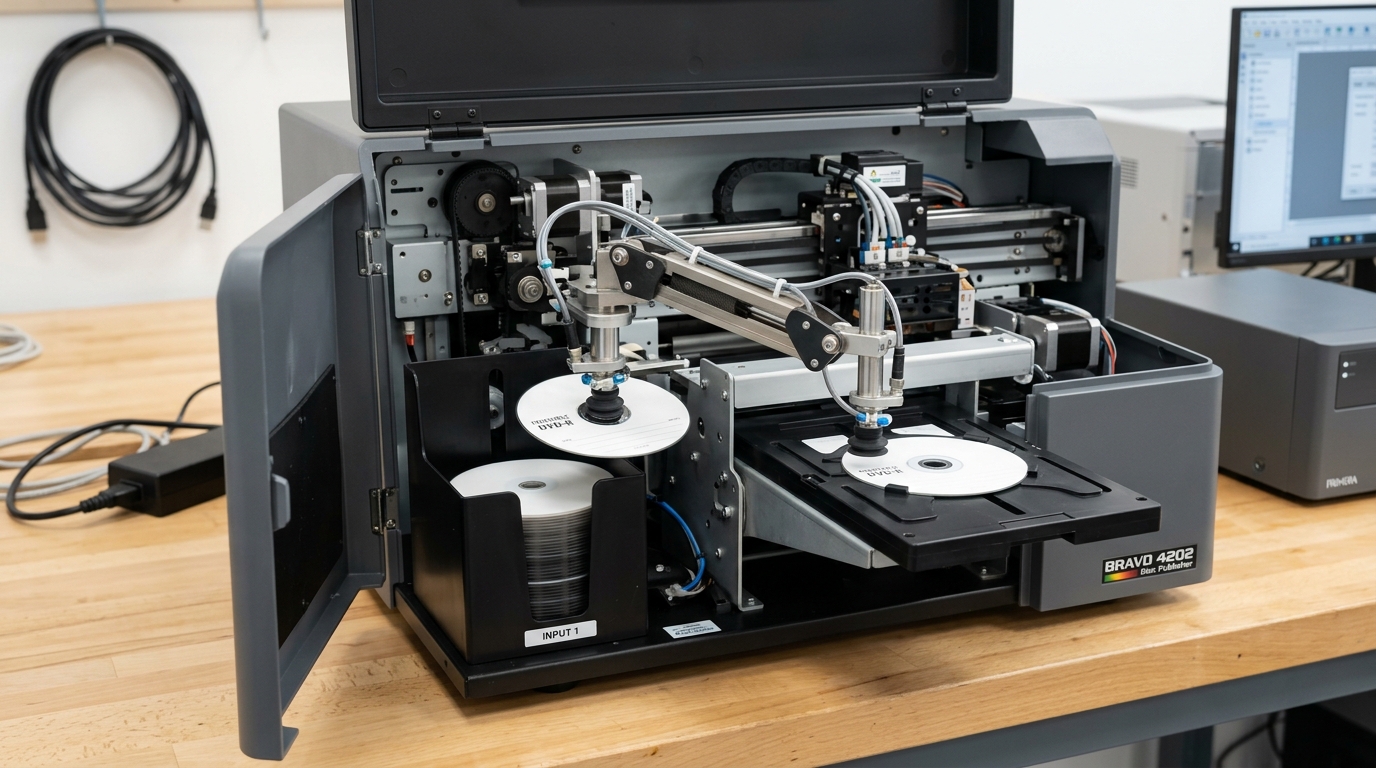
Understanding Discproducer Print Stalls
The Epson Discproducer PP-100 and PP-50 series combine optical burning drives with a dedicated 6-color Micro Piezo inkjet engine. A print stall typically occurs after burning completes successfully.
When the internal disc tray fails to align with the printhead carriage, or the printer enters an undetected error pause, Total Disc Maker aborts the print phase.
Step 1: Check Total Disc Monitor for Silent Errors
Epson Total Disc Maker pauses operations without prominent desktop notifications if a background warning triggers:
- Open Total Disc Monitor: Look for the Discproducer icon in your Windows notification tray and double-click it.
- Verify publisher status: Check if the status displays "Ink Low", "Drive Door Open", or "Print Data Error".
- Clear stalled queues: If a job shows "Printing Suspended", click Cancel Job to clear the memory buffer.
- Restart the Disc Monitor service: Restart the Epson Total Disc Status Monitor service through Windows Service Manager.
Step 2: Inspect the Internal Disc Tray Mechanism
The internal print tray must extend smoothly beneath the AcuGrip robotic arm to receive media:
- Open the front access door: Inspect the lower disc tray track for media debris, dust, or stuck discs.
- Check tray guide alignment: Ensure the motorized printer tray glides freely along its guide rails without mechanical binding.
- Clean the optical tray sensor: Wipe the reflective home-position sensor on the tray frame using a dry microfiber swab.
- Re-seat the carriage cover: Ensure the internal print carriage shield is clicked firmly into place.
Step 3: Run Micro Piezo Head Cleaning and Nozzle Check
Individual clogged nozzles in the 6-color printhead can prevent ink expulsion across the entire surface:
- Open Total Disc Setup Tool: Navigate to the Maintenance tab within the Epson Discproducer setup utility.
- Print a nozzle check pattern: Run a nozzle test onto a blank test disc or test sheet.
- Examine color bands: Inspect the cyan, magenta, yellow, light cyan, light magenta, and black stair-step lines.
- Execute head cleaning: If breaks appear, perform a cleaning cycle and let the ink rest for 10 minutes before retesting.
Step 4: Verify Disc Surface and Media Settings
Incorrect print settings cause the printer driver to halt or smear ink across glossy media:
- Confirm printable media: Use only inkjet-printable CD/DVD/BD discs with a dedicated matte or glossy coating.
- Check print profile: In Total Disc Maker, set the Media Type to match your exact disc coating (e.g., WaterShield or Matte).
- Adjust inner/outer diameter: Ensure print boundary diameters match the disc face (standard outer 116mm, inner 21mm).
Frequently Asked Questions
Why does my Discproducer burn the disc but skip printing completely?
This occurs when the job mode is set to "Burn Only" or when the printer driver encounters an unrecognized disc surface profile.
What ink cartridges does the Epson Discproducer use?
The PP-100 series uses six individual high-capacity PJIC ink cartridges (PJIC1 through PJIC6).
How do I reset an AcuGrip transport error?
Power off the Discproducer, remove any dropped discs from the chassis floor, close the door, and power the machine on.
