


The Quick Answer
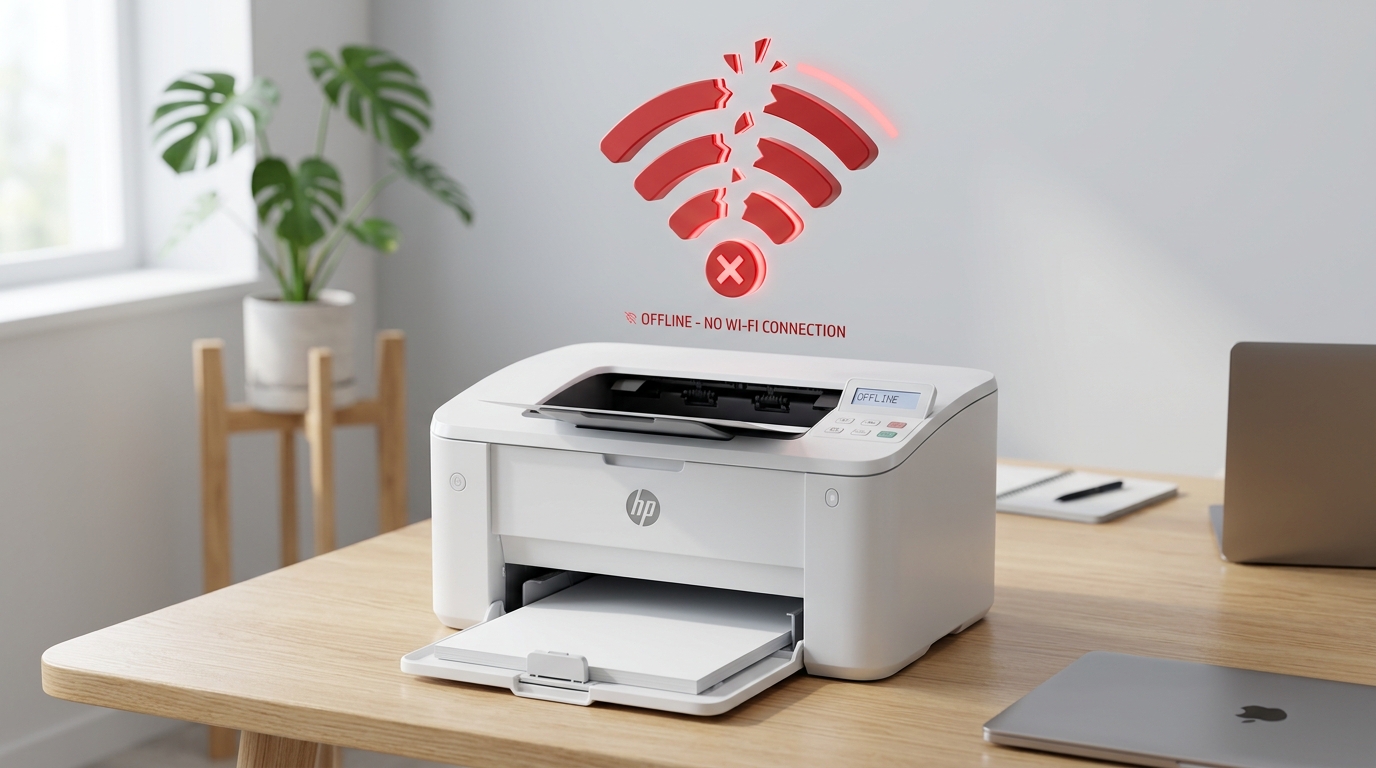
HP LaserJet M111w showing offline in Windows? A repair tech covers the usual fixes plus the stuck spool file trick most people never try.
The printer's lights are on. It's plugged in, or connected to Wi-Fi, and by every visible sign it's ready to work.HP LaserJet M111w as offline anyway, and no amount of clicking "print" changes anything.
This is one of the most common complaints on budget laser printers like the M111w,. In my repair shop, it's almost never the printer's fault — Windows has simply lost track of a device that's sitting right there, perfectly healthy.
Let's work through the fixes in order. Ending with a slightly more advanced trick that clears the stubborn cases everything else leaves behind.
Quick-Fix Summary
Fast version:
- Reseat the connection — cable or Wi-Fi, confirm it's solid.
- Uncheck "Use Printer Offline" in the print queue — Windows sets this by itself more than people realize.
- Restart the Print Spooler service.
- Set the printer as default and remove any duplicate entries.
- Manually clear the spool folder if a stuck job survives everything above — my uncommon tip.
Fix 1: Confirm the Physical Connection
For USB: unplug the cable from both ends and reconnect firmly, directly into the computer rather than through a hub. For Wi-Fi: confirm the M111w shows a solid, connected status on its own control panel. And that it's joined to the same network your computer is using.
Why this works:Windows decides "offline" the instant it can't complete a basic handshake with the printer. And a half-seated cable or a printer that's silently dropped its Wi-Ficonnection produces exactly that failure.
This is the cheapest check on the list. So it goes first even though it rarely turns out to be the answer on its own.
Fix 2: The Checkbox Windows Sets Without Asking
Open Settings → Bluetooth & devices → Printers & scanners, click your M111w, then Open print queue. In the queue window's Printer menu, look for Use Printer Offline If it's checked, click it to remove the check.
Why this works:Windows can enable this setting on its own after a failed print job. A moment where the printer briefly droppedconnection— and once it's set, the printer stays "offline" by Windows' own decision.
Regardless of whether the hardware is actually fine. It's a single checkbox hiding in a menu almost nobody opens.
And it's one of the most common software-side causes of this exact complaint.
Fix 3: Restart the Print Spooler
Press the Windows key, type services, open the Services app, find Print Spooler, right-click it, and choose Restart Afterward, open your print queue and cancel any stuck jobs before trying again.
Why this works: the spooleris the background service that feeds every print job to the printer, and one corrupted. Job can jam the whole line behind it — Windows then reports the printer as offline or stuck, even though the printer itself never had a problem.
Restarting the spooler clears the jam. If this becomes something you need to do weekly.
Fix 5 below is worth doing properly instead of repeating this as a band-aid.
Fix 4: Clear Out Duplicate Printer Entries
Look through your full printer list in Settings → Printers & scanners. If you see more than one entry for the M111w — sometimes labeled with a "(Copy 1)". A slightly different name — that's the culprit.default printer, and remove the stale duplicates.
Why this works: Windows ties each printer entry to a specific connectionpoint, and switching USB ports or reconnecting to Wi-Fi under slightly different conditions can cause. Windows to quietly create a second entry for the same physical printer.
Your documents keep going to the old, dead entry while a perfectly good one sits unused right next to it.
Fix 5: Manually Clear the Spool Folder (My Uncommon Tip)
Here's the fix for the case that survives everything above — where you've restarted the spooler, canceled every job you can see in the queue, and the M111w still shows offline like nothing happened.
Sometimes a print job gets so corrupted that it won't clear through the normal queue. Interface at all — it's technically still sitting on your hard drive as a stuck file, invisible to the usual cancel button, quietly jamming thespooler every time it restarts.
- Press the Windows key, type services, and stop the Print Spooler service (right-click → Stop). Leave the Services window open.
- Open File Explorer and navigate to
C:\Windows\System32\spool\PRINTERS. - Select all files inside thatrong> inside that folder and delete them. Don't worry — these are temporary job files, not printer settings or drivers; deleting them can't damage anything permanent.
- Go back to Services and Start the Print Spooler again.
- Try printing a simple test ef="/kodak/printing-problems/kodak-printer-alignment-failed" title="Fix Kodak Printer Calibration or Alignment Failed Error">test page.
Why this works: the print queueyou normally interact with is really just a window into this folder, and on rare occasions a job corrupts badly enough that it survives a cancel click. A spooler restart, and even a computer reboot — because it's sitting on disk as a broken file the spooler keeps trying and failing to process.
Deleting the folder's contents directly removes the jam at its actual physical location rather than. Asking a broken interface to clear itself.
This is a step most consumer troubleshooting guides skip entirely because it involves navigating to a system folder. But it's a completely safe, well-known technique among people who fix printers for a living, and it resolves offline issues that survive every other standard fix.
When to Call a Professional
If the connection is solid, the offline checkbox is unchecked, the spooler's been restarted, duplicate entries are gone, and the spool folderhas been manually cleared — and the M111w is still showing offline — try it. From a second computer on the same network or via USB as a split test.
Prints fine there? The original computer has a deeper driver or network settings issue worth a clean driver reinstall.
Doesn't print anywhere? Contact HP support with your printer's serial number; a failing network or USB controller inside the printer becomes the more likely explanation.
And it's a standard warranty conversation on a printer this age-appropriate for coverage.
FAQ
Why does my HP LaserJet M111w show offline when it's clearly powered on?
Almost always a Windows-side issue, not a printer problem — a "Use Printer Offline" setting Windows enabled itself, a jammed print spooler. Or a duplicate printer entry receiving jobs meant for a different, inactive listing.
I restarted the spooler and it's still offline. What's next?
Try manually clearing the spool folder at C:\Windows\System32\spool\PRINTERS after stopping the Print Spooler service. This removes stuck job files that survive a normal spooler restart.
Does deleting files from the spool folder delete my printer settings?
No. That folder only holds temporary print job data, not drivers or printer settings. It's completely safe to clear, and Windows rebuilds it automatically as needed.
Should I use USB or Wi-Fi on the M111w to avoid offline issues?
Either works reliably once configured correctly, but USB removes an entire category of network-related offline causes. If you're troubleshooting a persistent offline problem. Testing over USB is a fast way to rule out Wi-Fi as the source.
An HP LaserJet M111w offline fix almost never involves the printer itself. Check the connection, clear the offline checkbox Windows may have set on its own, restart the spooler, remove duplicate entries.
And if none of that sticks, clear the spool folder directly — a technician-level trick that ends the stubborn cases everything else leaves behind.
Additional Resources
If you are still experiencing issues after trying the steps above, you may need to consult the official documentation or download the latest firmware (internal software) for your specific printer model.
