


The Quick Answer
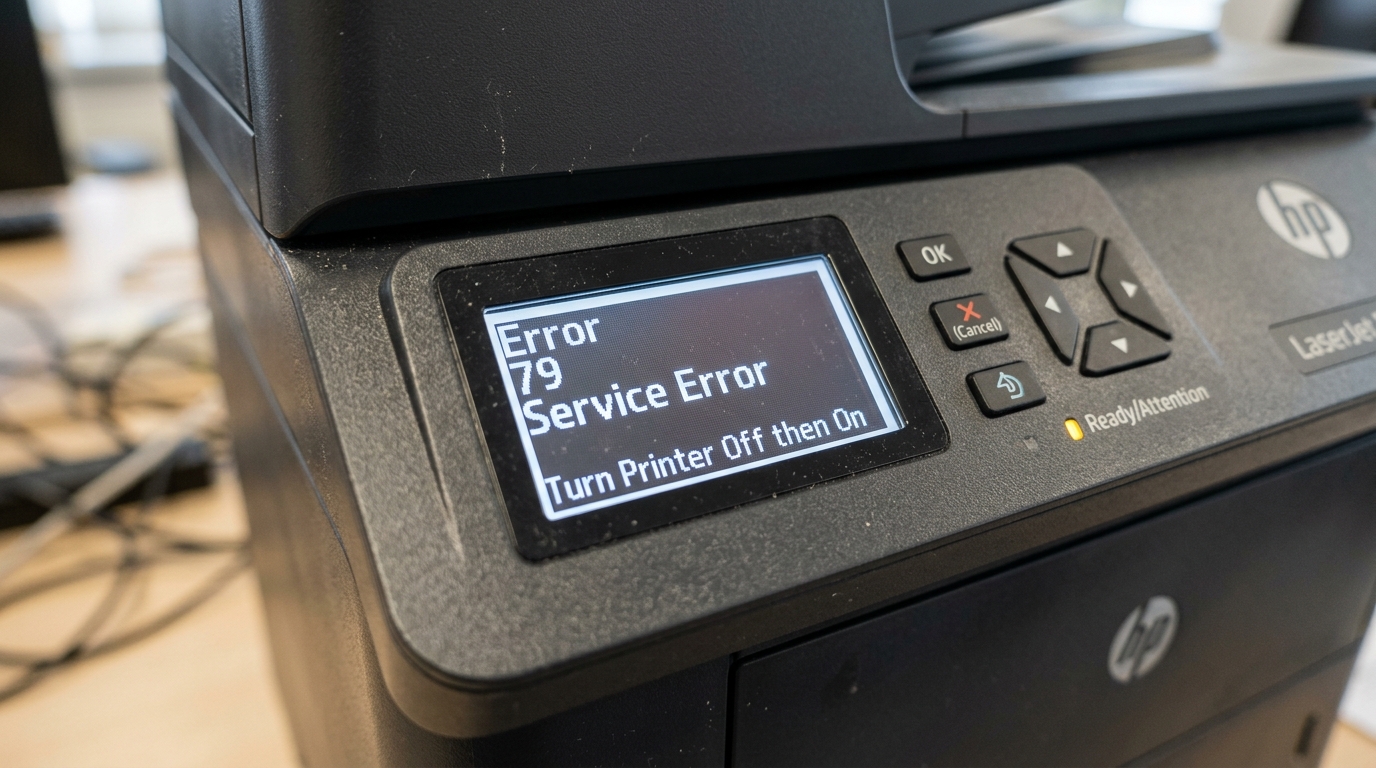
HP printerError 79 service error explained by a repair tech: what triggers it, 5 fixes. The driver mismatch that causes it to keep coming back.
"Turn off then on" is the printer's own suggested fix for Error 79. Here's the frustrating part: it works, briefly, and then the exact same error comes right back a few minutes or a few print jobs later.
If you're stuck in that loop — power cycle, print fine for a while, error returns — you're dealing with one of the more common LaserJet errors. The loop itself is actually a useful clue about what's really going on.
Quick-Fix Summary
Fast version:
- Clear every print queue on every computer connected to the printer.
- True power cycle — unplug from the wall, not just the power button.
- Remove any surge protector — plug directly into the wall outlet.
- Check your print driver — Microsoft's generic driver vs. HP's own. My uncommon tip, and the fix for the recurring loop.
- Update firmware (internal software) if the error follows a specific document type.
What Error 79 Actually Means
Error 79 is a general firmware (internal software) or formatter crash — your printer's internal computer hit something it couldn't process and had to halt.HP's own documentation lists several possible triggers: a corrupted print job, an incompatible memory module. An internal firmware (internal software) fault.
In practice, the most common real-world cause is a print job or driver conflict — something sent to the printer that its firmware (internal software) couldn't parse correctly, causing a crash rather than a clean error message.
Why this matters: the "turn off then on" loop happens because a power cycleclears the crashed state temporarily. If the underlying trigger — a bad queued job, an incompatible driver, a problematic add-on sending malformed data — is still there, the printer crashes again the next time it encounters that same trigger.
Breaking the loop permanently means finding and removing that trigger, not just repeating the reset.
Fix 1: Clear Every Print Queue
On every computer that sends jobs to this printer, open its print queue(Windows: Settings → Printers & scanners → your printer → Open queue). Cancel everything waiting there — not just on the computer you're currently using.
Why this works: a single corrupted print job sitting in a queuecan crash the printer's formatter the instant it reconnects after a reset. Is exactly why the "off then on" fix feels temporary — you cleared the crash, but the landmine that caused it is still queued up waiting to trigger it again.
Fix 2: The True Power Cycle
Power off, then unplug from the wall outlet completely — not just the printer's own switch — and leave it unplugged for a full 30 seconds. Reconnect and power on.
Why this works: this forces a genuine hardware resetof the formatter, clearing the crashed state completely rather than relying on the power button alone. Doesn't always fully reset every internal system.
Fix 3: Remove Any Surge Protector
Connect the printer directly to a wall outlet, bypassing any surge protector, power strip, or UPS.
Why this works:HP's own support documentation specifically flags this as a contributing factor — some surge protectors limit. Smooth current flow in ways that can interfere with the printer's internal power delivery during startup or heavy processing, occasionally triggering exactly this kind of internal fault.
Fix 4: Check Your Print Driver (My Uncommon Tip)
Here's the fix that resolves the specific, maddening pattern where Error 79 keeps returning — clearing on a reset, working for a while, then crashing again, particularly when printing certain documents like PDFs.
Open Printers & scanners, select your HP printer, click Printer properties, and check the Advanced tab for which driver is currently active.
If it shows a generic option like the Microsoft IPP Class Driver, that's very likely your recurring cause. Replace it with the genuine HP PCL-6 (v4) driver, or HP Universal Print Driver, downloaded directly from HP's support site for your exact model.
Why this works: Windows sometimes automatically assigns a generic, manufacturer-neutral driver when a printer is added — one that speaks a simplified, universal printing protocol rather than the specific language your HP printer's formatter actually expects.
For simple print jobs, this generic driver often works fine.. Complex documents — PDFs with embedded fonts, heavily formatted pages, certain print settings — can expose the mismatch between what the generic driver sends and what the printer's firmware (internal software) is actually built to parse, crashing the formatter and producing Error 79.This explains the pattern precisely:
light, simple printing works fine after a reset.
The crash returns specifically when a more complex job comes through, because that's exactly the kind of job most likely to expose a driver mismatch. Installing the correct, model-specific HP driver resolves this at the source, rather than resetting your way past each individual crash.
Fix 5: Update firmware (internal software)
If the error follows a specific application (particularly Adobe Acrobat or similar PDF software) even after correcting the driver, check for. Install the latest firmware (internal software) for your printer through its Embedded Web Server or the HP Smart app.
Why this works: firmware (internal software)updates occasionally address specific parsing bugs related to certain print data types. A printer running older firmware (internal software) may lack a fix HP has already released for exactly this kind of crash.
When to Call a Professional
If you've cleared every queue, performed a true power cycle, removed any surge protector, corrected the driver. Updated firmware (internal software) — and Error 79 still recurs — HP's own documentation points toward a possible incompatible or failing memory DIMM (on models that support add-in memory) or a genuine formatter board fault.Contact HP support with your printer's serial number.
Describe the pattern precisely — whether it's constant or tied to specific documents — since that detail helps narrow their diagnosis toward hardware rather than software.
FAQ
Why does Error 79 keep coming back after I turn the printer off and on?
The reset clears the crash but not whatever triggered it — commonly a corrupted queued job or a generic driver mismatch. Clear every print queue and check whether you're using a genuine HP driver rather than a generic Microsoft one.
Is Error 79 always caused by a driver problem?
Not always — HP also documents corrupted print jobs, insufficient or interrupted power (surge protectors). Incompatible memory modules as causes. But a driver mismatch is the most common cause of the specific pattern where the error clears temporarily and then returns.
How do I know if I'm using the wrong driver?
Check Printers & scanners → your printer → Printer properties → Advanced tab, and look at which driver is listed. If it says something generic like "Microsoft IPP Class Driver" rather than an HP-branded PCL or PostScript driver, that's worth replacing.
Could a surge protector really cause an internal printer error?
Yes — HP specifically documents this as a known contributing factor.Some surge protectors. UPS units limit current flow in ways that can interfere with normal printer operation, particularly during power-hungry processes.
HP printer Error 79 service error is almost always a firmware (internal software) crash with a findable trigger — a stuck print job, a surge protector limiting power, or, in the recurring cases, a generic driver that doesn't speak your printer's native language correctly.
Clear the queues, plug in directly, and check that driver before you resign yourself to another reset.
The loop breaks once you find and remove what's actually causing the crash.
Additional Resources
If you are still experiencing issues after trying the steps above, you may need to consult the official documentation or download the latest firmware (internal software) for your specific printer model. We recommend checking the following official resources:
