


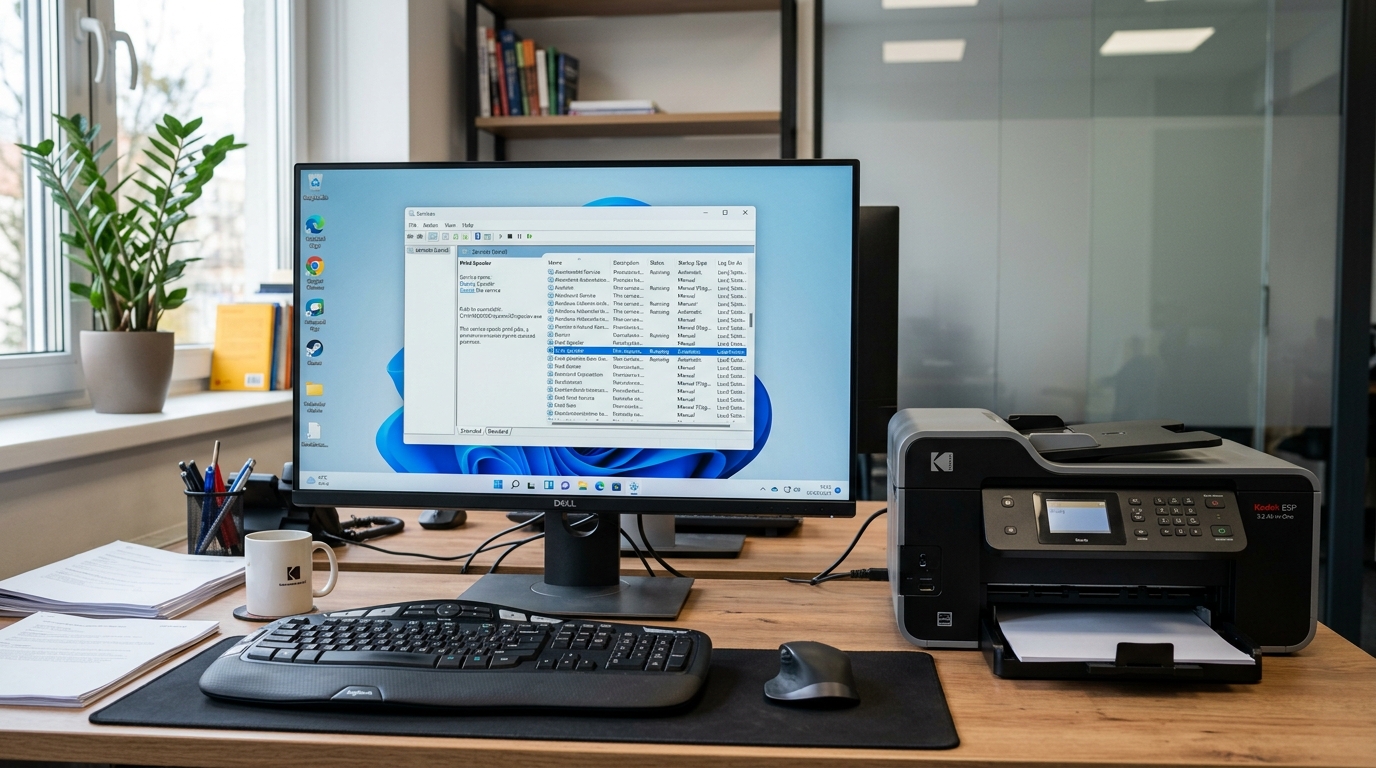
A "Print Spooler Error" occurs when the Windows Print Spooler service — the system background service responsible for sending print data to your printer — crashes or gets stuck in a loop. Kodak printers are especially prone to this error because their legacy drivers can generate spool files (in SPL or SHD formats) that contain metadata structures that modern Windows spoolers cannot interpret.
Once a bad print job is cached, the spooler service will continuously crash on startup, blocking all connected printers. Here is how to purge the spooler directory and reset the service.
The Symptoms of Spooler Failure
If you are experiencing any of the following symptoms, your Print Spooler service is corrupted:
- The print queue shows a job status of "Sent to printer" or "Spooling" indefinitely.
- Clicking "Print" does nothing, and no print queue icon appears in the system tray.
- An error message pops up saying "The Print Spooler service is not running" or "Operation could not be completed."
- The spooler service stops automatically a few seconds after you manually start it in the Services menu.
Fix 1: The Automated Spooler Reset Script (CMD)
Instead of manually clicking through menus, you can use the Windows Command Prompt to stop the service, clear the corrupt cache files, and restart the spooler instantly.
🖥️ Run as Administrator Command Script
net stop spooler
del /Q /F /S "%systemroot%\System32\spool\PRINTERS\*.*"
net start spooler
Instructions:
- Click the Start menu, type cmd in the search bar.
- Right-click Command Prompt and select Run as Administrator.
- Copy and paste the first command: net stop spooler and press Enter. This stops the spooler service from holding locks on any cached print files.
- Copy and paste the second command: del /Q /F /S "%systemroot%\System32\spool\PRINTERS\*.*" and press Enter. This completely deletes all stuck files from the print cache directory.
- Copy and paste the third command: net start spooler and press Enter. This restarts the Print Spooler service with a clean slate.
- Try printing your Kodak document again.
Fix 2: Configure Spooler Recovery Properties
If the spooler continues to crash due to a driver incompatibility, you can configure Windows to automatically restart the spooler service when a crash occurs:
- Press Windows Key + R, type services.msc, and press Enter.
- Find the Print Spooler service, right-click it, and select Properties.
- Select the Recovery tab at the top.
- For the First failure , Second failure, and Subsequent failures options, change the settings from "Take No Action" to Restart the Service.
- Set "Reset fail count after" to '1' day and "Restart service after" to '1' minute. Click Apply and OK.
Fix 3: Disable "Print Spooler LPT" Port Detection
Legacy drivers often search for LPT (parallel) port connections during spooling. This is a common trigger for spooler loops on modern PCs:
- Open Printers & Scanners, select your Kodak printer, and click Printer properties.
- Go to the Ports tab .
- Scroll down the list of ports. If you see any LPT ports (LPT1, LPT2) selected, uncheck them. Ensure only the virtual USB or TCP/IP port assigned to your printer is checked.
- Click Apply and close the window.
Related Kodak Troubleshooting Guides
How the Windows Print Spooler Interacts with Kodak Drivers
The Windows Print Spooler (spoolsv.exe) is the core OS service that buffers print jobs from applications into temporary Enhanced Metafile (EMF) or RAW format and feeds them sequentially to the printer driver. Kodak's legacy print drivers (developed during the Windows 7/8 era) can generate malformed spooler files when handling modern Windows 10/11 PDF print streams, resulting in the print spooler service crashing or hanging indefinitely.
Step-by-Step Spooler Purge and Service Reset
- Stop the Windows Print Spooler Service:
- Press Windows Key + R, type
services.msc, and press Enter. - Scroll down to find Print Spooler.
- Right-click on Print Spooler and select Stop.
- Press Windows Key + R, type
- Delete Corrupted Print Spool Files:
- Press Windows Key + R, type
%systemroot%\System32\Spool\Printers, and press Enter. - If prompted for administrator permission, click Continue.
- Select all files in this folder (these are the stuck
.SHDand.SPLfiles) and press Delete.
- Press Windows Key + R, type
- Restart the Spooler Service:
- Return to the Services window, right-click Print Spooler, and select Start.
- Right-click Print Spooler > Properties. Ensure the Startup type is set to
Automatic.
- Change Driver Spooling Properties:
- Open Control Panel > Devices and Printers.
- Right-click your Kodak printer > Printer Properties > Advanced tab.
- Select "Print directly to the printer" (this bypasses the spooler queue entirely for single-page documents) or select "Start printing after last page is spooled" to avoid mid-stream memory timeouts.
Frequently Asked Questions
Why does the Print Spooler service keep stopping automatically every few minutes?
An automated spooler service crash is caused by an incompatible or corrupted third-party printer driver in the Windows registry. Use the Print Management console (printmanagement.msc) to remove any obsolete printer driver packages.
Can I run Kodak Home Center on Windows 11 without spooler errors?
Yes. Right-click the Kodak Home Center installer or executable, select Properties > Compatibility, and check "Run this program in compatibility mode for Windows 7" and "Run this program as an administrator".
