


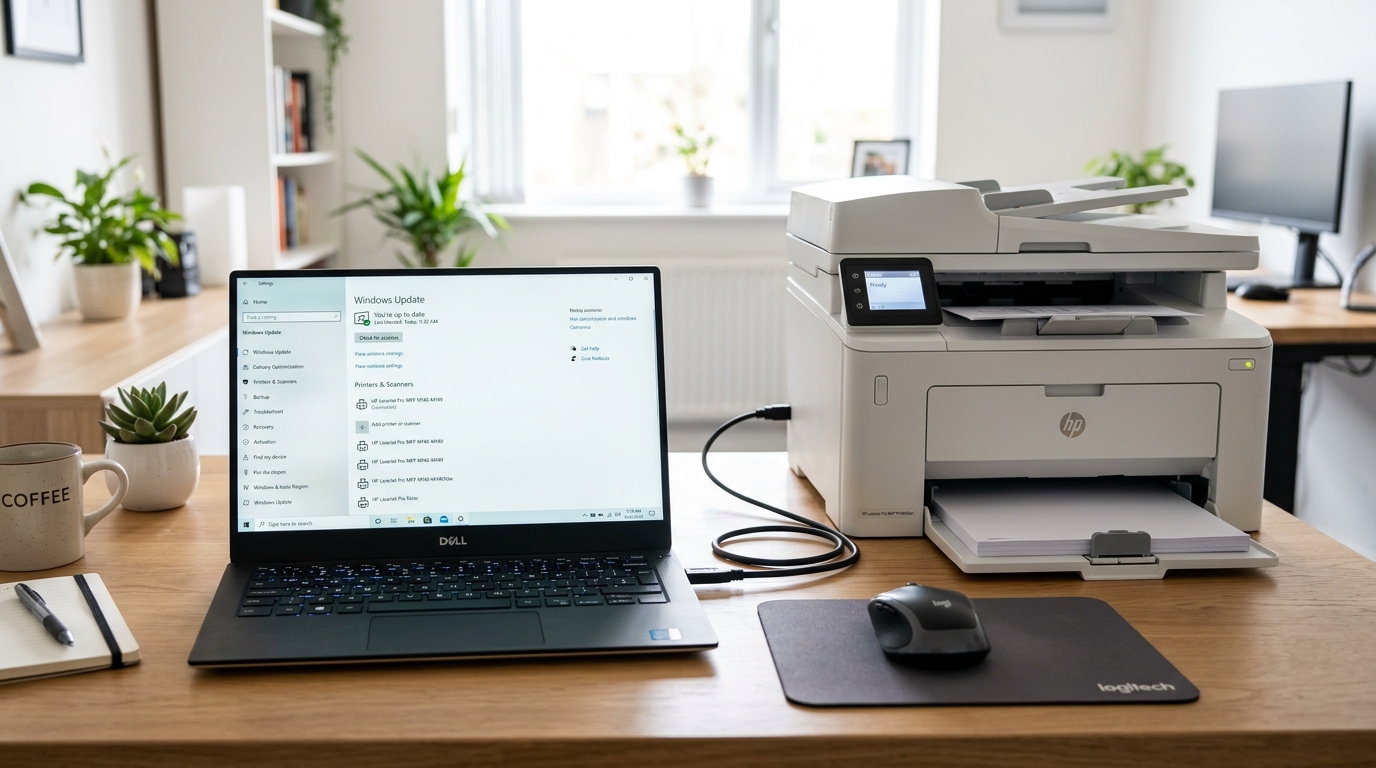
The Master Engineering Guide to Restoring HP Printers After Windows Updates
Windows updates—ranging from monthly cumulative quality patches (such as Patch Tuesday rollouts) to annual feature updates (e. g. , Windows 11 23H2/24H2 and Windows 10 22H2)—are essential for operating system security, kernel stability, and feature enhancements. However, Windows updates are also the single most frequent cause.
Of catastrophic printing pipeline failures in enterprise, commercial, and residential environments.spoolsv.exe, winspool.drv, localspl.dll), reconfigures Remote Procedure Call (RPC) authentication levels, replaces third-party kernel-mode driver shims, and resets local network port bindings.
When this happens, your HP printer may suddenly disappear from Printers & Scanners, display a persistent "Driver is Unavailable" alert, freeze on "Spooling... or "Error - Printing", fail across local network shares with error 0x0000011b, or stay permanently in an "Offline" status despite having active Wi-Fi and power.HP Printer Error Messages:
What They Mean & How to Fix Them, or consult our hardware code directory at HP Printer Error Codes:
Complete List, Meanings & Solutions.
This master guide provides a technical breakdown of the 10 proven engineering fixes required to diagnose, repair. Also, Permanently stabilize HP printing engines following any Windows update. Whether managing a single desktop LaserJet or an enterprise fleet across Active Directory, these solutions will restore full printing functionality.
30-Second Fast Triage Protocol
⚡ Emergency 60-Second Recovery Checklist for Post-Update Printer Lockups:
- Restart the Windows Print Spooler: Open Command Prompt as Administrator and run:
net stop spooler && net start spooler. - Perform a Complete DC Power Drain: Disconnect the AC power cord from the rear of the printer while powered on.Power button for 30 seconds to discharge internal switch-mode power supply capacitors and reset frozen motor controller registers. Reconnect directly to a wall socket.
- Uncheck "Use Printer Offline": Open Control Panel > Devices and Printers, double-click your HP printer, click the Printer menu, and ensure Use Printer Offline is unchecked.
Windows Update Quality vs.
Understanding which type of Windows update triggered your printer failure determines the most effective remediation vector:
| Windows Update Type | Examples / Cadence | Printing Subsystems Modified | Typical Failure Symptom | Primary Fix Strategy |
|---|---|---|---|---|
| Cumulative Quality Update (LCU) | Monthly "Patch Tuesday" (e. g. | RPC authentication, spoolsv.exe security shims, Point-and-Print ACLs. | Network print error 0x0000011b, shared printer mapping drops. | Configure RpcAuthnLevelPrivacyEnabled in registry or roll back specific KB. |
| Feature Update / OS Upgrade | Annual build upgrades (e. g. | Driver Store migration, INF binding tables, WSD device pairing. | "Driver is Unavailable", printer vanishes, generic Microsoft IPP override. | Clean driver removal via printmanagement.msc and full-feature OEM install. |
| Optional Driver Quality Update | Windows Update Optional Updates | Specific vendor class drivers (HP Inc. - Printing - x. x. x). | Loss of custom tray selection, duplexing disabled, scanner broken. | Roll back driver in Device Manager; install HP offline full software suite. |
| Windows Defender Security Patch | Weekly security definitions | Firewall inbound/outbound rules, mDNS/Bonjour UDP 5353 filtering. | Printer permanently "Offline", HP Smart app cannot discover printer. | Switch from WSD to Standard TCP/IP Port; unblock ports 9100 and 5353. |
The 10 Proven Fixes for HP Printers After Windows Update
Fix 1: The Nuclear Windows Print Spooler Deep Purge
When Windows installs an update while documents reside in the print queue, the temporary spool buffer files become corrupted.spoolsv.exe) locks these damaged files into memory, causing the spooler to crash repeatedly or enter an infinite hang state. Standard "Cancel All Documents" clicks in the GUI fail because the OS kernel holds an active file lock.HP Printer Driver Missing After a Windows Update?.
To execute a deep, un-lockable spooler scrub:
- Press Winde>Win + S, type cmd, right-click Command Prompt, and select Run as Administrator.
- Execute the following commands sequentially to stop the spooler, eliminate all locks, and purge disk buffers:
net stop spooler taskkill /F /IM spoolsv.exe del /Q /F /S "%systemroot%\System32\Spool\Printers\*.*" del /Q /F /S "%systemroot%\System32\Spool\SERVERS\*.*" net start spooler - Verify Spooler Service Startup Type & Recovery Triggers: Run
services.msc, locate Print Spooler, double-click it, ensure the Startup type is set to Automatic, and verify that the Recovery tab is set to Restart the Service on First, Second, and Subsequent failures with a reset counter of 1 day.
Fix 2: Eliminating WSD Port Drift with a Fixed Standard TCP/IP Port
By default, Windows uses Web Services for Devices (WSD) to connect to network printers. WSD relies on dynamic device polling and multicast beaconing."Offline" even though its IP address is reachable.HP Envy 5055 Offline But Connected? and HP LaserJet M209dwe Keeps Going Offline?.
Migrating to a fixed Standard TCP/IP Port eliminates WSD layer instability entirely:
- Locate the Printer's Fixed IP Address: On the printer touchscreen, tap the Wireless / Network icon to view its IPv4 address (e. g.
192.168.1.150). Alternatively, print a Network settings Report from the setup menu. - Open Printer Properties: Press
Win + R, typecontrol printers, right-click your HP printer, and select Printer properties (do not select generic "Properties"). - Add Standard TCP/IP Port:
- Navigate to the Ports tab and click Add Port....
- Select Standard TCP/IP Port and click New Port... to launch the wizard.
- Enter your printer's static IP address into the Printer Name or IP Address field.
- Uncheck "Query the printer and automatically select the driver to use" to avoid driver confusion, then click Next and Finish.
- Disable SNMP Status Polling: Select the newly created TCP/IP port, click Configure Port..., and uncheck SNMP Status Enabled In Windows 11, transient network latency causes SNMP polling timeouts, which trigger false offline states.Microsoft Support: Fix printer connection and printing problems in Windows.
Fix 3: Complete Driver Package Removal via Print Management Console
When a Windows Feature Update deploys, it migrates existing driver packages into the new OS build's DriverStore directory."Driver is Unavailable" Simply clicking "Uninstall Device" in Settings does not delete the corrupted core driver binary files from the disk.
To purge and reinstall the driver stack completely:
- Open Print Management: Press
Win + R, typeprintmanagement.msc, and hit Enter.printui /s /t2). - Delete Printer Instance: Under Custom Filters > All Printers, right-click the HP printer and select Delete .
- Remove the Driver Package: Under Custom Filters > All Drivers, locate all HP driver entries.Remove Driver Package.... Choose "Delete driver and driver package" and click Delete If an error states the driver is in use, restart the Print Spooler service and retry.
- Install the Official Offline Full-Feature Driver: Visit the Official HP Software & Driver Downloads portal, download the offline Full Feature Software package (avoiding the basic web installer), and execute the installation.HP Printer "Driver is Unavailable" in Windows 11?.
Fix 4: Resolving Microsoft Generic IPP Class Driver Overrides
A frequent post-update bug occurs when Windows Update automatically replaces your built-in HP full-feature driver with a generic Microsoft IPP Class Driver or Microsoft Enhanced Point and Print Driver While this generic driver allows basic single-sided monochrome printing, it breaks advanced printer. Hardware features, including automatic duplexing, multi-tray selection, borderless photo printing, and integrated flatbed scanning.
To restore the native HP manufacturer driver:
- Open Device Manager (press
Win + Xand select Device Manager). - Expand the Print queues and Printers categories.
- Right-click your HP printer and select Update driver.
- Choose "Browse my computer for drivers", then select "Let me pick from a list of available drivers on my computer".
- Look for the entry that contains the explicit model name with manufacturer attribution (e. g."HP Color LaserJet Pro M283fdw PCL-6" or "HP OfficeJet Pro 9010 series") rather than "IPP Class Driver".
- Select the manufacturer driver, click Next, and complete the wizard.
Fix 5: Fixing RPC Point-and-Print Security Hardening (Error 0x0000011b / 0x0000007c)
Following Microsoft security updates designed to mitigate the "PrintNightmare" vulnerability (CVE-2021-34481), Windows. Enforces strict Remote Procedure Call (RPC) packet privacy encryption for shared network printers.0x0000011b, 0x0000007c, or 0x00000bcb.
To resolve this communication block on the host machine sharing the printer:
- Press Winde>Win + R, type
regedit, and press Enter to launch the Registry Editor. - Navigate to the following key:
HKEY_LOCAL_MACHINE\System\CurrentControlSet\Control\Print - Right-click in the right- hand pane, select New > DWORD (32-bit) Value, and name it:
RpcAuthnLevelPrivacyEnabled - Double-click the new value and set its Value data to 0.
- Restart the Print Spooler service on both the server and client machines.Microsoft Learn: Manage Point and Print restrictions and RPC authentication in Windows.
Fix 6: Clearing Windows Defender Firewall & Network Port Blocks
Major Windows updates frequently reset Windows Defender Firewall inbound rules to default. Factory profiles, blocking bidirectional network traffic between the PC and the HP printer.
- RAW Print Port (Port 9100 TCP): Used by HP Jetdirect and standard TCP/IP direct printing.
- Line Printer Remote (LPR Port 515 TCP): Legacy network spooling.
- Internet Printing Protocol (IPP Port 631 TCP): Modern IPP and secure AirPrint traffic.
- mDNS / Bonjour (Port 5353 UDP): Required for HP Smart and network printer broadcast discovery.
- SNMP Polling (Port 161 UDP): Bi-directional status monitoring.
To verify and unblock these ports via PowerShell:
- Open PowerShell as Administrator.
- Execute the following commands to create firewall pass-through rules for HP printing:
New-NetFirewallRule -DisplayName "HP Direct Print (RAW 9100)" -Direction Inbound -LocalPort 9100 -Protocol TCP -Action Allow
New-NetFirewallRule -DisplayName "HP Discovery (mDNS 5353)" -Direction Inbound -LocalPort 5353 -Protocol UDP -Action Allow
New-NetFirewallRule -DisplayName "HP IPP Printing (631)" -Direction Inbound -LocalPort 631 -Protocol TCP -Action Allow
Fix 7: Re-Registering Windows Printing Subsystem DLLs & WMI Components
If the Windows update process experienced a file lock during installation, the core COM/OLE dynamic link libraries (DLLs) responsible for the printing user interface. Also, Windows Management Instrumentation (WMI) status reporting can lose their system registration.Print inside desktop applications.
To re-register all printing subsystem components:
- Open Command Prompt as Administrator.
- Run the following batch of system registration commands:
regsvr32 /s winspool.drv regsvr32 /s spoolss.dll regsvr32 /s prnfldr.dll regsvr32 /s printui.dll regsvr32 /s ole32.dll regsvr32 /s oleaut32.dll - Rebuild WMI Repository: If printer status queries hang, rebuild the WMI repository by running:
winmgmt /salvagerepository winmgmt /resetrepository - Restart your computer .
Fix 8: Fixing HP Smart Windows Store App & UWP Sandboxing Failures
Windows updates frequently break the Universal Windows Platform (UWP) permissions for the HP Smart app downloaded from the Microsoft Store."Searching for printer" or fails to authenticate your HP account.HP Smart App Can't Find Your Printer on Windows 11? and How to Uninstall HP Smart App Without Breaking Your Printer.
- Reset the HP Smart App: Go to Settings > Apps > Installed apps. Locate HP Smart, click the three dots, select Advanced options, and click Reset.
- Transition to Standalone Offline Drivers: Enterprise and professional environments should avoid relying on the UWP HP Smart app.HP Universal Print Driver (UPD) or the model-specific HP Full Feature Software and Drivers from HP Support, which run as native Win32 services without UWP sandbox constraints.
Fix 9: Uninstalling the Specific Problematic Windows Quality Update (KB Rollback)
If your HP printer stopped functioning immediately following a specific monthly Quality Update. Also, All software fixes have failed, the update may contain a known regression bug documented in Microsoft's Windows Release Health dashboard.
Rolling back the specific KB patch restores immediate printing while waiting for Microsoft to issue an out-of-band hotfix.
To identify and uninstall a breaking Windows update:
- Review Update History: Go to Settings > Windows Update > Update history. Check the most recent updates installed under Quality Updates Note the KB number (e. g.
KB5005565). - Uninstall via Command Line: Open Command Prompt as Administrator and run:
*(Replace XXXXXXX with your specific KB number)*.wusa /uninstall /kb:XXXXXXX /quiet /norestart - Uninstall via Windows Recovery Environment (WinRE): If Windows refuses to uninstall the update within the desktop session, hold the
Shiftkey while clicking Restart. In the blue recovery menu, go to Troubleshoot > Advanced options > Uninstall Updates > Uninstall latest quality update.
Fix 10: Hardware Firmware (internal software) Alignment & Pre-Boot NVRAM Synchronization
When major Windows kernel updates modify the bi-directional USB or network protocol handshake, older printer onboard firmware (internal software). May fail to decode incoming print packets, resulting in blank pages, infinite paper feeds, or Error 79 control panel crashes. Synchronizing the printer's onboard firmware (internal software) ensures protocol compatibility.
- Update Printer Firmware (internal software) via Embedded Web Server (EWS): Open a web browser, enter your printer's IP address, navigate to the Tools / Management tab, select Printer Updates / Firmware (internal software) Update, and click Check Now.
- Execute a Cold NVRAM Reset: If the printer's internal controller remains locked in an invalid communication state, perform a cold hardware setup.Right Arrow + Cancel (X) buttons, power the printer ON, and hold until the screen displays "Permanent Storage Init".
Deep Technical Analysis: Why Windows Updates Break Printing Subsystems
To build long-term operational resilience across corporate networks. Also, Home offices, IT professionals must understand the low-level architectural changes introduced during Windows Updates:
1.
Historically, Windows loaded printer drivers directly inside the address space of spoolsv.exe A crash in a third-party vendor driver DLL would immediately. Bring down the entire Windows spooling service for all connected devices.Print Driver Isolation, executing driver rendering in an external process named PrintIsolationHost.exe When Windows updates update the isolation policy shims, legacy Type 3 (user-mode).
Drivers fail to instantiate inside the host wrapper, causing silent job drops.
2.
Microsoft is actively deprecating legacy v3 and v4 vendor-supplied printer drivers in favor of the universal Mopria / IPP standards. During major build upgrades, Windows Setup scans your driver inventory.
If an older HP driver lacks modern WHQL cryptographic metadata for the current Windows. Kernel revision, Windows quietly unbinds the HP driver and attaches the generic Microsoft IPP driver.
This transition frequently strips built-in features like secure PIN printing, booklet creation, job accounting, and automatic media sensing.
3. WSD Dynamic Enumeration vs.
Web Services for Devices (WSD) operates over WS-Discovery (UDP port 3702). When a Windows PC enters sleep or when an update.
Reboots the system, Windows broadcasts a probe packet across the subnet. If your Wi-Fi router isolates multicast traffic between 2.
4 GHz and 5 GHz bands, or if IGMP snooping is throttled, the PC receives no response. Also, Immediately shifts the printer into an offline state.
Standard TCP/IP RAW Port 9100, by contrast, opens a direct unicast socket. Directly to the printer's network interface card (NIC), bypassing broadcast discovery completely.
Section 11: Windows Driver Signature Enforcement (DSE) & Legacy HP Devices
On 64-bit editions of Windows 11 and Windows 10, the Windows kernel enforces strict Driver Signature Enforcement (DSE). When a feature update upgrades the core kernel security policies, older legacy HP printers (such as LaserJet 1018.
1020, P1102w, or Photosmart C4780) whose driver certificates have expired are automatically blocked from loading in ring 0/ring 3:
- Verify Signature Errors in Event Viewer: Open Event Viewer (
eventvwr.msc) and check Applications and Services Logs > Microsoft > Windows > PrintService > Admin Look for Event ID 370 or Event ID 808 ("The print spooler failed to load a plug-in module"). - Deploy the HP Universal Print Driver (UPD) in PCL 6 or PostScript: Instead of fighting legacy driver signatures, install the modern HP Universal Print Driver. This Is signed with current Microsoft Authenticode cryptographic certificates and supports older PCL5/PCL6 hardware engines.
Section 12: Resolving the "Print to PDF / Generic Text Fallback" Bug
A frequent glitch following Windows cumulative updates is the sudden. Loss of printer assignment in web browsers (Google Chrome, Microsoft Edge).Ctrl + P, the destination printer reverts to "Save as PDF" or a phantom "Generic / Text Only" device:
- Disable "Let Windows Manage My Default Printer": Open Settings > Bluetooth & Devices > Printers & Scanners. Scroll down to Printer preferences and toggle "Let Windows manage my default printer" to OFF This prevents Windows from switching your default output device to the last used virtual printer.
- Set Explicit System Default: Select your physical HP printer from the list and click Set as default .
Section 13: System File Checker (SFC) & DISM Component Store Repair
If the Windows Update package itself suffered bit corruption during download, core Windows printing system DLLs (such as localspl.dll, winspool.drv, or gdi32.dll) can remain in a corrupted state on disk:
- Open Command Prompt as Administrator.
- Execute the DISM image health cleanup:
DISM /Online /Cleanup-Image /RestoreHealth - Execute the System File Checker scan to replace corrupted printing binaries from the component store:
sfc /scannow - Restart the computer once the scan reaches 100% completion.
Section 14: USB Controller Power Management & Selective Suspend
For HP printers connected directly via USB cable (such as LaserJet. Pro M15w, DeskJet 2755e, or OfficeJet 8025e), Windows updates frequently re-enable aggressive USB Selective Suspend power-saving policies on motherboard root hubs:
- Symptom: The printer prints immediately after boot, but after 15 minutes of inactivity, Windows puts the USB hub to sleep. Also, Never wakes it when a print job arrives, causing the print job to freeze in the queue.
- Fix: Open Device Manager > Universal Serial Bus controllers. Right-click each USB Root Hub and Generic USB Hub, select Properties > Power Management, and uncheck "Allow the computer to turn off this device to save power".
Section 15: Windows 11 24H2 on ARM64 (Snapdragon X Elite) Emulation Shims
With the rise of ARM-powered Windows Copilot+ PCs running Snapdragon. X Elite processors, Windows 11 24H2 introduces the PRISM emulation engine.
- ARM64 Driver Binding: When installing an HP printer on an ARM64 Windows 11 PC, avoid standard 32-bit/64-bit EXE installers.ARM64 HP Universal Print Driver or configure the printer via native Mopria/IPP over standard TCP/IP.
- Print Spooler 64-bit Thunking: Ensure the
SplWOW64.exe32-to-64 bit thunking layer is running in Task Manager if printing from legacy 32-bit desktop business applications.
Section 16: Active Directory Kerberos Ticket Expiration on Print Queues
In enterprise Windows domain environments, Windows Cumulative Updates enforce stricter PAC. (Privilege Attribute Certificate) validation on Kerberos tickets during printer access (CVE-2022-37967):
- Symptom: Users can authenticate to file shares but receive "Access Denied" when sending print jobs to shared HP LaserJet network queues.
- Remediation: Purge stale Kerberos tickets on the client workstation by opening Command Prompt and running
klist purge. Ensure print server SPNs (Service Principal Names) are properly registered withsetspn -A HOST/printserver01 domain\printserver01$.
Section 17: Remote Desktop Services (RDS) & Citrix Printer Redirection
When connecting to virtual desktops or Remote Desktop Servers (RDS) after a host. Windows update, client-side HP printers often fail to redirect or appear with a generic "Redirected (Port PRN)" label that produces blank pages:
- Enable Easy Print Driver Policy: On the RDS Session Host, open
gpedit.mscand navigate to Computer settings > Administrative Templates > Windows Components > Remote Desktop Services > Remote Desktop Session Host > Printer Redirection. - Set "Use Remote Desktop Easy Print printer driver first" to Enabled This forces the server to use Microsoft's built-in XPS rasterizer, eliminating. The need to install matching vendor driver binaries on the terminal server.
Section 18: IPv6 Link-Local Addressing & SLAAC Routing Conflicts
When Windows updates re-initialize the TCP/IP network stack (tcpip.sys), the operating system gives preference to Stateless Address Autoconfiguration (SLAAC) IPv6 addresses over IPv4. Many older HP Jetdirect and integrated wireless print cards have incomplete IPv6 routing tables.fe80::...), the printer drops packets silently:
- Disable IPv6 on the Printer Embedded Web Server (EWS): Open your browser, navigate to the printer's IPv4 address, click Networking > Network Protocols, and uncheck Enable IPv6.
- Enforce IPv4 in Windows Port settings: In Windows Printer Properties > Ports, ensure the port points strictly to the IPv4 decimal string (e. g.
192.168.1.150) rather than a hostname that resolves to IPv6.
Section 19: Windows Subsystem for Linux (WSL2) & CUPS Direct Printing
Developers running Linux distributions (Ubuntu, Debian) inside Windows Subsystem for Linux 2 (WSL2). Often discover that Windows updates break network bridge routing to local HP network printers:
- Mirrored Networking Mode: In Windows 11 23H2/24H2, edit your
.wslconfigfile located atC:\Users\<Username>\.wslconfigand add:[wsl2] networkingMode=mirrored - Direct CUPS IPP Routing: Inside the WSL2 terminal, add the HP printer using native IPP over localhost socket forwarding:
lpadmin -p HP_Printer -E -v ipp://192.168.1.150/ipp/print -m everywhere.
Section 20: Virtualization-Based Security (VBS) & Print Spooler Hardening
Modern Windows 11 installations enforce Virtualization-Based Security (VBS) and Hypervisor-Enforced Code Integrity (HVCI). When Windows updates strengthen hypervisor page protections, older third-party print monitor DLLs. Trying to execute unsigned code in memory are terminated immediately by Windows Defender:
- Audit Print Monitor Registry Keys: Open Registry Editor and navigate to
HKEY_LOCAL_MACHINE\SYSTEM\CurrentControlSet\Control\Print\Monitors. - Clean Orphaned Monitors: Remove legacy third-party port monitor entries from decommissioned printers (such as. Old Lexmark or Canon shims), leaving only standard Microsoft monitors (
BJ Language Monitor,Local Port,Standard TCP/IP Port,USB Monitor,WSD Port). - Restart the Print Spooler service to apply clean memory allocations.
Section 21: Enabling Print Management Console on Windows 11 Home
By default, Windows 11 Home edition does not include the GUI printmanagement.msc snap-in.
- Open Command Prompt as Administrator.
- Run:
DISM /Online /Add-Capability /CapabilityName:Print.Management.Console~~~~0.0.1.0. - Once completed, you can launch
printmanagement.mscdirectly from the Run dialog to manage printer drivers, isolated driver processes, and print queues with professional-grade controls.
Section 22: HP Print and Scan Doctor Automated Diagnostics
HP provides a specialized diagnostic utility called HP Print and Scan Doctor designed to automate spooler recovery and port reassignment on Windows:
- Automated Spooler Reset: The utility checks registry keys under
HKLM\SYSTEM\CurrentControlSet\Control\Print\Monitorsand automatically deletes third-party port monitor shims that crash the spooler. - Firewall Auto-Repair: The tool creates necessary outbound and inbound firewall exceptions for HP communication binaries in a single click.
Section 23: Windows Print Spooler Architecture & Data Flow Diagram
Understanding the exact software pipeline helps isolate whether a post-update failure is happening. At the application layer, the spooler buffering layer, or the network port monitor:
Print Subsystem Pipeline Data Flow:
- Application Layer: Application calls Win32 GDI (
gdi32.dll) or Direct2D/XPS print APIs. - Graphics Driver (PCL6 / PostScript Engine):
hpz91xxx.dllor universal driver converts vector commands to raw raster pages. - Print Spooler Subsystem (
spoolsv.exe): Allocates job ID, manages thread priority, and writes to%systemroot%\System32\Spool\Printers. - Local Spooler Router (
localspl.dll): Determines destination port type (Local, Standard TCP/IP, or WSD). - Port Monitor (
tcpmon.dll): Opens raw socket on port 9100 and streams packets to HP printer network adapter. - Printer Formatter Board: Onboard ASIC decodes PCL stream into bitmap memory and triggers physical electrophotographic or thermal ink engine.
Advanced PowerShell Diagnostic Toolkit for Windows Print Environments
System administrators can execute this comprehensive PowerShell diagnostic script to inspect the. Health of all local print queues, port bindings, and driver isolation settings:
<#
.SYNOPSIS
    Deep Diagnostic Script for HP Printers Post-Windows Update.
.DESCRIPTION
    Audits print queues, port monitors, driver versions, and registry security flags.
#>

Write-Host "=========================================" -ForegroundColor Green
Write-Host "  HP WINDOWS PRINT SUBSYSTEM DIAGNOSTIC  " -ForegroundColor Green
Write-Host "=========================================" -ForegroundColor Green

# 1. Audit Spooler Service Status
$Spooler = Get-Service -Name "Spooler"
Write-Host "Spooler Status: $($Spooler.Status) (Startup: $($Spooler.StartType))" -ForegroundColor Yellow

# 2. Enumerate Installed HP Printers and Ports
Write-Host ""
Write-Host "Installed HP Printers and Port Bindings:" -ForegroundColor Cyan
Get-Printer | Where-Object { $_.Name -like "*HP*" -or $_.DriverName -like "*HP*" } | Select-Object Name, DriverName, PortName, PrinterStatus, Shared | Format-Table -AutoSize

# 3. Check for Generic IPP Driver Overrides
$IppPrinters = Get-Printer | Where-Object { $_.DriverName -like "*IPP*" -or $_.DriverName -like "*Enhanced Point and Print*" }
if ($IppPrinters) {
    Write-Host "WARNING: Generic IPP Driver override detected on:" -ForegroundColor Red
    $IppPrinters | Select-Object Name, DriverName | Format-Table -AutoSize
} else {
    Write-Host "No generic IPP overrides detected." -ForegroundColor Green
}

# 4. Check Point-and-Print Registry RPC Privacy Flag
$RegPath = "HKLM:SystemCurrentControlSetControlPrint"
$RpcVal = Get-ItemProperty -Path $RegPath -Name "RpcAuthnLevelPrivacyEnabled" -ErrorAction SilentlyContinue
if ($RpcVal) {
    Write-Host "RpcAuthnLevelPrivacyEnabled is set to: $($RpcVal.RpcAuthnLevelPrivacyEnabled)" -ForegroundColor Yellow
} else {
    Write-Host "RpcAuthnLevelPrivacyEnabled is NOT configured (Default Windows enforcement active)." -ForegroundColor Gray
}

# 5. Test Raw Network Port 9100 Socket
$HpPrinters = Get-Printer | Where-Object { $_.Name -like "*HP*" }
foreach ($P in $HpPrinters) {
    if ($P.PortName -match "^d{1,3}.d{1,3}.d{1,3}.d{1,3}$") {
        $SocketTest = Test-NetConnection -ComputerName $P.PortName -Port 9100 -WarningAction SilentlyContinue
        Write-Host "Network Socket (9100) Test for $($P.Name) ($($P.PortName)): $($SocketTest.TcpTestSucceeded)" -ForegroundColor ($SocketTest.TcpTestSucceeded ? "Green" : "Red")
    }
}

Write-Host ""
Write-Host "Diagnostic Audit Complete." -ForegroundColor Green
Group Policy (GPO) Deployment for Enterprise Point-and-Print Stabilization
For domain administrators managing Active Directory environments where Windows updates break shared printer connections across. Hundreds of client workstations, configure these Group Policy Objects (GPOs) to permanently stabilize Point-and-Print behavior:
- Open the Group Policy Management Console (GPMC) on your Domain Controller.
- Navigate to Computer settings > Policies > Administrative Templates > Printers.
- Configure the following policies:
- Point and Print Restrictions: Set to Enabled. Check "Users can only point and print to these servers" and enter your fully qualified print server hostnames (e. g.
printserver01.corp.domain.com)."Do not show warning or elevation prompt" for both new connections and existing connections. - Package Point and Print - Approved Servers: Set to Enabled and add your trusted print server list.
- Configure RPC Connection Settings: Set to RPC over named pipes or RPC over TCP depending on your firewall traversal requirements.
- Point and Print Restrictions: Set to Enabled. Check "Users can only point and print to these servers" and enter your fully qualified print server hostnames (e. g.
- Link the GPO to your target Workstation Organizational Units (OUs) and execute
gpupdate /forceacross endpoints.
Frequently Asked Questions (FAQ)
Why does a Windows update break my HP printer?
Windows updates frequently replace manufacturer printer drivers with generic Microsoft IPP class drivers, reset custom TCP/IP ports to unstable dynamic. WSD ports, alter RPC security authentication settings (causing error 0x0000011b), or lock corrupted temporary spool files in the Windows printing directory.
How do I fix an HP printer that says "Driver is Unavailable" after a Windows 11 update?
Remove the printer from Settings, open Print Management (printmanagement. msc), delete the corrupted HP driver package from the system DriverStore.
Why does my HP printer show "Offline" after every Windows update?
Windows updates often re-enable WSD (Web Services for Devices) port monitoring and SNMP polling. When dynamic IP addresses change or transient network packet delays occur, Windows falsely flags the printer as offline.
What is error 0x0000011b on shared HP printers after a Windows update?
Error 0x0000011b is caused by Microsoft security updates that enforce RPC authentication level privacy on shared network print queues. Creating the 32-bit DWORD registry key RpcAuthnLevelPrivacyEnabled with a value.
How do I clear a document that is stuck "Spooling" or "Deleting" after an update?
Open Command Prompt as Administrator. Also, Run: "net stop spooler", then delete all files in "C:WindowsSystem32SpoolPrinters", and finally run "net start spooler".
Why did Windows Update disable duplex printing on my HP printer?
When Windows Update overrides your built-in HP driver with a generic Microsoft IPP Class. Driver, advanced hardware capabilities like automatic duplexing (two-sided printing) and photo trays are disabled.
Can I uninstall a Windows update that broke my printer?
Yes. Open Settings > Windows Update > Update history, identify the recent Quality Update KB number, open Command Prompt as Administrator.
Why does the HP Smart app say "Printer Not Found" on Windows 11?
Windows updates can break UWP app sandboxing permissions or reset Windows. Defender Firewall rules that block mDNS (Bonjour UDP port 5353) discovery packets.
How do I prevent Windows Update from replacing my working HP printer driver in the future?
In Windows, press Win + R, type "sysdm. cpl", go to the Hardware tab, click "Device Installation Settings".
What should I do if my HP printer fails to print after trying all software fixes?
Perform an unfiltered 30-second DC power drain, update the printer's onboard firmware (internal software) via its Embedded Web Server (EWS). Also, Execute a cold NVRAM reset to clear corrupted internal registers on the printer's DC controller board.
