


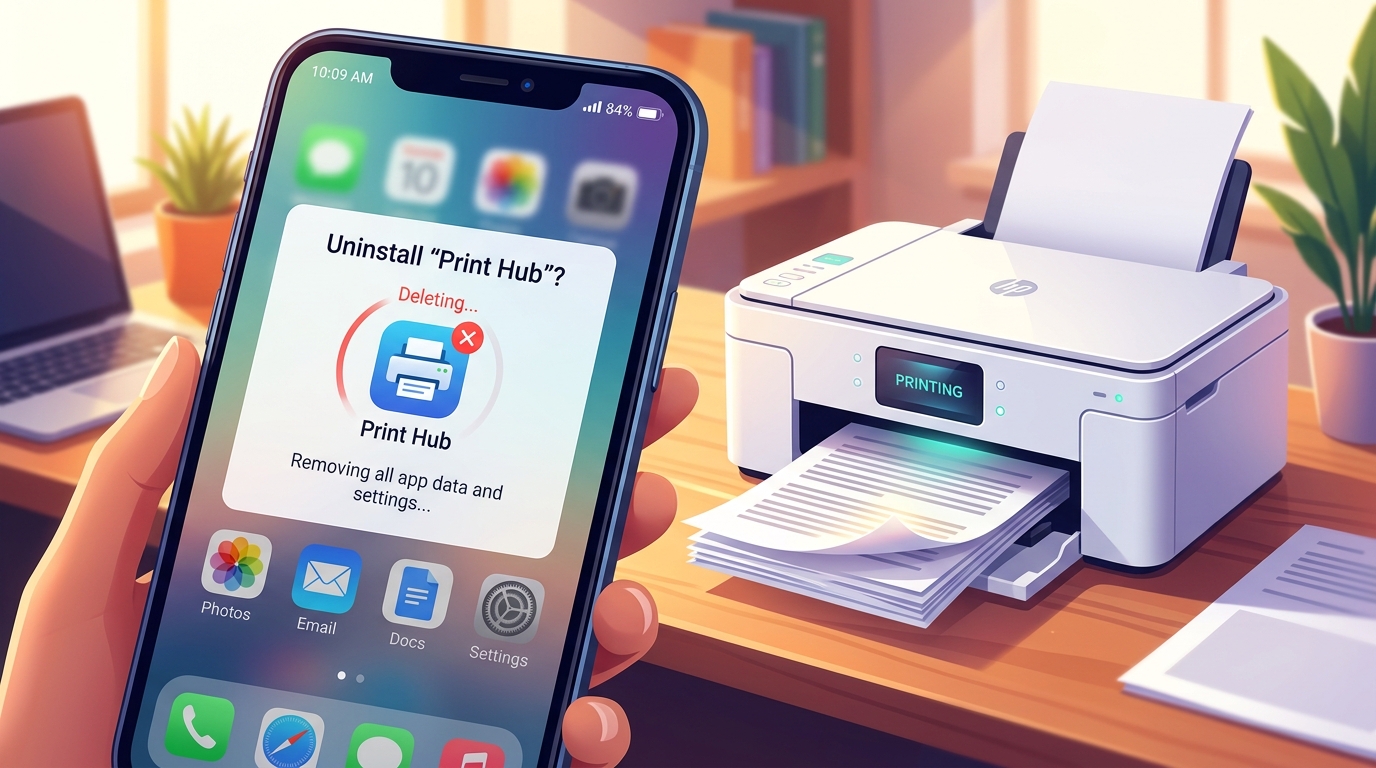
The Quick Answer
Want to uninstall the HP Smart app without losing your ability to print? Windows 11 and the safe order.
Not everyone wants an extra app running in the background just to print documents,. That's a completely reasonable position to have. Windows 11setups, the app and your actual print driver aren't as separate as you'd expect.
Removing one carelessly can genuinely take out the other. Here's how to do this cleanly, without losing the ability to print at all.
Quick Summary
- Check whether your printer setup used "driver via app" architecture — this determines your risk level entirely.
- Install a traditional standalone driver first, as a safety net, before removing anything.
- Uninstall HP Smart through normal Windows uninstall, not by deleting files manually.
- Test printing immediately afterward, before you assume everything's fine.
- Know how to reinstall quickly if something breaks anyway.
Why This Isn't Always a Simple Uninstall
On many traditional Windows setups, the printer driverand the HP Smart app are genuinely separate pieces of software — you could uninstall one. The other would keep functioning independently, the same way removing a manufacturer's bundled utility software doesn't usually stop your webcam or keyboard from working.
However, on Windows 11 specifically, many HP printers are set up through what's sometimes called a "driver via app" or Microsoft Store-based architecture, where the print driver itself is delivered. Maintained as a component tied to the HP Smart app installation, rather than as a fully independent traditional driver package.
On setups like this, uninstalling HP Smart can genuinely remove or disable the underlying print functionality along with it — not. Anything went wrong, but because that's how the two were actually bundled together from the start on this specific installation path.
Why this matters enormously for what you do next:the safe removal process is different depending on which type of setup you have,. There's no way to visually tell just by looking at your printer in the Devices and Printers list.
You need to actively check, or take a precaution that works regardless of which type you have.
Step 1: Install a Traditional Standalone Driver First (The Safety Net)
Before removing HP Smart, go to HP's official driver download page, search for your exact printer model, and download the Full Feature Software and Driverpackage or a basic standalone driver — specifically choosing a traditional. Installer rather than being redirected toward the Microsoft Store app version.
Install this, ensuring it completes and shows your printer working correctly, before you touch HP Smart at all.
Why this works: this step effectively guarantees you have a genuinely independent, traditional driver installation in place regardless of how your printer was originally set up. If your original setup was the app-bundled kind, this creates a proper.
Fallback that doesn't depend on HP Smart continuing to exist on your computer. If your original setup was already a traditional independent driver, this step causes no harm —.
You may simply end up with a refreshed version of the same driver you already had.
Step 2: Uninstall HP Smart Through Windows' Normal Process
Go to Settings → Apps → Installed apps, find HP Smart in the list, and select Uninstall Let the process complete fully rather than interrupting it partway through.
Why this works: using Windows' built-in uninstall process ensures the appremoves itself cleanly according to its own defined uninstall routine, rather than leaving. Orphaned files or registry entries behind that manually deleting folders would risk creating.
This is meaningfully safer than trying to delete the app's files directly through File Explorer.
Step 3: Test Printing Immediately
As soon as the uninstall finishes, open any document. Try to print it — don't wait until the next time you actually need to print something important to discover whether this worked.
Why this works:testing immediately, while the situation is fresh. You clearly remember what you just did, makes any problem far easier to diagnose and reverse than discovering an issue days later when you've forgotten the exact sequence of steps that. led to it.
Step 4: If Printing Breaks, Reinstall the Standalone Driver
If your printer disappears from your printer list, shows an error, or simply won't printafter uninstalling HP Smart, go back to the standalone driver you installed in Step 1. Run it again — sometimes a repair or reinstall of that same package restores full functionality even if the app-bundled version of the driver was affected by the uninstall.
Why this works: this confirms directly whether your printer was on the app-bundled architecture, and reinstalling the genuinely independent driver package re-establishes printing capability without needing HP Smart present at all. If this resolves it, you're now running on the traditional driver architecture going forward —.
Was your goal from the start.
What You Lose (and Don't Lose) by Uninstalling HP Smart
You'll lose convenient in-app ink levelcom regardless of whether the app is installed on this particular computer. do notlose your ability to print. Long as you've followed the standalone driver safety net above — basic printing through your normal print dialog remains completely available.
Why this distinction matters:many people assume uninstalling HP Smart means losing print functionality. Entirely, when really it means losing a specific set of convenience. featureslayered on top of core printing — features you may not have wanted running in the background anyway,.
Is presumably why you're uninstalling in the first place.
When to Call a Professional
If printing breaks after uninstalling HP Smart and reinstalling the standalone driver doesn't restore it, your printer may need a more complete removal and fresh reinstall — go to Devices and Printers, remove the printer entry entirely, then reinstall using the standalone driver. Package from scratch as if setting it up for the first time.
If that still doesn't resolve it, contact HP support with your printer's model. Describe exactly what happened — that the issue began specifically after uninstalling HP Smart — since that detail helps them identify whether your printer was on the bundled architecture and guide you through their specific recommended recovery steps for that setup type.
FAQ
Will uninstalling HP Smart definitely break my printer?
Not necessarily — it depends on whether your specific Windows 11 setup used a traditional independent driver or an app-bundled driver architecture. Installing a standalone driver first as a safety net protects you either way.
How do I know which type of setup I have before uninstalling?
There's no reliable way to tell just by looking, which is exactly why installing a traditional standalone driverfirst, before removing HP Smart, is worth doing regardless — it removes the guesswork. The risk at the same time.
Do I lose Instant Ink if I uninstall the app?
No — if you're enrolled in Instant Ink, the subscription itself continues working at the account and cloud level. appcom.
What if I already uninstalled HP Smart and now printing is broken?
Downloadand install the Full Feature Software. Driver package for your exact printer model directly from HP's support site — this often restores printing even after an app-bundled driver was removed along with the app.
To uninstall HP Smart app without breaking your printer, don't just remove it. Hope for the best — install a traditional standalone driver first as insurance, then uninstall through Windows' normal process, and test printing right away. difference between a clean removal and an afternoon spent restoring something you didn't mean to lose.
