


The Quick Answer
HP Smart app not detecting your printer on Windows 11? A repair tech covers the network profile setting and firewall fix most guides skip.
The printer is on. It's connected to the same Wi-Fi as your laptop.
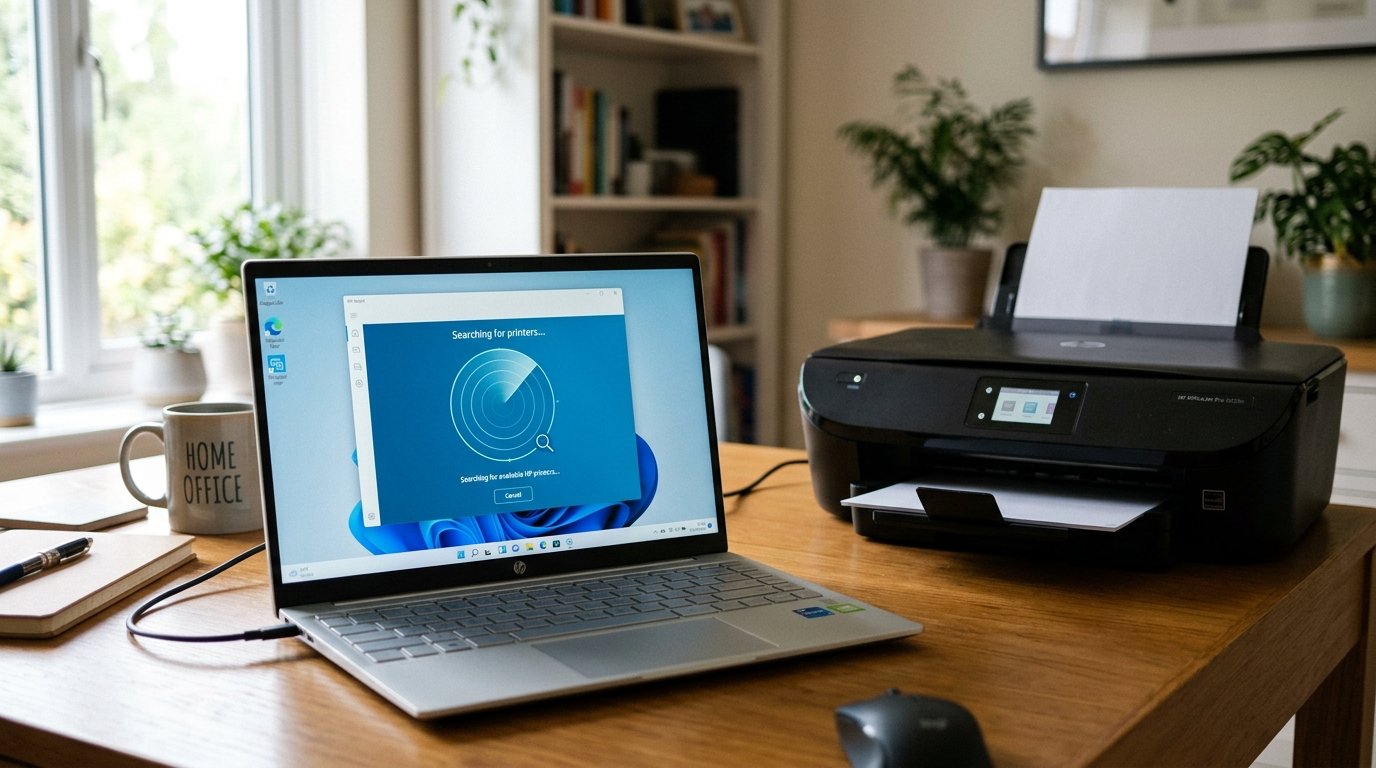
You open the HP Smart app, hit search, and watch a loading spinner go absolutely nowhere. When the HP Smart app won't detect printer on Windows 11, the printer itself is almost never the problem.
Windows 11 has a specific network setting, buried where nobody looks, that silently blocks the exact discovery signal the app depends on.
That setting is my uncommon tip. And it's third on this list only because two faster checks deserve your time first. Let's go through all of it.
Quick-Fix Summary
Fast version:
- Same network, confirmed — not just "connected," but the identical Wi-Fi network on both devices.
- Restart both — printer and computer, full power cycle, not sleep.
- Set your network to Private — the buried Windows 11 setting that blocks discovery. My uncommon tip.
- Check Windows Firewall exceptions for the HP Smart app.
- Reinstall the app from the Microsoft Store as a clean last resort.
Fix 1: Confirm You're Actually on the Same Network
Check the exact Wi-Fi network name on your printer's control panel (usually under a Wireless or Network settings menu) and compare it letter-for-letter against what your Windows 11 laptop is connected to. Pay special attention if your router broadcasts separate 2.4GHz and 5GHz networks under different names — printer on one, laptop on the other.
And they'll never find each other no matter how many times you hit search.
Why this works: device discovery only works within the same network segment. Two devices sitting six feet apart on different Wi-Fi bands are.
As far as discovery is concerned, on entirely separate networks. This mismatch is common enough that it's always my first question when someone says the app "can't see" a printer that's clearly powered on nearby.
Fix 2: The Real Restart
Power the printer fully off and back on. On the Windows 11 side, do a genuine restart. Not sleep, not "close the lid" — Start menu → Power → Restart.
Why this works: both the printer's network stack and Windows' own network discovery service can end up in a stale state after hours or days of uptime. Holding onto old device lists that never refresh.
A full restart on both ends forces each device to rebroadcast its presence from scratch. This clears a surprising number of "invisible printer" cases before you touch a single setting.
Fix 3: Set Your Network to Private (My Uncommon Tip)
Here's the setting that solves the most persistent version of this problem. And it's genuinely hidden — Microsoft buried it two menus deep, and most people have never seen it, let alone understood why it matters to a printer app.
Windows 11 classifies every network you connect to as either Public or Private. Open Settings → Network & internet → Wi-Fi, click your connected network's name. And look at the Network profile type setting. If it's set to Public, that's very likely your entire problem.
Switch it to Private, then reopen HP Smart and search again.
Why this works: the Public profile exists to protect you on networks you don't fully trust. A coffee shop, an airport, a hotel — by locking down the discovery protocols that let devices find and see each other.
Windows makes reasonable, cautious guesses about which profile to apply to a new network. And it guesses wrong on home networks far more often than you'd expect — especially after a Windows update, a router replacement, or reconnecting after time away.
HP Smart relies on exactly the discovery broadcasts the Public profile is designed to suppress. So the app searches forever and finds nothing, with zero indication that a single dropdown setting is the entire obstacle.
This is the fix I reach for first now, because it accounts for more "invisible printer" tickets in my shop than every other cause combined.
One honest caution: only switch to Private on networks you actually trust, like your home or office Wi-Fi. Leave public and unfamiliar networks set to Public — that protection exists for a good reason.
Fix 4: Check Windows Firewall
Open Windows Security → Firewall & network protection → Allow an app through firewall. Scroll the list for HP Smart (or related HP services) and confirm it's checked for both Private and Public networks. If it's missing entirely, click Change settings, then Allow another app, and add it manually.
Why this works: even with the right network profile, an overzealous firewall rule. Sometimes added by third-party antivirus software layering its own rules on top of Windows' — can still block the specific discovery traffic HP Smart sends out.
This is a quieter, more targeted version of the Public/Private problem. And it's worth checking even after Fix 3, because the two settings operate independently of each other.
Fix 5: The Clean Reinstall
If everything above checks out and the app still can't find a printer that you know is on the same trusted network. Uninstall HP Smart completely (Settings → Apps → Installed apps → HP Smart → Uninstall), restart the computer, then reinstall fresh from the Microsoft Store.
Why this works: app data can quietly corrupt over time. Especially across major Windows updates — leaving behind a broken local cache of "known" devices that never refreshes correctly no matter how many times you search.
A clean reinstall starts that cache from zero, with no baggage from whatever went wrong before.
When to Call a Professional
If the printer and computer are confirmed on the identical trusted network, both freshly restarted, the network profile is set to Private, HP Smart has full firewall access. And a clean reinstall still can't find it — try the printer on a different Windows 11 device on the same network as a split test.
Detected there? The problem lives on your original computer specifically (worth a check of any corporate or third-party security software that manages network policies beyond Windows' own settings).
Not detected anywhere? Contact HP support with your printer's model and serial number; a Wi-Fi radio fault inside the printer itself becomes the more likely explanation at that point.
And it's a standard warranty conversation.
FAQ
Why does my HP Smart app say it can't find any printers on Windows 11?
Most often it's a network profile set to Public, which blocks the discovery broadcasts the app relies on. Switch to Private under Settings → Network & internet → Wi-Fi, and search again.
Do I need my printer and laptop on the exact same Wi-Fi band?
Yes — same network, same band. If your router splits 2.4GHz and 5GHz into separately named networks, having the printer on one and your laptop on the other will prevent discovery entirely.
Is it safe to set my home network to Private in Windows 11?
Yes, for networks you trust — home or office Wi-Fi. Reserve the Public profile for networks you don't control. Like a café or airport, where that extra protection is worth keeping.
Why did this suddenly start happening after a Windows update?
Windows updates occasionally reset network profile settings back to a cautious default, or reintroduce firewall prompts you'd already answered. Recheck both the network profile and the firewall exception list after any major update.
When the HP Smart app won't detect your printer on Windows 11, skip straight past assuming the printer is broken. Confirm the network match, restart both devices properly.
And check that hidden Network profile setting — Public versus Private is the quiet cause behind more "invisible printer" complaints than anything else on this list. Flip that one dropdown, and the app usually finds your printer within seconds.
