


The Quick Answer
HP OfficeJet 200 battery not charging? A repair tech explains the 1-amp requirement almost nobody checks before assuming the battery is dead.
A battery that barely moves off a few percent after hours plugged in feels like a dead battery,. That's usually where people's minds go first — especially after buying a genuine replacement and watching the exact same thing happen again. Before you write off a second battery as defective too, there's a specific, measurable requirement about howyou're charging this printer that explains a meaningful share of "the battery won't charge"complaints. And it has nothing to do with the battery's health at all.Quick-Fix Summary
Fast version:
- Charge via the AC adapter directly, not USB, as your baseline test.
- Confirm your USB source supplies at least 1 amp — my uncommon tip, and the detail almost everyone misses.
- Reseat the battery firmly, checking for any gap or looseness.
- Plug directly into a wall outlet, bypassing surge protectors.
- Watch the charging light pattern to distinguish a battery fault from a slow-charge situation.
Fix 1: Charge via the AC Adapter as Your Baseline
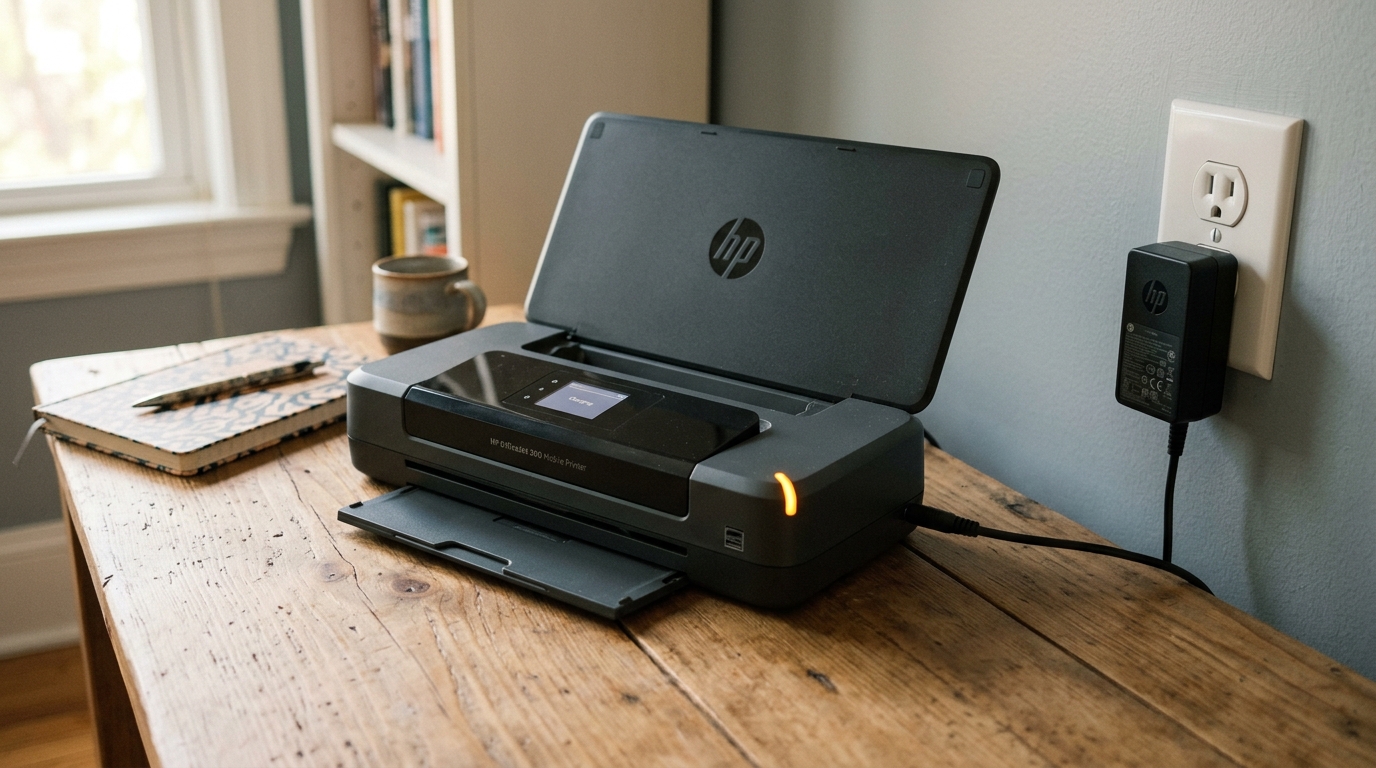
Connect the printer to its original AC power adapter and plug that directly into a wall outlet. HP's own documentation states this method should fully charge the battery in about 2.5 hours.
Why this works: this is the fastest, most reliable charging path, and using it as your first test establishes a clean baseline — if the batterycharges normally this way, you know the battery and printer's charging circuit are both healthy,. Any USB-charging issues you were experiencing point toward the USB source itself rather than anything wrong with your hardware.
Fix 2: Confirm Your USB Source Supplies at Least 1 Amp (My Uncommon Tip)
Here's the detail that explains the most confusing version of this complaint — a battery that charges fine via the AC adapter, but seems to barely charge at all, or takes an absurdly long time, when charged via USB from a computer or a generic charger.
HP's own documentation is specific about this: charging the OfficeJet 200's battery via its rear USB port requires a charging source capable of supplying a minimum of 1 amp.
Many standard computer USB ports — particularly older USB 2.0 ports, and especially ones on a laptop running on battery power itself — supply considerably less than this, sometimes around 0.5 amps or even less.
One documented case involved a user with a power meter confirming their charging source was delivering only about 0.23 amps, which would have stretched a full charge out to roughly 10 hours instead of the expected 2.5 — and at that trickle rate, the battery indicatorcan appear to barely move even after being connected for what feels like a very longtime.
Easily mistaken for a battery that simply won't take a charge at all.
To fix this: if you're charging via USB, use a dedicated USB wall charger rated for at least 1 amp — the kind sold for charging phones and tablets works well, since most are rated well above this minimum — or a car charger port rated similarly, rather than a computer's USB port.Look for the amperage rating printed directly on the charger itself, often shown as something like "5V⎓1A".
Higher; anything below 1A on that second number is likely to charge the OfficeJet 200's battery too slowly to be practical, even though it isn't technically failing.
Why this works: battery charging speed is directly tied to how much current the source can actually deliver, and a source that's technically capable of somecharging but well under the printer's stated 1A minimum produces exactly the frustrating,slow. Barely-perceptible charging pattern that looks identical to a dead or failing battery from the outside.
This is precisely the kind of detail that never occurs to most people,. "USB is USB" feels like it should all work the same — checking the actual amperage rating on your specific charging source is a two-minute check that can completely change your diagnosis.
Fix 3: Reseat the Battery Firmly
Power off the printer and disconnect the power adapter. Remove the battery completely and reinsert it, confirming it sits firmly with no gap or looseness in the compartment.
Why this works: a batterythat isn't fully seated can lose reliable contact with the printer's chargingcircuit. Producing a charging failure that has nothing to do with the battery's actual condition — this is a quick, free check worth doing before assuming anything more serious.
Fix 4: Plug Directly Into a Wall Outlet
Connect the AC adapter directly to a wall outlet, avoiding surge protectors, power strips, or extension cords.
Why this works: some surge protectors limit or smooth current flow in ways that can interfere with a device's charging circuit, and this is a commonly cited troubleshooting step specifically for this printer's charging behavior — a direct wall connection removes that variable entirely.
Fix 5: Read the Charging Light Pattern
Watch the amber charging light closely. A light that stays solid for an extended period and then begins flashing, combined with a battery status that reports as faulty despite genuine chargingattempts.
Points toward an actual battery health issue rather than a slow-charge situation from an underpowered source. The light also blinks specifically if the battery is too hot or too cold to charge safely — a temperature-related pause rather than a fault.
Why this works: distinguishing between these light patterns tells you whether you're dealing with a genuine hardware problem worth pursuing warranty or replacement options, versus a charging source issue you can solve immediately by switching to the AC adapter or a properly-rated USB charger.
When to Call a Professional
If you've confirmed a full 2.5-hour charge attempt via the original AC adapter directly into a wall outlet, reseated the battery firmly, and the charging light still shows a fault pattern (solid thenflashing. With a "faulty" status reported) rather than simply slow progress — this points toward genuine battery or charging circuit failure.
Contact HP support with your printer's serial number; if you purchased a replacement battery and experienced the identical symptom with both the original and the replacement, that's useful diagnostic information suggesting the printer's charging circuit itself, not the battery, may be the actual fault.
FAQ
Why does my OfficeJet 200 battery charge so slowly over USB?
Most USB charging sources don't supply enough current — the printer requires a minimum of 1 amp to charge properly over USB. A standard computer USB port often supplies less than this, resulting in a charge. Slow it can appear the battery isn't charging at all.
What USB charger should I use to charge this printer properly?
A dedicated USB wall charger rated for at least 1 amp, commonly sold for phones and tablets, works well. Check the amperage rating printed on the charger — look for "1A" or higher on the output specification.
I bought a replacement battery and it still won't charge. Is the printer broken?
This is a meaningful clue. If both the original and a replacement batteryshow the identical charging problem, especially when tested via the direct AC adaptermethod. The printer's own charging circuit becomes the more likely fault rather than the battery itself.
How do I know if it's a slow charge versus a genuinely faulty battery?
Charge via the AC adapter directly into a wall outlet as a clean test. If it still charges very slowly or the light shows a solid-then-flashing fault pattern with a "faulty" status, that points to a genuine battery issue.
If it charges normally via AC but not via USB, the USB source's current rating is the likely cause.
An HP OfficeJet 200 not charging is worth testing carefully before assuming the battery has failed — especially if you've only tried charging over USB. Confirm your USB source actually supplies the 1 amp this printer requires, or betteryet.
Test with the original AC adapter directly into a wall outlet as your baseline. A battery that seemed dead often turns out to have just been starving for current the whole time.
Additional Resources
If you are still experiencing issues after trying the steps above, you may need to consult the official documentation or download the latest firmware (internal software) for your specific printer model. We recommend checking the following official resources:
