


The Quick Answer
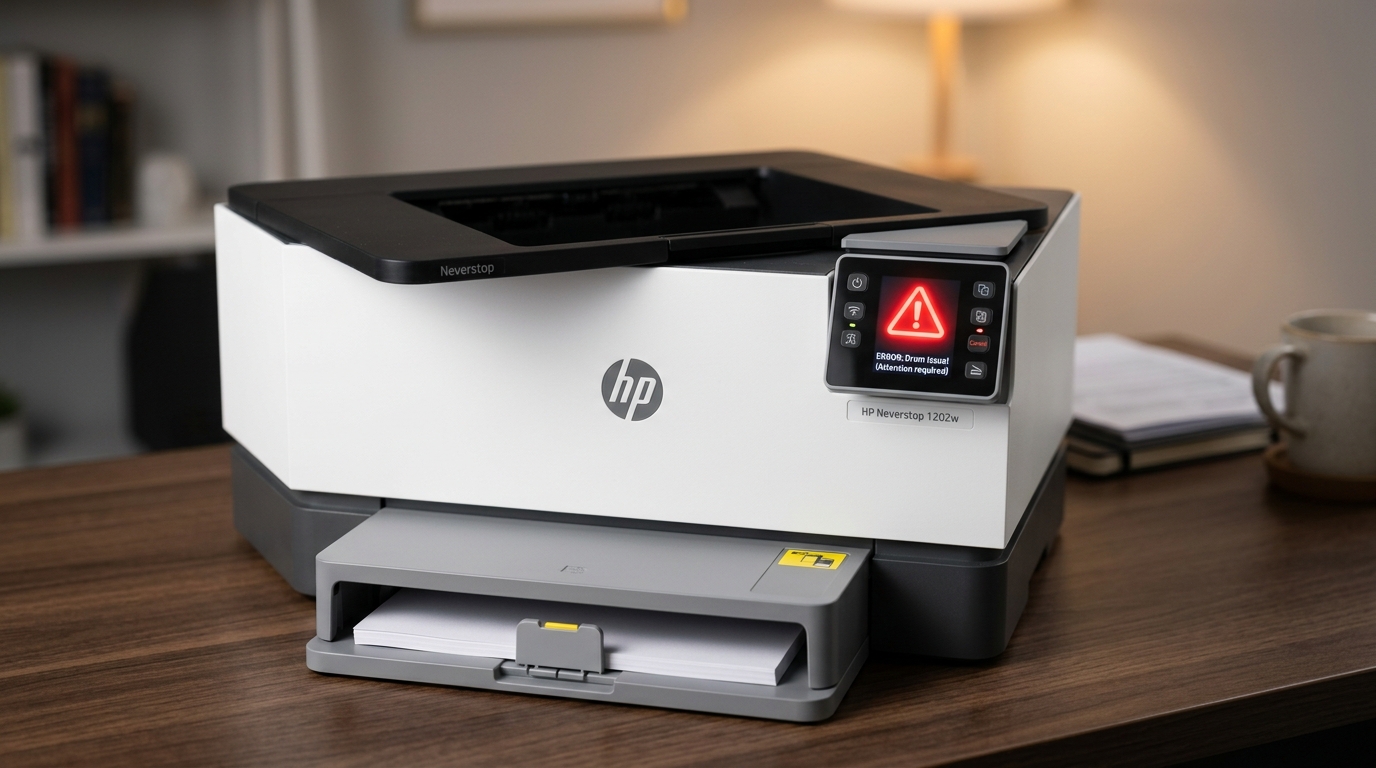
HP Neverstop printer error light explained by a repair tech: what each light means, and why the orange drum light doesn't always mean buy a new one.
Five different lights, each meaning something specific, and most owners never learn to read more than one or two of them before assuming the worst. If your HP Neverstop printer has an error light on — and especially if it's the orange imaging drum light — there's a genuinely common misread happening that can send you shopping for an unnecessary replacement part before you've actually confirmed that's what you need.
Quick Summary
- Paper light: input tray is empty — load paper.
- Lid Open light: blinks specifically during ID card copy jobs, prompting you to flip the card — not a fault.
- Attention light: general "needs your input" indicator, often paired with a character display code for specifics.
- Imaging Drum light (orange): often misread as "buy a new drum" — frequently means something else entirely. My uncommon tip.
- Power/Ready light: blinking during active printing is normal; indefinite blinking with no activity points to a real problem.
Understanding the Light System
Your Neverstop or LaserJet Tank printer's control panel uses a small set of dedicated lights, each tied to a specific category of status or problem, working alongside a small character display that shows more detailed error codes for anything the individual lights alone can't fully explain.
Why this matters: reading the correct light, rather than reacting to "a light is on" generally, tells you precisely which category of problem you're dealing with, and several of these lights mean something considerably less dramatic than owners often assume on first seeing them lit up.
The Paper Light
A blinking paper light means the input tray is empty. Load paper and the light clears on its own.
Why this is worth mentioning explicitly: it's genuinely this simple, and it's worth ruling out first before assuming anything more complex, since an empty tray is an easy thing to overlook if you're troubleshooting from across the room rather than checking directly.
The Lid Open Light
This light blinks specifically during an ID card copy job, prompting you to flip the card over partway through the process — it's a functional prompt, not an error at all, despite its name suggesting something's wrong.
Why this matters: if this light comes on during a normal ID copy job, that's the printer working exactly as designed, not a fault to troubleshoot. Confusion here usually stems from the light's name sounding like a problem when it's actually an instruction.
The Attention Light
A general indicator that the printer needs your input for something specific, often paired with a code shown on the small character display — jammed paper, a cover that's not fully closed, or a supply-related issue. Check the character display for the accompanying code rather than relying on this light alone, since it covers a broad category of possible issues.
Why this works as guidance: this light is intentionally general, functioning as an alert that something needs attention, with the real diagnostic detail living in the character display alongside it — always check both together rather than one in isolation.
The Imaging Drum Light: What Orange Really Means (My Uncommon Tip)
Here's the light that generates the most unnecessary spending in this entire product line, and it's worth understanding thoroughly before you order a replacement drum.
When this light shows orange, the instinctive assumption — reinforced by the light's name — is that the imaging drum itself has failed or worn out and needs replacing. This is sometimes true.
But a documented and genuinely common alternate cause is that a previous toner reload was left incomplete — the reload kit was turned partway but never reached its full, final click, meaning the toner sensor reset never properly completed. In this specific situation, the imaging drum light can turn and stay orange not because the physical drum has failed, but because the system is reflecting an incomplete refill state that's connected to, but distinct from, genuine drum wear.
This connects directly to how the entire toner reload mechanism works: a proper, fully-completed refill needs to reach a distinct final click to both dispense toner completely and reset the internal sensor correctly.
Stop short of that click, even slightly, and the printer can be left in a state that surfaces through the imaging drum indicator specifically — genuinely confusing anyone who hasn't refilled toner before and has no way of knowing this light can mean "your last refill didn't finish" rather than "this expensive component is dead."
What to do before assuming you need a new drum: if you've recently attempted a toner refill and the imaging drum light is now orange, try the refill process again from scratch with a fresh reload kit if your previous one is depleted, or reattempt with your current kit if toner remains — this time paying very deliberate attention to reaching a genuine, unmistakable final click during the turning motion, confirming the printer was fully powered on and awake throughout the process. If the light clears white after a properly completed refill, you've just avoided an unnecessary drum purchase entirely.
Why this works as an explanation: manufacturers design indicator lights around the most common failure mode they anticipate, and for a component genuinely expected to wear out over the printer's life, "drum needs replacement" is a completely reasonable default meaning. But because the drum and the toner reload sensor system are mechanically connected, an incomplete refill can trigger the same visual indicator as genuine wear — and nothing on the light itself distinguishes between the two situations for you.
Only actually attempting a proper, complete refill tells you which one you're facing.
The Power/Ready Light
Solid means ready to print. Blinking during active printing is completely normal — it indicates the printer is processing.
Blinking indefinitely with no print job active and no apparent overheating (some documented cases show this happening even when the printer isn't hot at all, contradicting the generic overheating explanation some sources offer) points toward a genuine internal fault rather than normal operation.
Why this distinction matters: don't panic at a blinking ready light during an active job — that's expected. But a light that blinks persistently with the printer sitting completely idle, especially if a printer this new shouldn't be overheating and isn't warm to the touch, is a legitimate signal something deeper is wrong, worth escalating rather than waiting out indefinitely.
When to Call a Professional
If the imaging drum light remains orange after a genuinely complete refill attempt — full power-on state confirmed, reload kit turned all the way to a clear final click — the drum itself likely does need replacement, and that's a straightforward, expected part swap rather than a deeper problem. If the power/ready light blinks indefinitely with the printer idle, not actively printing, and not physically warm, contact HP support with your printer's serial number and describe this specific pattern, since it points toward an internal fault beyond what any light-based troubleshooting can resolve from the outside.
FAQ
Does an orange imaging drum light always mean I need a new drum?
Not always — it can also indicate a previous toner refill that wasn't turned all the way to its final click, leaving the sensor system in an incomplete state. Try a proper, fully-completed refill before assuming you need a replacement drum.
What does the Lid Open light actually mean?
Despite its alarming name, it's a normal functional prompt that appears specifically during ID card copy jobs, telling you to flip the card over partway through. It's not an error.
Is a blinking power light always a problem?
No — blinking during active printing is completely normal. It only signals a genuine issue if it blinks indefinitely while the printer sits idle with no job running, particularly if the printer isn't actually warm despite some guidance suggesting overheating as the cause.
How do I tell the difference between a real drum failure and an incomplete refill?
Attempt a proper refill, making sure the printer is fully powered on throughout and that you turn the reload kit all the way to a distinct final click. If the imaging drum light clears to white afterward, it was an incomplete refill, not genuine drum failure.
An HP Neverstop printer error light, especially the orange imaging drum indicator, doesn't always mean what it first appears to mean. Before assuming the worst and ordering a replacement part, check whether a recent toner refill actually reached its proper final click — a genuinely common, easily fixed cause hiding behind a light that looks like it's announcing expensive hardware failure.
Additional Resources
If you are still experiencing issues after trying the steps above, you may need to consult the official documentation or download the latest firmware for your specific printer model. We recommend checking the following official resources:
