


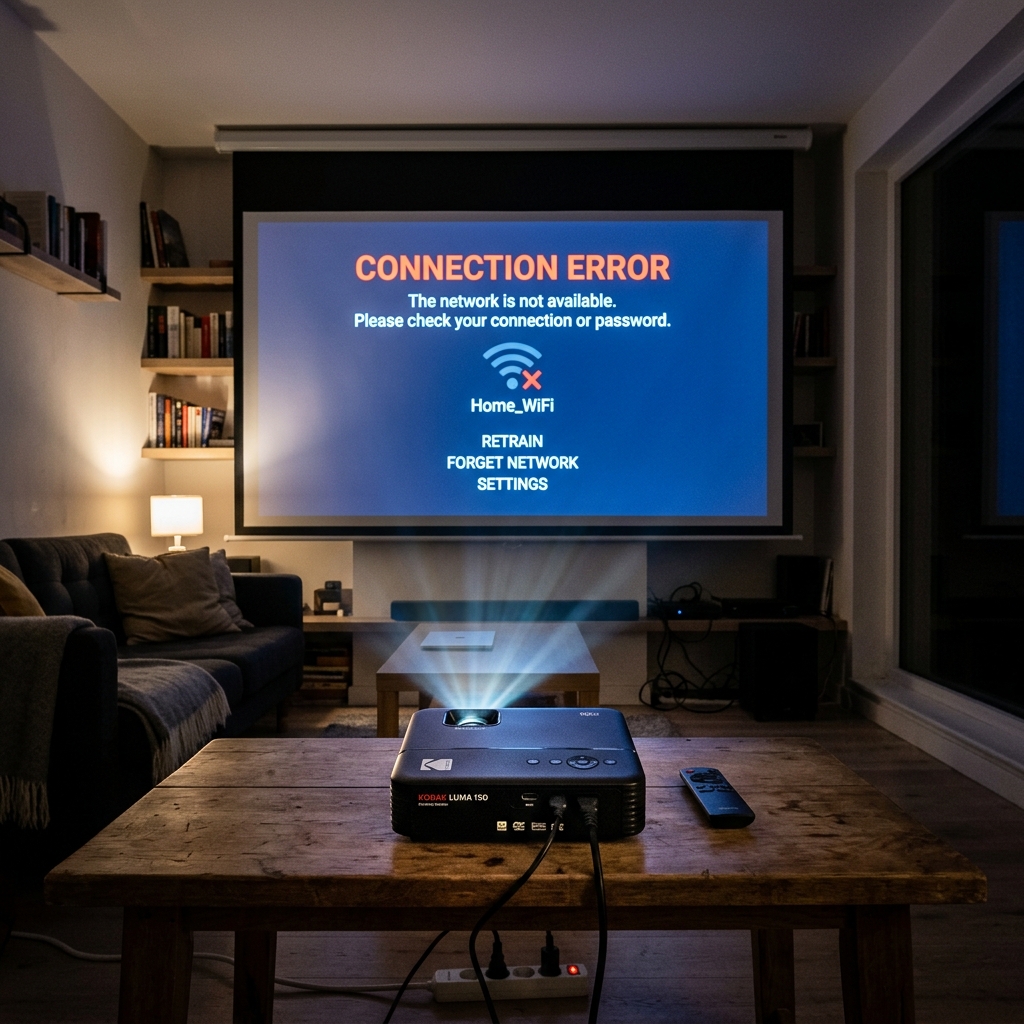
The Kodak Luma series of pocket projectors (Luma 150, 350, and 450) are popular portable entertainment devices running Android OS. While they offer convenient wireless screen mirroring (via AirPlay and Miracast).
Wi-Fi streaming, users frequently encounter connection drops, lag, or a black screen when trying to mirror content from iPhones, Androids, or laptops. These issues are typically caused by router band mismatches, wireless security settings, or DRM (Digital Rights Management) blocks on premium streaming services.
Let's walk through the diagnostic and settings steps to resolve these errors.
The Screen Mirroring Compatibility Matrix
Understand the mirroring standards supported by each Kodak Luma model to select the correct connection path:
| Projector Model | Primary Casting Standard | DRM Streaming (Netflix, Hulu, Prime) |
|---|---|---|
| Luma 150 | AirPlay / Miracast (Basic Screen Mirroring) | Blocked over wireless mirroring. **Requires HDMI Cable.** |
| Luma 350 / 450 | Onboard Android Apps / AirPlay / Miracast | Supported natively through onboard apps. (Wireless mirroring is blocked by DRM). |
Step 1: Eliminate Band Steering & Match SSID
For wireless screen mirroring to work, your sending device (phone/tablet). The Kodak Luma projector must be connected to the **same wireless frequency band**.
If your router has "Smart Connect" enabled, it will dynamically move the phone to the 5GHz band. The projector to the 2.4GHz band, breaking the peer-to-peer casting path.
- Log into your wireless router admin portal.
- Separate your Wi-Fi bands into distinct names (e.g., **"HomeNet_2.4G"** and **"HomeNet_5G"**).
- Connect the Kodak Luma projector to the **5G band** ("HomeNet_5G") via the Luma Wi-Fi settings. Screen mirroring requires high data throughput, and the 2.4GHz band is too slow, causing lag and pixelation.
- Connect your phone to the same 5G network. Try casting again.
Step 2: Disable Router AP Isolation Settings
AP Isolation (also known as Client Isolation or Guest Mode) is a security setting on wireless routers that prevents connected Wi-Fi devices from communicating with one another. If active, your phone cannot detect the Luma projector on the network.
- In your router settings, navigate to the **Wireless Settings** (or Advanced Security) menu.
- Locate the setting labeled **AP Isolation**, **Access Point Isolation**, or **Device Isolation**.
- Change the setting to **Disabled**.
- Click Save and restart your router.
Step 3: Update Luma System firmware (internal software)
Outdated system firmware (internal software) on the Luma projector will cause casting services to crash due to compatibility conflicts with modern iOS and Android updates.
- Go to the Luma projector main screen and select **Settings**.
- Navigate to **System Update** (or About > Update).
- Select **Online Update** and let the projector search for updates. (Ensure the projector is connected to a charger, as it will block updates if the battery is below 30%).
- If the online update fails, download the firmware (internal software) file from the Kodak support page, copy it to the root directory of a FAT32-formatted USB flash drive, insert the drive into the projector's USB port. Select **Local Update** from the settings menu.
Step 4: Restart Wireless Casting Services
If the mirroring screen freezes, clear the casting cache:
- For iOS, swipe down to open the Control Center, tap Screen Mirroring, and select Stop Mirroring. Tap it again to search and reconnect.
- For Android, turn off Wi-Fi, turn it back on, and select the Cast button in the quick settings shade.
Related Kodak Troubleshooting Guides
Understanding Kodak Luma Pocket Projector Wi-Fi & Screen Mirroring
The Kodak Luma series (Luma 75, Luma 150, Luma 350, Luma 400, Luma 450) includes compact DLP pico projectors running custom Android firmware (internal software). They support wireless connectivity via dual-band Wi-Fi, AirPlay (iOS/macOS), and Miracast / Smart View (Android/Windows).
When Wi-Fi pairing fails or screen mirroring drops frames, the issue is typically network band mismatch, HDCP copy protection blocks, or outdated projector firmware (internal software).
Complete Wireless Setup & Mirroring Fixes
- Connect to a Dedicated 2.4GHz or 5GHz Wi-Fi Network:
From the Luma home screen, select Settings > Wi-Fi. Select your router's SSID and enter the WPA2 password using the top touch buttons or remote control. If the projector sits in an "Obtaining IP Address" loop, assign a manual static IP address in the projector's advanced network settings.
- Screen Mirroring for iOS / Apple Devices (AirPlay):
- Ensure both your iPhone/iPad and the Kodak Luma are connected to the exact same Wi-Fi SSID.
- On the projector home screen, launch the AirPin / AirPlay app.
- On your iPhone, swipe down to open Control Center, tap Screen Mirroring, and select your Kodak Luma projector from the list.
- Screen Mirroring for Android / Windows (Miracast):
- On the projector, select Screen Mirroring / Miracast from the home menu.
- On Android: Open Quick Settings and tap Smart View / Cast / Wireless Projection .
- On Windows 10/11: Press Windows Key + K to open the Cast panel and select the Luma projector.
- Understanding HDCP DRM Streaming Restrictions:
Major streaming services (Netflix, Disney+, Hulu, Amazon Prime Video) utilize High-bandwidth Digital Content Protection (HDCP). When mirroring wirelessly from a phone, the streaming app detects an unencrypted AirPlay/Miracast stream.
Intentionally displays a black screen with audio only. To play DRM content on Kodak Luma, connect an external streaming stick (Roku, Amazon Fire Stick, Apple TV) directly to the projector's physical HDMI port.
Frequently Asked Questions
Why does the Kodak Luma Wi-Fi disconnect whenever I plug in the HDMI cable?
On early Luma 150 firmware (internal software), switching video input to HDMI disables background Wi-Fi scanning to reduce internal processor thermal load. Battery drain.
How do I update the firmware (internal software) on my Kodak Luma projector?
Connect the projector to Wi-Fi, plug in the AC charging adapter, navigate to Settings > System > Online Update / System Update, and select "Check for Updates".
