


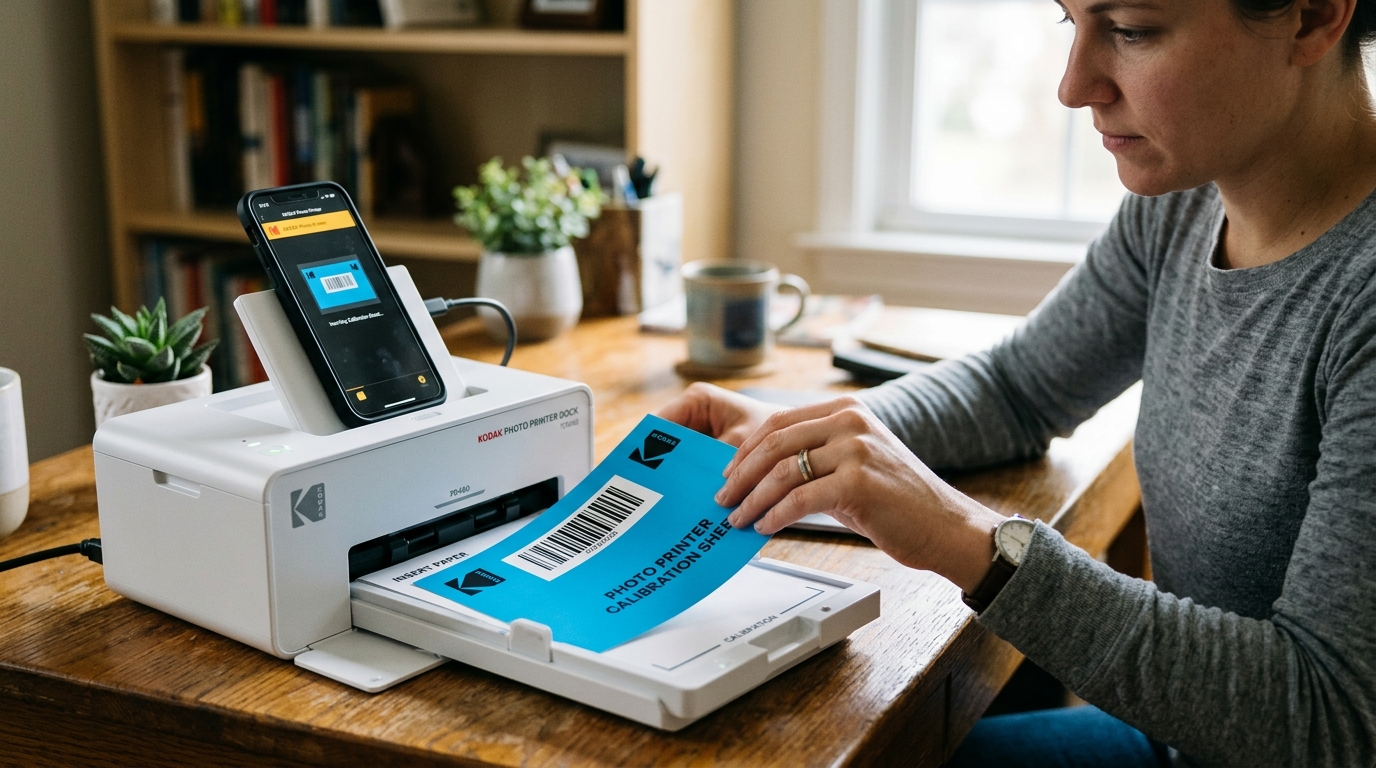
Kodak instant cameras and pocket printers (like the Step, Smile, and Mini series) use ZINK (Zero Ink) technology that requires a blue calibration sheet — known as the **ZINK Smart Sheet** — to be fed through the printer before each new pack of paper. This sheet calibrates the printer's thermal head to the specific dye characteristics of that paper batch.
If the printer displays a "Calibration Sheet Error," it means the optical reader inside the paper slot cannot scan the card's barcode. Let's look at how to align, clean, and resolve calibration errors.
Why the Blue Smart Sheet is Mandatory
Each ZINK paper pack is manufactured in batches that have slight chemical variances. The blue Smart Sheet included in each pack has a unique barcode printed on the bottom.
When fed through, the printer's optical sensor reads this barcode and adjusts the thermal printhead heating profile to match the batch. If you bypass this, or use a blue card from a different pack, your prints will suffer from color shifts (often looking heavily blue or yellow).
Phase 1: Verification of Paper Alignment
If the card was loaded incorrectly, the optical sensor cannot read the barcode:
- Open the paper compartment cover of your Kodak printer.
- Remove the paper stack.
- Examine the blue card. It must be loaded **at the very bottom of the stack**, directly underneath the 10 sheets of white photo paper.
- Ensure the **barcode side is facing down** (towards the inside of the printer where the optical reader is located), and the glossy side is facing up.
- Check that the card is aligned straight. If the edges are bent or wrinkled, the card will feed crookedly, causing the barcode reader to misread.
Phase 2: Clean the Optical Reader Lens
The barcode scanner inside the printer is a tiny optical sensor. Over time, paper dust, lint, or adhesive residue from the backing sheets can build up on the lens, blinding the scanner.
- Remove all paper and the blue card from the chamber.
- Locate the small, rectangular glass slot at the bottom of the paper tray. This is the barcode reader lens.
- Use a can of clean, dry compressed air to blow out any loose dust or lint.
- If you see a film or smudge on the lens, wrap a dry, lint-free microfiber cloth around a flat plastic tool (like a guitar pick or card corner) and gently wipe the glass. **Do not use alcohol or water**, as liquids can seep under the glass and short-circuit the sensor.
Phase 3: The Calibration Bypass Reset
If the printer gets stuck in a loop continually rejecting the card, you must perform a hardware reset to clear the sensor cache:
- Turn the printer off.
- Use a paperclip to press the **Reset** button (typically located in a tiny pinhole on the side or bottom of the printer). Hold it for 5 seconds.
- Turn the printer back on.
- Insert only the blue Smart Sheet into the chamber (without the white photo paper). This forces the printer to prioritize the calibration scan. Once the card feeds through and exits, load your photo sheets.
Related Kodak Troubleshooting Guides
Why Kodak Printers Fail Printhead Calibration and Alignment
Following the installation of a new printhead or ink cartridge, Kodak printers automatically feed a sheet of paper and print a series of black and color test blocks (the Alignment / Calibration Sheet). An optical sensor on the underside of the printhead carriage scans these printed marks to calibrate bidirectional dot placement and color registration.
When the scan fails, the printer alerts with "Calibration Failed" or "Alignment Error".
Step-by-Step Troubleshooting for Calibration Errors
- Inspect the Calibration Print Quality:
Look closely at the printed alignment pattern. If the black bars are broken, streaky, or completely missing, the optical carriage sensor cannot read the contrast lines. Run a Printhead Cleaning Cycle through the Maintenance menu to ensure all nozzles are firing crisp, solid ink lines before recalibrating.
- Use Standard Bright White Paper:
The optical calibration sensor is calibrated for standard 20 lb bright white bond paper (92+ brightness rating). If you attempt alignment using colored paper, recycled gray paper, lined notebook paper, or glossy photo paper, the optical sensor cannot detect the baseline contrast, causing instant calibration failure.
- Clean the Optical Calibration Sensor Lens:
On the bottom left of the printhead carriage is a miniature optical reflective sensor. Paper dust and ink mist can coat the clear sensor lens. Move the carriage to the center, inspect the underside with a flashlight, and gently wipe the sensor lens with a dry cotton swab.
- Manually Load the Alignment Sheet onto the Flatbed Scanner (On Dual-Scan Models):
On select Kodak all-in-one models (such as the ESP 5250 and Hero 5.1), after the alignment page prints, you must place the printed sheet face-down on the flatbed scanner glass and press Start to complete alignment. Ensure the top-left corner of the page is aligned with the guide arrow on the glass.
Frequently Asked Questions
Can I skip the alignment process and continue printing?
Yes. You can press the Cancel or Back button on the control panel to bypass the calibration prompt.
Why does the printer print a calibration sheet every single time I turn it on?
If the printer forces an alignment sheet on every boot, the previous calibration was never successfully completed and saved to NVRAM. Complete a successful alignment once with fresh white paper to clear the recurring startup prompt.
