


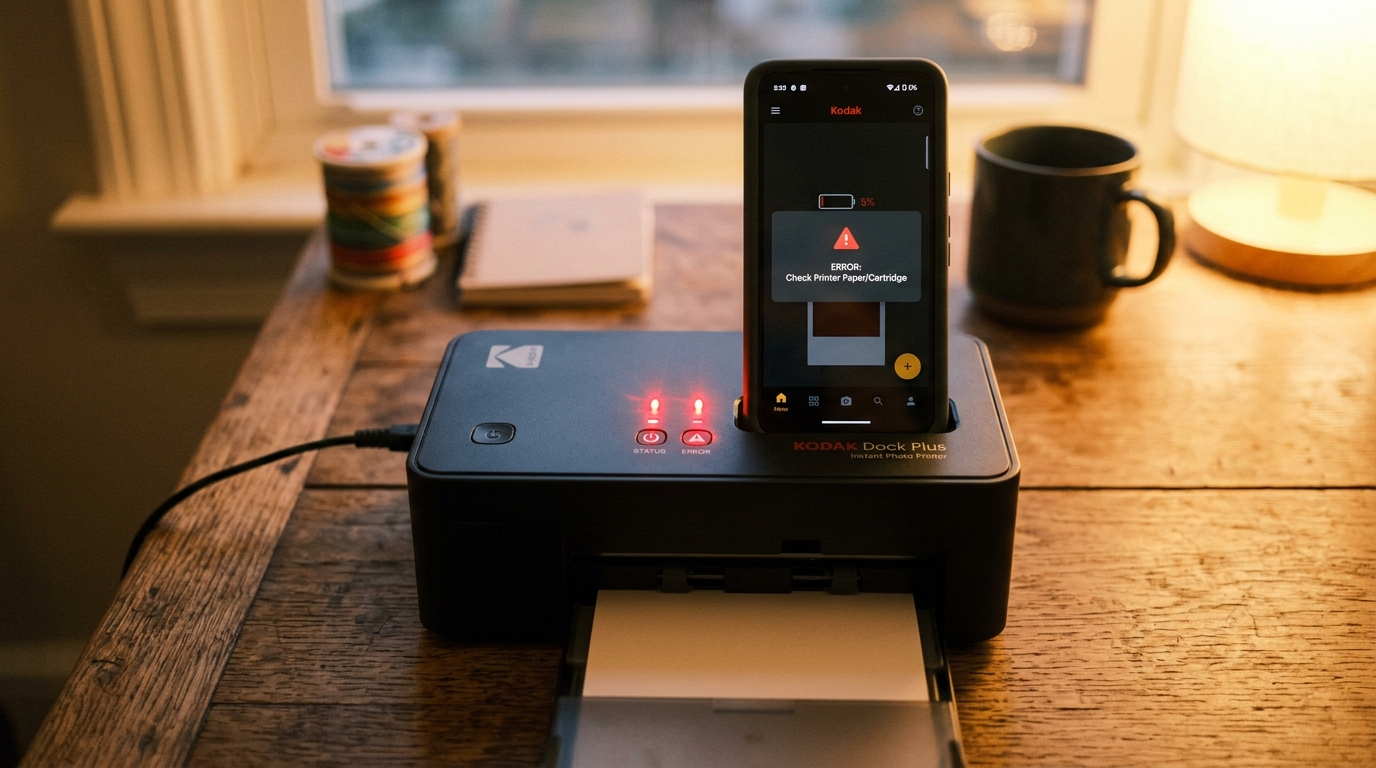
Modern Kodak portable printers — such as the Kodak Dock Plus. Dock Era, Mini 2 Retro, and Mini 3 Retro — are designed with a minimalist interface.
By omitting a graphical LCD screen to conserve battery. Reduce size, these printers rely entirely on a single multi-color LED indicator to communicate status and faults.
When this indicator starts flashing red or cycling colors, it can be frustrating to identify the issue. Let's walk through the decoded LED flash sequences and the technical steps to clear them.
The Kodak LED Diagnostic Index
Refer to this diagnostic table to match the LED flash pattern on. Your Kodak portable or dock printer to the correct hardware status:
| LED Color & Pattern | Indicated Device State | Required Action / Fix |
|---|---|---|
| Red (Flashing for 10 seconds, then White) | Media or Cassette Missing / Empty | Check cartridge ink ribbon, verify paper is loaded in cassette, re-insert tray. |
| Red (Flashing Continuously) | firmware (internal software) Update in Progress | Do not turn off. Keep the smartphone app active nearby until the light turns solid white. |
| Red (Solid) | Severe Hardware Jam / Carriage Block | Unplug power, open access door, clear ribbon loop, perform pinhole reset. |
| Yellow (Solid / Slow Pulse) | Thermal Limit Reached (Overheating) | Allow printer to sit idle for 10 minutes to cool down printhead block. |
| Blue (Solid) | Bluetooth Connected & Idle | Ready for print job transmission from app. |
| White (Slow Pulse / Breathing) | Processing Print Job / Heating Element | Wait for dye-sub pass to cycle paper. Do not pull paper while moving. |
Resolving a 10-Second Flashing Red Light (Media Fault)
If the printer flashes red for 10 seconds when you send a print job. The internal sensors are failing to detect your paper or ink ribbon:
- Check the Paper Cassette: Ensure the plastic paper tray is clicked firmly into the front slot. If it is off-center by even a millimeter, the optical feed sensor will flag a media fault.
- Verify Paper Loading: Remove the paper stack from the cassette. Fan the sheets to eliminate static cling, and reload them with the **glossy printing side facing up**. Do not load more than 10 sheets at once.
- Reseat the 4PASS Cartridge: Open the side door, press the plastic lock tab to eject the cartridge. Inspect the film ribbon for slack, and slide it back in until you hear it click.
Resolving a Solid Red Light (Carriage or Gear Lock)
A solid red light means the mechanical motor has detected resistance and locked to prevent gear teeth from stripping. This is usually caused by a paper wrap jam or a slack ribbon ribbon:
- Unplug the power cord immediately (or hold the power button for 10 seconds to force shutdown).
- Open the cartridge door. Check if the colored print ribbon has wrapped around the internal drive roller.
- If the ribbon is wrapped, **do not pull it forcefully**. Use a pair of tweezers to carefully snip the ribbon. Slide the spools out, and manually clear any plastic strands from the metal capstan roller.
- Locate the tiny **Reset Pinhole** next to the power button or micro-USB port. Insert a paperclip for 5 seconds to reset the printer's mainboard state.
- Turn the printer back on. The status LED should return to solid white or flashing blue.
Handling Yellow LED Pulses (Thermal Protection Mode)
Because dye-sublimation printing relies on a thermal printhead that reaches high temperatures to vaporize ink panels. Printing multiple photos in rapid succession will heat the chassis up. If the yellow thermal protection light triggers:
- Leave the printer turned on. The internal cooling fan (if equipped) or natural heat dissipation requires the printer to remain in idle mode.
- Wait **10 to 15 minutes**. The LED status indicator will return to solid white once the thermal sensors detect the printhead temperature is below 45°C.
Related Kodak Troubleshooting Guides
Decoding Status LED Indicators on the Kodak Dock Plus (PD460 / PD460P)
The Kodak Dock Plus is a popular 4x6 4PASS dye-sublimation home photo printer featuring a direct top smartphone docking cradle and Bluetooth connectivity. The multi-color LED indicator next to the power button communicates all operational states and error alarms.
Kodak Dock Plus LED Diagnostic Table
| LED Color & Pattern | System State | Diagnostic & Fix Protocol |
|---|---|---|
| Solid White / Blue | Standby / Ready | Printer is online, paired, and ready to receive photo print jobs. |
| Pulsing White / Blue | Printing in Progress | Normal operation; paper is cycling through the 4 dye passes. |
| Flashing Amber / Orange | Paper Feeder Jam or Cassette Empty | Verify paper cassette is clicked in; ensure photo paper is loaded glossy-side UP. |
| Flashing Red | Cartridge Ribbon Depleted or Missing | Open side door; install new Kodak Dock 4PASS cartridge (PHC-40 / 80 / 120). |
| Rapid Blinking Red (Thermal) | Thermal Overheat Protection | Printhead is saturated; allow 15 minutes of passive cooldown. |
Frequently Asked Questions
Can I dock modern iPhones with USB-C (iPhone 15/16) on the Dock Plus?
Yes. The Kodak Dock Plus includes interchangeable Lightning and USB-C dock adapters.
Why does the Dock Plus lose Bluetooth pairing after printing one photo?
Disable "Auto Sleep" in the Kodak Photo Printer app settings to keep the Bluetooth connection active between print jobs.
