


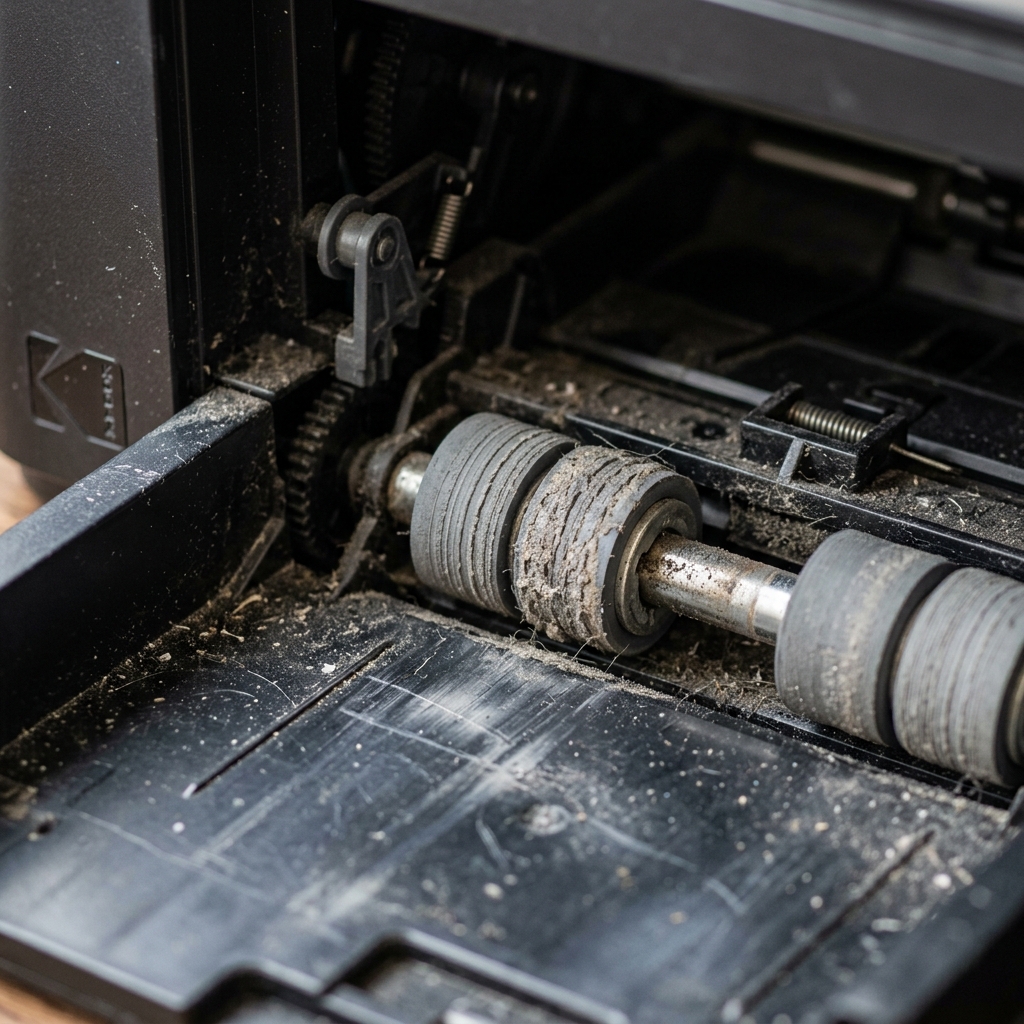
Paper feed jams are among the most common physical issues on Kodak ESP and Hero printers. Because these printers are older, the rubber rollers can lose their grip, causing paper to slip, crumple, and jam mid-feed.
If you clear a jam incorrectly by pulling the paper backward or using force, you risk breaking the feed gears or misaligning the paper sensors. This guide shows you how to clear jams safely, step by step.
Understanding the Paper Path
To avoid damaging your printer, you must understand how paper moves through the machine. Kodak printers pull paper from the bottom input tray, loop it up through the print carriage zone (where the printhead deposits ink), and output it onto the top tray.
Many models also route paper through a rear duplex assembly for double-sided printing.
Step-by-Step Jam Clearing Guide
Step 1: Disconnect the Power
Never clear a paper jam while the printer is plugged in. The carriage may move unexpectedly, trapping your fingers or damaging the carriage belt.
Step 2: Clear the Input and Output Trays First
- Gently remove any loose paper from the bottom input tray.
- Check the output tray for paper jammed near the exit rollers. If visible, pull it forward gently with both hands.
Step 3: Inspect the Rear Access Panel
If paper is stuck between the trays and the carriage, it is usually accessible from the back:
- Turn the printer around to access the back panel.
- Find the latch on the rear access door (or duplexer) and pull it off.
- If paper is visible here, grab it by both corners and pull it **down and out** toward the floor. Wiggle it slightly to release it from the roller tension.
- Examine the black rubber rollers on the door and inside the printer. Wipe them with a dry cloth if you see paper dust.
- Reinstall the rear door securely.
Step 4: Check the Printhead Carriage Zone
- Open the main access cover.
- If the printhead carriage is sitting over the jammed paper, gently slide the carriage to one side by hand to expose the sheet.
- Gently pull the paper upward out of the print zone.
Step 5: Inspect Rollers for Fragments
Often, a paper jam tears, leaving a small piece behind. This shred will continue to trigger jam errors. Run your fingers along the feed rollers to verify the path is 100% clean.
Common Causes of Recurring Jams
| Issue | Explanation | Remedy |
|---|---|---|
| Paper Static | Sheets stick together in warm or humid rooms | Fan the paper stack before loading it |
| Dusty Rollers | Paper dust builds up on the rubber feed rollers | Clean rollers with distilled water (Fix in loading guide) |
| Warped Paper | Moisture in the paper causes curling | Store paper in a dry, sealed package |
Related Kodak Troubleshooting Guides
Anatomy of Kodak Paper Feed & Transport Failures
Kodak all-in-one printers feature a bottom-loading cassette tray that feeds paper upward around a 180-degree U-turn feed roller assembly. Because the paper path has a tight radius, any loss of roller friction, paper curl, or misalignment in the side tension guides results in paper feed stalls, accordion folds, or false "Out of Paper" alarms.
Exhaustive 5-Step Paper Transport Restoration
- Clean the Lower D-Shaped Rubber Pickup Rollers:
Remove the paper cassette tray completely. Turn the printer on its back or side to access the bottom paper feed chute.
You will see two semi-circular (D-shaped) rubber rollers. Over months of printing, paper clay coating and dust smooth out the rubber's textured tread.
Clean the rollers vigorously with a lint-free cloth dampened with warm distilled water. Rotate the rollers manually to clean all 360 degrees.
- Inspect the Rear Cleanout Door & Reversing Assembly:
Locate the duplexer or rear access door on the back of the printer. Press the two plastic release latches and pull the door off.
Inspect the smaller white and black plastic idler rollers inside this door. Make sure all springs are intact and that no shredded paper corners are wedged beneath the sensor flag.
- Proper Paper Loading & Tray Adjustment:
Do not overload the paper tray. Fan the paper stack before loading to introduce air between sheets.
Push the green side and front width guides snug against the edges of the paper without bowing or bending the stack. If using glossy photo paper, load it with the glossy print side facing DOWN in the tray.
- Clear the Registration Sensor Flag:
Inside the paper path, just before the printhead, sits an optical sensor flag. If paper was previously pulled backward out of the front output slot, this plastic flag can be bent or dislodged from its optical interrupter slot. Gently verify that the flag swings freely with a light touch.
Frequently Asked Questions
Why does my Kodak printer grab multiple sheets at once (double-feeding)?
Double-feeding is caused by a worn or dirty cork/rubber Separation Pad located at the bottom front edge of the paper cassette. Clean the pad with water.
Can I use heavy cardstock in Kodak ESP or Hero printers?
Standard Kodak desktop trays handle up to 24 lb (90 g/m²) bond paper and official Kodak photo paper up to 280 g/m². Non-Kodak heavy cardstock over 65 lb often struggles to negotiate the tight 180-degree bottom feed curve.
