


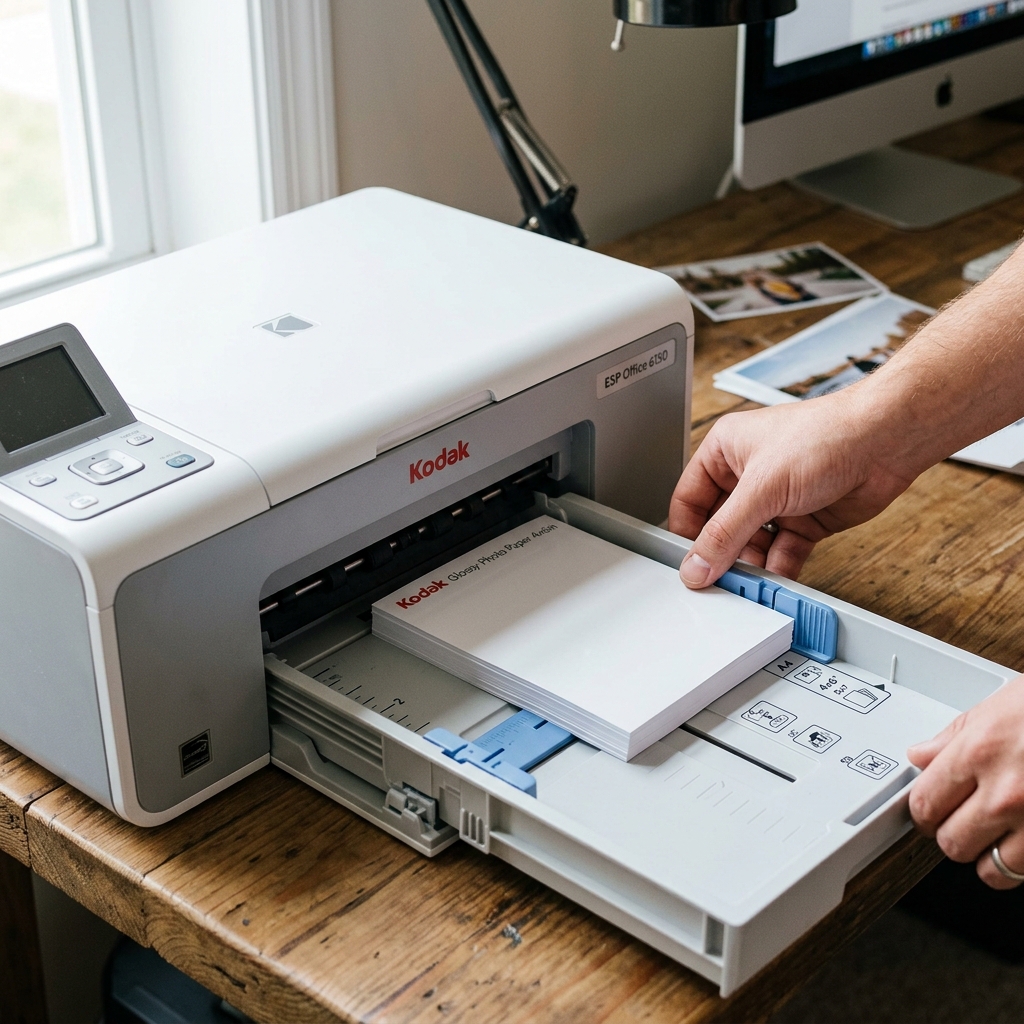
A "Loading Paper Error" or "Out of Paper" warning when the tray is full is a classic symptom of dirty or worn paper pickup rollers. Kodak printers draw paper using a set of rubber rollers that rotate against a stationary separation pad.
Over time, paper dust, ink mist, and atmospheric grime coat the rubber rollers, making them slick and unable to grip the sheets. This guide shows you how to locate, clean, and restore your printer's roller assembly.
Diagnostic Checklist: Friction Pad vs. Roller Wear
Identify whether your feed issue is caused by the rollers or the separation pad:
| Symptom | Probable Root Cause | Remedy |
|---|---|---|
| Printer makes grinding noise but paper doesn't move | Slick, dust-coated rubber rollers | Clean pickup rollers with distilled water (Fix 1) |
| Printer grabs multiple sheets of paper at once | Worn or slick separation pad | Clean/rough up the separation pad (Fix 2) |
| Single sheet feeds partway and stops immediately | Misaligned paper tray guides | Adjust paper guides snug against stack (Fix 3) |
Fix 1: Clean the Rubber Pickup Rollers
To restore grip to the rubber rollers, you must clean them with distilled water. Avoid alcohol or chemicals, as they will dry out the rubber.
- Power off the printer and disconnect the power cord.
- Remove the paper input tray completely from the bottom of the printer.
- Turn the printer onto its side or back (carefully, ensuring the scanner lid is taped shut) to expose the bottom cavity.
- Locate the D-shaped rubber rollers in the center of the feed assembly.
- Dampen a lint-free microfiber cloth with **distilled water**. Wrap it around your finger.
- Wipe the rubber surface of the rollers. Rotate the rollers manually to clean the entire circumference. Wipe away all gray paper dust until the rubber looks black again.
- Let the rollers dry completely before reassembling.
Fix 2: Clean and Rough Up the Separation Pad
The separation pad is the small cork or rubber square that sits beneath the rollers. Its job is to provide resistance so only one sheet feeds at a time. If it is slick, multiple sheets feed at once, causing a jam error.
- Locate the separation pad (positioned on the bottom frame or inside the paper tray).
- Wipe the pad with a damp cloth to remove paper dust.
- If the pad is rubber and very slick, you can use a piece of fine-grit sandpaper (like 400 grit) to **very lightly** rub the pad surface. This restores the texture needed to separate sheets. Wiping clean with a dry cloth afterward is required.
Fix 3: Adjust the Tray Guides and Paper Stack
Improperly loaded paper causes the feed rollers to grip the sheets unevenly, triggering loading errors.
- Take the paper stack out of the tray. Fan the sheets to break static cling.
- Align the stack on a flat surface to ensure all edges are flush.
- Load the paper back into the tray.
- Slide the paper guides inward until they rest gently against the edges of the stack. If the guides are too tight, they will pinch the paper and prevent it from feeding; if too loose, the paper will feed crooked.
Related Kodak Troubleshooting Guides
Why Kodak Printers Display "Loading Paper Error" or "Out of Paper" With a Full Tray
When your Kodak all-in-one insists the paper tray is empty despite a full stack of clean paper, the issue is physical: the rubber pickup roller is slipping on the paper surface, the paper sensor switch has failed to trigger, or the paper cassette tray is not fully seated into its lock detent.
Complete Mechanical Repair & Cleaning Workflow
- Inspect the Rubber Pickup Roller Tread:
Remove the paper cassette. Look into the lower feed cavity.
The rubber roller that grabs the top sheet can become glazed with microscopic paper fibers over time, losing its tacky grip. Clean the rubber with a cotton cloth dampened with warm water.
If the rubber is severely glazed, gently scuff the surface with fine 400-grit sandpaper to restore friction.
- Verify the Paper Tray Lift Mechanism:
The bottom of the Kodak paper cassette contains a spring-loaded metal pressure plate that pushes the paper stack up against the feed rollers. If the plastic retaining catch on the bottom of the tray is cracked or stuck, the plate will not lift, preventing the roller from touching the paper.
- Check the Paper Tray Sensor Switch:
Inside the right side of the paper tray housing is a tiny mechanical micro-switch or optical flag that confirms the tray is pushed all the way in. If the tray is pushed in 95% of the way but not clicked firmly into the latch, the printer assumes the tray is missing or empty.
- Reduce the Stack Size:
Loading more than 75-100 sheets of paper creates excessive downward weight that binds the feed mechanism. Load a neat stack of 25-30 sheets of fresh, uncurled 20 lb copy paper to test.
Frequently Asked Questions
Why does the printer feed the paper 2 inches and then stop with a Loading Paper Error?
If the paper moves forward slightly and stops, the leading edge reached the first roller but failed to trip the optical registration sensor within the expected millisecond timeframe. Clean the transparent optical sensor flag located inside the paper path.
Does humidity affect paper feeding in Kodak printers?
Yes. High humidity causes paper sheets to stick together via static and moisture cohesion.
