


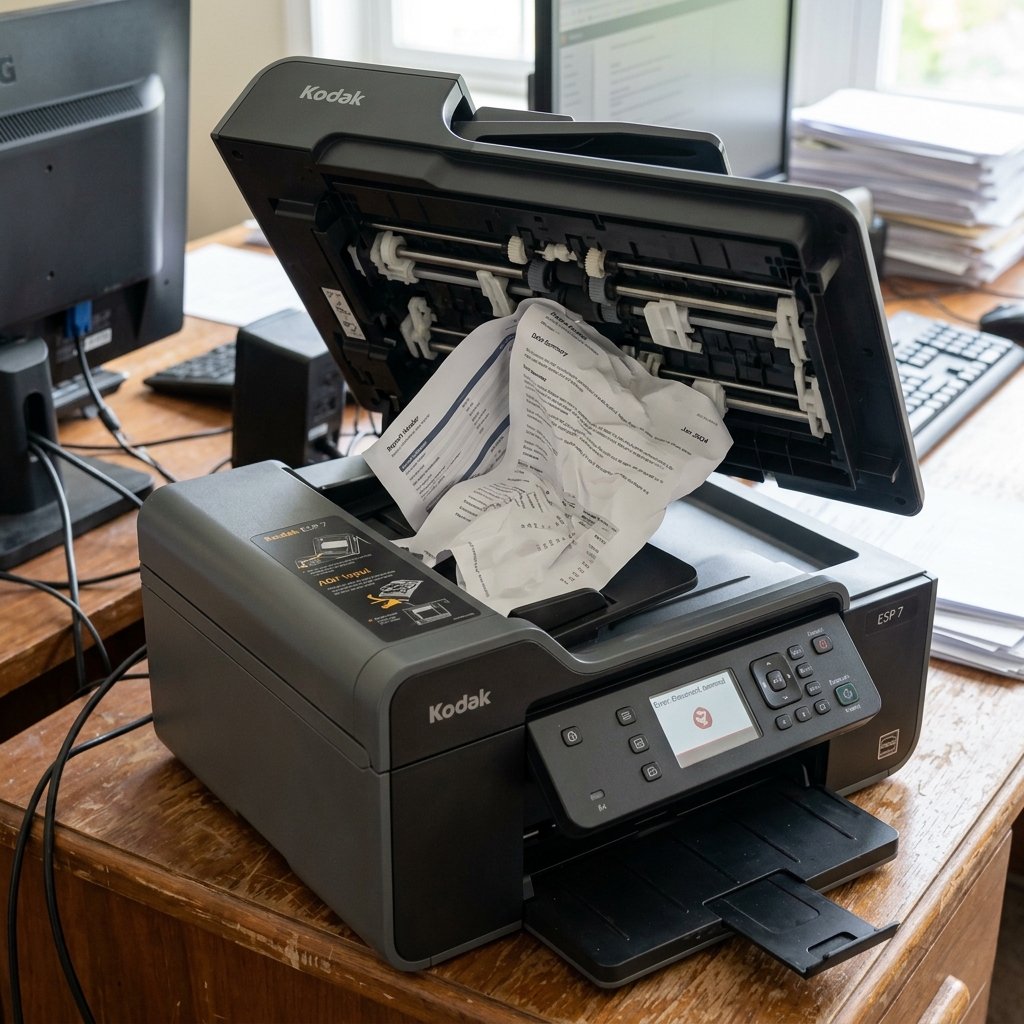
Kodak printer error 6102 is specific to All-in-One models equipped with an Automatic Document Feeder (ADF), such as the ESP 7, ESP 9, and Hero 7.1/9.1. It indicates that the document feeder has experienced a paper jam or a roller slip.
This prevents the scanner from feeding sheets for scanning or copying. Here is how to resolve the ADF error code 6102.
What Causes Error 6102?
The ADF uses a series of small rubber rollers and a separator pad to pull individual sheets of paper from the top scanner tray, slide them past the scanner glass, and output them below. Error 6102 triggers if the scanner sensors do not detect the paper advancing, or if the mechanical gears detect resistance.
This can be caused by thick documents, staples, paper clips, or accumulated dust on the pickup rollers.
Fix 1: Open the ADF Cover and Clear Jams
Never pull paper out of the ADF entry slot without opening the hatch first, as this can damage the tiny plastic gear teeth inside the assembly.
- Remove any un-scanned sheets from the ADF input tray.
- Locate the latch on the top cover of the ADF assembly and lift the cover open fully.
- Look inside for any jammed paper, torn scraps, or debris.
- Gently pull the jammed sheet forward (in the direction of normal page feed) with both hands.
- Verify that the green plastic rollers are clear of paper fragments.
- Close the ADF cover firmly until you hear a click.
Fix 2: Clean the ADF Rollers and Separator Pad
Dust and paper fibers can coat the rubber feed rollers, making them slick. Slick rollers slip on the paper, triggering error 6102 because the page fails to move.
- Open the ADF cover.
- Locate the rubber pickup rollers and the small rubber separator pad directly beneath them.
- Slightly dampen a clean, lint-free microfiber cloth with distilled water. **Do not use alcohol**, as it can dry out and crack the rubber rollers over time.
- Wipe the rollers, rotating them by hand to clean the entire surface.
- Wipe the separator pad to remove ink residue and dust.
- Let the rollers dry completely (about 5 minutes) before closing the cover.
Fix 3: Clear the ADF Sensor
If error 6102 continues when the ADF is completely empty, the document sensor may be dirty or stuck.
- With the ADF cover open, look for the tiny plastic sensor lever that detects when paper is loaded in the input tray.
- Verify that the lever moves freely when pressed and springs back up.
- Use a can of compressed air to blow any dust out of the sensor gap.
Related Kodak Troubleshooting Guides
Understanding Kodak Error 6102 (Document Feeder & Scan Carriage Jam)
On Kodak all-in-one printers (including the ESP and HERO series), Error 6102 specifically designates an optical scan carriage obstruction or an Automatic Document Feeder (ADF) paper feed stall. The printer's mainboard monitors the current draw of the scan motor and the state of the ADF entrance optical sensor.
When the CIS (Contact Image Sensor) bar encounters physical drag or cannot return to the home docking position, the printer halts with Error 6102.
Step-by-Step Diagnostic & Clearing Guide
- Check the Scan Glass Bed & Calibration Strip:
Lift the scanner lid. Inspect the narrow glass strip on the left side (used by the ADF) and the main flatbed glass.
If white correction fluid, tape adhesive, or sticky paper residue is present, the scan head will snag or fail calibration. Clean the entire glass surface with 99% isopropyl alcohol and a lint-free optical cloth.
- Inspect the Automatic Document Feeder (ADF) Rollers:
Open the top ADF access hatch. Check for folded or torn original documents caught between the separation pad and the pickup roller. Clean the gray rubber pickup rollers with a damp cloth to remove built-up ink and paper glaze.
- Check the Scanner Carriage Lock Mechanism:
Ensure the physical scan carriage lock switch (if present on the underside of your model) is set to the unlocked position. Power down the machine and look through the glass with a flashlight to verify the scanner carriage is not caught on a dislodged ribbon cable.
- Execute a Hard Power Drain:
Kodak printers maintain sensor error flags in volatile buffer memory. Disconnect the power adapter from the back of the printer, unplug it from the wall outlet, wait a full 60 seconds while holding down the physical Power button to drain board capacitors, and reconnect directly to AC power.
Frequently Asked Questions
Why does Error 6102 appear even when I am only trying to print, not scan?
During initial power-on startup, Kodak all-in-one printers run a mandatory hardware self-test that cycles both the printhead and the scanner carriage. If the scanner carriage fails its calibration sweep, the printer halts the entire system, blocking print jobs as well.
Can a noisy scanner motor cause Error 6102?
Yes. If the plastic gears driving the scanner belt are stripped or clogged with dust, the motor will slip, failing to position the CIS sensor within the firmware's timed window and tripping 6102.
