


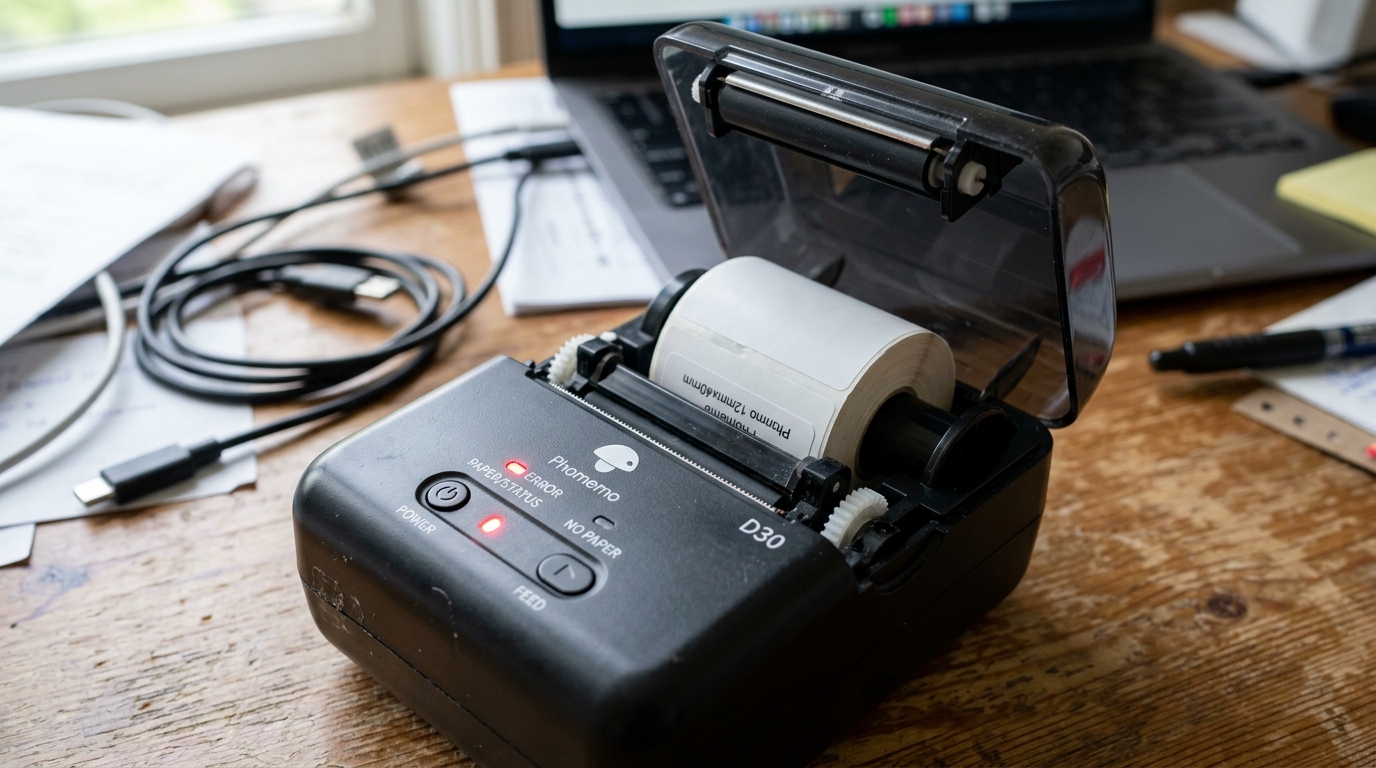
Introduction to Phomemo Printer Errors
Phomemo thermal printers are beloved for their compact design. Ease of use, and versatility in printing everything from shipping labels to journaling stickers.
However, users frequently run into frustrating hardware alerts. Most notably the "No Paper" light, "Cover Open" error, and issues with paper feed calibration.
These errors can abruptly halt your workflow, leaving you staring at a blinking red light and an unresponsive machine. This comprehensive troubleshooting guide will explain the sensor systems within Phomemo printers.
Specifically targeting models like the PM-246 Pro, M110, M02, and D30. By understanding how the optical sensors detect paper and how the microswitches verify that the cover is securely latched.
You can quickly diagnose and resolve these common interruptions. Thermal printing relies on exact alignment; if the printer believes the paper is missing.
Misaligned, or the cover is slightly ajar, it will refuse to print to protect the thermal head from damage. We will walk you through the mechanical checks, sensor cleaning routines,.
Calibration steps necessary to clear these errors. Ensuring your Phomemo printer returns to producing crisp, perfectly aligned labels without constant babying.
Why This Happens
The "No Paper" and "Cover Open" errors on Phomemo printers are almost entirely sensor-related. The "No Paper" error occurs when the printer's optical media sensor fails to detect the presence of paper.
Cannot distinguish the gap or black mark between labels. This happens for several reasons: the paper is loaded incorrectly, the sensor is covered in paper dust.
Label adhesive, or the wrong media type is selected in the app or driver. If you are using continuous paper.
The printer is expecting gap labels, it will feed continuously and eventually trigger an error. The "Cover Open" error is triggered by a mechanical microswitch located near the hinge or latch of the printer cover.
When you close the lid, a small plastic tab presses this switch. If the lid is not pushed down firmly on both sides.
Or if the plastic tab is bent or broken, the switch remains open, and the printer halts operation for safety. Additionally, feed calibration issues arise when the printer loses track of label dimensions.
When you switch between different sizes of label rolls, the printer needs to re-learn the distance between gaps. Without proper calibration, the printer will feed blank labels, print half on one label.
Half on the next, or throw a red error light due to tracking failure.
Step-by-Step Fix
Follow these detailed steps to resolve the No Paper light, Cover Open error, and feed calibration issues on your Phomemo printer:
- Resolve the "Cover Open" Error: Open the printer cover completely. Inspect the latch mechanisms on both the left. Right sides to ensure no torn paper or adhesive residue is blocking them. Close the cover firmly, pressing down on both corners simultaneously until you hear a distinct "click" from both sides.
- Verify Paper Loading: Open the cover and check the paper roll. Ensure the thermal side (the side that prints) is facing the print head. For desktop models like the PM-246 Pro, ensure the paper is fed under the adjustable media guides. The guides are snug against the paper edges without buckling it.
- Clean the Optical Sensor: Turn off the printer. Locate the media sensor—usually a small black square or slot on the paper path near the print head. Use a cotton swab lightly moistened with isopropyl alcohol to gently clean the sensor. Removing any dust or sticky adhesive that might be blinding it.
- Perform Automatic Feed Calibration: For label printers (like PM-246 Pro), load the labels and close the cover. Press and hold the feed button on top of the printer until. You hear one beep (or the light flashes once), then release. The printer will feed a few labels back and forth to measure the gap distance and calibrate the sensor.
- Configure the App/Driver Settings: Open the Print Master or Phomemo app (or Windows/Mac printer preferences). Ensure the label size specified in the software matches the exact physical dimensions of the roll installed. Mismatched sizes will cause feed errors immediately upon printing.
- Adjust Paper Type: Check your settings to ensure the correct paper type is selected (Gap, Continuous, or Black Mark). The sensor behaves differently for each type; selecting the wrong one will trigger a "No Paper" error.
- Reset the Printer:If the red light persists after cleaning and calibration, turn off the printer. Unplug it from power (or remove the battery if applicable) for 1 minute. Reconnect, and try the calibration step one more time.
Advanced Troubleshooting
If basic calibration fails, you may need to perform advanced troubleshooting. On models with adjustable sensors, ensure the sensor is physically aligned with the label path.
Some labels have gaps only in the center. While others have notches on the edge; slide the sensor so it intersects the gap/notch.
If the "Cover Open" error persists despite a firm closure, the microswitch itself may be faulty. You can test this by opening the cover.
Manually pressing the switch (usually a tiny recessed button near the latch hole) with a pen. If the error clears while holding it, the lid's plastic tab is worn down; if it doesn't clear.
The switch is broken and requires manufacturer repair. For connectivity-induced feed issues, ensure your Bluetooth connection is stable.
Sometimes, a corrupted print job sent from the app can freeze the printer's logic board. Causing it to flash red and refuse to feed.
Clear the print queue on your device, restart the phone/computer, and restart the printer. For Mac users experiencing endless blank label feeding.
Ensure you are not using default CUPS drivers; you must install the specific Phomemo driver. Define a custom paper size in the Page Setup menu, setting all margins to zero.
FAQ
Why is my Phomemo printer spitting out blank labels?
This is a classic calibration issue. The printer does not recognize where one label ends and the next begins.
How do I know which side of the thermal paper to print on?
Thermal paper only prints on one side. Scratch both sides of the paper quickly with your fingernail.
The app says "Cover Open" but it is closed. What do I do?
The lid is likely not latched securely on both sides. Press down firmly on both the left and right front corners of the lid until you hear two separate clicks.
Why does the red light flash when I use off-brand labels?
Off-brand labels might have backing paper that is too thick. Too dark for the optical sensor to penetrate, or the gaps may not meet standard specifications.
How do I reset my Phomemo Bluetooth connection?
If the printer is unresponsive, go to your phone's Bluetooth settings, "Forget" or "Unpair" the Phomemo device. Turn off the printer, turn it back on.
