


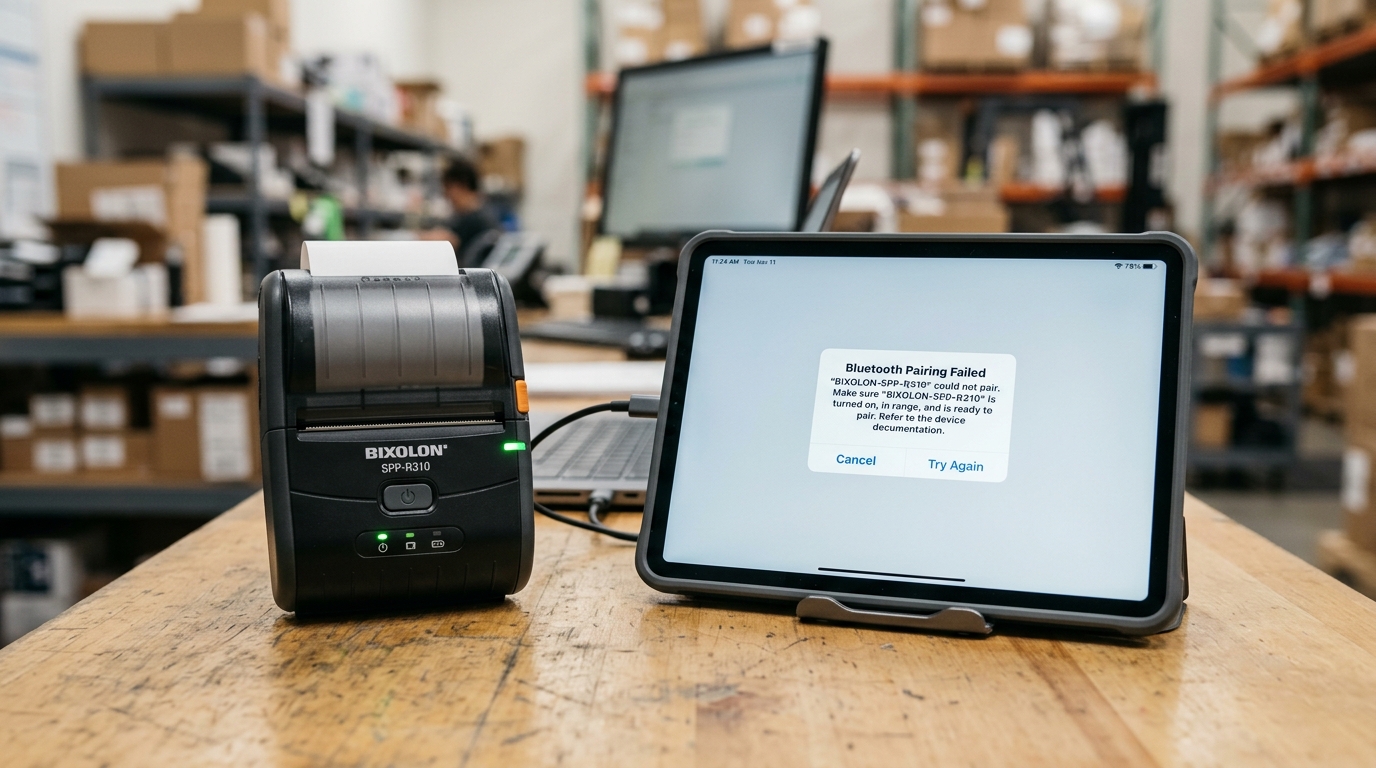
The Quick Answer
Trouble pairing your phone, tablet, or PC to a Bixolon Bluetooth printer? This guide covers default PINs, iOS/Android mode issues, and Windows COM port bugs.
Bluetooth pairing failures on Bixolon printers happen for reasons that most generic "Bluetooth troubleshooting" guides don't cover —. Bixolon printers have their own set of model-specific behaviors that trip up standard pairing procedures.
If you've tried the usual "forget the device. Re-pair" advice and it hasn't worked, one of the situations below is probably why.
Here's every fix, organized by the actual cause.
The Most Common Fix: Default PIN
Try this before anything else. If pairing is failing and you're being asked for a PIN or passkey, the answer is almost certainly:
0000 (four zeros)
This is Bixolon's default PIN across almost every Bluetooth-enabled printer they make — SPP-R200, SPP-R310, SPP-L310, and others. If you've been entering something else, or the system is auto-filling a different value, try 0000 first.
Some models allow the PIN to be changed through utility software, so if 0000 doesn't work and you know the PIN was customized, use that instead.
Cause 1: Wrong iOS/Android Mode (SPP-R310 and Similar)
This is the fix people miss most. The SPP-R310 and several other Bixolon Bluetooth models operate in two mutually exclusive modes:
- iOS MFi mode — for iPhone and iPad
- Android mode — for Android devices, Windows computers, and most non-Apple hardware
A printer in the wrong mode won't appear at all during device scanning. iOS mode invisible to Android, Android mode invisible to iOS. That's the entire cause of many "printer not found" failures.
Fix:
- Run a self-test on the printer (hold Feed. Powering on) to check which mode is currently active — the self-test report shows the Bluetooth settings.
- If it 's set to the wrong mode for your device:
- Enter mode-selection through the appropriate button sequence for your model (varies — check your manual)
- Toggle to the correct mode
- Reboot the printer
- Retry pairing after the modeup-installation/instax-link-wide-bluetooth-setup-connection-guide" title="Instax Link WIDE Bluetooth Setup Guide (iOS, Android & Cameras)">pairing after the mode change is complete.
Consult your specific model's Bluetooth Connection Manual for the exact mode-switching procedure.
Cause 2: Existing Connection to Another Device
Most Bixolon Bluetooth printers can only maintain one active connection at a time. If the printer is still connected to a previous device (a phone that walked out of the room, a POS terminal that got restarted, another tablet), it won't accept a new pairing request until that connection is cleared.
How to check on SPP-R310: press the Feed button when the printer is powered on. If the STATUS LED blinks in response, the printer is currently connected to another iOS device.
This is a specific diagnostic behavior — it lets you confirm a hidden active connection is what's blocking new pairing.
Fix:
- If you know which other device is connected, disconnect Bluetooth on that device.
- If you don't, simply power cycle the printer — off for 15 seconds, then back on. This clears any active connection state and allows a fresh pairing attempt.
- Attempt pairing again film/setup-installation/instax-link-wide-bluetooth-setup-connection-guide" title="Instax Link WIDE Bluetooth Setup Guide (iOS, Android & Cameras)">pairing again immediately after power-up.
Cause 3: Stale Pairing State
Bluetooth pairings are stored on both the printer and the connecting device. A stored pairing that's no longer valid (the device's Bluetooth was reset, the printer was reset, credentials got out of sync) can cause pairing attempts to fail without any clear error.
Fix:
- On your device (phone, tablet, or computer): completely forget/remove the Bixolon printer from Bluetooth settings, don't just try to reconnect to an existing pairing entry.
- Power cycle the printer odes-alerts/kodak-printer-error-3802" title="Kodak Printer Error 3802 Fix: Step-by-Step Reset">Power cycle the printer.
- Put the printer into pairing="/fujifilm/setup-installation/instax-link-wide-bluetooth-setup-connection-guide" title="Instax Link WIDE Bluetooth Setup Guide (iOS, Android & Cameras)">pairing/discoverable mode again (usually automatic on power-up, sometimes requires a specific button sequence).
- Scan for devices fresh on your device.
- Pair from scratch.
Cause 4: Bluetooth Range and Interference
Bixolon's manuals are explicit that Bluetooth connections require both devices to be within about 10 meters of each other. Warn about interference from other 2.4GHz devices (microwaves, other Bluetooth peripherals, some Wi-Fi setups).
Signs of range or interference issues:
- Pairing works occasionally but fails most attempts
- Connection succeeds briefly then drops
- Works in one location but not another
Fix:
- Move the printer and connecting device close together (within 3 meters) for initial pairing
- Move away from microwaves, wireless routers, other Bluetooth devices during pairing
- Move to a location with fewer physical obstacles (walls, metal fixtures)
- Once paired successfully, you can typically move to normal working distances
Cause 5: Windows COM Port Issues
Windows pairing with Bixolon Bluetooth printers has a specific gotcha: when you pair, Windows creates two COM ports (usually COM3 and COM4). The Bixolon driver must be installed on the specific outbound port — for the SPP-R310, that's typically **COM4**.
If the driver is installed on the wrong COM port, pairing appears successful (the printer shows up in Windows Bluetooth settings) but the printer shows as "Unspecified" in Devices and Printers, and print jobs fail silently.
Fix:
- Pair the printer through Windows Bluetooth settings first — enter 0000 if prompted.
- Note which COM ports Windows created for the printer (usually visible in Device Manager under Ports).
- Install the Bixolon driverlon/error-codes-alerts/bixolon-printer-blinking-light-meaning" title="Bixolon Printer Blinking Light Meaning: Full LED Code Chart">Bixolon driver, and during installation, select the higher-numbered COM port (typically COM4).
- Restart your computer.
- Print a test page from /printing-problems/kodak-printer-alignment-failed" title="Fix Kodak Printer Calibration or Alignment Failed Error">test page from Devices and Printers.
If the printer still shows as Unspecified, uninstall the driver, reinstall on the correct COM port, and reboot again.
Cause 6: Bluetooth Mode Setting (Mode1/Mode2/Mode3)
Bixolon's Unified Utility software lets you configure Bluetooth connection behavior across three modes:
- Mode1 — connection possible only with the first device the printer paired with (exclusive pairing)
- Mode2 — standard pairing, any authenticated device can connect
- Mode3 — advanced/SDK integration mode
If your printer is set to Mode1 from a previous settings, it will refuse to pair with any device other than the original one. Symptoms: pairing works fine on one specific phone or computer, fails on all others.
Fix: connect the printer to the Unified Utility software using the original device (or via USB), and switch it to Mode2. Then retry pairing on the new device.
Cause 7: Device-Side Bluetooth Issues
Sometimes the printer is fine and the connecting device is the problem. Signs it's the device, not the printer:
- Other Bluetooth devices also fail to pair with the same phone/computer
- Bluetooth on the connecting device seems glitchy generally
- The printer works fine paired to a different device
Fix:
- Turn Bluetooth off and back on on the connecting device
- Restart the connecting device fully
- Reset network/Bluetooth settings on the device (as a last resort, since this clears all Bluetooth pairings)
Cause 8: NFC Pairing Confusion (Android)
On models supporting NFC-based auto-pairing (SPP-R310. Others), tapping the printer's NFC tag with an Android device is supposed to simplify pairing.
But there's a specific quirk: a "Failed to connect" message can appear briefly after NFC auto-pairing. This is *expected behavior* — NFC only handles the Bluetooth pairing handshake, not the full communication link setup.
Despite the message, the pairing is often actually successful. Try sending a print job before assuming it failed.
Cause 9: Wi-Fi Interference (Model with Both Bluetooth and Wi-Fi)
On models supporting both Wi-Fi. Bluetooth simultaneously (some SPP variants), the two can occasionally interfere with each other during initial pairing. If Wi-Fi is actively trying to connect while you're pairing Bluetooth, either connection can fail intermittently.
Fix: temporarily disable Wi-Fi on the printer during Bluetooth pairing, complete the Bluetooth setup, then re-enable Wi-Fi afterward.
Frequently Asked Questions
What's the default Bluetooth PIN for Bixolon printers? 0000 (four zeros) across almost all models — SPP-R200, SPP-R310, SPP-L310, and others.
Why can't my iPhone find the Bixolon printer even though Bluetooth is on? Almost certainly the printer is in Android mode rather than iOS MFi mode. Toggle the mode via the printer's self-test menu and try again.
Can I pair a Bixolon Bluetooth printer to both my phone and computer at the same time? Most Bixolon Bluetooth printers only maintain one active connection at a time. You can pair to multiple devices, but only one can be actively communicating with the printer at any moment.
Why does my Bluetooth pairing keep dropping after successful connection? Usually range, interference, or power-save timeout on the printer. Check your Memory Switch settings (particularly on SPP models) — an aggressively short idle-power-off timer can drop connections during normal use.
Quick Checklist
- Tried default PIN 0000
- Verified correct iOS/Android mode for your device type
- Confirmed no other device is currently connected (STATUS LED check on SPP-R310)
- Fully forgot old pairing on device before retrying
- Pairing attempted within 3m of the printer
- Away from microwaves, Wi-Fi routers, other Bluetooth peripherals during pairing
- On Windows: driver installed on COM4 specifically
- Bluetooth Mode2 (not Mode1) confirmed via Unified Utility if pairing multiple devices
- Device-side Bluetooth confirmed working with other devices
- Ignored "Failed to connect" message on NFC pairing — tried printing anyway
Most Bixolon Bluetooth pairing failures come down to just a few root causes: wrong iOS/Android mode, existing connection blocking the new one, stale pairing that needs to be cleared, or the Windows COM4 driver issue. Once you know these exist, the fix is usually straightforward —.
Often takes less time than reading through generic Bluetooth troubleshooting that doesn't apply to your specific model.
