


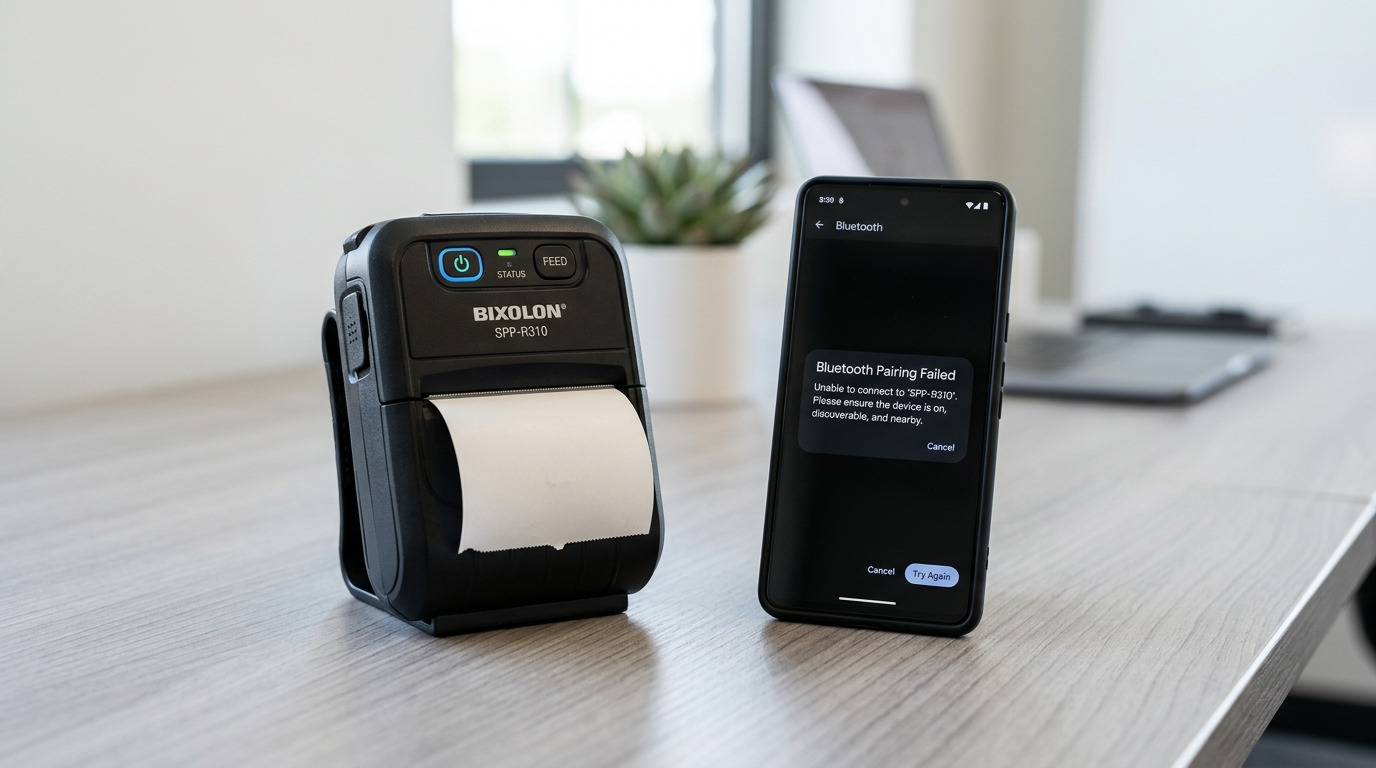
The Quick Answer
The Bixolon SPP-R310 uses distinct iOS and Android Bluetooth modes. Learn how to switch modes, troubleshoot failed pairings, and fix Windows driver COM port issues.
The Bixolon SPP-R310 is a 3-inch mobile receipt and label printer that supports Bluetooth, WLAN, USB, and Serial connections. When it won't connect, the fix almost always comes down to one thing most people don't know: the SPP-R310 operates in two distinct Bluetooth modes — iOS MFi mode and Android mode — and they're mutually exclusive.
A printer in iOS mode won't show up on Android, and a printer in Android mode won't pair correctly with an iPhone or iPad. This is the cause behind far more "the printer just won't connect" calls than anything else on this model.
This guide walks through iOS, Android, Windows, and WLAN connection fixes, with the mode-switching steps you need first.
Before Anything Else: Check Whether the Printer Is Already Connected
The SPP-R310 has a built-in way to check whether it's already paired and active with another device — which will block any new pairing attempt until cleared:
If the STATUS LED blinks when you press the Feed button, it means the printer is connected to another iOS device. You need to disconnect from that iOS device, or turn the printer off and back on to clear the connection before pairing with a new device.
This single check rules out the most common reason the printer "can't be found" during a pairing scan — it's already talking to something else.
iOS Pairing (iPhone and iPad)
Step 1: Confirm the Printer Is in iOS (MFi) Mode
This is the step most people skip — and why the printer doesn't show up on iOS devices.
The SPP-R310 must have iOS mode specifically enabled before it will appear as a pairable device on an iPhone or iPad. If it was previously used with an Android device, it will be in Android mode and invisible to iOS Bluetooth completely.
To enable iOS MFi mode:
- Turn the printer off.
- Press and hold the FEED button , then power the printer on while still holding it.
- Wait for the self-test page kodak/printing-problems/kodak-printer-alignment-failed" title="Fix Kodak Printer Calibration or Alignment Failed Error">test page to finish printing.
- Follow the mode-selection prompts to switch to iOS mode.
- The printer will prompt you to reboot — let it restart before attempting to pair.
Repeat the above procedure to disable MFi mode if you need to switch back to Android mode.
Step 2: Pair on iOS
- On your iPhone or iPad, open Settings → Bluetooth.
- Make sure Bluetooth is ak/connectivity-issues/kodak-instant-printer-app-not-connecting" title="Fix Kodak Instant Printer App Not Connecting to Printer">Bluetooth is turned on.
- The SPP-R310 should now appear in the "Other Devices" list.
- Tap it to pair.
Step 3: If It Still Won't Appear on iOS
Perform a self-test to confirm the printer is set to iOS mode, then check whether the printer is already connected to another iOS device — it cannot be found if it's actively connected to a different device.
Android Pairing
Standard Pairing
- On the printer, confirm it's in Android mode (iOS mode disabled — see the mode-switching steps above).
- Open Settings → Bluetooth on your Android device.
- Make sure Bluetooth is ak/connectivity-issues/kodak-instant-printer-app-not-connecting" title="Fix Kodak Instant Printer App Not Connecting to Printer">Bluetooth is turned on and scanning.
- Select the SPP-R310 from the available devices list.
- When prompted for a PIN , enter the default: 0000 (four zeros).
- Select OK — Bluetooth communication is then available.
NFC Auto-Pairing (Faster Option)
The SPP-R310 supports NFC-based automatic Bluetooth pairing for Android devices that have NFC read/write capability:
- Tap your host Android device"/kodak/connectivity-issues/kodak-instant-printer-app-not-connecting" title="Fix Kodak Instant Printer App Not Connecting to Printer">Android device to the NFC tag on the printer.
- If prompted for a PIN, enter 0000.
- A "Failed to connect" message may briefly appear on screen — this is expected and not an actual failure. NFC Auto-pairing only handles the Bluetooth pairing step, not the full device-to-device communication link — it operates properly despite this message.
Windows Pairing (Desktop and Laptop)
Windows requires a few extra steps that catch people out, particularly around which COM port the driver installs to.
Step 1: Pair the Printer in Windows Bluetooth Settings
- Open Settings → Bluetooth & devices (Windows 10/11: Start → Settings → Devices → Bluetooth).
- Make sure Bluetooth is on connectivity-issues/kodak-instant-printer-app-not-connecting" title="Fix Kodak Instant Printer App Not Connecting to Printer">Bluetooth is on and scanning.
- Select the SPP-R310 from the device list.
- Enter the PIN 0000 when prompted.
- Windows will install a "Standard Serial over Bluetooth link" — typically creating COM3 and COM4.
Step 2: Install the Driver on COM4 Specifically
This is the step that most people skip and why Windows shows the printer as "Unspecified" in Devices and Printers even after successful pairing:
If the printer shows as unspecified in Windows, uninstall the driver and reinstall it on COM4. The driver must be pointed at COM4 specifically — installing it at whatever port Windows defaults to often creates a silent mismatch.
- Download the SPP-R310 nstallation/dymo-labelwriter-4xl-5xl-setup-driver-guide" title="DYMO LabelWriter 4XL & 5XL Driver Download & Setup">Download the SPP-R310 Windows driver from Bixolon's official support site.
- During installation, select COM4 as the port.
- Once installation finishes, reboot the computer.
- Go to Devices and Printers and send a test page to confirm.
WLAN (Wi-Fi) Connection Issues
The SPP-R310 also supports wireless LAN alongside Bluetooth. If you're connecting over Wi-Fi rather than Bluetooth:
- You can check the Bluetooth environment (authentication, encryption, connection mode) and the wireless LAN environment (IP, SSID, authentication, encryption) via the self-test page — run a self-test before troubleshooting anything else to confirm what the printer's current network settings actually are.
- The SPP-R310 supports Infrastructure mode (connecting to an access point/router) and Ad-hoc mode (direct device-to-device). In Infrastructure mode, the printer connects to a standard access point; in Ad-hoc mode, it connects directly to PDAs and PCs supporting wireless LAN.
- Confirm the printer's SSID, authentication type, and encryption settings exactly match your access point — a single mismatch in any of these will prevent connection without producing an obvious error message.
Bluetooth Range and Interference
Two range-specific facts worth knowing for environments where the connection drops unexpectedly:
- The connection breaks if the distance between devices exceeds 10 meters. The maximum separating distance may be shortened if transmission obstacles such as cement walls are present.
- If a device such as a microwave oven or wireless LAN equipment using the same frequency is present, transmission may be interrupted — separate the printer and Bluetooth device from such interrupting devices by at least 5 meters.
In busy retail, warehouse, or healthcare environments, Bluetooth interference from competing devices is a real and underestimated cause of random disconnections that otherwise look like printer faults.
Bluetooth Mode Options (Mode1, Mode2, Mode3)
Beyond the iOS/Android distinction, the SPP-R310's Unified Utility software lets you configure three sub-modes for Bluetooth connection behavior:
- Mode1: connection is possible only with the first device the printer was paired with (exclusive pairing).
- Mode2: standard open pairing — any authenticated device can connect.
- Mode3: advanced configuration mode for specific SDK integrations.
If your printer consistently connects to one device but refuses all others, check whether Mode1 was set at some point — switching to Mode2 through the Unified Utility resolves this without requiring a full factory reset.
Running a Self-Test to Confirm Bluetooth Status
A self-test can be performed by turning off the printer, then holding the Feed button down and turning the printer back on.
The self-test printout shows the current Bluetooth configuration — connection mode, authentication method, and encryption setting — which is the fastest way to confirm what mode the printer is actually in versus what you think it should be in.
Frequently Asked Questions
Why won't my SPP-R310 show up on my iPhone at all? Almost certainly it's in Android mode, not iOS MFi mode. Switch it to iOS mode through the Feed-button self-test menu, reboot the printer, and try pairing again.
What's the default Bluetooth PIN for the SPP-R310? The default PIN is 0000 (four zeros).
My Android paired successfully but "Failed to connect" appeared — is something wrong? No — this message can appear after NFC Auto-pairing because NFC only handles the Bluetooth pairing step, not the full communication link. The printer operates properly despite this message.
Can the SPP-R310 be connected to iOS and Android at the same time? No — it operates in one mode at a time. Switching between iOS and Android requires toggling the MFi mode through the printer's self-test menu and rebooting.
My Windows computer paired but shows the printer as "Unspecified" — what's wrong? The driver was installed on the wrong COM port. Uninstall, then reinstall specifically targeting COM4.
Quick Checklist
- [ ] Checked STATUS LED by pressing Feed — confirmed no existing active connection
- [ ] Confirmed correct mode: iOS MFi mode enabled for Apple devices, disabled for Android
- [ ] Printer rebooted after mode change before attempting to pair
- [ ] Default PIN 0000 used when prompted
- [ ] On Windows: driver reinstalled specifically on COM4, computer rebooted after
- [ ] Self-test run to confirm current Bluetooth mode and settings
- [ ] Printer within 10m of connecting device, away from microwave/Wi-Fi interference
- [ ] Bluetooth Mode1 checked if only one device can connect
The SPP-R310's iOS/Android mode distinction is the kind of detail that's buried in a separate Bluetooth Connection Manual rather than the main user guide — which is exactly why it trips people up so reliably. Once you know it exists, most "won't connect" issues on this printer resolve in under two minutes.
