


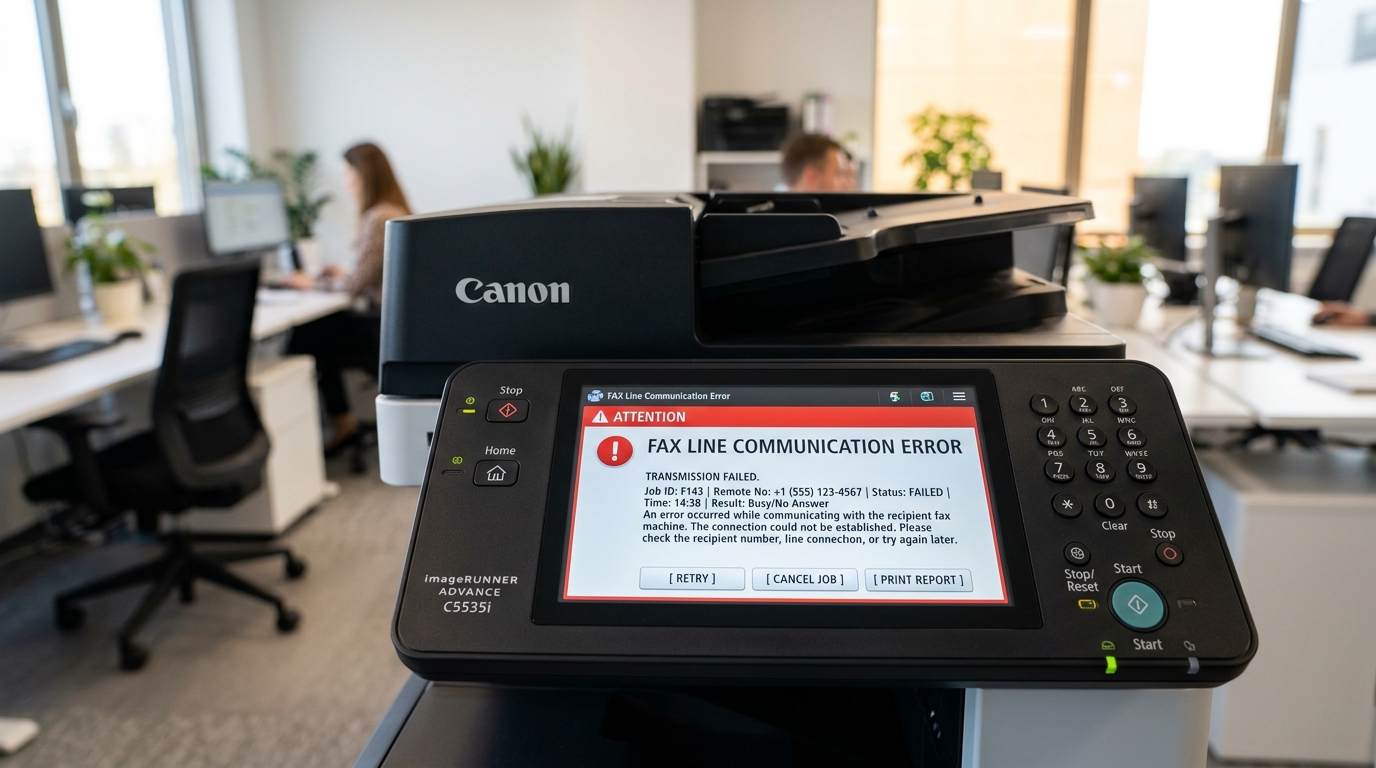
Understanding Canon imageCLASS Fax Transmission Errors
Canon imageCLASS laser all-in-ones use an internal analog modem to send and receive faxes over telephone copper lines or VoIP adapters.
When faxes fail with error codes like #0005 or #0018, the cause usually traces to incorrect jack wiring, VoIP packet jitter, or enabled Error Correction Mode (ECM).
Step 1: Check Physical Phone Jack Wiring (LINE vs EXT)
Plugging telephone cords into the wrong rear jack halts all communication:
- Inspect rear ports: Locate the two RJ-11 phone jacks on the rear panel of your imageCLASS unit.
- Verify the LINE port: Connect the telephone line cord from your wall telephone jack directly into the port labeled LINE.
- Check the EXT port: The EXT port is only for daisy-chaining an external telephone handset or answering machine. Never plug the wall line into EXT.
- Use a 2-wire phone cord: Ensure you are using a standard 2-conductor RJ-11 phone cable rather than a 4-conductor digital PBX cord.
Step 2: Adjust Settings for VoIP and Digital Phone Lines
Modern cable and fiber internet phone lines (VoIP) compress analog modem tones, causing handshake failures:
- Access Fax Settings: On the printer touchscreen, tap Menu > Function Settings > Fax Settings.
- Lower the Baud Rate: Navigate to Transmission Settings > TX Start Speed. Lower the speed from 33.6 kbps (V.34) down to 9.6 kbps (V.29).
- Disable ECM (Error Correction Mode): Set ECM TX to OFF. VoIP latency frequently trips ECM checksum verification, aborting calls prematurely.
- Adjust RX Start Speed: In Reception Settings, set RX Start Speed to 9.6 kbps as well.
Step 3: Decode Common imageCLASS Fax Error Codes
Use the error number on the transmission report to isolate the fault:
- #0005 (Busy / No Answer): The recipient line is off the hook or busy. Increase Redial Count in Fax Settings.
- #0018 (No Line Signal): The printer detects zero dial tone. Verify the phone cable is plugged into the LINE port and test dial tone with an analog phone.
- #0001 (Paper Jam during Fax): Document feeder or paper cassette jammed mid-transmission. Clear paper and re-send.
- #0003 (Document Too Long): Outgoing document exceeded transmission buffer size (over 20 pages). Send pages in smaller batches.
Frequently Asked Questions
Why does the printer fail to dial out when I press Send?
Check the Dialing Line Type setting. If your phone provider requires Touch-Tone, ensure the printer is set to Tone (not Pulse) in Menu > Fax Settings.
Do I need a DSL filter for my Canon fax machine?
Yes. If your phone line carries broadband DSL internet, you must plug a microfilter into the wall jack and connect the printer to the phone side of the filter.
Can I receive faxes automatically without picking up a phone?
Yes. Set Receive Mode to "Auto" in Fax Settings. The printer will answer after a preset number of rings without requiring manual intervention.
