


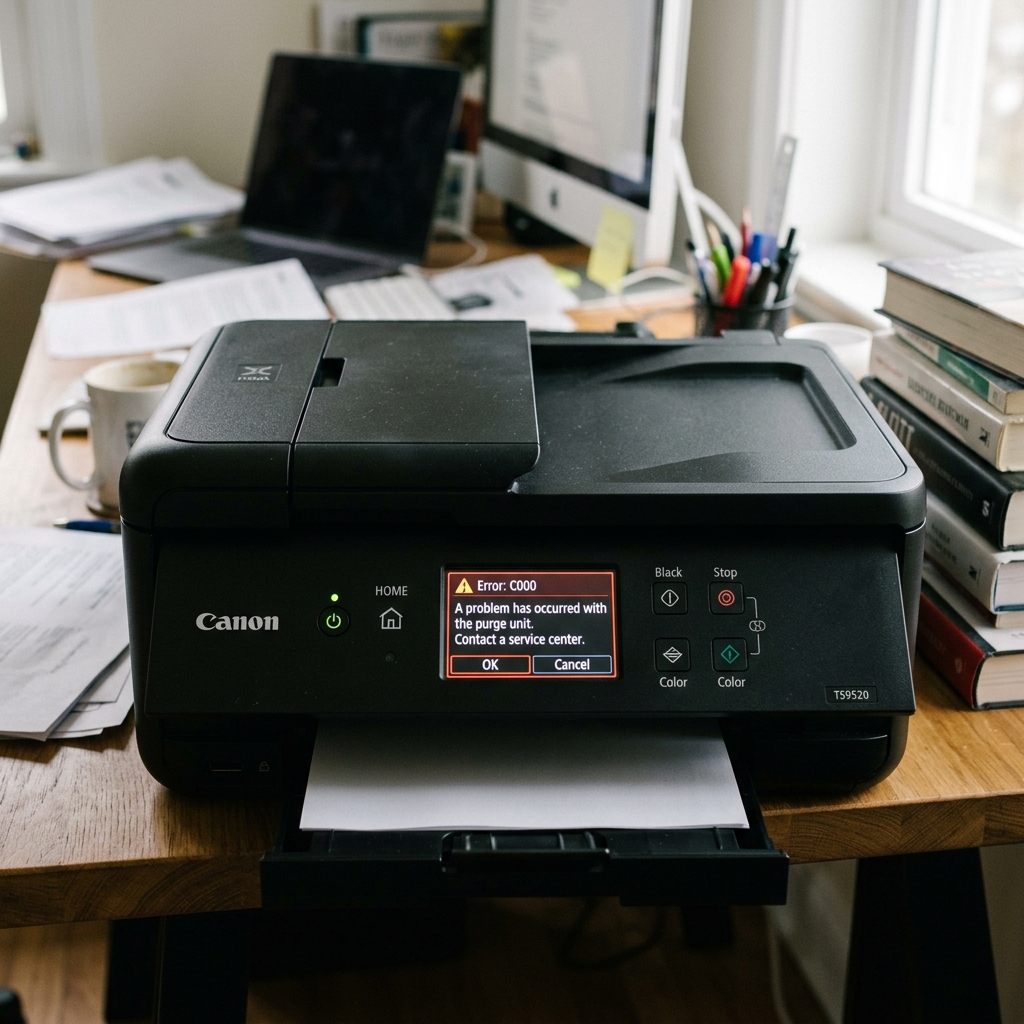
What is Support Code C000?
Unlike specific errors that point to the printhead or the scanner, Error C000 on a Canon printer is a broader "Drive Error." This means the main logic board sent power to a motor to turn a sequence of gears, but the gears didn't turn.
Because multiple systems (the paper feed, the carriage belt, and the ink purge unit) are all driven by internal gear trains, a physical blockage anywhere in the printer's mechanics can trigger this code. It is almost always a physical issue, not a software glitch.
Diagnostic 1: The Foreign Object
The number one cause of C000 is a foreign object dropping into the top paper feed slot and making its way down into the complex white plastic gears at the bottom of the printer.
- Turn the printer completely off and unplug the power cord.
- Take a bright flashlight and look down into the rear paper tray.
- Open the front access door (where you change the ink) and look at the far left and far right sides.
- If you see a coin, a paperclip, a staple, or a piece of heavy cardstock jammed between the teeth of the plastic gears, use long tweezers to carefully extract it. Do not force the gears to turn backwards.
Diagnostic 2: The Stuck Purge Unit
The purge unit (the station on the far right where the printhead rests) is driven by the main gear train. If the purge unit gets glued in place by dried waste ink, the gears lock up and throw C000.
- With the printer unplugged, manually slide the ink carriage to the center of the printer. (If it is locked on the right, you may need to gently push the white plastic locking tab down).
- Look at the small rubber suction cups on the far right where the carriage was sitting.
- Take a Q-tip dampened with warm water and clean the thick, dried ink from around these rubber caps. Gently press down on the cap assembly to ensure it moves up and down freely on its springs.
Diagnostic 3: Unseated Cartridges
Sometimes the simplest solution works. If an ink cartridge is sitting 1 millimeter too high because it wasn't pushed down until it "clicked," it can scrape against the top frame of the printer as the carriage moves, acting as a physical brake.
Remove all cartridges and push them firmly back into their slots until you hear an audible click.
Understanding Canon Error C000 / Support Code C000 (Internal Mechanical Binding)
Error C000 is an emergency mechanical stop code. It indicates that the printer's main drive motor encountered an unexpected rotational resistance while driving the purge unit, feed rollers, or ink valve mechanism during startup self-test.
Step-by-Step Diagnostic & Clearing Guide
- Remove All Protective Packaging and Shipping Tape:
Open the printer lid. Check for orange shipping tape, styrofoam blocks, or plastic carriage restraints that were not removed during unboxing.
- Check the Purge Unit on the Far Right Side:
Ensure the rubber capping station and plastic wiper blade can move smoothly without binding on dried ink crust.
- Inspect the Entire Paper Path with a Flashlight:
Look for dropped paperclips, staples, or torn paper fragments jammed between the platen ribs.
- Perform a Hard 15-Minute Power Reset:
Unplug the AC power cord for 15 minutes to clear motor driver stall registers.
Frequently Asked Questions
Why does Error C000 occur during initial unboxing?
Failing to remove internal orange transport locks or tape holding the carriage in place triggers instant C000 on first power-on.
Can a paper jam cause Error C000?
Yes. If paper is wrapped tightly around the internal feed roller, the motor stall triggers C000.
