


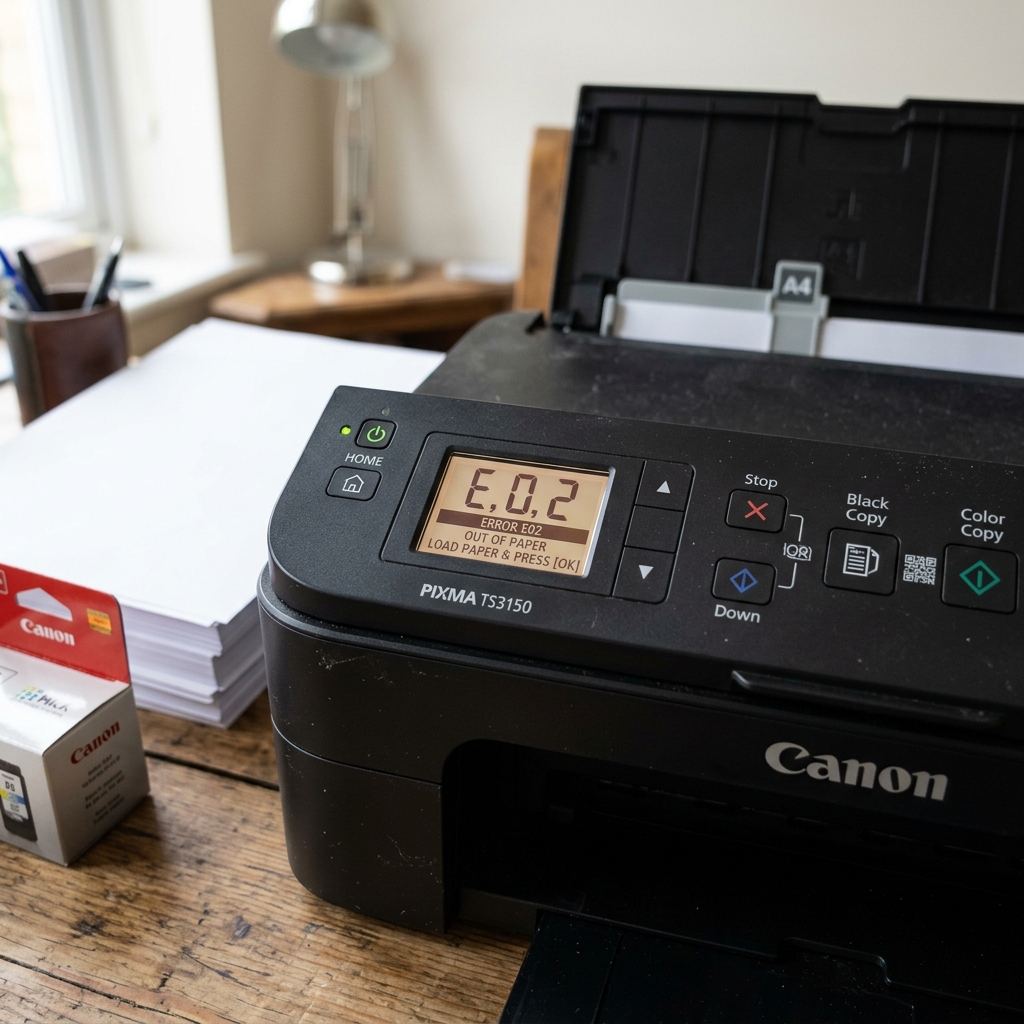
The E02 Misconception
If you own a budget Canon PIXMA model (like the MG2522, MG3620, or TS3120) with a basic LED screen, you might see the screen flash E... 0... 2.
Because E02 often happens right after changing ink, many users search for "E02 cartridge error." However, this is a misconception. Error E02 strictly means "Paper Out" or "Paper Feed Failure." The printer attempted to pull a sheet of paper into the machine and failed.
Fix 1: Reloading the Paper Tray
If your tray is completely empty, simply loading paper and pressing the Start (Black or Color) or Resume button will clear the error.
If your tray does have paper in it, the printer's rollers slipped. This happens when paper is loaded incorrectly.
- Remove the stack of paper from the rear tray.
- Fan the stack like a deck of cards to prevent the sheets from sticking together.
- Tap the bottom edge on a desk so the stack is perfectly flat.
- Drop it back into the rear slot.
- Crucial Step: Pinch the plastic paper guides and slide them inward until they lightly touch the left and right edges of the paper stack. If these guides are too loose, the paper feeds in crookedly and the sensor rejects it.
Fix 2: Cleaning the Rollers
If you have paper loaded properly, you press Print, you hear the rollers spin, but the paper never moves downward, your rubber pick-up rollers are dirty.
Over hundreds of prints, the rollers get coated in white paper dust, making them smooth and slippery. Take a microfiber cloth lightly dampened with water and wipe the gray rubber rollers visible in the rear paper slot.
Let them dry for two minutes, and they will regain their original sticky grip.
Understanding Canon Error E02 (Paper Out / Tray Feed Failure)
On Canon PIXMA printers featuring a 7-segment LED screen (e.g., MG2522, TS3122, MP280), the code E02 (alternating E, 0, 2) signifies a Paper Out / Paper Feed Failure. A widespread misconception among printer users is that E02 indicates a cartridge error; in reality, E02 is strictly a paper transport sensor fault.
Exhaustive 4-Step Resolution for Error E02
- Proper Paper Loading & Alignment in the Rear Tray:
Ensure paper is loaded straight in the vertical rear feed chute. Fan the paper stack before loading to break static cling. Slide the green or black paper width guide firmly against the edge of the stack without bowing the sheets.
- Clean the Rubber Paper Pickup Rollers:
Dust and microscopic paper glaze coat the rubber pickup rollers over time, causing them to slip on the paper surface. Moisten a lint-free cloth with warm distilled water.
Reach into the rear paper slot and wipe the rubber roller tread vigorously. Rotate the roller by hand to clean all 360 degrees.
- Check for Foreign Objects in the Vertical Feed Slot:
Because the rear feed slot is open vertically, pens, paperclips, staples, and coins frequently fall into the chute, physically blocking the pickup roller from lowering. Shine a bright flashlight down the paper slot and remove any debris with tweezers.
- Press the Black or Color Start Button to Clear:
After reloading paper, press the physical Black Start or Color Start button on the control panel to command the printer to retry feeding the sheet.
Frequently Asked Questions
Why does E02 happen when the paper tray is full?
Overloading the tray with more than 50-60 sheets creates excessive downward weight that binds the pickup roller. Reduce the paper stack to 20-25 sheets of fresh 20 lb copy paper.
What is the difference between Error E02 and Error E03?
Error E02 means paper failed to enter the printer (Paper Out / Pickup Slip). Error E03 means paper entered the printer but got stuck inside (Paper Jam).
