


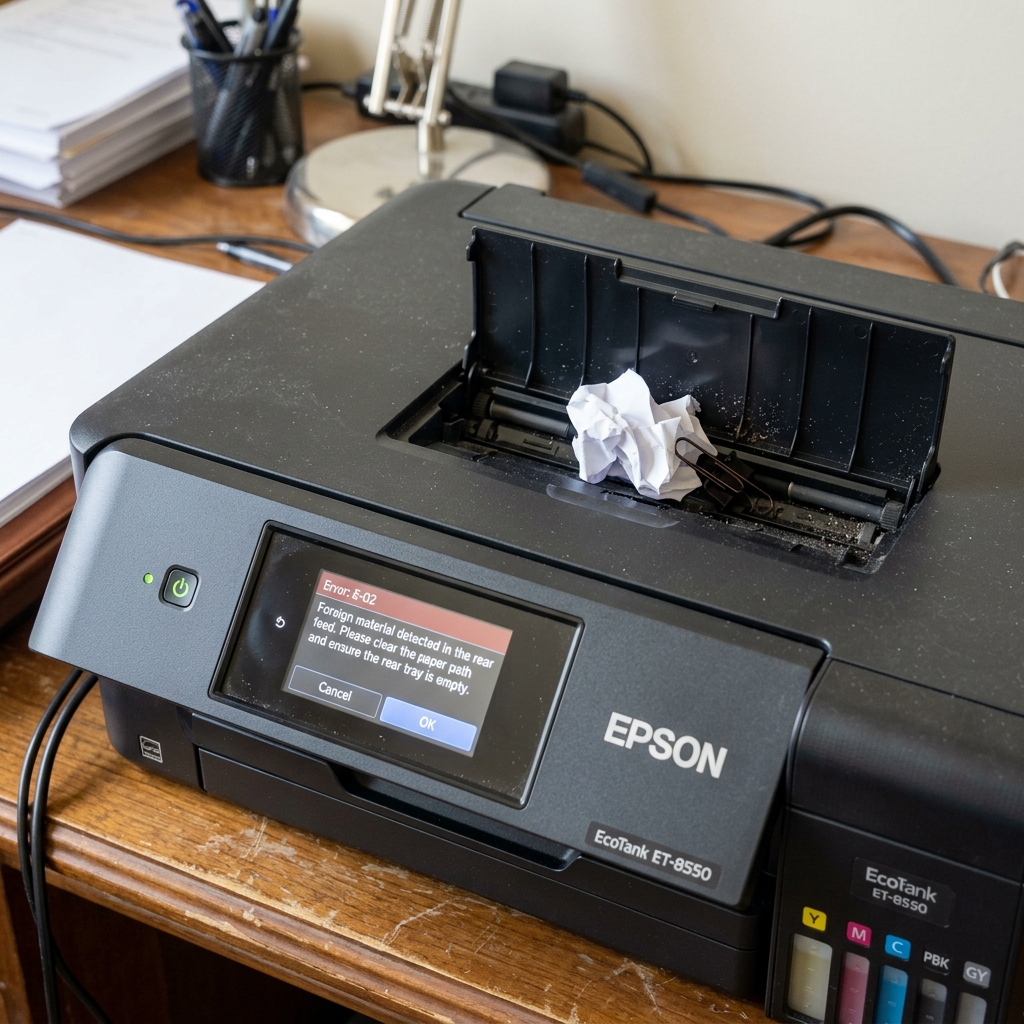
The Sensitivities of Wide Format Printing
The Epson EcoTank Photo ET-8550 is a magnificent piece of engineering, capable of printing 13x19-inch borderless photos. Because it is designed to accept extremely thick, rigid art paper and cardstock through its rear straight-pass feeder, Epson equipped it with highly sensitive optical sensors to prevent thick media from crashing into the printhead.
Unfortunately, these sensors are so sensitive that they frequently throw a "Foreign Material Detected" error, forcing the printer to spit the paper back out without printing.
Fix 1: The Curled Paper Problem
The number one cause of the Foreign Material error on the ET-8550 isn't actually a foreign object—it is the paper itself.
When you buy large 13x19 photo paper, it often develops a slight curve or "curl" while sitting in the box. When you feed a curled piece of thick paper into the rear slot, the leading edge of the paper points upwards as it travels through the machine.
The optical sensor sees this raised edge and assumes it is a thick, foreign object blocking the path. It instantly halts the print job to protect the printhead from scraping against it.
- Take your thick photo paper and lay it on a flat table.
- If the edges curl upward, gently roll the paper in the opposite direction against the edge of the table to "de-curl" it.
- Ensure the paper is perfectly flat before inserting it into the rear feed.
Fix 2: Actual Debris in the Rear Slot
Because the rear feed slot on the ET-8550 is large and faces upward, it acts like a funnel for dust, pet hair, and dropped objects (like paperclips or coins).
- Turn the printer off and unplug it.
- Close the front trays and open the rear feed slot completely.
- Take a bright flashlight and look straight down into the feed mechanism. Move your head so you can see past the gray rubber rollers.
- You are looking for a small black plastic "flag" (a physical lever that gets pushed down by the paper). If a massive dust bunny or a piece of tape is wedged under this flag, the printer thinks something is permanently stuck in the machine.
- Use a can of compressed air to blast out the sensor area, or use long tweezers to remove debris.
Fix 3: Cleaning the Front Platen
If the rear feed is clear, the foreign material might be resting on the platen (the black plastic bed directly underneath the moving printhead).
Lift the main scanner unit up to expose the printhead carriage. Look at the black plastic surface where the paper travels while being printed on.
If a piece of sticky label paper peeled off and adhered to this surface, the optical sensor on the bottom of the printhead will detect it as a crash hazard and throw the error. Carefully peel away any obstructions.
Understanding the Epson EcoTank Photo ET-8550 "Foreign Material Error"
The Epson EcoTank ET-8550 is a wide-format 6-color photo printer equipped with specialized front paper cassettes, a rear straight-through paper feed path, and an automatic motorized output tray. When the touchscreen displays "Foreign Material Error" or error code 0x000041 / 0x000044, an optical or mechanical sensor in the paper path has detected an obstruction, or the motorized tray mechanism is bound.
Step-by-Step Diagnostic & Clearing Guide
- Inspect the Rear Straight-Through Paper Chute:
The ET-8550 features a rear feed slot for thick media (up to 1.3mm posterboard). Lift the rear cover. Shine a bright flashlight down the rear paper chute. Check for torn photo paper corners, craft vinyl backing, or dropped small items caught in the wide feed rollers.
- Inspect the Motorized Output Tray Track:
The output tray on the ET-8550 extends and retracts automatically using a motorized rack-and-pinion gear. If an object is resting in front of the tray (preventing it from extending), or if paper is jammed inside the motorized tray track, the printer trips a Foreign Material Error.
Never force the output tray in or out by hand.
- Clean the Linear Optical Encoder Strip:
Open the top printer cover. Locate the clear plastic timing strip suspended behind the printhead carriage.
Ink mist or photo paper dust on this strip causes the carriage motor to stutter, which the firmware misinterprets as a physical foreign object collision. Clean gently with warm distilled water on a microfiber cloth.
- Check the Front Cassette 1 & Cassette 2 Seating:
Remove both lower paper cassettes. Check the bottom cavity with a flashlight. Push both trays in firmly until their front bezels sit flush with the printer chassis.
Frequently Asked Questions
Why does the Foreign Material Error occur during motorized tray movement?
If the gear tracks of the motorized output tray accumulate dust, the motor draws excess current. Clean the plastic tray sliders and ensure no cables are obstructing tray movement.
Can heavy velvet fine art paper cause this error?
Yes. Heavy fine art papers shed microscopic cotton rag fibers.
