


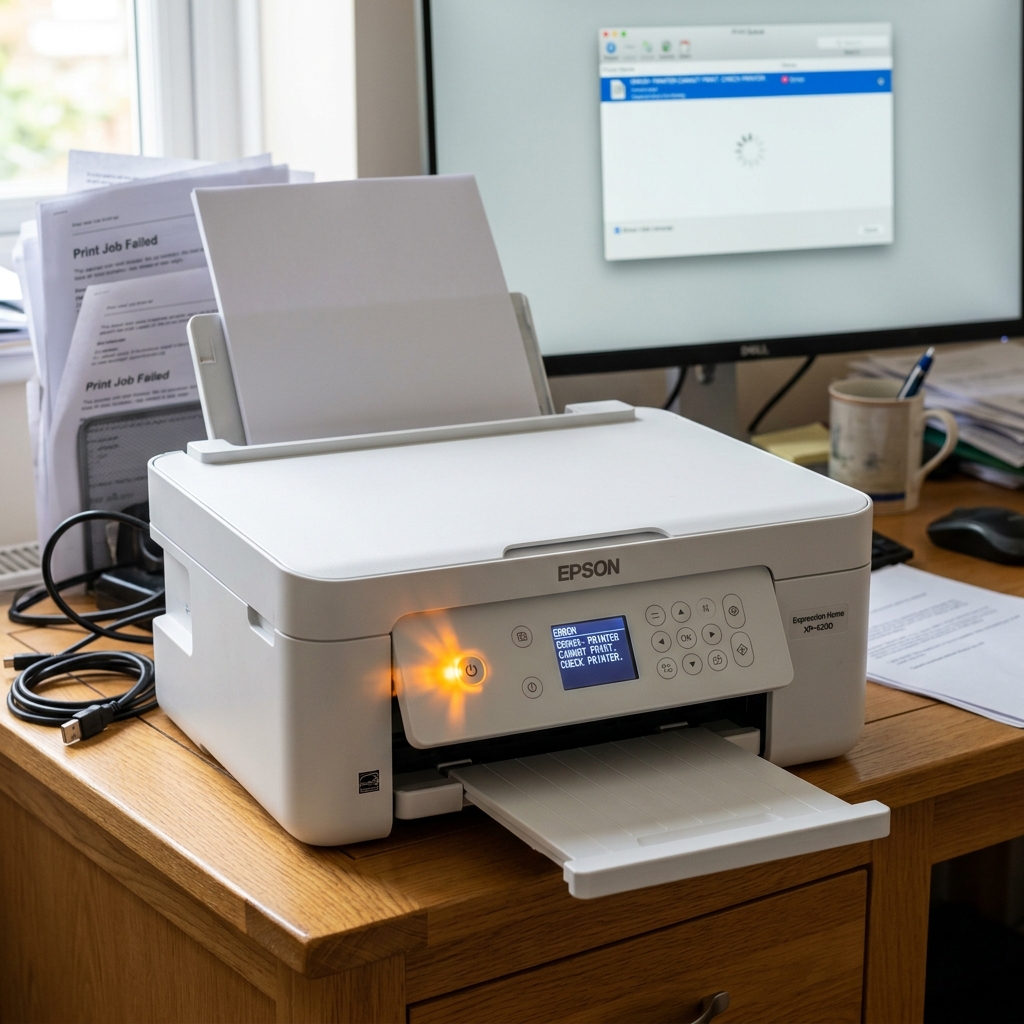
A Blinking Power Light is Normal
Unlike red or orange flashing lights, a blinking green Power light on an Epson printer is not an error code. It is a status indicator. It simply means the printer's internal processor is busy performing a task, and it cannot accept a new command until that task is finished.
However, if the light has been blinking for twenty minutes and the printer refuses to print your document, you may have a hung data queue.
Reason 1: Processing a Large Print Job
When you send a 50-page PDF or a high-resolution photograph to the printer over Wi-Fi, the data isn't transferred instantly. The computer sends it in packets, and the printer stores it in its limited internal RAM buffer.
While the printer is actively receiving and processing this data, the power light will blink. If the Wi-Fi signal is weak, this process can take several minutes before the paper even begins to feed. Just wait.
Reason 2: Automatic Maintenance Cycles
Epson printers are programmed to maintain their own health. If the printer has been sitting idle for a week, the moment you wake it up to print, it will often decide to run a mandatory mini-cleaning cycle to clear dried ink from the nozzles.
During this time, you will hear the gears whirring, the pump sucking, and the power light will flash. Do not unplug the printer during this phase.
Interrupting a cleaning cycle can trap air in the printhead. Wait for the printer to finish its routine (usually 2 to 3 minutes), after which the light will go solid green and your document will automatically print.
Reason 3: The Frozen Print Spooler
If the power light has been blinking for 15 minutes, there is no mechanical noise, and nothing is printing, the printer has likely choked on corrupted data from your computer.
The printer's memory is full, but the data is unreadable, so it just sits there blinking, waiting for the rest of the file.
- On your Windows PC, type "Printers & Scanners" in the Start Menu.
- Select your Epson printer and click Open Queue.
- You will likely see a document stuck on "Printing...". Right-click it and select Cancel.
- Once the queue is empty on the computer, press the physical Cancel (or Stop) button on the printer. The light should turn solid green.
- If it doesn't, turn the printer off, unplug it for 30 seconds, and turn it back on. The memory will wipe, and you can try printing again.
Why the Epson Power Light Keeps Blinking Indefinitely
When an Epson printer powers on, the green or blue Power LED pulses while the internal firmware performs hardware initialization: cycling the carriage motor, homing the scanner CIS bar, pumping the purge station, and checking thermistors. If the power light blinks continuously without settling on a solid "Ready" state, one of these mandatory startup self-tests is failing to complete.
Step-by-Step Diagnostic & Startup Recovery
- Check for Stuck Print Spooler Jobs on Your PC:
If your computer sent a corrupted 500MB PDF document, the printer buffer can freeze mid-spool, causing the power light to blink endlessly as it waits for missing packets. Open Windows Print Queue, click Printer > Cancel All Documents, and restart your PC.
- Inspect the Carriage Lock & Rail Freedom:
Unplug the printer. Open the top cover. Gently move the printhead carriage by hand across the steel guide rail. If it meets resistance or is jammed against a piece of packing tape on the far right, clear the obstruction.
- The 60-Second Full Power Capacitor Drain:
Disconnect the AC power cord from both the wall and the back of the printer. Press and hold the physical Power button for 30 seconds while unplugged. Leave disconnected for 15 minutes before plugging back in directly to a wall socket.
Frequently Asked Questions
Why does the power light blink during firmware updates?
During automated firmware updates, the power light pulses rapidly. Do NOT unplug the printer during this process, as cutting power during a ROM write will brick the logic board.
Can a clogged printhead make the power light blink?
No. Clogged nozzles affect print quality but do not prevent the printer from reaching a solid "Ready" power state.
