


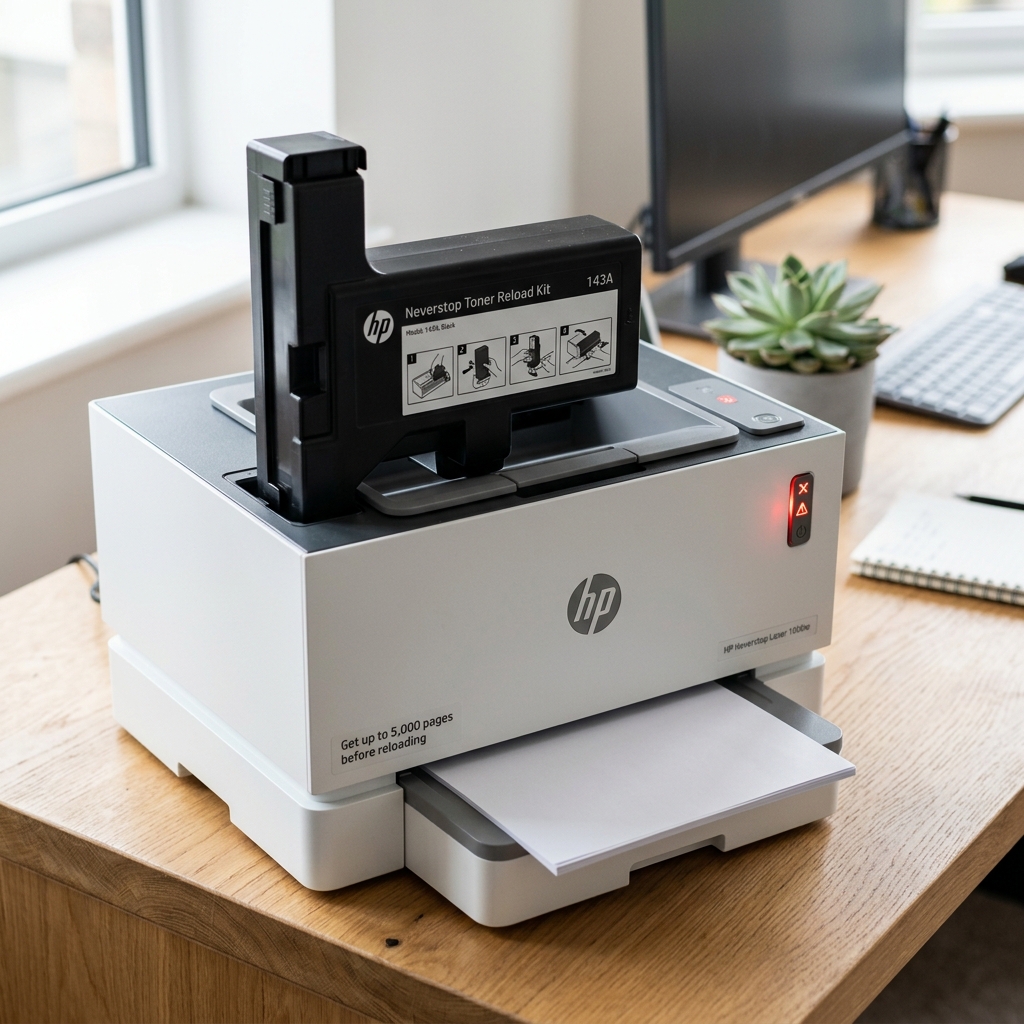
The Quick Answer
HP Neverstop toner refill went in but the printer still won't print? A repair tech explains the power-state requirement most people miss entirely.
You turned the reload kit, heard the toner drop, closed everything back up — and the printer still won't print, still shows low or empty, like the refill never happened at all. This is a genuinely different kind of printer, and it has a genuinely different failure mode to match.
Before you assume the toner itself failed, there's one prerequisite about when you refilled that trips up more people than anything mechanical about the process.
Quick-Fix Summary
Fast version:
- Confirm the printer is powered on, not asleep, before and during the refill — my uncommon tip, and the most commonly missed step
- Check the toner level indicator for a "+1" or "+2" registration, not just visual confirmation.
- Power cycle after any refill attempt.
- Check for a previous, incomplete reload blocking recognition of the new one.
- Update firmware (internal software) if the toner still isn't recognized after everything above.
Fix 1: Confirm the Printer Was Genuinely Powered On (My Uncommon Tip)
Here's the prerequisite that explains a meaningful share of "I refilled it and nothing changed" complaints. It's easy to miss. This is. This is. This is. This is. This is. This is. This is. This is. This is because The printer doesn't necessarily make it obvious.
The toner sensor reset process — the internal system that registers a successful refill. Updates the toner level indicator — only works while the printer is genuinely powered on.
Awake, not in a low-power or sleep state. If your printer had gone to sleep, or you're not entirely certain it was fully powered on.
Idle before you opened the toner access door. Inserted the reload kit, the physical toner may have gone in completely successfully while the printer's internal sensor system was never actively listening to register that it happened.
To check and correct this: before attempting the refill again (or a fresh reload kit if the previous one is now empty or damaged), press the power button. Confirm the printer is genuinely on — check for a solid, steady ready light rather than a dim or blinking one, and wait until any processing sounds have fully stopped before opening the access door.
Only then insert the reload kit and complete the turning motion.
Why this works: the printer needs to be actively monitoring its internal state to catch and register the sensor signal that a refill produces, and a sleeping or powering-down unit simply isn't listening at the right moment, even though the physical toner transfer itself doesn't need any power at all to happen mechanically.
This mismatch — toner successfully added, sensor never notified — produces exactly the frustrating symptom of a refill that seems to have done nothing,.
This is. This is.
This is. This is.
This is. This is.
This is. This is.
This is. This is because From the printer's internal accounting, nothing was ever registered.
Fix 2: Check the Toner Level Indicator for Registration
After a refill attempt, check your printer's toner level indicator specifically for a "+1" or "+2" symbol appearing, rather than just assuming success because the reload kit turned and the toner dropped.
Why this works: this indicator is your printer's confirmation that the refill was properly registered internally. Its absence — even after a physically successful-seeming refill — is a clear, specific sign that Fix 1's power-state issue, or a related registration failure, is exactly what happened, rather than a mystery you need to guess at.
Fix 3: Power Cycle After Any Refill Attempt
Turn the printer off completely, unplug it from the wall, wait about 60 seconds, then reconnect and power back on.
Why this works: even after a refill that seems to have registered correctly, a power cycle ensures the printer's internal systems are working from a fresh, accurate read of current toner status, clearing any lingering confusion in what the printer currently believes about its own toner level.
Fix 4: Check for a Blocking Previous Reload
If you're working with a second or third reload attempt, open the access door and confirm the previous toner reload kit was genuinely and fully removed. That no debris or partial blockage remains in the reload port itself.
Why this works: a previous reload kit that wasn't fully emptied or fully removed can physically or mechanically interfere with a new kit's ability to insert, turn. Register correctly.
This is a commonly cited cause specifically when a second refill attempt behaves differently or worse than expected compared to the first.
Fix 5: Update firmware (internal software)
If the printer consistently fails to recognize successful refills despite confirming proper power state. Clean insertion, check for and install the latest firmware (internal software) through the printer's own menu or the HP Smart app.
Why this works: HP has periodically addressed toner recognition issues through firmware (internal software) updates, and a printer running older firmware (internal software) may be missing a fix for exactly this kind of registration problem.
When to Call a Professional
If you've confirmed the printer was fully powered on during refill, checked for proper registration on the indicator, power cycled, ruled out a blocking previous reload. Updated firmware (internal software) —.
The printer still won't recognize successful refills — this can point toward a genuine hardware issue, sometimes specifically a broken sensor pin on the imaging drum itself. This Some documented cases have traced to exactly this symptom: toner physically loads correctly, but the printer's software never registers it, regardless of how many refill attempts you make.
Contact HP support with your printer's serial number. Describe that toner is physically transferring.
But Not registering, since that detail helps distinguish this from a simple procedural issue. Points toward imaging drum hardware specifically.
FAQ
Why does my Neverstop printer still say low toner right after I successfully refilled it?
The most common cause is the printer not being fully powered on. Awake during the refill process — the sensor system that registers a successful reload only works while the printer is actively monitoring, not asleep or powering down.
How do I know if my refill actually registered?
Check the toner level indicator specifically for a "+1" or "+2" symbol appearing after the refill. If it's not there, the refill wasn't properly registered internally, even if the toner itself transferred successfully.
Does it matter if the printer was connected to my computer during the refill?
No — this is specifically about the printer's own power state, not its connection to any computer or network. The printer just needs to be genuinely powered on. Idle, not asleep, regardless of what it's connected to.
I've tried everything and refills still won't register. What's actually wrong?
This can point toward a hardware issue with the imaging drum's sensor pin specifically — some documented cases show toner physically loading correctly while the sensor simply never detects it. This Needs imaging drum replacement rather than repeated refill attempts.
An HP Neverstop laser refill not printing usually comes down to timing, not the toner itself — the printer has to be genuinely powered on.
Awake, not asleep, for its sensor system to register what just happened. Confirm that state before your next attempt, check for the "+1" or "+2" indicator afterward.
A refill that seemed to do nothing usually turns out to have simply gone unnoticed by a printer that wasn't fully listening.
more Resources
If you are still experiencing issues after trying the steps above, you may need to consult the official documentation or download the latest firmware (internal software) for your specific printer model. We recommend checking the following official resources:
