


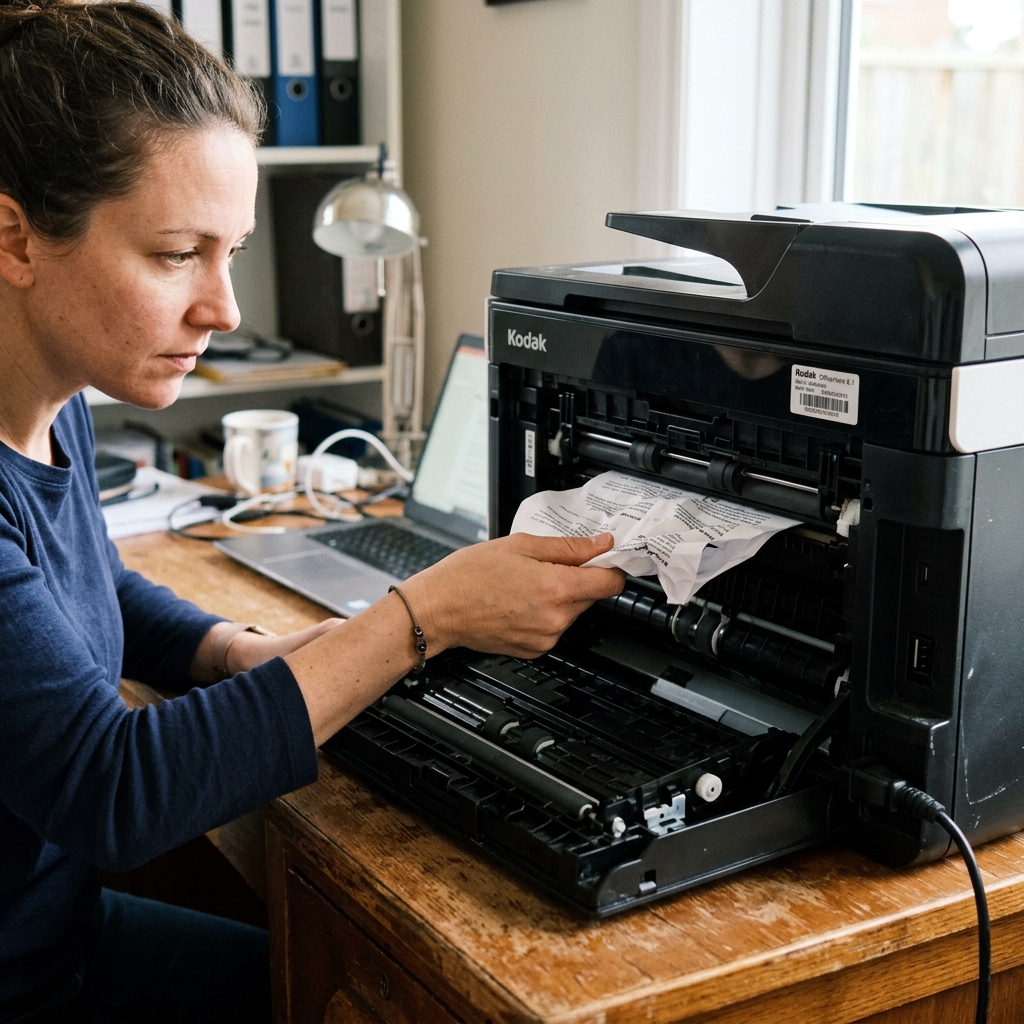
Kodak printer error code 3528 is a common status alert that halts all printing operations. On Kodak ESP and Hero machines, this error corresponds to a paper jam detected by the internal sensors.
However, many users get frustrated when the error refuses to clear even after removing the visible paper. This guide covers how to clear hidden paper paths, troubleshoot faulty optical sensors, and perform a system reset.
What Error 3528 Actually Means
Kodak inkjets rely on tiny infrared optical sensors (often called opto-interrupters) positioned along the paper feed path to track paper progress. If a sensor remains blocked after a print job finishes, or fails to detect the paper advancing within the expected millisecond window, the mainboard flags error 3528.
This means the code can be triggered by a genuine mechanical jam, a tiny torn shred of paper hiding inside a sensor slot, or a heavy coating of paper dust clouding the sensor's optical eye.
Paper Path Sensor Locations
To troubleshoot effectively, you must inspect all three critical sensor zones:
- Zone 1 (Input Tray Sensor): Located under the paper input tray, detecting when paper enters the feed rollers.
- Zone 2 (Under-Carriage Sensor): Positioned inside the main cavity beneath the printhead path. This detects paper travel through the print zone.
- Zone 3 (Rear Output Sensor): Located near the rear duplex assembly and output rollers.
Fix 1: The Rear Access and Duplex Clearing Routine
Most hidden jams sit in the rear duplex path, out of sight from the front trays. To clear them:
- Power off the printer and disconnect the power cord.
- Locate the rear access door duplex accessory on the back of your Kodak printer.
- Depress the latch buttons and pull the rear door panel straight off the machine.
- Peer inside the exposed rollers with a flashlight. Look for crumpled sheets, partial tears, or tiny paper fibers.
- If paper is caught, **pull it gently in the direction of the paper path** using both hands to avoid tearing. Never pull backward.
- Reattach the rear door panel securely until it clicks.
Fix 2: Clear and Clean the Optical Sensors
If there is no physical paper inside the path, paper dust is likely clouding the sensor. To clean the sensors:
- With the printer unplugged, open the main access cover.
- Look for the small black plastic sensor arms (flag sensors) along the paper path. These are physical levers that paper pushes down as it moves.
- Verify that the plastic arm swings freely and is not stuck in the down position. If it is stuck, gently nudge it with a clean plastic tool until it springs back up.
- Use a can of dry compressed air to blow dust out of the optical sensor gaps located near the base of the sensor arms.
Fix 3: Execute a Sensor Re-Calibration Power Reset
Once you are certain the path is clear, perform a hard reset to force the printer's firmware to re-read the sensor states:
- Unplug the power cable from the wall.
- Hold down the printer's physical **Power** button for 15 seconds to discharge residual power.
- Leave the printer unplugged for a full 2 minutes.
- Plug the power cord directly into a wall outlet, bypass any extension cables, and power on.
Related Kodak Troubleshooting Guides
Understanding Kodak Error 3528 (Paper Jam in Feed Chute)
On Kodak ESP and HERO multifunction printers, Error 3528 is triggered when the optical paper feed timing sensor (located beneath the platen) fails to detect paper trailing edge clearance within a specific rotational step count of the main drive motor. The printer assumes paper has crumpled, accordioned, or become jammed inside the internal feed rollers.
Step-by-Step Resolution for Error 3528
- Power Off and Inspect the Duplexer Rear Cleanout Panel:
Disconnect power. Remove the rear duplex door assembly by pressing the release tabs. Look into the feed rollers with a flashlight. Remove any accordion-pleated sheets by pulling slowly with both hands. Inspect the plastic roller idler gears for any broken teeth.
- Check the Optical Flag Sensor:
Inside the paper channel is a tiny, delicate black plastic sensor actuator (flag). If previous paper jams were pulled out aggressively toward the front, this flag can be forced past its optical stop, sticking in the "tripped" position.
Use a dry foam swab to verify the flag springs freely back and forth.
- Clean the Lower Pickup and Registration Rollers:
Dust and paper fibers coat the rubber rollers, causing them to slip. When the rollers slip, the paper advances too slowly, violating the firmware's timing window and generating Error 3528. Wipe the rollers with distilled water and let dry for 10 minutes.
- Execute a Hardware NVRAM Reset:
Unplug the printer from the wall for 10 minutes. While unplugged, hold down the Power button for 20 seconds. Reconnect power to clear the latched error code from buffer memory.
Frequently Asked Questions
Why does Error 3528 occur when there is no visible paper inside?
A tiny torn corner of paper (as small as 3mm) wedged directly inside the optical sensor slot will permanently block the infrared beam, making the printer report Error 3528 even though the main paper path looks completely clear.
Does curling photo paper cause Error 3528?
Yes. Heavy photo paper that has curled due to humidity will catch on the entrance ribs of the print platen, stalling the transport motor and triggering Error 3528.
