


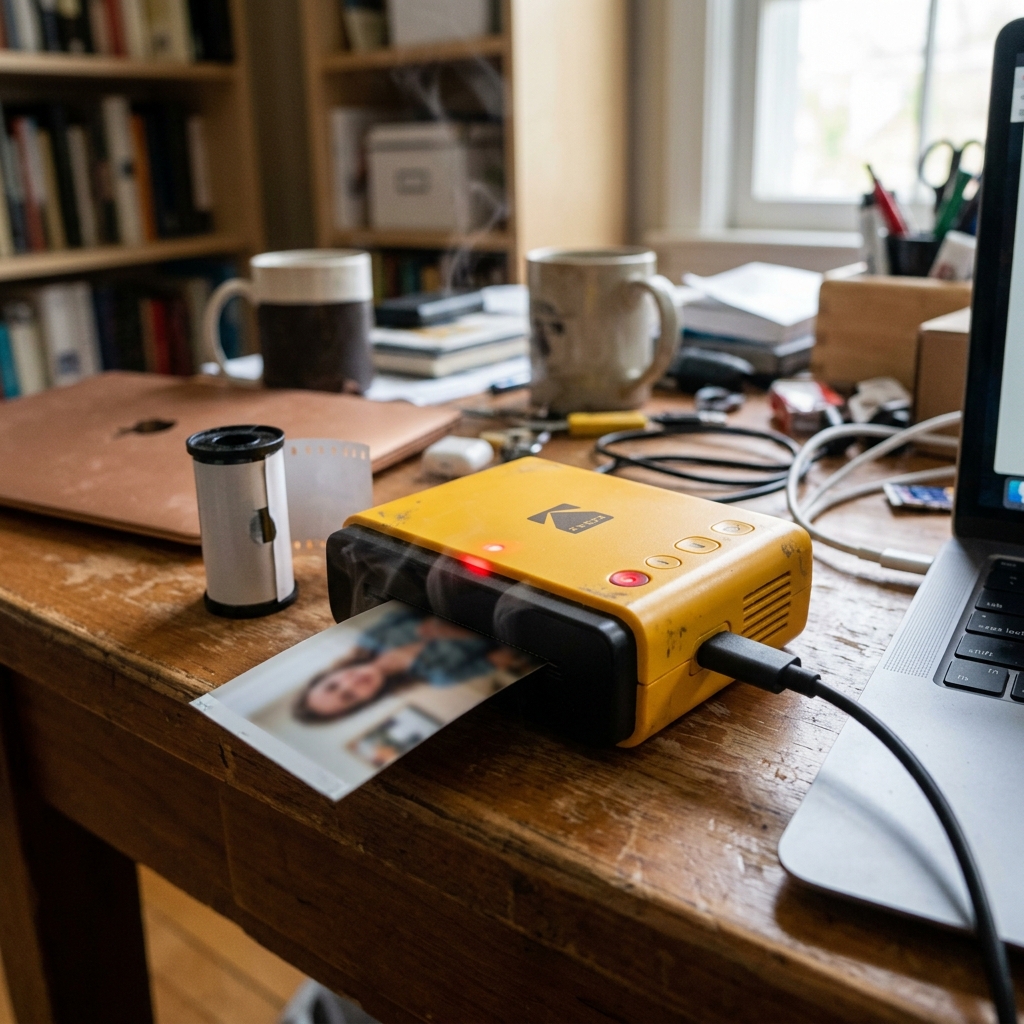
Kodak portable printers — including the Dock Plus, Mini 2 Retro, Mini 3 Retro. Mini Shot series — use a dye-sublimation thermal printhead that reaches temperatures above 150°C (302°F) during each print pass.
Because these devices are enclosed in compact, lightweight plastic chassis with limited heat dissipation capacity, printing more than 5-10 photos in rapid succession can trigger the built-in thermal protection circuit. When this happens, the printer halts all operations, the status LED turns solid yellow.
The device refuses to accept new print jobs until the internal temperature drops below a safe threshold. Let's understand the thermal management system and learn how to optimize your printing workflow.
How Thermal Protection Works
Inside the printer, a thermistor (temperature sensor) is mounted directly on the printhead carrier assembly. This sensor continuously monitors the printhead surface temperature. The onboard controller enforces three thermal zones:
| Temperature Zone | Printhead Temp Range | Printer Behavior |
|---|---|---|
| Green (Normal) | Below 45°C (113°F) | Full-speed printing. All functions operational. |
| Yellow (Warning) | 45°C to 60°C (113°F to 140°F) | Printer slows print speed. May add delays between passes. LED may pulse yellow. |
| Red (Lockout) | Above 60°C (140°F) | Printing halts entirely. LED turns solid yellow/amber. Device enters cooldown mode. No jobs accepted until temperature drops to Green zone. |
Step 1: Allow Passive Cooldown
When the thermal protection activates:
- Do not turn the printer off. Some models have a small internal cooling fan that requires power to operate. Turning the device off stops the fan and extends cooldown time.
- Place the printer on a flat, hard surface (like a table or countertop). Avoid soft surfaces like beds, couches, or carpet, as these insulate the bottom chassis and trap heat.
- Ensure the printer's ventilation slots (usually on the bottom or sides) are not blocked by objects, cases, or fabric.
- Wait 10 to 15 minutes . The LED will transition from solid yellow to blinking white or solid white when the printer is ready to resume.
Step 2: Optimize Your Printing Cadence
To prevent thermal lockout from occurring in the first place, adopt a batch-printing strategy:
- Print in batches of no more than 5 photos per session.
- After each batch, pause for 3 to 5 minutes before sending the next group.
- If printing at an event (wedding, party), rotate between two printers if possible to allow each unit recovery time.
Step 3: Manage Environmental Temperature
The ambient room temperature has a direct impact on how quickly the printer reaches thermal limits:
- Operate the printer in rooms at or below 30°C (86°F).
- Avoid placing the printer in direct sunlight, near radiators, or on top of other heat-generating electronics (like laptops).
- In hot outdoor environments (summer events, beach parties), try to keep the printer in shade. Consider placing it near a portable fan to improve airflow.
Step 4: Clean the Ventilation Path
Over time, lint and dust accumulate in the ventilation slots, reducing airflow:
- Power off the printer.
- Use a soft-bristle brush (like a clean toothbrush) to gently sweep dust out of the ventilation grilles on the bottom. Sides of the chassis.
- Do not use compressed air cans, as the force can push dust deeper into the internal mechanisms or dislodge the ribbon film.
Related Kodak Troubleshooting Guides
Thermal Dynamics of Kodak 4PASS & ZINK Portable Photo Printers
Kodak portable photo printers (including Kodak Step, Mini 2 Retro, Mini 3 Retro. Dock Plus) operate using either direct thermal dye-crystal activation (ZINK) or thermal dye-sublimation transfer (4PASS).
In both technologies, a micro-thermal printhead reaches temperatures over 300°F (150°C) to vaporize and bond color layers. Because these portable devices are housed in ultra-compact plastic bodies without cooling fans, thermal saturation occurs quickly during continuous printing.
Preventing and Resolving Thermal Safety Shutdowns
- Understanding the Thermal Cooldown Pause:
When the internal thermistor detects that printhead or battery temperatures have exceeded safe thresholds (typically after printing 3 to 5 photos continuously), the firmware (internal software) will halt printing. Flash a Red / Amber LED.
This is a built-in safety cutoff designed to prevent the internal lithium-ion battery from swelling. To protect the thermal head from burnout.
- Optimal Operating Environment:
- Never operate portable Kodak photo printers in direct sunlight, inside parked cars, or in unventilated bags.
- Place the printer on a hard, flat surface (desk or table) rather than a bed, rug, or cloth surface that traps radiated heat.
- Allow a 60 to 90-second resting interval between consecutive photo prints to allow ambient heat dissipation.
- Do Not Charge and Print Simultaneously:
Charging the internal lithium-ion battery via USB generates substantial heat within the same confined casing as the thermal printhead. If you print while connected to a fast charger, the combined thermal load will trigger overheating alarms almost immediately. Charge the printer fully first, unplug it, and print on battery power.
- Allow a 15-Minute Passive Cooldown:
If an overheating halt occurs, power off the device and leave it in a cool, air-conditioned room for 15 minutes. Do not attempt to force-reset or restart the print job until the chassis feels completely cool to the touch.
Frequently Asked Questions
Will overheating damage my 4PASS ink ribbon cartridge?
Excessive heat inside the chamber can cause the ultra-thin yellow, magenta, or cyan dye ribbon film to melt or adhere directly to the photo paper, causing ribbon tears. Keeping the printer cool prevents cartridge jams.
Why does the printed photo have color streaks when the printer is hot?
When the thermal head is overheated, the heat spreads unevenly across adjacent thermal elements, transferring excessive dye. Creating dark horizontal streaks or color saturation bands across the image.
