


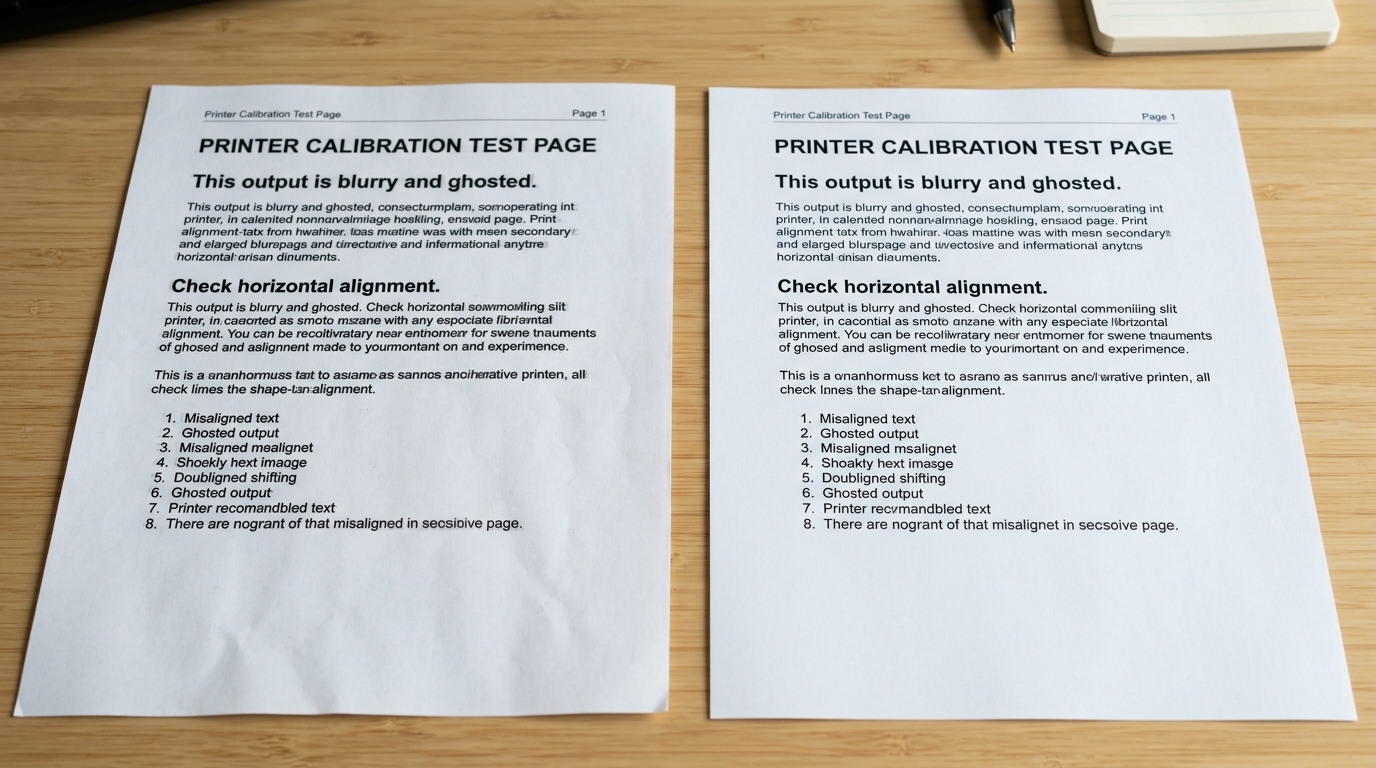
Blurry prints, overlapping lines, shadowed letters, or a distinct "double image" effect on your printed pages can make documents unreadable. On Kodak ESP and Hero inkjet printers, this behavior is a tracking issue, not a low ink or clogged nozzle problem.
The printhead carriage travels back and forth along a metal rail, spraying ink in both directions. If the printer's tracking sensors are out of sync by even a fraction of a millisecond, the ink drops will not align, resulting in a shadow effect.
Here is how to diagnose and resolve double line printing.
Ghosting Diagnostic Flowchart
Work through this diagnostic path to determine if the double print is caused by calibration, the encoder strip, or print driver settings:
🔍 Print Ghosting Diagnosis
1. Run Alignment Check: Is the alignment page successfully scanned? ➡️ If yes, test print.
If still ghosting, go to step 2.
2. Inspect Encoder Strip: Look behind the carriage rail for ink splatters on the plastic strip. ➡️ Wipe dry with a microfiber cloth.
If still ghosting, go to step 3.
3. Disable Bi-Directional Printing: Adjust driver settings in the Windows Control Panel to force uni-directional printing.
Step 1: Execute Printhead Alignment Calibration
Bi-directional printing requires the carriage to drop ink drops at the exact same horizontal grid coordinate whether moving left-to-right or right-to-left. Alignment calibration coordinates these timing values.
- Load standard, clean white paper into the input tray.
- Press the **Home** button on the control panel.
- Select **Maintenance** and press OK.
- Select **Align Printhead** (or Calibrate Printer) and press OK.
- The printer will print a test page with numbered patterns.
- Follow the prompts to place the sheet face-down on the scanner glass and scan it to complete the calibration loop.
Step 2: Clean the Encoder Strip (Timing Band)
If calibration fails or does not resolve the shadow text, the **encoder strip** is likely dirty. The encoder strip is a transparent plastic band running behind the carriage rail that contains microscopic position markings.
If ink mist or grease covers these markings, the optical sensor on the carriage misreads its position, dropping ink at the wrong coordinates.
- Turn off the printer and unplug the power cord.
- Open the carriage door.
- Locate the thin, transparent plastic strip running horizontally above the metal rail.
- Wrap a dry, lint-free microfiber cloth around your finger.
- Gently pinch the strip and slide your finger from one end to the other. **Do not use alcohol**, as it will dissolve the printed timing marks, permanently ruinous to the strip.
- Wipe the entire length of the strip once, slide the carriage to the other side, and wipe the remaining section.
Step 3: Disable Bi-Directional Printing in Windows
If you cannot clean the encoder strip or the hardware continues to ghost, you can resolve the issue through the Windows print driver. By disabling bi-directional printing, you force the printhead to spray ink only when moving in a single direction (from left to right).
This doubles print time but eliminates double text entirely.
- Open the Start menu, type **Control Panel**, and press Enter.
- Click **Devices and Printers** (or view by Small Icons and select it).
- Right-click your Kodak printer and select **Printer properties** (not Properties).
- Navigate to the **Ports** tab at the top.
- At the bottom of the Ports window, locate the checkbox labeled **Enable bidirectional support**.
- **Uncheck** this box. Click Apply and OK.
- Print a test document to verify the shadow text is resolved.
Related Kodak Troubleshooting Guides
Causes of Double Lines, Ghosting, and Text Shadows on Kodak Printers
When printed text appears with a secondary "ghost" image directly beside or beneath the letters, or when straight vertical lines look jagged and doubled, the issue stems from two root causes: an uncalibrated bidirectional printhead or a contaminated Linear Optical Timing Strip (Encoder Strip).
Exhaustive Alignment & Encoder Restoration Workflow
- Clean the Linear Encoder Strip (Primary Cause):
The clear plastic encoder strip runs horizontally behind the printhead carriage. It is marked with thousands of microscopic vertical positioning lines.
Grease or ink mist smudges cause the carriage optical sensor to miscalculate its exact position during the bidirectional pass, firing droplets a fraction of a millimeter off-target and creating a double image.
- Unplug the printer and open the access door.
- Moisten a clean microfiber cloth with distilled water.
- Gently pinch the clear strip between your fingers and wipe from left to right.
- CAUTION: Do not use alcohol, as it dissolves the printed timing marks. Do not pull aggressively to avoid unhooking the tension spring.
- Execute Bidirectional Printhead Alignment:
- Load fresh, bright white paper in the tray.
- On the printer display: Navigate to Maintenance > Calibrate / Align Printhead.
- Allow the printer to print and scan the calibration pattern. This recalibrates the microsecond timing between left-to-right and right-to-left carriage passes.
- Check for Carriage Guide Rail Friction:
If the steel carriage guide rail is bone dry or coated in sticky dust, the carriage will stutter mid-sweep. Clean the metal rod with a lint-free cloth and apply 2 drops of synthetic silicone lubricant (or sewing machine oil) across the rod.
Frequently Asked Questions
Why does text shadow appear only in High Quality mode but not Draft mode?
Draft mode often prints unidirectionally (in one direction only), masking timing errors. High-quality mode prints bidirectionally at high speed, exposing any misalignment in the encoder strip or carriage timing.
Can a loose printhead cause double lines?
Yes. If the printhead latch lever is not clicked down 100% securely, the printhead assembly can rock slightly as the carriage changes direction, creating double-line artifacts.
