


The Quick Answer
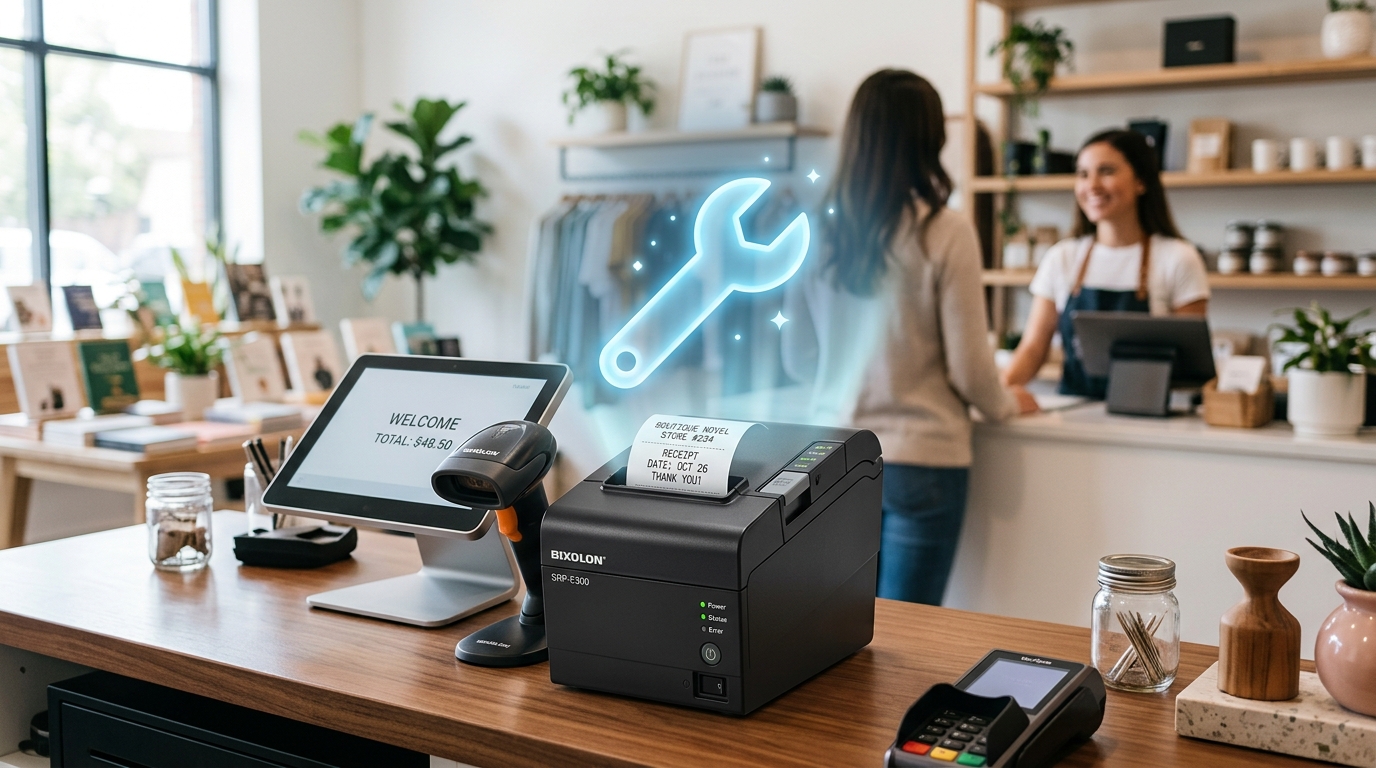
Simple yet quirky, the Bixolon SRP-E300 thermal printer has specific setup requirements and Virtual Memory Switch (VMSM) saving rules. Here's a complete guide.
The Bixolon SRP-E300 (and its higher-resolution sibling, the E302) is a straightforward thermal receipt printer — a single Power LED. A single Error LED.
USB . Ethernet connectivity, and no DIP switches to configure.
That simplicity is the appeal. . It also means a couple of its quirks.
Are easy to miss if you're used to troubleshooting other Bixolon models. One of them trips up more people than anything else on this printer, so it's worth covering first.
The Setting That Won't Save (Read This First)
If you've adjusted a setting through the printer's self-diagnostic menu — print density. Interface mode.
Anything — . It seems to revert after a restart, this is almost certainly why:changes made through the Virtual Memory Switch (VMSM) menu are only saved...
If you exit using option "0: Exit and reboot printer." Powering the printer off directly, or exiting any other way, discards whatever you just changed.
If you've been fighting with a setting that "won't stick," this is very likely the actual cause.. — redo the change . Make sure you select the exit-and-reboot option specifically before powering down.
Setting Up Paper Correctly
- Raise the cover-open lever to access the paper compartment.
- Load the thermal paper roll, making sure it feeds correctly through the paper outlet as you close the cover.
- Press the center of the cover while closing it so the paper sits flush against the... Roller — closing it off-center is a common reason paper doesn't feed smoothly afterward.
Important: never open the print cover while the printer is actively running a job — Bixolon's manual is.. Specific about this. Since doing so can damage the printer rather than simply interrupting the print.
Understanding the Power and Error LEDs
This model keeps it simple:
- Power LED — on whenever the printer has power. If it's off, check that the AC adapter's own indicator light shows "ON". If the adapter LED is off. The issue is the power connection itself. Not the printer.
- Error LED — lights up for general error conditions: no paper roll loaded, an open cover, or similar faults. There's no separate paper-specific lamp on this model the way there is on... Some other Bixolon printers — one light covers all of it.
Running a Self-Test
- Confirm paper is loaded correctly.
- Power on the printer normally, then use the FEED button to select modes when the self-test screen prompts you.
- Pressing FEED for less than one second prints a preset test page. . Ends automatically — the printer prints a final line. Cuts the paper, and returns to normal print mode on its own.
A clean self-test confirms the print mechanism. ROM. . Current memory switch settings are all functioning — useful as your first step before assuming a connection or driver problem.
Adjusting Print Density (No Software Required)
If receipts are printing too light or too dark. You can.. Fix this directly on the printer without installing any utility:
- Press and hold the FEED button , then power the printer on while still holding it.
- Wait for the LED to flash, then release the FEED button.
- Press FEED repeatedly to cycle through density levels — the current level is indicated by the LED.
- Once you reach the density you want, briefly press and release FEED to confirm the selection.
Remember the save gotcha from above: if this change doesn't seem to persist. Make.. Sure you exited the settings menu properly rather than just powering off afterward.
Changing Interface Settings
If you need to adjust how the printer communicates over its connection type:
- Turn the printer off.
- Turn it back on while holding down the FEED button to enter interface mode.
- Use FEED to navigate between available options, and the Power button to make a selection.
This is the SRP-E300's equivalent of the DIP-switch settings found on older Bixolon.. Models — same general purpose. Just menu-driven instead of physical switches.
Fixing a Cutter Jam
- Power off the printer completely.
- Open the cutter cover (separate from the main paper cover).
- Using tweezers or a similarly fine tool, gently remove any stuck paper or debris near the blade.
- Confirm the cutter blade can move freely before closing the cover and powering back on.
For a minor jam where the blade itself seems stuck rather than blocked by debris. Simply powering the printer off . Back on can allow the. Cutting mechanism to return to its home position on its own — try this before opening the cutter cover if the jam seems minor.
Connection Issues (USB, Ethernet, Serial)
The SRP-E300/E302 supports USB and Ethernet on standard models, with Serial added on the "ES" variant (SRP-E300ES/E302ES). A few model-specific notes:
- Always connect or disconnect any interface cable while the printer is powered off — the manual is explicit that doing this with power on can cause data transmission issues.
- Ethernet-connected unitscan run a connectivity test through Windows directly. Useful for confirming the printer.. Is reachable on the network before troubleshooting your POS software's settings.
- A dedicated network factory resetexists separately from a general printer reset. For cases where Ethernet/LAN settings specifically have gotten into a bad state — refer to. The Network Connection Manual for this model for the exact reset sequence. Since it's specific to the firmware (internal software) version.
Using Hexadecimal Dump Mode (Advanced Diagnostics)
If you're troubleshooting a software or integration issue rather than a hardware one... Hex dump mode shows you exactly what data the printer is receiving:
- With the printer off, open the cover.
- Turn the printer on while holding down the FEED button.
- Close the cover — the printer enters hexadecimal dump mode.
- Select the hexadecimal printing function from the mode menu.
The printer will then print every command it receives in a... Two-column format — hex codes alongside their corresponding ASCII characters. This is mainly useful for developers debugging a custom POS integration. Since it shows.. Precisely what's being sent rather than relying on the printed output alone.
Cleaning the Print Head
If output looks streaky or inconsistent even after confirming the self-test passes:
- Open the cover and remove the currently loaded paper.
- Wipe the print head gently using ethanol or isopropyl alcohol (IPA) — never an abrasive material.
- Reload paper and run another self-test to confirm the improvement.
Paper dust buildup inside the printer is the most common cause of gradually declining print quality. On thermal models. . This simple cleaning step resolves it more often than people expect.
The QR Code on the Bottom of the Printer
The SRP-E300 includes a QR code on a label affixed to the underside of the unit. Scanning it gives you direct access to video guides covering settings changes.
Troubleshooting walkthroughs. . Assembly/disassembly — plus a link to download the associated NFC mobile application.
It's a genuinely useful shortcut if you'd rather watch a process than follow written steps.
Frequently Asked Questions
Why does my print density setting keep reverting after I change it?You almost certainly exited the settings menu by powering off directly instead of selecting.. "Exit . Reboot printer" — changes only save through that specific exit option.
Does the SRP-E300 have Wi-Fi?No — standard models support USB . Ethernet only (with Serial on. The "ES" variant). There's no built-in Wi-Fi on this line.
My cutter is jammed — is it safe to pull the paper out myself?Power off first, then use tweezers to clear debris through the cutter cover... Rather than pulling forcefully — forcing it can damage the cutting mechanism.
What's hex dump mode actually used for?It's a diagnostic mode that prints the raw data the printer receives. Mainly useful.. For developers troubleshooting a custom POS integration rather than everyday print issues.
Quick Checklist
- Paper loaded with cover closed evenly across the center
- Adapter LED checked if the printer won't power on at all
- Self-test run to confirm hardware status
- Settings changes confirmed saved via "Exit and reboot printer," not a direct power-off
- Cables connected/disconnected only while powered off
- Print head cleaned with ethanol/IPA if output looks streaky
- Cutter cover checked for debris if jammed
The SRP-E300 is one of Bixolon's simpler models to live with day to day. . Its menu-driven settings. (rather than physical switches) come with one real gotcha — forgetting to exit through the reboot option. Keep that in mind and the rest of this printer is refreshingly low-maintenance.
