


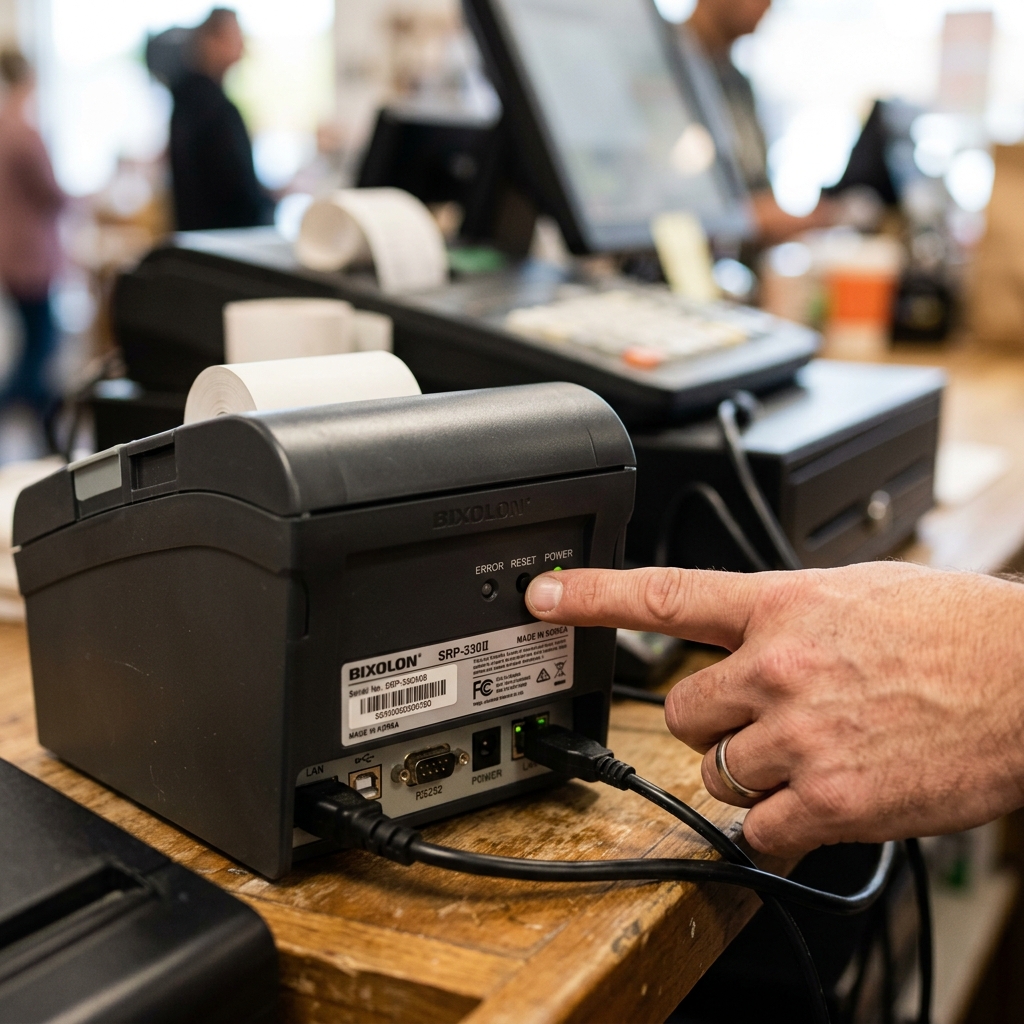
The Direct Answer
To perform a soft reset on a Bixolon printer, turn it off using the power switch, wait 30 seconds, and turn it back on. All settings are preserved — this clears temporary error states, stuck print queues, and transient sensor faults.
To perform a factory reset, the procedure varies by model series — SRP-Q300 uses a FEED button hold during boot, SRP-E300 uses the VMSM settings menu. XD5-40/label models use the on-device Tools menu or Bixolon Unified POS Utility software.
A factory reset erases all network settings, print density calibration, memory switches, and POS pairings.
What a "Reset" Actually Does Inside a Bixolon Printer
Before you press any buttons, it's worth understanding what is actually happening. Electrically and in firmware (internal software) when you reset a Bixolon printer. This knowledge prevents you from choosing the wrong reset type and lets you predict what will and won't be fixed.
Volatile vs.
Bixolon thermal printers store data in two categories of memory:
- Volatile RAM (DRAM / SRAM) — holds the active print buffer, current job data, transient error flags, and real-time sensor states. This memory is completely erased the instant power is removed. A soft reset targets this layer.
- Non-volatile flash memory (NVM/EEPROM)— holds your IP address, Wi-Fi credentials, Bluetooth pairing tables, print density settings, paper type, interface selection (USB/LAN/Bluetooth), memory switch (DIP-equivalent) values. Any macro data stored via ESC/POS commands. This memory survives power loss. Only a factory reset command, sent either via button sequence or the Unified POS Utility, can erase it.
A soft reset (power cycle) clears volatile RAM while leaving NVM intact. A factory reset writes default values back into NVM, effectively overwriting every customized parameter your technician ever configured.
Error State vs.
Most day-to-day Bixolon problems — a printer going offline, a. Stuck error LED, a print job that won't clear — areerror state problems living in volatile RAM.
A simple power cycle resolves them. True settings corruption, where factory defaults are needed, is far rarer and is typically triggered by a failed firmware. (internal software) update, a power surge during a write operation, or accumulated conflicting settings changes made over many months.
Choosing the Right Reset: Soft vs. Network-Only vs.
There are three levels of reset available on most Bixolon models. Understanding which one applies to your situation saves significant setup time.
Level 1 — Soft Reset (Power Cycle)
Use when:
- An error LED is on but no physical cause is visible
- The printer has gone offline and print jobs are stuck in the buffer
- After clearing a paper jam or replacing a paper roll and the printer hasn't resumed normally
- The printer freezes mid-print job
- Communication dropped between the POS terminal and printer (before investigating driver/network issues)
- The printer is unresponsive to button presses but the power LED is on
What it preserves: Everything — all network settings, all density settings, all memory switches, all POS software configurations.
What it clears: Active print buffer, current error flags, temporary sensor states, stuck job data.
For guidance on related startup diagnostics, see our article on what to check when your Bixolon printer's power light is blinking and it won't turn on — often a soft reset is the first and only step needed.
Level 2 — Network-Only Reset
Use when:
- The printer can't connect to a new Wi-Fi network after SSID or password change
- The printer's IP address is unknown after a DHCP lease change and you need to reconfigure
- Wi-Fi setup failed partway through and left conflicting credentials stored
- You're moving the printer to a new physical location with a different network infrastructure
- The print density, paper type, and other quality settings are still correct and you don't want to lose them
What it preserves: Print density, paper type, memory switches, media calibration data, POS pairing identifiers.
What it clears: IP address, Wi-Fi SSID/password, DHCP/static setting, Bluetooth pairing tables.
If you've recently done a Windows update and the printer stopped communicating over the network, check our Bixolon printer stopped working after Windows update guidebefore doing a network reset — the root cause is often. A driver or port reassignment issue, not the printer's stored network credentials.
Level 3 — Full Factory Reset
Use when:
- Multiple settings seem to be interfering with each other and you've lost track of what was changed
- A firmware (internal software) update failed and the printer is now in an inconsistent state
- You're transferring the printer to a new business, location, or POS system entirely
- Soft reset and network reset haven't resolved a persistent communication problem
- The printer's self-test print shows unexpected default values or corrupted settings tables — see our Bixolon self-test guide to print and read the diagnostics page before deciding
What it preserves: Nothing configurable. All settings return to Bixolon factory defaults.
What it clears: Everything stored in non-volatile memory — network, density, media type, memory switches, macros, POS pairing, Bluetooth tables.
How to Perform a Soft Reset on Any Bixolon Printer
The soft reset procedure is the same regardless of model series. There is no special button combination required.
Standard Power Cycle (10–30 Seconds)
- Ensure no active print job is sending data — check your. POS terminal or Windows print queue and cancel any pending jobs
- Press the printer's power button or toggle the power switch to OFF
- Wait a minimum of 30 seconds — this gives capacitors in the power. Supply and main board time to fully discharge, ensuring volatile RAM is truly cleared
- Press the power button to turn the printer back ON
- Wait for the printer to complete its full boot sequence — the ready LED should. Turn solid green (or the display should show a ready state) before sending a test job
Extended Power Drain (5 Minutes) for Stubborn States
If a 30-second cycle doesn't clear the fault, use a full power drain:
- Turn the printer off
- Disconnect the power cord from both the printer's DC input and the wall outlet
- For SPP-series mobile printers: remove the battery pack as well
- Wait a full 5 minutes with e printer completely de-energized
- Reconnect power and turn on
This extended drain is particularly useful after clearing a paper jam on SRP-Q series receipt printers, where. The cutter mechanism's motor driver can latch in a fault condition that survives a normal 10-second cycle.
What to Check After a Soft Reset
After the printer boots, before sending production jobs:
- Print a self-test page to confirm the printer is operational — our Bixolon self-test guide shows exactly how to trigger this and what the printout should show
- Confirm the ready LED state matches your model's ready indicator (solid green, not blinking)
- Check that your POS system has re-detected the printer — Square, Toast, and other cloud. POS platforms sometimes need a few seconds to re-establish the connection after a power cycle
If the printer connects to Square POS but then throws communication errors, see our dedicated Bixolon not working with Square POS guide — there are Square-specific pairing steps that aren't resolved by a simple reset.
Factory Reset Procedures by Model Series
Bixolon's reset procedures differ significantly across product lines. Using the wrong button sequence for your model can trigger a different menu function — or do nothing at all. Always confirm your model number before proceeding.
SRP-Q300 / SRP-Q302 Factory Reset
The SRP-Q300 series uses a FEED button hold after boot to enter interface setting mode,. Can perform a factory reset. This is a hardware-triggered procedure — no utility software required.
- Power on the printer and wait for it to completely finish booting — do not begin until the ready LED is solid
- Open the paper roll cover
- Press and hold the FEED button for 5 seconds
- The internal buzzer sounds 5strong>5 times — this confirms entry into interface setting confirmation mode
- Load a paper roll and close the cover
- The printer prints a confirmation ticket showing the reset values — review this to. Confirm the factory default IP address, interface settings, and baud rate have been restored
Important:If the buzzer sounds only once (not five times), you've. Entered a different menu — the feed time was too short. Power cycle and try again with a firm, sustained 5-second hold.
SRP-E300 / SRP-E302 Factory Reset
The SRP-E300 series does not support a hardware button factory reset.
- With the printer powered off, hold the FEED button while pressing the power button to boot
- Continue holding FEED until the printer enters the settings menu — the menu prints on thermal paper
- Navigate the menu by pressing FEED to advance through options
- Locate and select the Factory Reset or Initialize option
- To save and exit, select "0: Exit and reboot printer" — this is the critical step. not save the reset command and the printer will boot with its old settings intact
- The printer automatically reboots and prints a settings confirmation page
If your SRP-E300 is showing persistent errors that survive power cycling, see the SRP-E300 troubleshooting guidefirst — the error pattern will tell you whether a factory. Reset is actually warranted or whether a more targeted fix is available.
XD5-40 / XD3-40 Label Printer Factory Reset
The XD-series label printers have an LCD-based menu system, making the factory reset process more straightforward:
- Ensure media is loaded and the printer shows "READY" on the LCD
- Press the Menu button (or navigate the function buttons to enter the main menu)
- Navigate to Toolsng>Tools → Reset (some firmware (internal software) versions show this as System → Initialize)
- Press Function Button 1 (usually labeled "OK" or "Select") to confirm
- The printer displays a confirmation prompt — confirm again to proceed
- The printer automatically reboots
After resetting an XD-series printer: All media calibration is lost. The printer will need a full gap or black-mark sensor calibration before it can reliably detect label gaps. Bixolon label printer calibration guide for the exact calibration procedure after a factory reset.
SRP-330II Factory Reset
The SRP-330II supports both a button-sequence reset and a software-triggered reset. Bixolon Unified POS Utility:
- Connect the printer to your computer via USB
- Open the Bixolon Unified POS Utility (download from bixolon.com support section)
- Select your connected printer from the device list
- Navigate to settings → System → Factory Reset
- Click "Execute" and wait for the printer to reboot
SPP-Series Mobile Printer Factory Reset
Bixolon's SPP-R200/R300/R400 mobile receipt printers use the Unified POS Utility for factory reset,. The mobile form factor limits button combinations.
- Connect the SPP printer to your computer via USB (Bluetooth and Wi-Fi connections are not supported for Unified Utility settings)
- Open the Bixolon Unified POS Utility
- Select the SPP printer from the detected device list
- Go to Memory Switch → Factory Default
- Click Apply and allow the device to reboot
Network-Only Reset: How to Wipe Just Network Settings
A network-only reset is the preferred middle-ground when your print quality. Is correctly configured but network credentials have become stale or incorrect.
- Connect the printer via USB
- Open Bixolon Unified POS Utility and select your device
- Navigate to Network>Network → Initialize (sometimes labeled "Reset Network Settings")
- Confirm the action — only the network settings section of NVM is overwritten
- After reboot, the printer's IP settings revert to DHCP (automatic), and all stored Wi-Fi credentials are cleared
SRP-Q300 note:This model's FEED button hold procedure (described above) is documented by Bixolon as a network-focused. Reset by default — it targets the interface setting rather than performing a full memory wipe. Always print the confirmation ticket after the procedure and check which parameters were restored.
What to Do After a Factory Reset: The Complete Reconfiguration Checklist
A factory reset is not the end — it's the beginning of a reconfiguration process. Work through these steps To bring the printer back to production-ready state.
Step 1 — Verify Clean Boot
The printer should boot completely with the ready indicator showing solid green (or the LCD showing "READY"). If any error indicator appears immediately after a factory reset, the issue may. Be hardware-related rather than settings-related — a factory reset cannot fix hardware faults.
Step 2 — Print a Self-Test to Confirm Factory Defaults
Print a self-test page immediately after reset to verify that all settings have reverted to defaults. 100 or DHCP), print density level, and memory switch values. Bixolon self-test guide explains exactly what to look for on each field of this printout.
Step 3 — Reconfigure Network or Interface
Depending on your deployment:
- Ethernet (LAN): If your network uses DHCP, the printer should automatically obtain a new IP address. Check your router's DHCP client table to find the assigned address. If using a static IP, reconfigure it via the Unified POS Utility under Network settings.
- Wi-Fi:Use the Unified POS Utility's WLAN settings to enter your SSID and password,. Then confirm the connection by pinging the printer's IP from your POS terminal.
- Bluetooth: Re-pair the printer with your POS device or terminal. All previously paired devices were removed during factory reset. You'll need to put the printer into pairing mode and complete the Bluetooth handshake again.
- USB: No reconfiguration needed — USB connections are not affected by network settings.
If you're deploying this printer to a Toast POS environment, see our Bixolon Toast POS setup and error guide, which covers the specific network mode and baud rate settings Toast requires after a factory reset.
Step 4 — Recalibrate Print Density
Factory default print density is typically level 3 (middle of a 1–5 or 1–7 scale, depending on model). For most commercial thermal paper, this produces adequate output.
High-volume receipt environments often use density level 2 to extend print head life, while dense barcode or shipping label workflows may need level 4 or 5 for reliable scanner reads. Adjust density through the Unified POS Utility or the on-printer settings menu.
Step 5 — Run Sensor Calibration (Label Printers Only)
For XD3-40, XD5-40, and SLP-series label printers, a factory reset resets the gap/black-mark sensor calibration data. Without recalibration, the printer will mis-feed labels, skip gaps, or print across label boundaries.
Complete label sensor calibration before printing any production labels. full Bixolon label calibration procedure covers both gap-sensing and black-mark sensing methods.
Step 6 — Re-register in POS Software
After a factory reset, the printer's Bluetooth pairing identifier changes. On some Ethernet-connected configurations, the printer's MAC-based reservation in the POS system needs to be refreshed. Square, Toast, Lightspeed. Other cloud POS platforms typically auto-detect re-paired printers, but you should confirm that print jobs route correctly before opening for business.
Step 7 — End-to-End Test Print
Send an actual test transaction through your POS to the printer — not just a self-test from the printer itself. This confirms the full communication chain: POS software → network/USB → printer driver → printer hardware.
If this test fails but the printer's own self-test succeeds, the. Problem is on the host/software side rather than the printer hardware.
What a Reset Cannot Fix: Hardware Faults That Require Repair
A significant portion of Bixolon support tickets involve users attempting multiple resets for issues that are fundamentally hardware problems. Resets only affect firmware (internal software) and settings — they cannot fix physical hardware.
| Symptom | Reset Helps? | Actual Cause |
|---|---|---|
| Faded or white stripe down print | ❌ No | Burnt printhead elements — hardware replacement needed |
| Cutter jams and won't cut | ❌ No | Mechanical cutter wear or foreign material in cutter blade |
| Printer boots then immediately errors even after factory reset | ❌ No | firmware (internal software) corruption — requires firmware (internal software) reflashing or service center |
| Power light blinking in specific pattern, won't boot | ⚠️ Sometimes | May be firmware (internal software) or power supply — see blinking power light guide |
| Driver errors on Windows after reset | ❌ No | Resetting the printer doesn't fix the Windows-side driver |
| Battery won't charge (SPP mobile series) | ❌ No | Degraded lithium battery — requires battery replacement |
Using Bixolon Unified POS Utility for All Reset Types
The Bixolon Unified Windows Driver and Unified POS Utilitycom/customer-support) provide a software-based interface for all reset operations. This is especially valuable for models where button-sequence resets are unreliable or unavailable.
Connecting the Printer to the Utility
- Download and install the Unified Windows Driver from bixolon.com — this installs both the printer driver and the utility
- Connect your Bixolon printer via USB to your Windows PC —. The utility communicates over USB regardless of the printer's configured network interface
- Open "Bixolon Unified POS Utility" from the Start menu
- Select your printer from the dropdown — it should appear as the model name (e.g., "SRP-330II" or "XD5-40d")
- Click "Connect" and wait for the utility to read the printer's current settings
Reset Options Available in the Utility
Once connected, the utility's "System" or "Memory Switch" tab provides several reset operations:
- Factory Initialize — full factory reset equivalent to hardware button procedures
- Network Initialize — network-only reset, preserves other settings
- Memory Switch Default — resets only the memory switch (DIP switch equivalent) settings
- Clear Macros — clears stored NV-image and macro data only
The utility method is the recommended approach for all SRP-330II, SRP-E300. SPP-series factory resets because it gives you granular control over exactly what is reset — unlike a hardware button press, which may perform a broader reset than intended depending on firmware (internal software) version.
Preventing the Need for Frequent Resets
If you're performing resets regularly on the same Bixolon printer, something is triggering the underlying faults that make resets necessary. Understanding and addressing root causes reduces operational disruption.
Power Quality
Bixolon thermal printers are sensitive to power fluctuations. Installing an inline UPS (uninterruptible power supply) or at minimum a.
Surge-protected power strip eliminates a common source of persistent error states. Thermal printers in restaurant or retail environments — where large appliances on.
The same circuit cause voltage sags — particularly benefit from dedicated power circuits.
Thermal Paper Quality
Poor-quality thermal paper generates more paper dust, accelerates printhead wear, and can cause sensor misfires that require resets to clear. BPA-free thermal paper certified for your specific printer model reduces both print quality issues and sensor errors.
Keeping firmware (internal software) Current
Bixolon regularly releases firmware (internal software) updates that fix stability issues, improve communication reliability. Resolve edge-case errors in specific POS software integrations. Maintaining current firmware (internal software) through the Unified POS Utility means you benefit. From these fixes without having to diagnose problems that Bixolon has already solved upstream.
Running Regular Self-Tests
Printing a self-test page once a week takes 10 seconds and. Gives you a baseline for the printer's settings and print quality.
Changes in print quality on the self-test printout — fading, missing dots, uneven density. — give you advance warning of developing hardware problems before they become operational failures. complete Bixolon self-test guide for how to interpret the results.
Special Considerations: Resetting in Active POS Environments
Resetting a Bixolon printer in a live Square, Toast, or other cloud. POS deployment requires a few additional steps beyond the hardware reset itself.
After Resetting a Bixolon Printer Connected to Square
Square POS maintains a pairing record for each connected printer. After a factory reset, the printer's Bluetooth device name and pairing keys change.
Square will treat it as a new device. In your Square Dashboard or Square for Restaurants app, navigate to Settings → Hardware → Printers, remove the old Bixolon entry.
Re-add the printer after pairing it. Square POS compatibility guide covers the specific settings Square requires.
After Resetting a Bixolon Printer Connected to Toast
Toast POS requires specific memory switch settings and baud rate settings that differ from Bixolon factory defaults. After a factory reset, the printer's memory switches revert to default values, which may not match Toast's requirements. Bixolon Toast POS error and setup guide for the exact memory switch values and baud rate settings Toast requires before reconnecting.
Frequently Asked Questions
Does a Bixolon factory reset delete firmware (internal software)?
No. A factory reset only clears the settings settings stored in non-volatile memory.
How do I know if my Bixolon printer successfully completed a factory reset?
The most reliable indicator is the confirmation ticket the printer automatically prints after a hardware-triggered factory reset (SRP-Q300, SRP-E300). This ticket lists the restored default values for all major parameters.
My Bixolon printer won't respond to the FEED button hold sequence. What's wrong?
This usually means one of three things: (1) The printer hasn't fully completed its boot. Sequence — wait until the ready LED is completely solid before attempting the FEED hold.
After a factory reset, my Bixolon printer shows a different IP address. What is the default?
Most Bixolon printers with LAN/Ethernet interfaces default to DHCP (automatic IP assignment) after a factory reset. 0.
Can I reset a Bixolon printer without access to the Unified POS Utility software?
Yes, for hardware-button-supported models (SRP-Q300, XD5-40, and others with menu-based reset). The SRP-E300 and all SPP mobile printers require the Unified POS Utility for factory reset.
How long does a Bixolon factory reset take?
The reset itself — the moment you trigger it to. The moment the printer begins rebooting — takes under 5 seconds.
