


Translating the Power and Ink Lights
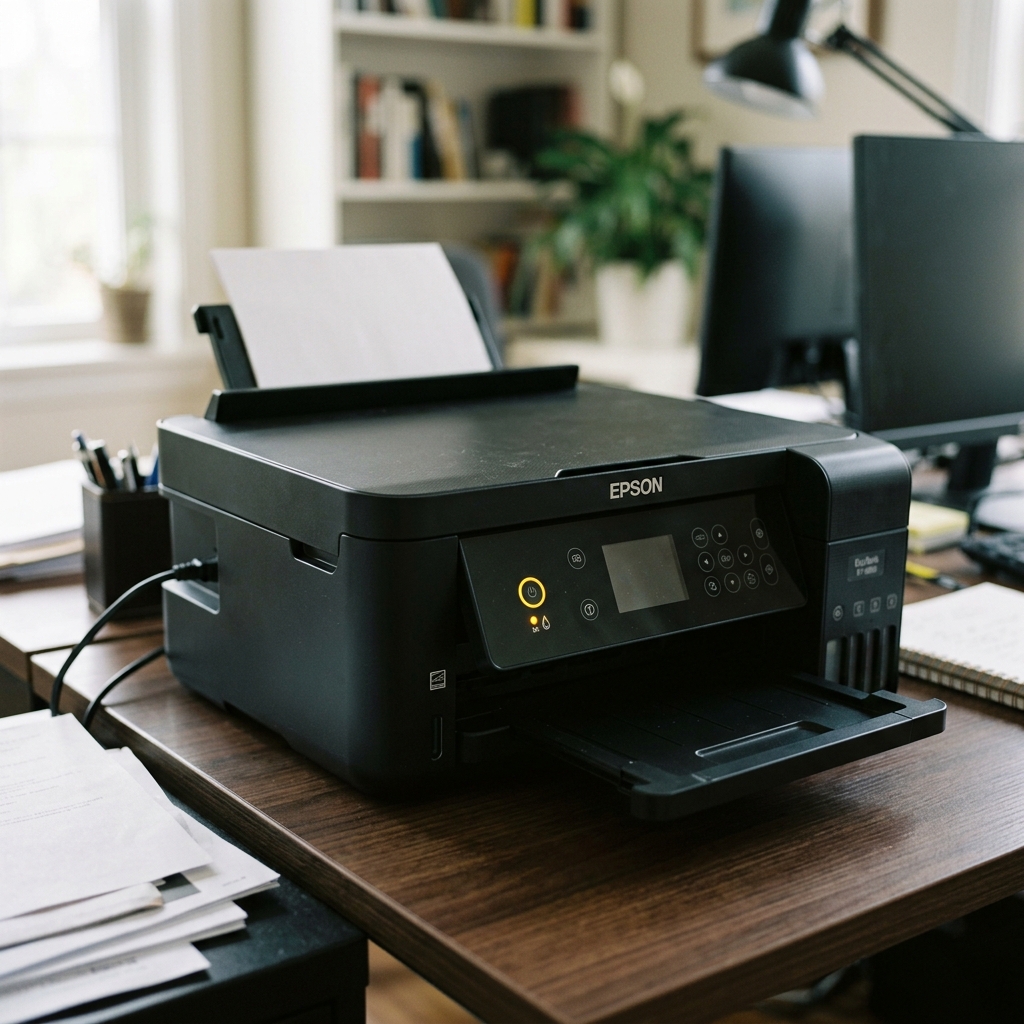
On entry-level Epson printers without a digital display, the green Power button and the red Ink button (indicated by a teardrop icon) act as the primary communication tools. When these two lights begin blinking, it is crucial to pay attention to how they are blinking—whether they are taking turns, flashing together, or if one is solid while the other flashes.
Here is exactly what the printer is trying to tell you, and how to fix it.
Pattern 1: Solid Red Ink + Blinking Green Power
The Meaning: The printer is in the middle of a cycle (hence the blinking power light), but it has hit a hard stop because an ink cartridge is completely empty, missing, or the microchip is unreadable.
The Fix:
- Press the Red Ink button ce. The printhead carriage will slide out and point a plastic arrow at the specific cartridge that is causing the problem.
- If the cartridge is empty, replace it.
- If the cartridge is full (especially if it is a third-party compatible cartridge), the printer's firmware is rejecting the chip. Take the cartridge out, gently wipe the golden/green microchip on the front with a Q-tip and rubbing alcohol to remove any finger oils, and snap it firmly back in.
- If the light remains solid red, you must either buy an official Epson cartridge or downgrade the printer's firmware to bypass the DRM check.
Pattern 2: Ink and Power Lights Blinking Alternately (Back and Forth)
The Meaning: This is the classic Waste Ink Pad Lockout. The lights will flash like a railroad crossing signal (Green, Red, Green, Red). This means the internal digital counter that tracks how much waste ink has been flushed into the bottom sponge has reached 100% capacity.
The Fix: No amount of button mashing or unplugging will clear this error. It is a hard software lock.
- You must download a third-party software tool called the WIC Reset Utility to your computer.
- Connect the printer via USB.
- Purchase a one-time digital reset key (usually around $10) and use the software to rewrite the printer's internal EEPROM memory back to 0%.
- Note: You must also physically clean or replace the sponge pads at the bottom of the printer, or they will eventually overflow onto your desk.
Pattern 3: Both Lights Flashing Simultaneously and Rapidly
The Meaning: If both the Green Power light and the Red Ink light are flashing very fast at the exact same time (often joined by the Paper light), the printer has suffered a Fatal Hardware Error.
The Fix: The motherboard has detected that the printhead carriage cannot move. This is usually due to a physical obstruction.
- Unplug the printer immediately.
- Open the top lid and shine a flashlight into the far right corner. Look for a crumpled piece of paper, a rogue paperclip, or a dislodged rubber belt that is preventing the printhead from parking correctly.
- Check the clear plastic encoder strip behind the printhead. If it is popped out of place or smeared with thick grease, the printer's optical sensor goes blind and triggers the simultaneous flashing error.
Understanding Simultaneous Power and Ink Light Flashing on Epson Printers
When the green/blue Power LED and the amber/red Ink drop LED flash together in unison, the printer's microcontroller has triggered a Mechanical Carriage Stall / Printhead Positioning Interruption. The carriage motor attempted to move the printhead across the platen, but encountered physical resistance, excessive guide rail drag, or a dislodged encoder timing strip.
Step-by-Step Recovery Workflow
- Check the Entire Carriage Path with a Bright Light:
Unplug the AC power cord. Open the top printer cover. Gently slide the printhead carriage by hand from the far left to the far right. Use a flashlight to inspect both ends of the track. Look for torn paper fragments, dropped staples, or dislodged packing tape.
- Clean the Clear Linear Encoder Timing Strip:
Behind the carriage is the thin, transparent plastic encoder strip. Aerosolized ink mist and carriage grease smudge this strip, blinding the optical reader. Gently wipe the strip with a microfiber cloth dampened with warm distilled water. (Never use alcohol).
- Inspect the Purge Capping Station (Far Right Side):
Ensure the rubber capping station and plastic wiper blade can move up and down freely without sticking on dried ink sludge.
- Execute a Hard Power Reset:
Unplug the printer from the wall for 15 minutes. Hold down the physical Power button for 20 seconds while unplugged to discharge volatile motherboard memory.
Frequently Asked Questions
What is the difference between simultaneous flashing and alternating flashing?
Simultaneous flashing (Power + Ink together) indicates a physical carriage stall. Alternating flashing (Power then Ink back and forth) indicates the Waste Ink Pad is saturated.
Can low ink cause both lights to flash simultaneously?
No. Low ink causes only the ink light to illuminate solid or blink alone, while the power light remains steady.
