


The Quick Answer
Setting a static IP on your HP printer? A repair tech explains why DHCP reservation is usually the smarter choice, and how to do both properly.
Before you dive into your printer's network menu. And start typing numbers, there's a decision worth making first that most guides skip entirely: do you actually.
Want a true static IP configured directly on the printer. Or do you want what most people who search this term actually need, which is a DHCP reservation set up through your router instead?
They solve the same practical problem — a printer that never changes address —. But one of them is considerably safer to set up correctly.
And understanding the difference upfront will save you a genuine headache later.
Quick Summary
- Most people should use a DHCP reservation, not a true static IP — safer, achieves the same result. My uncommon tip explains why.
- A true static IP requires careful attention to your network's existing address range to avoid conflicts.
- Either method requires knowing your printer's MAC address and your router's IP range first.
- Test thoroughly after setup — a mistake here can knock the printer off your network entirely.
Why You Might Want a Fixed Address At All
By default, most home and office networks assign IP addresses dynamically through DHCP, meaning your printer's address can. Change periodically, usually without you noticing — until something that depends on that address, like a saved printer connection on your computer, suddenly can't find it anymore, showing up as offline or unreachable.
Giving your printer a fixed, unchanging address prevents this specific category of problem entirely.
Why this matters: this is a genuinely worthwhile thing to set up, particularly for a printer that multiple computers connect to regularly, or one integrated into other systems like scan-to-email or scan-to-folder functions that reference its address directly. The question is really about which method to use to achieve it.
The Right Way vs. the Risky Way (My Uncommon Tip)
Here's the distinction almost every quick guide glosses over, treating "give it a static IP" as a single, simple instruction — when in practice there are two. Meaningfully different ways to accomplish this, with real consequences for getting it wrong.
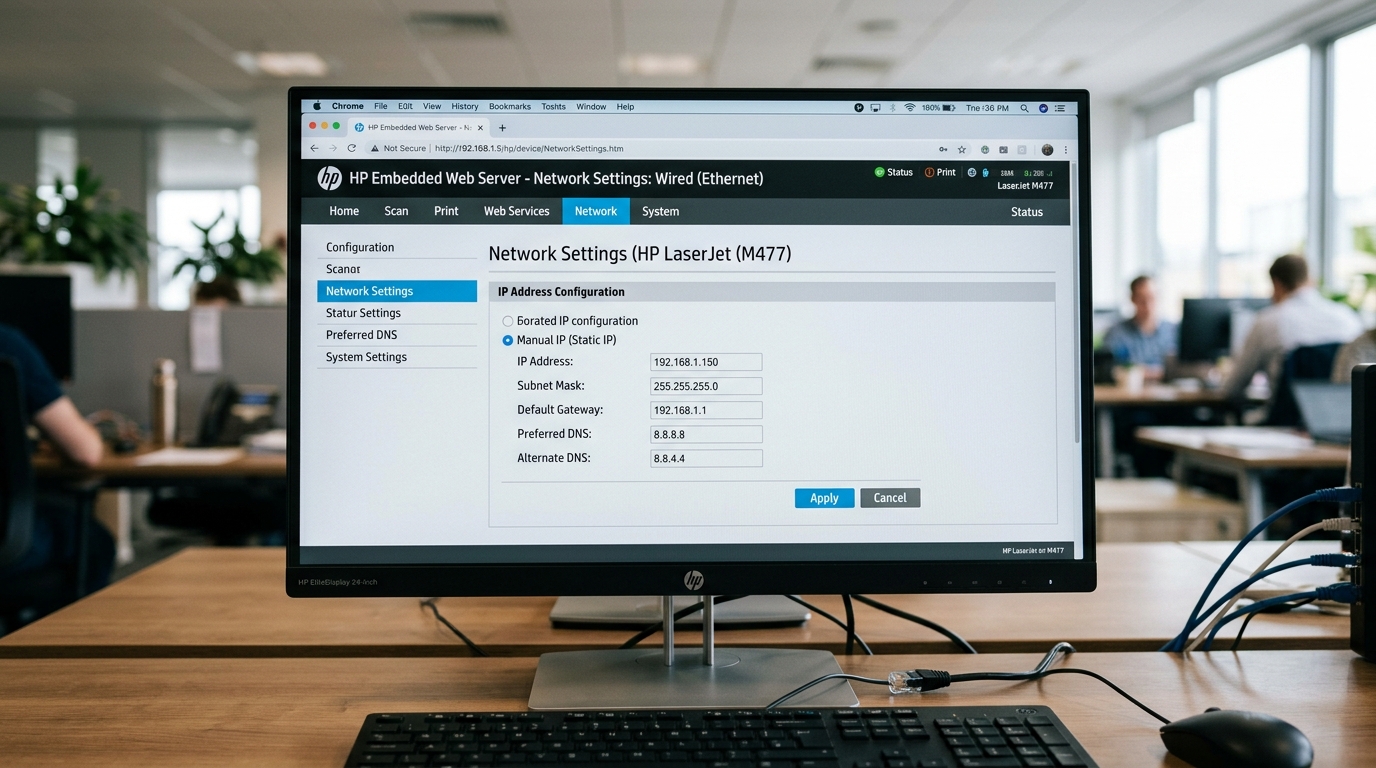
A true static IP, configured directly in the printer's own network settings menu, means manually typing a specific IP address into the printer itself, completely independent of your router's automatic address management. This works, but it carries a real risk: if you choose an address that falls within.
The range your router still actively hands out to other devices through DHCP, you can create an IP conflict — a future laptop, phone, or smart device joins the network. Your router assigns it the same address you manually gave your printer.
And now two devices are fighting over one address, with unpredictable and often confusing results for both.
A DHCP reservation, set up through your router's own settings rather than the printer's, tells your. Router specifically "always give this particular device, identified by its MAC address, this same IP address, every time it connects" —.
While keeping that address properly excluded from the pool your router hands out to everything else. The printer still technically receives its address dynamically through DHCP, so.
It's compatible with your router's own address management system by design. But the practical result is identical to a static IP: the same address, every single time, indefinitely.
Why DHCP reservation is almost always the smarter choice: it achieves exactly what you actually want — a printer address that never changes —. While letting your router's own conflict-prevention system continue doing its job correctly.
A true static IP set directly on the printer bypasses that system entirely. And the safety of your setup then depends entirely on you correctly understanding.
And staying outside your router's DHCP range, forever, including if that range ever changes during a future router replacement. Or resettings you might not even be present for.
I recommend DHCP reservation to essentially everyone asking this question. And reserve true static IP settings for specific situations — certain business.
Network settingss, for instance — where there's a genuine technical reason. To bypass DHCP entirely rather than just wanting a fixed address.
Setting Up a DHCP Reservation (Recommended)
- Find your printer's MAC address — usually listed on its network settings screen, or on a printed network settings page from the control panel.
- Log into your routerg>router's administration page (typically by typing your router's IP address, often something like 192.168.1.1 or 192.168.0.1, into a browser).
- Find the DHCP settings section, often under LAN or Network settings, and look for a DHCP reservation, static lease, or address reservation option — naming varies by router brand.
- Locate your printer in the list of currently connected devices, or manually enter its MAC address, and assign it a specific IP address — ideally one outside your. Router's normal dynamic range, though the reservation itself typically handles this correctly by design.
- Save the settings, and if prompted, restart your printer or router to ensure the new reservation takes effect.
Why this works: the router now permanently associates that MAC address with that IP address in its own memory, so every time the printer. Requests an address through the normal DHCP process, it receives the same one.
While the router's built-in conflict management continues to work exactly as intended for every other device on your network.
Setting Up a True Static IP (If You Have a Specific Reason To)
- Determine your router's DHCP range (often shown in the same router settings area) and choose an address clearly outside that range.
- On the printer's own control panel, find the network settings menu, and look for an option to switch from DHCP/Automatic to Manual or Static.
- Enter the chosen IP href="/canon/connectivity-issues/canon-printer-offline-windows-11" title="Fix Canon Printer Offline in Windows 11 (100% Working)">IP address, along with the subnet mask and gateway address (usually matching your router's own address) exactly as required.
- Save and test the connection thoroughly.
Why this requires more caution: you're now personally responsible for avoiding every future conflict this address might create, indefinitely, with no automatic system helping. You — which is exactly the risk the DHCP reservation method avoids entirely while achieving the same practical outcome.
When to Call a Professional
If you're setting this up in a business or more complex network environment with multiple subnets, VLANs, or existing static address assignments already.
In place, involve whoever manages your network before assigning anything yourself. Since conflicts in more complex environments can affect considerably more than just this one printer.
For home networks, if a DHCP reservation doesn't seem to be holding — the. Printer's address keeps changing despite the reservation being set up — double-check that you've.
Correctly identified the printer's MAC address, since a typo here is a common. And easy-to-make mistake that silently prevents the reservation from ever actually applying to the right device.
FAQ
What's the actual difference between a DHCP reservation and a true static IP?
A DHCP reservation is set up on your router. And still uses the DHCP system, just guaranteeing the same address every time. A true static IP is configured directly on the printer, bypassing DHCP entirely. And requires you to manually avoid conflicts with your router's dynamic address range yourself.
Which one should I actually use?
For the vast majority of home and small office setups, a DHCP reservation is the safer, equally effective choice. Reserve true static IP settings for specific situations with a genuine technical reason to bypass your router's DHCP system entirely.
How do I find my printer's MAC address?
Check the printer's own network settings menu on its control panel, or print a network settings page, usually available under a Reports or Setup menu — the MAC address is typically listed clearly on either.
What happens if I accidentally create an IP conflict?
Both devices sharing the same address can experience unpredictable connectivity problems, sometimes affecting one, sometimes both, and sometimes other devices on the network as well. This is exactly the risk a properly configured DHCP reservation avoids. Since the router's own system prevents handing out that address to anything else.
Setting up a fixed address for your HP printer usually means choosing DHCP reservation over a true static IP — same practical result, considerably less ongoing risk.
Since your router's own conflict prevention keeps working exactly as designed. Find the MAC address, set the reservation through your router rather than the printer itself.
And your printer's address becomes something you never have to think about again.
