


The Quick Answer
HP printer paper curling as it exits? A repair tech explains the hidden fuser setting almost nobody knows exists, plus the real cause behind it.
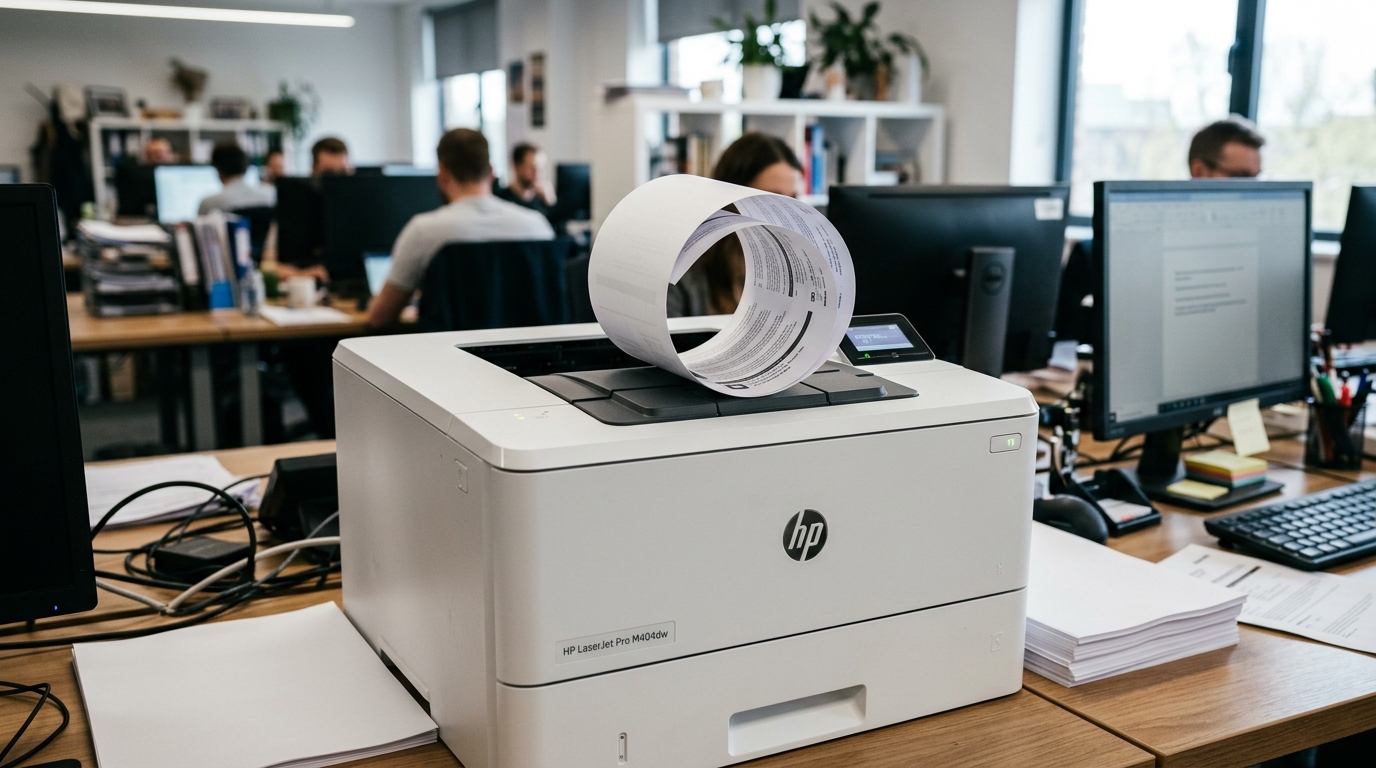
Paper that exits your printer curved into a quarter-moon shape isn't just cosmetically annoying — on a longer print job. It can genuinely jam up the output area, pushing pages. Onto the floor as new ones try to stack behind them. If your HP LaserJet is producing curled paper, there's a specific, direct fix that's built into many of these printers. Hidden deep enough in the menus that most owners, and some support reps, never mention it.Quick-Fix Summary
Fast version:
- Flip and rotate your paper stack — the cheapest fix, and often enough on its own.
- Store paper properly to prevent moisture absorption in the first place.
- Try a different output path if your printer has more than one.
- Use the hidden "Less Paper Curl" setting — my uncommon tip, and the most direct fix available.
- Consider that a degraded fuser may need professional attention if nothing else works.
Understanding Why Paper Curls
Paper curl on a laser printer comes down to heat and moisture. As paper passes through the fuser, the combination of heat.
Pressure needed to permanently bond toner to the page also causes the paper's moisture. Content to react — the toner side expands slightly under heat, then contracts.
As it cools, pulling the paper into a curl toward the printed side. Humidity in the air, or paper that's absorbed moisture from sitting in an open tray.
Humid room, makes this considerably worse.
Why this matters: every fix below addresses either the moisture side of this equation or the heat side directly. Understanding which one you're targeting helps you pick the right first step rather than trying everything at once.
Fix 1: Flip and Rotate Your Paper Stack
Remove the paper from the tray, flip the entire stack over, and rotate it 180 degrees before reloading. Fan the stack to separate the sheets and reduce static cling between them.
Why this works:paper sitting in a tray for an extended period, especially in the same orientation, can develop. A slight curl from its own storage position and from uneven moisture absorption across the stack. Flipping and rotating redistributes this, and it's the fastest, completely free fix worth trying first.
Fix 2: Store Paper Properly
Keep unused paper sealed in its original wrapper or a resealable bag until you're ready to load it. Store it in a room with stable, moderate humidity rather than somewhere. Fluctuates — avoid spots near air conditioning vents, exterior walls, or damp basements.
Why this works: paper is genuinely absorbent, and it picks up ambient moisture from the air more readily than most people expect. Paper that's been sitting open in a humid environment for weeks curls more severely than paper straight from a sealed ream, regardless of anything your printer is doing.
Fix 3: Try a Different Output Path
If your printer has more than one way for paper to exit — a standard top output tray. A separate rear output door — try switching to the rear path if curling is a problem.
Why this works:the standard output path typically routes paper over a curved section that can add to existing curl. While a rear exit path (when available) lets paper travel a straighter route, bypassing that additional bend entirely.
Fix 4: Use the Hidden "Less Paper Curl" Setting (My Uncommon Tip)
Here's the fix that resolves this problem directly at its source, and it's built into many HP LaserJetprinters as an actual menu option — yet it's buried deep enough in a service-oriented menu. Most owners never discover it exists, and it's frequently missed even in general troubleshooting advice.
Many HP LaserJet printers include a specific setting, often found by pressing Setup, then navigating to Service (sometimes under a Diagnostics or Device Maintenance menu depending on your exact model), then locating an option called Less Paper Curl.
Turning this setting Ontells the printer to run its fuser in a lower-heat mode — sometimes described as a "Light Media" mode —.
Specifically to reduce the amount of heat applied during the. Fusing process, directly cutting down on the heat-driven curling described above.
Be aware of one side effect: with this setting enabled, the printer's default paper typesetting may shift to a lighter weight classification. The control panel might prompt you to confirm you're using lighter paper than you actually are.
This is expected behavior tied to the lower-heat mode, not. An error — you can typically proceed with your normal paper.
Why this works: rather than fighting curl indirectly through paper handling and storage, this setting addresses the actual mechanism causing it — excess fuser heat — directly at the source. Most consumer troubleshooting advice focuses entirely on paper storage and humidity.
That's the more commonly known cause, but for LaserJet owners specifically, this hidden setting is a far more direct. Often more effective fix, and it's genuinely surprising how few people.
Including some who've owned their printer for years, know it exists. If your model doesn't show this exact menu path, check your specific printer's manual for "fuser mode".
"media type" settings, since some models expose similar functionality under slightly different naming.
Fix 5: Consider Fuser Wear
If curling is a new, worsening problem on a printer. Didn't have this issue before, and adjusting paper storage and the Less Paper Curl setting doesn't fully resolve it, thefuser's internal components may be degrading with age, causing it to run hotter than intended even at normal settings.
Why this works: fuser rollersand heating elements wear over years of use like any component subjected to repeated heat cycles. A fuser running hotter than its intended specification produces exactly this kind of worsening curl pattern.
This typically points toward a fuser needing professional service. Replacement rather than something you can adjust your way around indefinitely.
When to Call a Professional
If you've tried proper paper storage, flipping. Rotating your stock, switching output paths where available, and enabling Less Paper Curl —.
Curling persists or is clearly worsening over time on a printer. Didn't previously have this problem — a fuser nearing the end of itsservice life is the likely explanation.
Search your exact printer model plus "fuser replacement" to check part availability. Cost, or contact HP support to confirm whether this is a covered issue if your printer remains under warranty.
FAQ
Where do I find the "Less Paper Curl" setting on my HP LaserJet?
Check Setup → Service on your printer's control panel — the exact menu path varies. By model, so consult your printer's manual if you don't see it in that location. Not every model offers this setting, but it's more common than most owners realize.
Will using Less Paper Curl affect my print quality?
It can slightly affect how well toner adheres in some cases, since it reduces fuserheat, but for most everyday printing needs the tradeoff is. Well worth it if curling is causing jams or output problems. Test it with your typical print jobs to confirm it meets your needs.
Why does paper curl worse in summer or humid weather?
Paper absorbs ambient moisture from the air. Higher humidity means more moisture in the paper before it even reaches the printer. Combined with the heat and pressure of the fusing process, this produces. More pronounced curling than the same paper would show in a drierenvironment.
Is severe paper curling a sign my printer needs repair?
Not necessarily on its own — try the storage and setting adjustments in this guide first. But if curling is new, worsening, and doesn't improve with those changes, it. Can indicate a fuser that's running hotter than it should due to age-related wear.
HP printer paper curling out of the tray usually responds well to. Basic paper handling — flip your stock, store it properly, avoid humidity.
But if you want the most direct fix available, check your printer's Setup → Service menu for the Less Paper Curl setting. It's one of the more genuinely underused features on HP LaserJets.
It addresses curling at its actual heat-based source rather than working around it.
Additional Resources
If you are still experiencing issues after trying the steps above, you may need to consult the official documentation or download the latest firmware (internal software) (internal software) for your specific printer model. We recommend checking the following official resources:
