


The Quick Answer
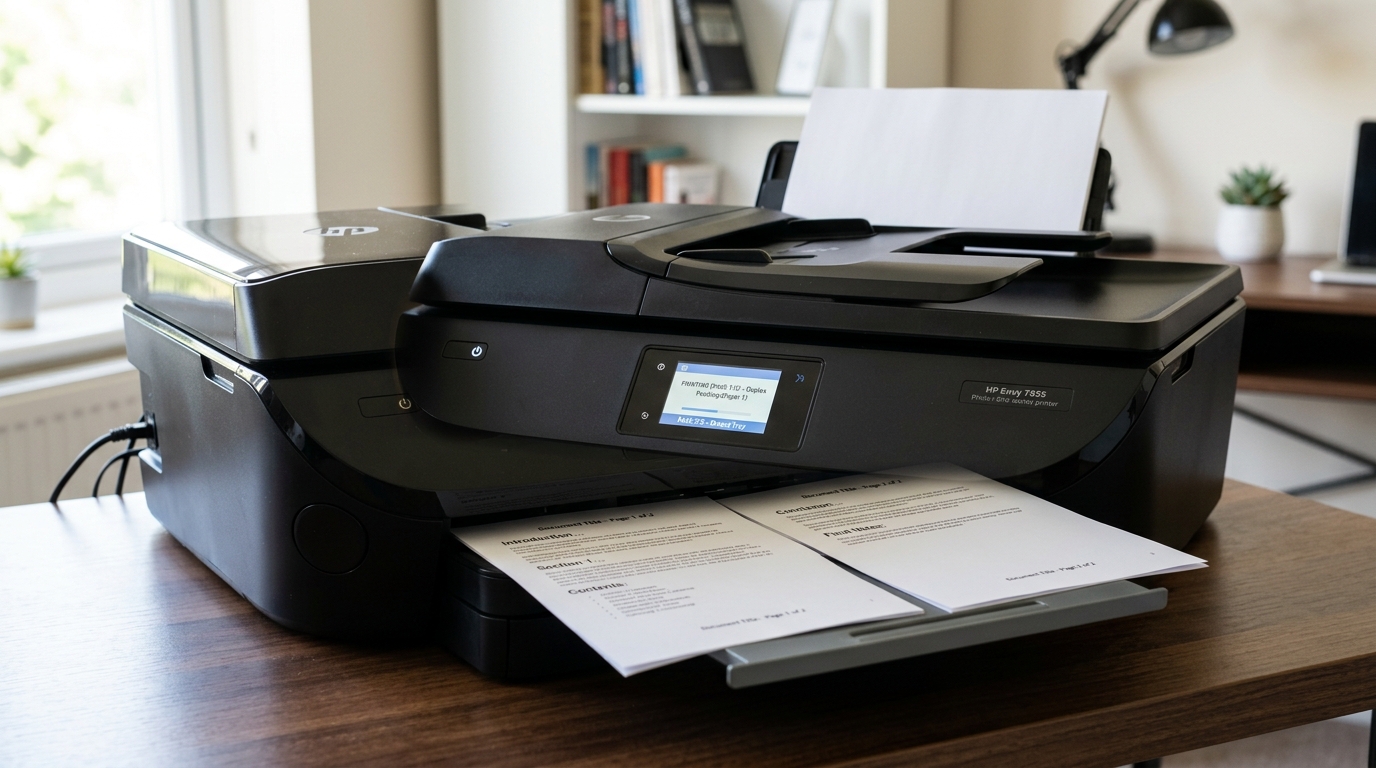
HP Envy 7855 duplex printing not working? A repair tech explains driver settings, the duplexer unit, and the borderless printing conflict nobody mentions.
Two-sided printing is supposed to be the easy part — click a checkbox, save some paper, done. When HP Envy 7855 duplex printing is not working, either silently printing single-sided anyway.
Throwing an error the moment you try. The cause is almost always a setting fighting against another setting, not a broken part.
Duplex printing has more moving pieces than people expect, both literally. In software, and this guide walks through every one of them.
Quick-Fix Summary
Fast version:
- Enable duplex in the driver, not just in the app you're printing from.
- Check paper size and weight — auto-duplex has real limits.
- Confirm the duplexer unit is seated if your printer uses a removable one.
- Turn off borderless/full-bleed printing — my uncommon tip, and a genuine technical conflict.
- Update the print driver if the duplex option is missing entirely.
Fix 1: Enable Duplex in the Right Place
Open Settings → Bluetooth & devices → Printers & scanners → your Envy 7855 → Printing preferences, and look for a Print on Both Sides or Two-Sided Printing option, usually under a Finishing or Layout tab. Set your preferred flip style (long edge or short edge) and save.
Why this works: many apps have their own separate duplex checkbox in the print dialog itself. and that per-document setting can override — or simply forget to check — the printer driver's own default. Setting duplex as the driver's default means every print job starts from the right assumption, even from apps.
Don't offer their own duplex control.
Fix 2: Check Your Paper Size and Weight
Confirm you're using standard letter or A4 paper, and check the weight — very heavy cardstock or thick photo paper often exceeds what the printer's automatic duplexer can safely flip. If you're using anything heavier than standard printer paper, duplex may be automatically disabled. May fail partway through the flip.
Why this works: the mechanism that flips a page for automatic duplex printing has real physical limits on paper thickness and length. Paper that's too heavy or too small doesn't feed through the flip path correctly. And the printer often disables the option rather than risk a jam.
Fix 3: Confirm the Duplexer Unit Is Properly Seated
If your Envy 7855 has a removable rear duplexer unit (a small module that attaches to the back of the printer). Power off, remove it, and reinstall it firmly until it clicks into place.
Why this works: the printer detects whether a duplex unit is physically present. Communicating correctly before it offers or attempts two-sided printing at all. A duplexer that's slightly unseated can be invisible to the printer's own detection. Silently disabling the feature with no obvious error message pointing to why.
Fix 4: Turn Off Borderless Printing (My Uncommon Tip)
Here's the conflict almost nobody explains. Because the two settings involved don't sound like they should have anything to do with each other.
If you have borderless or full-bleed printing enabled — a setting that removes all margins so an image prints edge-to-edge with no white border — check whether duplex is unavailable or grayed out while that's active. If so, turn borderless off and try duplex again.
Why this works: the duplexer mechanism needs a small amount of margin space along at least one edge of the page to physically grip. Flip it without dragging across ink that's still wet or freshly laid down.
Borderless printing, by design, eliminates exactly that margin — so the two features are frequently mutually exclusive on inkjet printers like the Envy line. And the printer disables duplex automatically rather than risk smearing a borderless print or misfeeding the flip.
This isn't a bug or a setting you're missing; it's a genuine mechanical trade-off between two features. Both want the same edge of the paper.
Once you know they compete for the same physical space, the "missing" duplex option makes complete sense.
Fix 5: Update the Print Driver
If the duplex option is missing from your printing preferences entirely — not just grayed out. but nowhere to be found — download and install the latest driver for your exact model from HP's support site. Removing the old driver first if the reinstall doesn't resolve it on its own.
Why this works: an outdated, generic, or incorrectly matched driver can simply omit interface options the printer actually supports. Even though the hardware itself is fully capable of automatic duplex. The correct, current driver exposes every feature the printer was built with; a mismatched one might not.
When to Call a Professional
If duplex is enabled in the driver, your paper is standard weight. Size, the duplexer unit is properly seated.
Borderless printing is off, and you're running the current driver — and two-sided printing still fails partway through every time. Often jamming mid-flip — the duplexer mechanism itself may have a physical fault.
Contact HP support with your serial number. Describe exactly where in the process it fails (does it print side one.
Stop, or fail during the flip itself); that detail helps narrow down whether it's a sensor. A roller, or the unit's internal mechanism.
Check warranty status before pursuing any paid repair, since duplexer faults are a recognized support category on this printer line.
FAQ
Why is the duplex option grayed out on my HP Envy 7855?
Check whether borderless or full-bleed printing is currently enabled — the two features often conflict, since the duplexer needs page margin space to grip and flip paper that borderless printing removes.
My printer has duplex enabled but keeps printing single-sided anyway. Why?
Check the print dialog of the specific app you're printing from. it may have its own duplex toggle that's overriding the printer driver's default setting. Set duplex in both places to be safe.
Can I use duplex printing with photo paper?
Usually not reliably. Automatic duplex has real limits on paper thickness, and heavy photo or cardstock often exceeds what the flip mechanism can handle safely. Stick to standard paper weight for two-sided printing.
Do I need a separate duplexer attachment for the Envy 7855?
Check your specific unit — some Envy 7855 settingss include a removable rear duplexer module. If yours does, confirm it's firmly seated; if it's not detected as attached. The printer won't offer automatic duplex at all.
HP Envy 7855 duplex printing not working almost always comes down to a setting conflict rather than a broken printer. Enable it in the driver, respect paper weight limits, confirm the duplexer's seated, and remember.
Borderless printing and automatic duplex are quietly fighting for the same edge of the page — turn one off. And the other usually comes right back.
Additional Resources
If you are still experiencing issues after trying the steps above, you may need to consult the official documentation or download the latest firmware (internal software) (internal software) (internal software) for your specific printer model. We recommend checking the following official resources:
