


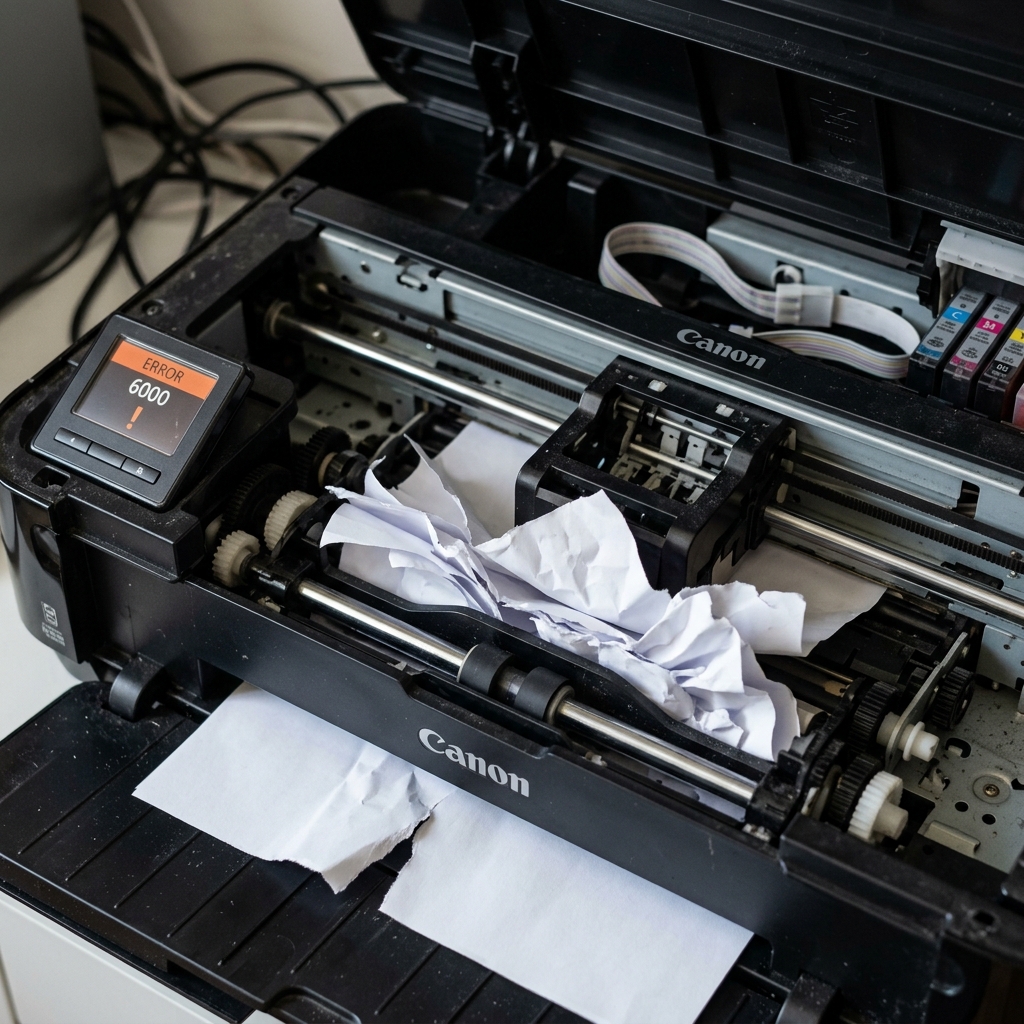
Paper Jams and Phantom Jams
Canon's error 6000 (also displayed as Support Code 6000 on touchscreen models) is a paper feed error. The printer attempted to pull a sheet of paper through the mechanism, and the paper either didn't arrive at the expected sensor, arrived too slowly, or got physically jammed between the rollers.
The frustrating part of error 6000 is that it frequently appears even when there is no visible paper jam. This is because Canon printers have multiple small optical sensors along the paper path, and even a tiny fragment of torn paper (smaller than a postage stamp) can block one of these sensors.
Fix 1: The Rear Access Panel
Most Canon PIXMA printers have a removable rear panel that provides access to the paper path.
- Turn the printer off.
- Turn the printer around. You will see a rectangular plastic panel with a small handle or indentation. Press the release tabs and pull it straight off.
- Look inside the exposed roller mechanism. If you see crumpled paper, grip it with both hands and pull it slowly and evenly downward. Do not yank it quickly, as this can tear the paper and leave fragments behind.
- Snap the rear panel back into place.
Fix 2: The Front Exit Jam
Paper can also jam as it exits the printer from the front output tray.
- Look at the front output slot. If you see the edge of a sheet of paper poking out, grasp it firmly and pull it straight outward. Do not pull it backward into the printer.
- If the paper is mostly inside the printer but won't come out from the front, turn the printer off, open the top cover, and look down at the platen. You may be able to see the paper curled around the exit rollers. Gently pull it free.
Fix 3: The Duplexer Trap
If you were printing two-sided (duplex) when the error occurred, the jam is almost certainly inside the rear duplexer mechanism. After printing the first side of the page, the printer pulls the sheet backward into the duplexer unit, flips it, and feeds it through again.
Paper frequently crumples inside this tight U-turn.
Remove the rear access panel. Some models have a secondary inner flap or duplexer cassette that pulls outward separately. Open this inner mechanism to find the stuck sheet.
Fix 4: Clearing the Phantom Jam
If you have searched every accessible area and found absolutely no paper, you are dealing with a phantom jam caused by a sensor obstruction.
- Use a can of compressed air and blast short bursts into the rear feed slot, the front output slot, and any accessible openings in the paper path.
- You are trying to dislodge a tiny scrap of paper, a piece of a sticky label's backing, or a clump of paper dust that is resting on top of one of the small black plastic sensor flags inside the mechanism.
- After blowing, turn the printer on. If the error clears, the debris has been displaced.
Understanding Canon Error 6000 / Support Code 6000 (Line Feed Encoder Error)
Canon Support Code 6000 represents a Line Feed (LF) Timing & Paper Transport Sensor Malfunction. While the printhead moves horizontally, the LF motor rotates the paper feed rollers vertically.
An optical disc sensor (the LF encoder wheel) monitors this rotation. When paper jams, foreign objects block the feed rollers, or grease coats the LF optical disc, the printer halts with Error 6000.
Step-by-Step Diagnostic & Clearing Guide
- Check the Paper Feed Path for Foreign Objects:
Unplug power. Inspect both the rear feed tray and the lower cassette. Shine a flashlight into the paper path. Small foreign objects (paperclips, coins, ripped paper scraps) often jam between the primary feed roller and the platen ribs. Remove obstructions using non-metallic tweezers.
- Clean the Clear Circular LF Encoder Disc (Primary Root Cause):
On the left-hand side of the printer mechanism, attached to the main paper feed roller shaft, sits a 2-inch transparent plastic wheel (the LF Encoder Disc). Ink mist or gear grease can smudge this disc.
Locate the optical disc, gently wipe it with a microfiber cloth dampened with warm distilled water, and let dry for 5 minutes.
- Inspect the LF Optical Interrupter Sensor:
The circular encoder disc spins through a black U-shaped optical sensor. Blow clean compressed air into the sensor slit to clear any paper dust blocking the infrared light beam.
- Perform a Hard Power Cycle:
Disconnect power for 10 minutes. Hold down the Power button for 20 seconds to clear transient motor driver stall states from memory.
Frequently Asked Questions
How does Error 6000 differ from Error 5100?
Error 5100 is a horizontal Carriage positioning fault. Error 6000 is a vertical Paper Feed (Line Feed) roller positioning fault.
Can a stuck rear tray cover trigger Error 6000?
Yes. If the rear paper feed guide cover is left open or jammed halfway, it blocks the feed gear train, generating Error 6000 upon power-up.
