


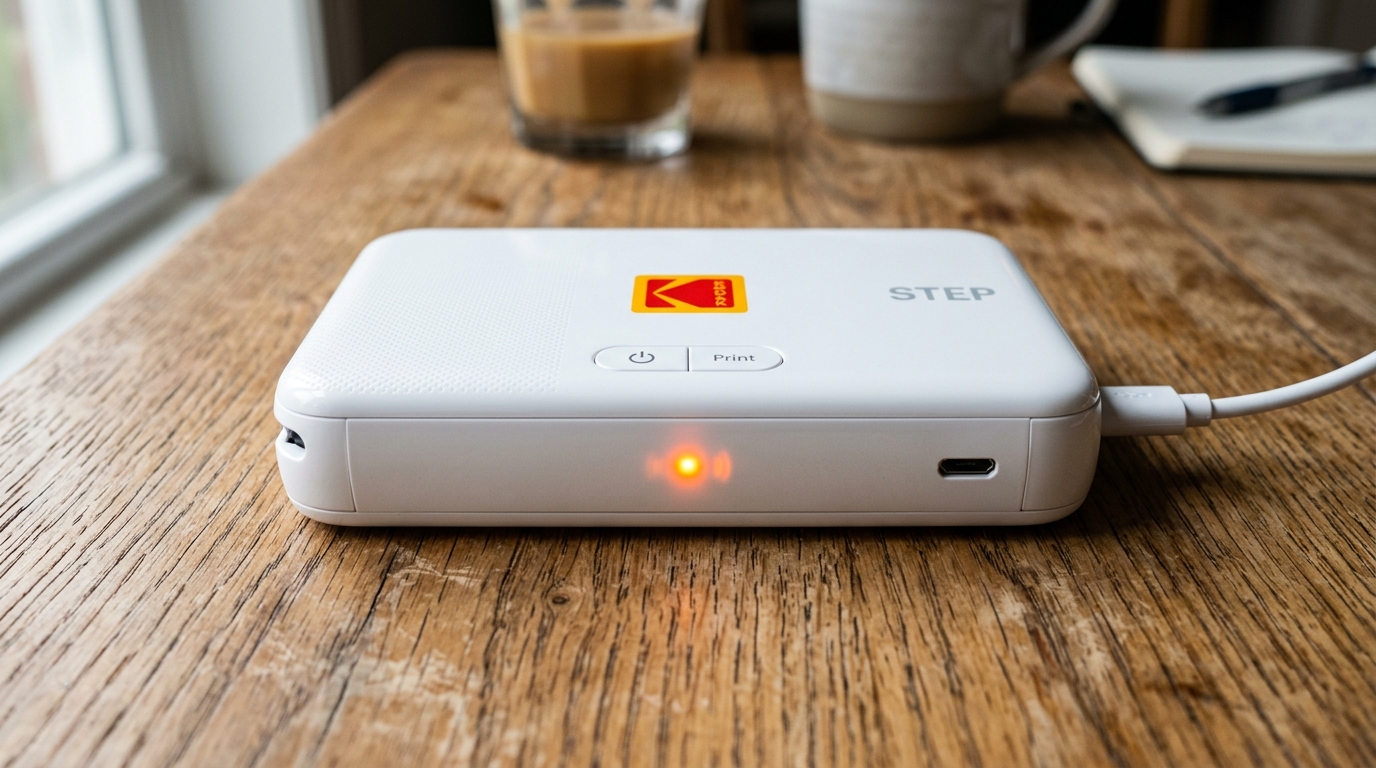
The Kodak Step is a portable pocket printer utilizing ZINK (Zero Ink) thermal technology. Because of its compact frame, it does not have a screen, relying instead on a single status LED to communicate errors.
When the status indicator flashes orange, it signifies a temporary block in the system. This is typically triggered by a thermal printhead limit, a critically low battery state, or a ZINK paper feed alignment error.
Let's walk through the diagnostics to identify and clear the orange warning light.
Diagnostic Matrix of Kodak Step LED States
The flashing orange light can represent different sub-conditions depending on the frequency of the flashes. Whether it occurs during boot, printing, or charging:
| LED Blink Pattern | Indicated Condition | Root Cause |
|---|---|---|
| Slow, steady orange flash | Low Battery / Charging Error | Battery charge is below 10%, or power supply voltage is insufficient. |
| Rapid, flashing orange | Paper Jam / Feed Error | ZINK sheets are misaligned, jammed, or the blue sheet is missing. |
| Solid orange (non-blinking) | Thermal Cooling Hold | The internal thermal printhead has exceeded 104 degrees Fahrenheit. |
Resolving Thermal Overheat States
Because ZINK printers rely on heating the color-forming crystals embedded in the paper, printing multiple sheets in a row generates substantial heat inside the tiny plastic chassis. Once the internal sensor detects the temperature limit, it halts the carriage and changes the LED to orange.
- Turn the printer off using the power button.
- Place it in a cool, well-ventilated room. Do not place it near direct sunlight or warm computers.
- Leave it powered off for **15 minutes** to let the thermal head cool down to ambient temperature.
- Turn it back on and try printing a single sheet.
Correcting Low Voltage Battery States
If the battery drops below 10%, the printer lacks the voltage needed to heat the ZINK printhead, triggering the slow orange flash.
- Connect the printer to a micro-USB cable.
- Plug the cable into a **5V / 2A wall charger** adapter. Avoid charging via a computer USB port, as computers output 0.5A, which is not enough to charge the printer during a fault lock.
- Let the device charge undisturbed for **at least 30 minutes** before trying to print.
- **Crucial Operating Tip:** Never print while the printer is actively charging from a low-battery state, as this draws more current than the adapter can provide, causing the charging circuit to cycle. Freeze.
Clearing ZINK Paper Path Obstructions
If the light flashes rapidly, the paper rollers are slipping on the ZINK sheets:
- Slide open the paper compartment cover.
- Remove the stack of ZINK photo paper.
- Inspect the feed slot for any tiny fragments of backing paper or dust. Blow it clear with dry air.
- Fan the ZINK sheets lightly. Ensure they are not stuck together by humidity.
- Reload the stack, making sure the **blue Smart Sheet calibration card is at the very bottom** of the pack with the barcodes facing down.
- Slide the compartment door closed. The printer should automatically pull the blue sheet through to calibrate.
Related Kodak Troubleshooting Guides
Decoding LED Light Codes on the Kodak Step Instant Photo Printer
The Kodak Step is a portable, battery-powered 2x3 ZINK (Zero Ink) photo printer. Unlike full-size desktop inkjets, it contains no liquid ink cartridges; instead, it uses thermal pulses to activate cyan, magenta.
Yellow dye crystals embedded inside specialized ZINK paper. The LED status light on the top/front provides critical diagnostic feedback regarding battery health, paper orientation, thermal safety.
Bluetooth pairing.
Complete Kodak Step LED Diagnostic Matrix
| LED Indicator State | Hardware Status | Required Action |
|---|---|---|
| Flashing Orange / Amber | Blue Smartsheet calibration error, out of paper, or paper jam | Reload ZINK paper pack with blue barcode sheet facing DOWN; clear jam |
| Solid Red | Battery critically low (< 10%) or charging in progress | Connect Micro-USB charger (5V / 1.0A or higher); wait for solid green |
| Flashing Red | Thermal Printhead Overheating Protection | Allow the printer to cool down for 10 minutes in a shaded room |
| Solid Green | Fully charged and ready to print | Normal operational state; send print job via Kodak Step Prints app |
| Flashing Blue | Bluetooth Pairing Mode | Open iOS or Android Bluetooth settings to pair device |
Fixing the Flashing Orange Light: The Blue Smartsheet Protocol
- Ensure Paper is Genuine Kodak ZINK Paper: Third-party paper (such as HP Sprocket or Canon Ivy sheets) contains different barcode calibrations and thermal activation curves. Kodak Step printers will flash orange and reject non-Kodak packs.
- Load the Blue Barcode Sheet Correctly:
- Slide open the top paper lid.
- Load a maximum of 10 photo sheets plus the blue calibration Smartsheet.
- The Blue Smartsheet MUST be placed at the very bottom of the stack with the barcode facing DOWN.
- Close the lid. The printer will automatically feed and eject the blue calibration sheet, recalibrating the optical color sensors. The light will turn solid green.
- Hardware Pin-Hole Reset: If the orange light continues flashing despite correct paper loading, locate the tiny pin-hole reset button next to the USB charging port. Insert a paperclip and hold for 3 seconds to reset the internal microcontroller.
Frequently Asked Questions
Can I reuse a blue calibration Smartsheet from an older paper pack?
No. Each pack of 10 ZINK sheets is manufactured in a specific chemical batch.
Why does the printer get hot when printing multiple photos?
ZINK printing uses precise high-temperature heating pulses to activate colors. Printing 4 or 5 photos back-to-back causes heat buildup in the compact plastic body, triggering the thermal safety pause (flashing red light) until the thermal head cools down.
