


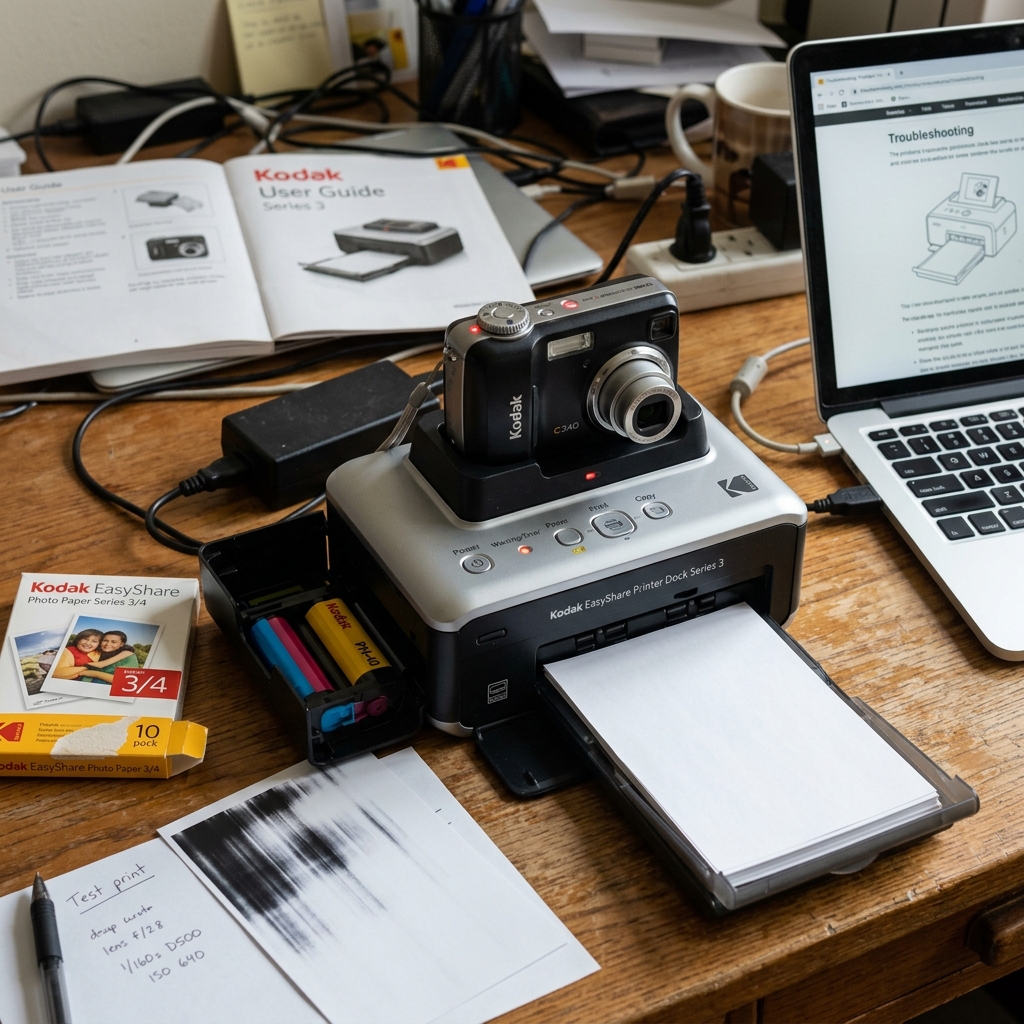
The Kodak EasyShare Printer Dock Series 3 is a classic dye-sublimation printer designed to dock EasyShare cameras directly for direct photo printing. While these printers are exceptionally durable, their age means that users frequently face mechanical issues, such as **torn ink cartridge ribbons**, **failure to charge or communicate with docked cameras**, or **continuous paper feed jams**.
Because these units utilize heat-based transfer technology, fixing them requires clean electrical pathways and proper spool tension. Let's look at the troubleshooting procedures for the Printer Dock Series 3.
Understanding Dye-Sublimation Ribbon Dynamics
Unlike inkjets that spray liquid ink, the Printer Dock Series 3 uses a dry color cartridge containing a long plastic ribbon coated with yellow. Magenta, and cyan wax panels.
The printhead heats the ribbon, vaporizing the wax onto special glossy photo paper in four sequential passes. If the paper slips or the printer overheats.
The wax ribbon will stick to the paper surface and **tear in half** as the paper cycles.
Step 1: Repairing a Torn Color Cartridge Ribbon
You do not need to discard a color cartridge if the ribbon has torn. You can manually splice it to recover the remaining prints:
- Remove the color cartridge from the side access door.
- Locate the two plastic spools inside the cartridge frame (the supply spool and the take-up spool).
- Extract the loose, torn ends of the colored plastic ribbon from both spools.
- Using a tiny piece of thin, clear adhesive tape, carefully **splice the two torn ends back together**. Make sure the ribbon is aligned straight and there are no overlapping wrinkles.
- Manually rotate the take-up gear (usually colored white) in a counter-clockwise direction to wind the spliced section onto the waste spool. Continue winding until you reach a clean, unused color panel segment (Yellow is always the first panel in the printing cycle sequence).
- Reinsert the cartridge into the printer. The printer will calibrate and resume printing.
Step 2: Cleaning the Camera Dock Connection Pins
If you dock your EasyShare camera but the printer's charge indicator does not illuminate, or if the "Print" button flashes red indicating a communication fault:
- Remove the camera from the dock tray.
- Locate the array of gold-plated leaf spring pins at the bottom of the docking well. These pins carry both charging voltage and USB data signals.
- Dampen a cotton swab with a drop of **99% isopropyl alcohol** (ensure the printer is unplugged from the wall outlet).
- Gently wipe the surface of the pins to remove accumulated dust, skin oil, or corrosion.
- Locate the matching female contact pads on the bottom of your digital camera. Use a wooden toothpick to clean out any pocket lint that has packed into the camera port.
- Allow the contacts to dry for 5 minutes, plug the dock back in, and seat the camera firmly. Press down slightly until the camera's battery charging light activates.
Step 3: Cleaning slick rubber drive rollers
If the printer makes grinding noises or throws a paper jam error without drawing the photo paper:
- Remove the paper cartridge tray from the front of the unit.
- Look inside the feed slot and locate the grey rubber drive roller assembly. Over time, paper dust makes these rollers slick, causing them to slip.
- Dampen a clean, lint-free cloth with warm water. **Do not use rubbing alcohol on these rollers**, as alcohol can dry out and crack the rubber compound.
- Press the cloth against the rubber roller while using your other hand to manually rotate the gears to clean the entire circumference of the roller.
- Verify that the photo paper is loaded with the **KODAK logo side facing down** in the tray. As feeding it upside down will jam the thermal printer head immediately.
Related Kodak Troubleshooting Guides
Complete Diagnostics for the Classic Kodak EasyShare Printer Dock Series 3
The Kodak EasyShare Printer Dock Series 3 is a dedicated 4x6 dye-sublimation snapshot printer featuring the classic Kodak camera docking connector. It uses specialized thermal color ribbon cartridges and Kodak snapshot paper. Common field issues include docking pin misalignments, ribbon cartridge jams, and modern operating system driver compatibility.
Comprehensive Troubleshooting Workflow
- Cleaning the 30-Pin Camera Dock Connector:
The top camera docking connector contains 30 gold-plated leaf pins. Dust, lint, or bent pins prevent the docked EasyShare digital camera from communicating. Blow compressed air into the dock connector and clean with an alcohol swab.
- Fixing Color Ribbon Cartridge Errors:
- Open the side door and remove the ribbon cartridge.
- Inspect the ultra-thin yellow, magenta, and cyan film panels.
- If the ribbon is sagging, turn the drive gear clockwise with your thumb to tighten the film until smooth and taut.
- Reinsert the cartridge firmly until the blue plastic release latch snaps forward.
- Paper Tray (Feeder Cassette) Alignment:
The paper tray must be pushed firmly into the front slot until it clicks into its metal catches. Load Kodak Color Cartridge & Paper Kit sheets with the Kodak watermark on the back. Glossy side facing UP in the dock cassette.
- Printing from Modern Windows 10 & 11 PCs via USB:
Connect the Printer Dock via the rear USB-B port. Because official drivers stopped at Windows Vista/7, install the generic "Microsoft IPP Class Driver" or use Windows 7 Compatibility Mode on the legacy EasyShare software installer.
Frequently Asked Questions
Why does the EasyShare Dock print 4 times for a single photo?
This is the standard dye-sublimation process: Pass 1 applies Yellow dye. Pass 2 applies Magenta, Pass 3 applies Cyan, and Pass 4 applies a clear protective lamination layer (UV and water resistant).
Can I print without a docked camera?
Yes. You can print from a PC connected via the rear USB port.
