


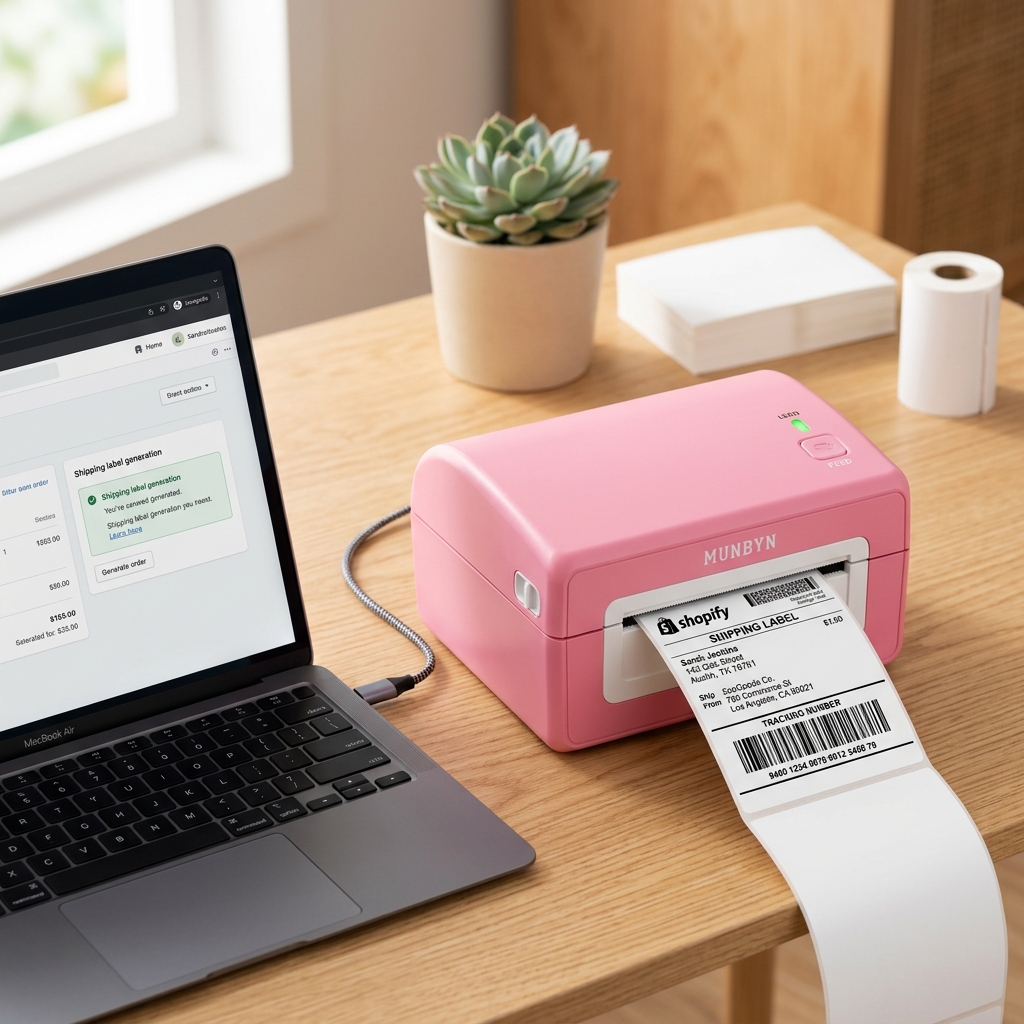
The Quick Answer
Learn how to configure Shopify to print perfect 4x6 labels on your Munbyn printer, and avoid the notorious 'packing slip trap'.
Shopify sellers hit a specific, repeatable wall with thermal printers: the setup works perfectly for a week, then one day every label prints wrong — and nothing was changed.
Or so it seems. Getting Munbyn printer Shopify 4x6 labels right involves the same three layers as any platform (Shopify's label format, the print dialog, the printer itself), plus one uniquely Shopify booby trap involving packing slips that I'll dedicate a full section to, because it's the cause of most of those mysterious "it just broke" days.
Here's the complete setup, in the order that prevents the most grief.
Quick Summary
- In Shopify: set your shipping label format to 4x6 in shipping settings — the default suits desktop printers, not thermal.
- Printer side: exact-model driver, labels loaded print-side up, calibrated, driver default size 4x6.
- Print dialog: 4x6 paper, 100% / Actual Size, no margins.
- The packing slip trap: know it, and it stops breaking your Fridays — details below.
Step 1: Set Shopify's Label Format to 4x6
Shopify Shipping lets you choose the format your purchased labels are generated in, and depending on your setup the default may be a letter-size (8.5x11) document — a 4x6 label floating on a big page, meant for printing on plain paper and taping down.
Head to your store's shipping settings and find the label format / label printer option (Shopify reorganizes admin menus now and then; searching the admin or Shopify's help for "label format" gets you there fast). Choose the 4x6 / label printer format.
Why this works: the document must be born the right size. A letter-size PDF sent to a 4x6 printer gets shrunk to fit — miniature label, unscannable barcode, blamed printer.
Fixing the format at the source means every label from now on downloads print-ready, and every downstream step gets simpler. One setting, set once.
Step 2: Make the Printer Trustworthy
Same foundation as always, and worth restating because a shaky printer makes every Shopify setting impossible to evaluate.
Install the driver for your exact model — check the sticker under the unit and match the DPI (203 or 300; the self-test page printed by holding FEED during power-on states yours). Load labels printable side up, and calibrate: four-plus connected labels, hold FEED to one beep, release.
Set the driver's default paper size to 4x6.
Why this works: Shopify hands the job to the driver; the driver frames it for the printer; the printer positions it using its calibrated measurement. Any one layer misinformed, and the other two take the blame. Calibrate with every new roll and this layer stays permanently innocent.
Step 3: Print at Actual Size — Every Time
Printing the label PDF from a browser or viewer adds the final scaling layer. In the print dialog: paper size 4x6 (Chromebook users: "oe w288h432" is 4x6 in points — 288 and 432 divided by 72 points-per-inch), scale 100% / Actual Size — never Fit to page — and margins none.
Why this works: viewers default to fit-to-page, which quietly shrinks a perfect PDF by a few percent to fit inside driver margins. Your eye forgives a few percent; a carrier barcode scanner doesn't, because bar widths are the data. Actual Size tells the viewer to stop helping.
The Packing Slip Trap (My Uncommon Tip)
Now the Shopify-specific gremlin, and the answer to "it worked for weeks and broke today, I swear I changed nothing."
You didn't change a setting. You printed a packing slip.
Here's the mechanism: Shopify order fulfillment involves two documents — 4x6 shipping labels and 8.5x11 packing slips — and most sellers print both, often minutes apart, from the same browser. And browsers remember the last print settings used: paper size, destination printer, scaling.
Print a letter-size packing slip, and the dialog helpfully retains Letter. The next shipping label you print inherits it — squeezed onto the browser's idea of a letter page, shrunk, misplaced, or fed to the wrong printer entirely.
It feels random because the breakage depends on what you happened to print last.
Two defenses, and I recommend both:
Separate the destinations. Send packing slips to your regular document printer (or Save as PDF) and labels to the Munbyn — never alternate one physical printer between the two document types. When each document type has its own home, the remembered settings stay correct per destination.
Glance before every label print. Make paper-size-and-scale a two-second reflex check in the dialog. Boring, unbeatable.
Why this works: the browser's memory is per-dialog convenience designed for people who print one kind of thing. Fulfillment prints two kinds, alternately — the exact pattern that weaponizes the convenience.
Naming the mechanism is most of the cure: once a seller knows the packing slip is the culprit, the "random" breakage becomes a predictable, checkable thing. I've had customers call me back just to say the Friday label chaos stopped the week they split their printers.
That's the whole tip: two document types, two destinations.
Batch Printing Without Tears
Shopify supports buying and printing labels for multiple orders at once, and thermal printers eat batches happily — with two cautions. First, verify your settings on a single label before any batch; one wrong dialog multiplied by forty orders is forty wasted labels and a recalibration of your mood.
Second, on marathon batches (100+), expect the printhead's protective cool-down pause — a red light mid-batch after heavy printing isn't failure, it's thermal protection. Wait ten minutes or split batches to about 75.
Why this works: batches multiply whatever is true of one label — perfection or error, equally. The single-label test decides which one you're multiplying.
When to Call a Professional
Sort the fault by layer before spending money. Label PDF already wrong on screen (bad address, malformed document) → Shopify support; printing never had a chance.
PDF perfect, self-test page (FEED held during power-on) clean, output wrong → the print path; re-walk format, dialog, and the packing slip trap — no paid help fixes a checkbox. Self-test damaged or impossible → Munbyn support, self-test photo attached; that's hardware, and under warranty usually ends in replacement.
Three doors, and knowing which to knock on first is worth more than most bench fees.
FAQ
Why do my Shopify labels print small on my Munbyn printer?
Either Shopify is generating letter-size label documents (switch the label format to 4x6 in shipping settings) or the print dialog is scaling to fit — set it to 100% / Actual Size.
Why did my Shopify labels suddenly stop printing correctly?
Check what you printed last. Browsers remember print settings, and a letter-size packing slip printed before your label passes its Letter setting along. Re-set the dialog, and consider giving slips and labels separate printers.
Can I print Shopify packing slips on the Munbyn too?
Technically some sellers print 4x6 slip formats, but I recommend against sharing: alternating document sizes on one printer is exactly what triggers the remembered-settings trap. Slips to the document printer, labels to the Munbyn.
What label format should I choose in Shopify settings?
The 4x6 / label printer format. It generates labels sized exactly for thermal printers like the Munbyn, no cropping or scaling needed.
Munbyn printer Shopify 4x6 labels come down to three honest layers and one trap: set Shopify's label format to 4x6, keep the printer calibrated with the driver at 4x6, hold every dialog to Actual Size — and give packing slips their own printer so the browser's memory can't sabotage your labels.
Set it up once, test one label with a ruler, and Friday fulfillment goes back to being about the orders, not the printer.
