


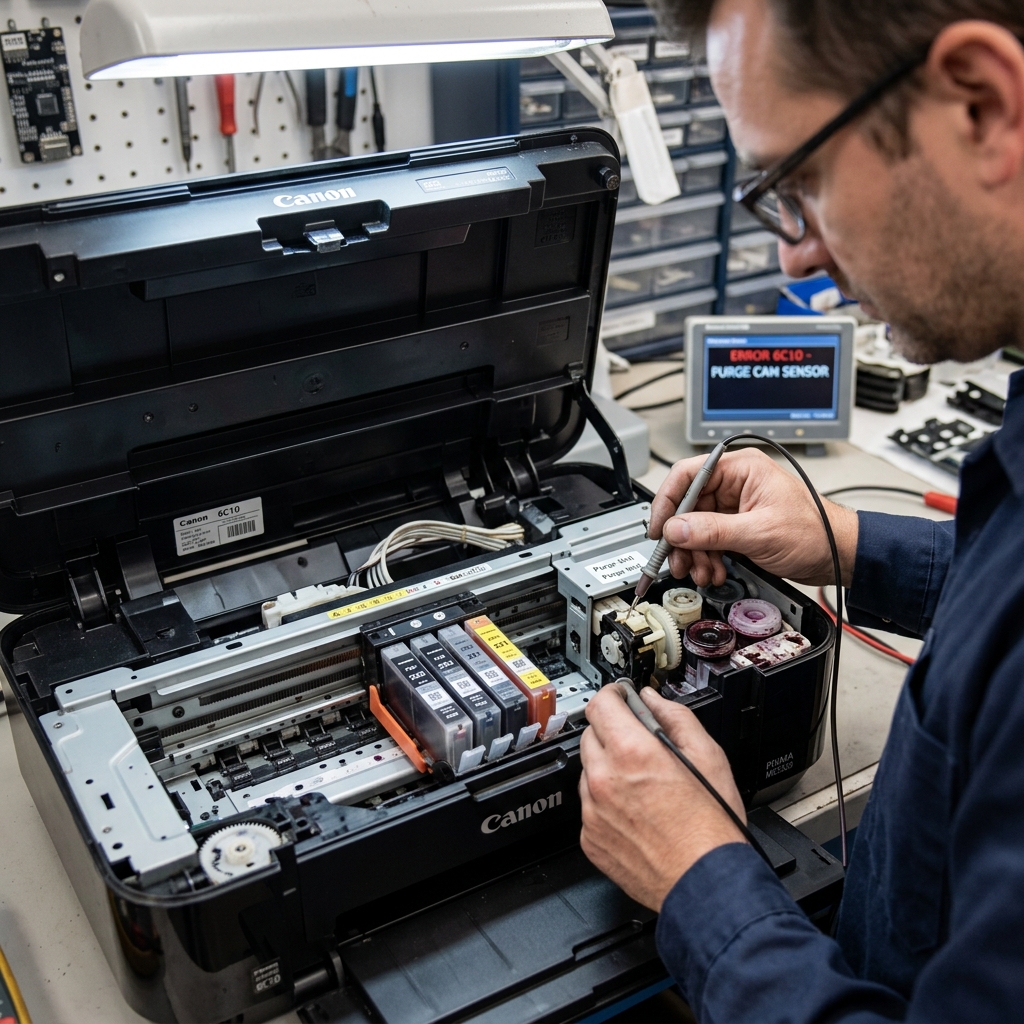
Understanding the 6C10 Valve Sensor Error
Canon's error 6C10 is technically classified as a "Valve Sensor Error." To understand this, you need to understand how the printer cleans itself.
When the printer runs a cleaning cycle, the carriage parks on the far right side over the purge unit. A small vacuum pump spins, pulling ink through the printhead and down into some silicone tubes.
A mechanical valve switches the flow of this ink between the black ink tube and the color ink tubes.
Error 6C10 occurs when the motherboard tries to switch this valve, but the sensor reports that the cam gear didn't move. The valve is stuck.
Fix 1: The Warm Water Flush
The most common reason the valve gets stuck is that the waste ink inside the purge unit has dried into a thick, tar-like sludge, freezing the moving parts.
- Unplug the printer and open the cover.
- Manually push the carriage to the left to expose the purge unit on the right.
- Fill a syringe or eyedropper with very warm distilled water.
- Drip the warm water directly onto the porous rubber pads of the purge unit.
- Let it sit for 10 minutes to dissolve the sludge.
- Manually push the small plastic wiper blade (a small rubber squeegee next to the pads) back and forth to ensure it isn't stuck.
Fix 2: Inspecting the Cam Gear
The valve is operated by a tiny white plastic cam gear located just behind or to the side of the purge unit.
Shine a flashlight into the right side of the printer. Look for any foreign objects.
It is very common for a tiny shred of paper from a previous paper jam to fall into this gear. If the gear cannot complete its rotation, it triggers 6C10.
Use tweezers to carefully extract any debris.
Fix 3: The Hard Reset
If the mechanism moves freely but the error persists, the sensor itself may have glitched.
Perform a hard reset by unplugging the printer for 15 minutes. While unplugged, press the power button 5 times to drain the capacitors.
Plug the printer back directly into a wall outlet (not a surge protector) and turn it on. If the printer completes its noisy initialization cycle without the 6C10 error, the valve successfully switched.
Understanding Canon Error 6C10 (Purge Unit Valve & Cam Sensor Fault)
Support Code 6C10 indicates a Purge Unit / Valve Cam Sensor Error. Inside the maintenance capping station on the right side of the printer, a motorized valve cam switches suction between the pigment black printhead and color printheads.
When dried ink sludge or a small torn paper scrap blocks this valve from rotating, Error 6C10 halts the machine.
Step-by-Step Cleaning & Diagnostic Protocol
- Inspect the Right-Side Purge Station:
Unplug the AC power cord. Open the top cover and slide the printhead carriage to the center. Look into the far right maintenance cavity with a flashlight. Clean the rubber suction caps and clear plastic wiper blade using warm distilled water on a foam swab.
- Check the Cam Sensor Optical Flag:
On the right side of the purge unit mechanism is a small optical interrupter sensor. Blow clean compressed air into the right chassis cavity to dislodge any paper fibers blocking the infrared sensor beam.
- Manually Cycle the Purge Drive Gears:
Turn the white drive gear on the far left side clockwise with your thumb. Verify that the maintenance capping station on the right rises and falls smoothly without binding.
- Execute a 15-Minute Power Drain:
Leave the printer disconnected from power for 15 minutes to reset the purge motor stall registers in volatile memory.
Frequently Asked Questions
Why does Error 6C10 occur during automated head cleaning?
During head cleaning, the purge unit valve cycles rapidly. If dried ink binds the valve cam midway through the cycle, Error 6C10 is tripped immediately.
Is Error 6C10 a waste ink counter error?
No. 6C10 is a physical mechanical valve jam in the purge unit.
