


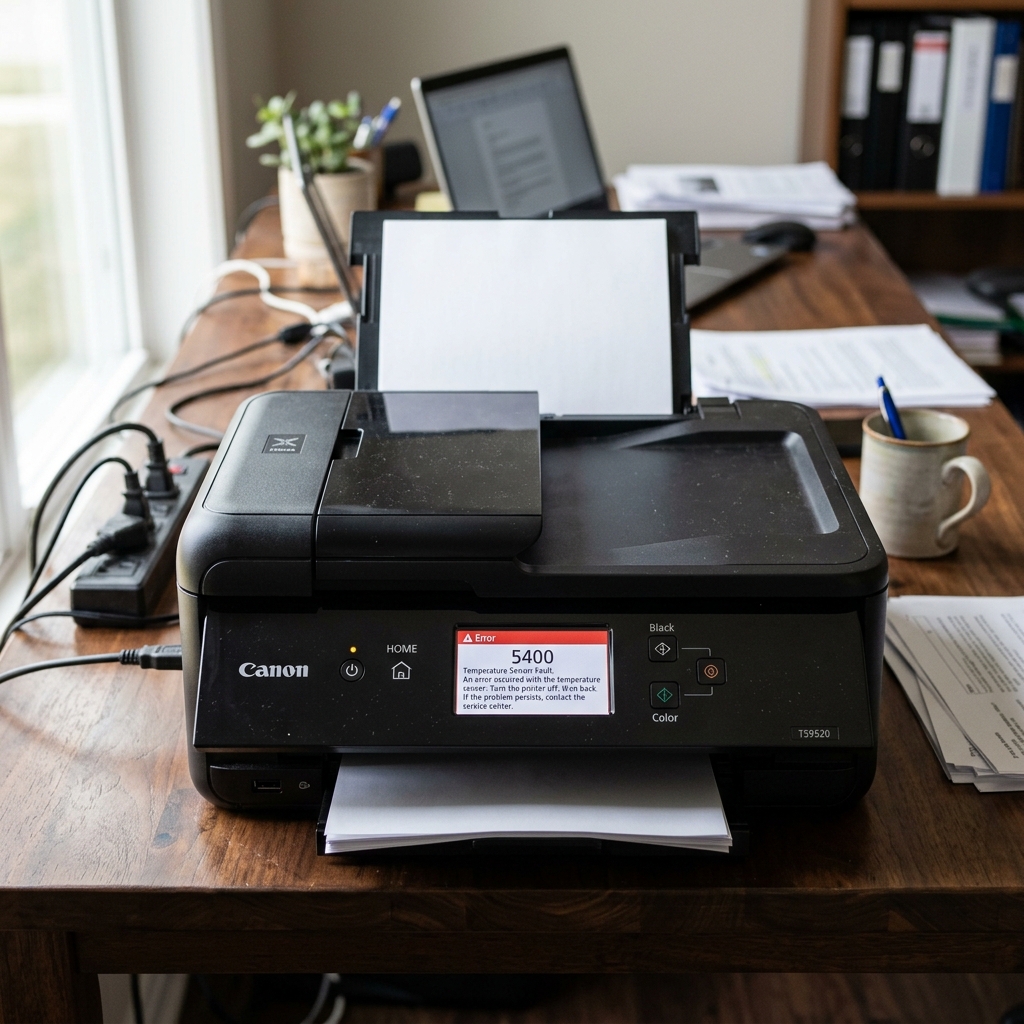
Error 5400 vs 5200: The Difference
Both error 5200 and error 5400 belong to Canon's thermal protection family, but they have a subtle technical difference. Error 5200 is a general thermal overload warning (the printer got too hot).
Error 5400, however, is specifically triggered when the printhead's onboard temperature sensor (thermistor) returns a reading that is either impossibly high, impossibly low, or completely absent.
In other words, 5200 means "it IS too hot," while 5400 means "the sensor SAYS something is wrong with the temperature reading." The sensor itself might be faulty, or the electrical connection between the sensor and the motherboard might be dirty.
Fix 1: Reseat the Printhead Contacts
The thermistor embedded in the printhead communicates its temperature reading to the motherboard through the gold electrical contacts on the back of the printhead. If these contacts are corroded, smeared with ink, or not making firm contact with the carriage pins, the motherboard receives a garbled temperature reading and throws 5400.
- Turn the printer off. Open the cover and remove all cartridges.
- Lift the gray locking lever and remove the printhead.
- Take a lint-free cloth dampened with isopropyl alcohol. Gently wipe the gold contacts on the back of the printhead.
- Use the same cloth to wipe the matching gold spring-loaded pins inside the carriage slot.
- Reinstall the printhead firmly. Push down until the locking lever clicks into place with a solid snap.
Fix 2: The Cooling Period
If the error appeared during a long, continuous print run (such as printing 50 pages of full-color photos), the printhead has genuinely overheated and the thermistor is doing its job correctly.
Unplug the printer. Open the top cover to allow airflow. Let it sit undisturbed for at least 15 to 20 minutes. When you plug it back in and turn it on, the thermistor will read a safe ambient temperature and allow the printer to proceed.
Fix 3: Cartridge Check
An empty cartridge is the number one indirect cause of 5400. When a nozzle bank fires without ink, the nozzle heats uncontrollably. The thermistor detects the spike and triggers the error. Check all cartridges (not just the one your document uses) and replace any that are empty.
When the Thermistor is Dead
If the printer throws 5400 the instant it turns on—before any printing occurs and while the printhead is at room temperature—the thermistor itself has failed. This tiny component is embedded inside the printhead and cannot be individually replaced. The entire printhead unit must be swapped.
Technical Explanation of Canon Support Code 5400
Canon Error 5400 (Support Code 5400) represents an Abnormal Internal Temperature / Thermistor Circuit Fault. Canon PIXMA printheads incorporate integrated semiconductor temperature sensors on the silicon die.
When the logic board detects that the printhead temperature is rising at an uncontrolled rate, or if the ambient thermistor sensor reads temperatures exceeding safety parameters (above 140°F / 60°C), Error 5400 is triggered to prevent printhead burnout and melting.
Step-by-Step Diagnostic & Recovery Protocol
- Environmental Cooling & Relocation:
Turn the printer OFF immediately. Unplug the AC cord. If the printer is positioned near a sun-drenched window, heat vent, or enclosed cabinet, move it to a cool, shaded room with ambient temperature between 65°F and 75°F (18°C - 24°C).
- Check for Dry Nozzle Firing (Air in Lines):
On Canon MegaTank models (G-series: G1200, G2200, G3200, G4200, G6020, G7020), if ink is empty and air fills the delivery tubes, the thermal heaters fire dry without liquid ink to dissipate the heat. This causes the silicon die temperature to spike instantly, tripping 5400.
Ensure all ink tanks are at least half full before proceeding.
- The 30-Minute Complete Power Drain:
Leave the printer completely unplugged for at least 30 minutes to allow the printhead assembly to equalize with room temperature. Reconnect power directly to a wall outlet.
- Inspect Printhead Electrical Terminals:
Remove the printhead assembly and inspect for ink leakage bridging adjacent high-voltage and thermistor pins. Clean all gold pads with 99% isopropyl alcohol.
Frequently Asked Questions
Is Error 5400 a permanent hardware death sentence?
Not always. If caused by an environmental heat wave or temporary thermal spike from dry firing, allowing the printer to cool completely and refilling ink tanks resolves the issue in roughly 50% of cases.
What should I do if Error 5400 returns immediately upon power-on?
If 5400 appears within 5 seconds of a cold boot in a cool room, the thermistor circuit on the printhead die is permanently shorted or open, requiring printhead replacement.
