


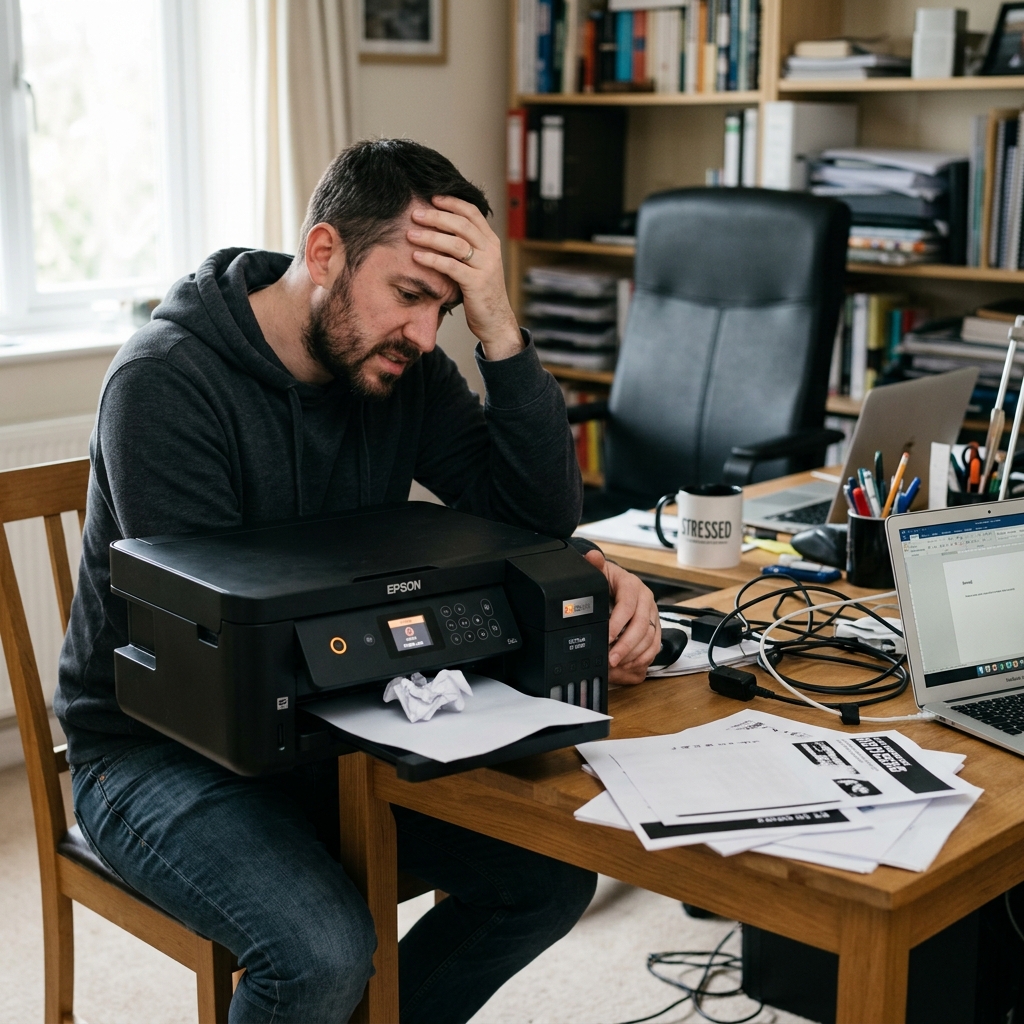
The Sudden Death Phenomenon
Most printer issues are preceded by warnings: low ink alerts, streaks on the page, or grinding noises. But occasionally, an Epson printer will be halfway through printing a perfect document, and it will simply stop.
The carriage freezes, the screen goes dark, or it just stops responding to the computer entirely, with absolutely no error code.
When an Epson printer stops working suddenly with no warning, the issue usually falls into one of three categories: Electrical failure, Spooler crash, or IP address dropping.
Scenario 1: The Printer is Completely Dark (Electrical Failure)
If the printer shut off mid-page and will not turn back on, it has suffered a hardware safety cutoff.
- The Static Lockout: Unplug the printer from the wall. Press and hold the power button for 60 seconds. This drains the internal capacitors. Wait 5 minutes, plug it directly into a wall outlet (bypass any power strips), and press power. If it turns on, your surge protector experienced a fluctuation.
- The Printhead Short: If liquid ink leaked onto the printhead ribbon cables while it was printing, it creates an instant short circuit. The motherboard immediately cuts power to prevent a fire. If you plug it back in, press power, and the green light flashes for just one microsecond before dying again, your motherboard's F1 fuse is blown. The printer is dead.
Scenario 2: The Printer is On, but Froze Mid-Page
If the printer has power, but the printhead stopped halfway across the page and the screen is frozen, the printer's RAM (memory) has crashed.
Epson printers have very little internal memory. When you print a massive, high-resolution PDF or a complex architectural document, your computer sends the data in chunks. If a chunk of data is corrupted, or if the file size overwhelms the printer's buffer, the processor simply locks up.
- Do not yank the paper out. Unplug the printer from the wall to force it to shut down.
- Go to your computer, open the Printers & Scanners menu, open the print queue, and delete the pending document.
- Plug the printer back in. It will boot up, realize there is half a page stuck in the rollers, and slowly eject it automatically.
- To prevent this, select "Print as Image" in your Adobe PDF advanced print settings, which simplifies the data sent to the printer.
Scenario 3: The Printer is On, but the Computer Says "Offline"
If the printer finished a page, you went to print another, and your computer suddenly says the printer is offline (despite the printer's Wi-Fi light being solid green), your router has scrambled the IP address.
Most home routers use DHCP, which assigns random IP addresses to devices. If the router's lease expired and it gave the printer a new IP address, your computer is still looking for the old one.
- Turn off the printer.
- Unplug your home internet router for 30 seconds, then plug it back in.
- Once the Wi-Fi is back online, turn the printer on. It will reconnect, and your computer's print queue will instantly find it again.
- To permanently prevent this, log into your router's admin panel and set a Static IP for the printer's MAC address.
Emergency Troubleshooting When Your Epson Printer Stops Working Suddenly
When an Epson printer abruptly stops responding in the middle of a workday — freezing mid-page, ignoring incoming print jobs, or failing to communicate over Wi-Fi — the failure falls into one of three distinct categories: Windows print spooler corruption, dynamic IP address changes, or internal firmware buffer overfill.
Complete 4-Step Emergency Recovery Protocol
- Flush the Windows Print Queue & Restart the Spooler Service:
- Press Windows Key + R, type
services.msc, and press Enter. - Right-click Print Spooler and select Stop.
- Press Windows Key + R, type
%systemroot%\System32\Spool\Printers, and delete all stuck files in this folder. - Return to Services, right-click Print Spooler, and select Start.
- Press Windows Key + R, type
- Execute a 15-Minute Hardware Power Disconnect:
Unplug the AC power cord from the wall. Press and hold the physical Power button on the printer for 30 seconds. Leave unplugged for 15 minutes to fully discharge volatile RAM and clear corrupt print buffers.
- Check the Printer's Network Port in Windows:
Open Control Panel > Devices and Printers > right-click your Epson printer > Printer Properties > Ports tab. Verify that the printer is assigned to a Standard TCP/IP Port matching its current IP, NOT a disconnected WSD port.
- Test with Direct USB Cable:
Connect a USB cable directly from your PC to the printer to confirm whether the issue is network-related or a physical driver/hardware fault.
Frequently Asked Questions
Why does the printer accept print jobs but print nothing on the paper?
If the carriage moves but prints blank pages, the nozzles have air-locked or lost prime. Run two Head Cleaning cycles from the printer maintenance menu.
Can a Windows Update cause an Epson printer to stop working?
Yes. Major Windows 10/11 cumulative updates often replace certified Epson manufacturer drivers with generic Microsoft IPP class drivers, disabling scanning and status monitoring.
