


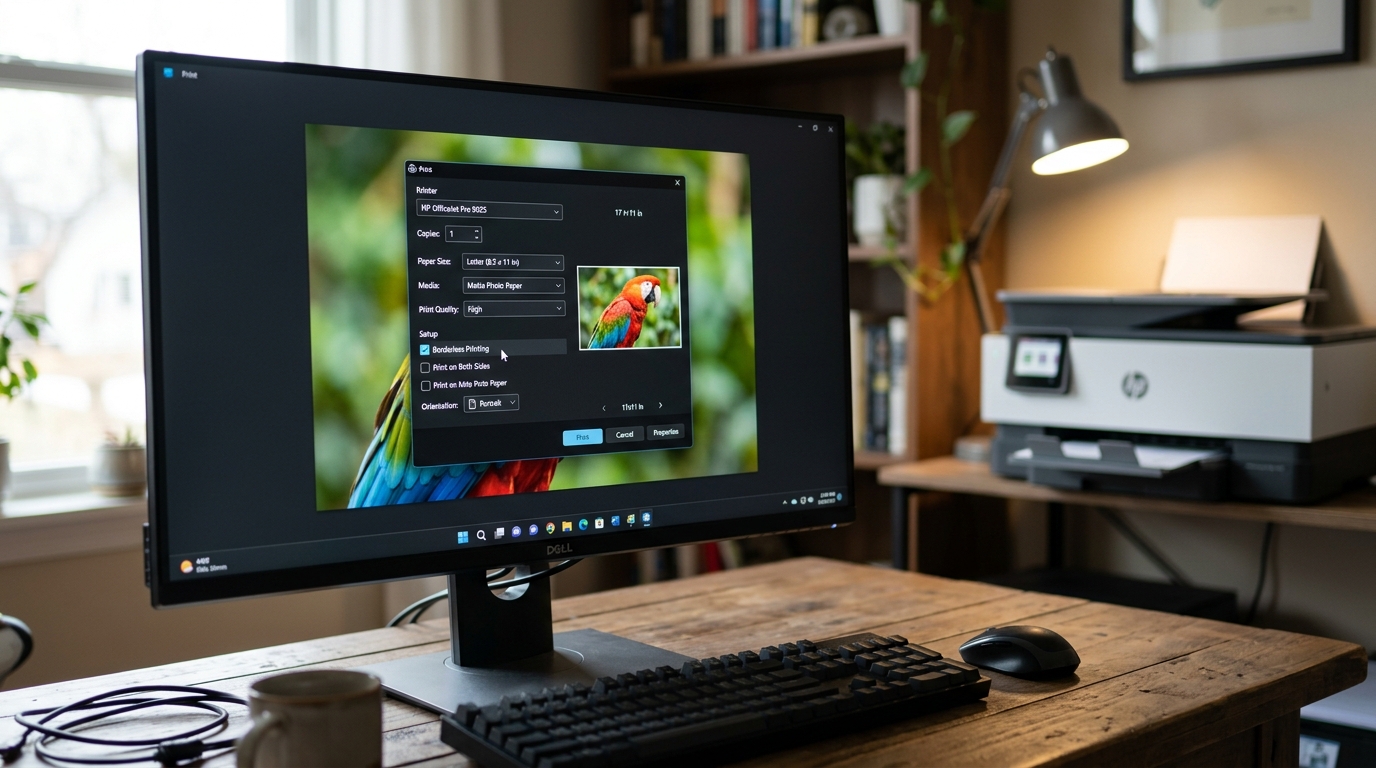
The Quick Answer
HP borderless printing option grayed out and won't turn on? A repair tech explains the two settings that must both be correct at once.
A grayed-out checkbox is one of the most unhelpful things software can show you — it tells you "no" without explaining why. leaving you to guess at what's blocking it. Borderless printing on HP printers has a specific. two-part rule behind that grayed-out switch,. and until both parts are satisfied at the same time, no amount of clicking will ever turn it on.Quick-Fix Summary
Fast version:
- Set the correct paper size first — borderless only works on specific sizes.
- Set the media type to a photo option — my uncommon tip, and the second half of the rule most people miss.
- Check the driver-level setting, not just the app or print dialog.
- Install the full driver, not just AirPrint or a generic connection.
- Reinstall if the option vanished entirely after a driver update or reinstall.
Understanding the Two-Part Rule
Before touching any individual fix. it helps to understand why this checkbox behaves so unhelpfully in the first place:
HP's borderless printing option only becomes available when two separate conditions are both true at the same time — the correct paper size is selected. and the correct paper type is selected. Miss either one, and the option stays grayed out with no explanation pointing you toward which of the two you got wrong.
Why this matters: most troubleshooting attempts fail because people correct one of these two settings. see the checkbox still grayed out, and conclude the fix didn't work — when really, they'd only satisfied half the requirement. Both conditions need to be correct simultaneously.
Fix 1: Set the Correct Paper Size
In your print dialog, confirm the paper size matches one of the specific sizes your printer supports for borderless printing — commonly 4x6, 5x7. or 8x10 for photo printing, and sometimes specific sizes like A4 for certain document use cases. Standard Letter or Legal size, used for typical documents, generally does not support borderless printing at all on most consumer HP printers.
Why this works: borderless printing requires the printer to intentionally overprint slightly beyond the paper's actual edges to guarantee true edge-to-edge coverage with no margin. and this overprint behavior is only calibrated and supported for specific paper dimensions the printer's firmware (internal software) and driver recognize. A size the driver doesn't recognize as borderless-compatible will keep the option locked, regardless of anything else you adjust.
Fix 2: Set the Media Type to a Photo Option (My Uncommon Tip)
Here's the second half of the rule that trips up nearly everyone who's already gotten the paper size right and still can't figure out why the checkbox stays grayed out.
You must also set the media/paper type to a photo-specific option. This is usually labeled Photo, Glossy Photo, or Premium Photo.
Do not use Plain Paper. The borderless option stays locked even with a perfectly correct paper size.
This happens if you leave the media type set to Plain Paper. The driver treats borderless printing as a photo feature.
It is tied to media types built for photos.
To fix this: in your print dialog or the driver's Printing Preferences.
find the Media Type or Paper Type dropdown (often in the same section as paper size, sometimes on a "Paper/Quality" or "Media &
Quality" tab), and change it from Plain Paper to Photo, Glossy Photo, or whichever specific photo option matches what you're actually printing on. The borderless checkbox should become clickable immediately once both settings — size.
and type — are correct together.
Why this works: borderless printing on consumer inkjets is engineered around photo paper's specific properties — its coating. its ability to handle the slight overprint borderless requires without smearing or bleeding at the edges. Plain paper isn't designed for this, so HP's driver gates the feature behind both the right dimensions. and the right surface simultaneously.
This is exactly why so many people get frustrated adjusting paper size alone and giving up — they were only ever halfway to satisfying the actual requirement,. and nothing in the interface clearly explains that two separate settings. not one, are gating the same checkbox.
Fix 3: Check the Driver-Level Setting
Some HP DeskJet and OfficeJet models have a separate borderless-related toggle specifically within Printing Preferences at the Windows driver level (Settings → Printers & scanners → your printer → Printing Preferences). distinct from whatever you've set inside the specific application's own print dialog.
Why this works: an application's print dialog and the underlying Windows driver preferences can sometimes hold independent settings. and a driver-level restriction can override or conflict with what you've correctly set at the application level. Checking both layers ensures you haven't fixed the setting in one place. while it's still blocked in the other.
Fix 4: Install the Full Driver, Not Just AirPrint or a Generic Connection
If borderless printing is missing entirely rather than simply grayed out. confirm you're using the actual HP driver for your printer model rather than a generic connection like AirPrint on Mac, or a basic Windows-detected driver.
Why this works: generic, manufacturer-neutral connections typically expose only a printer's most basic functions, and borderless printing is exactly the kind of manufacturer-specific feature that a generic driver often doesn't expose at all — not grayed out. simply absent from the interface entirely. Installing the actual HP-branded driver restores access to the full feature set. borderless included.
Fix 5: Reinstall If the Option Disappeared After an Update
If borderless printing worked previously and vanished entirely after a Windows update. driver update, or printer reinstall, remove the printer completely and reinstall using the Full Feature Software package downloaded fresh from HP's support site.
Why this works: updates and reinstalls can occasionally revert a printer to a more limited generic driver settings without clearly indicating that's what happened. and a clean reinstall using the complete driver package restores full feature access. including borderless printing, from a known-good starting point.
When to Call a Professional
If you've confirmed both a borderless-compatible paper size and a photo media type are selected simultaneously, checked the driver-level setting, confirmed you're using the full HP driver rather than a generic connection. and reinstalled if needed — and borderless printing still won't activate — contact HP support with your printer's exact model and confirm directly whether your model supports borderless printing at all for the paper size you're trying to use.
since not every HP printer offers this feature universally across every size and paper combination.
FAQ
Why is borderless printing grayed out even though I selected a photo paper size?
Paper size alone isn't enough — you also need the media type set to Photo, Glossy. or Premium Photo, not Plain Paper. Both settings need to be correct at the same time before the borderless option becomes available.
Can I print borderless on plain letter-size paper?
Generally no — borderless printing is typically restricted to specific photo-oriented sizes like 4x6, 5x7. or 8x10, and requires photo-type paper. Standard documents on plain Letter paper don't usually support this feature on consumer HP printers.
The borderless option disappeared completely after a Windows update. What happened?
Updates can sometimes revert your printer to a more limited generic driver without clear notice. Reinstalling using HP's Full Feature Software package. downloaded fresh from their support site, typically restores the missing option.
Why does borderless work in one app but not another?
Some applications and the underlying Windows driver preferences can hold independent settings. Check both the app's own print dialog. and Printing Preferences at the driver level (Settings → Printers & scanners) to make sure neither is quietly overriding the other.
HP borderless printing grayed out almost always comes down to satisfying two settings at once. not just one: a borderless-compatible paper size and a photo media type, both selected together. Most frustrated attempts only ever fix half of that requirement — get both right at the same time,. and the checkbox that seemed permanently locked usually becomes clickable immediately.
