


The Quick Answer
HP DeskJet 2755e cartridge not recognized A repair tech explains Dynamic Security, why refilled cartridges get blocked, and 5 real fixes.
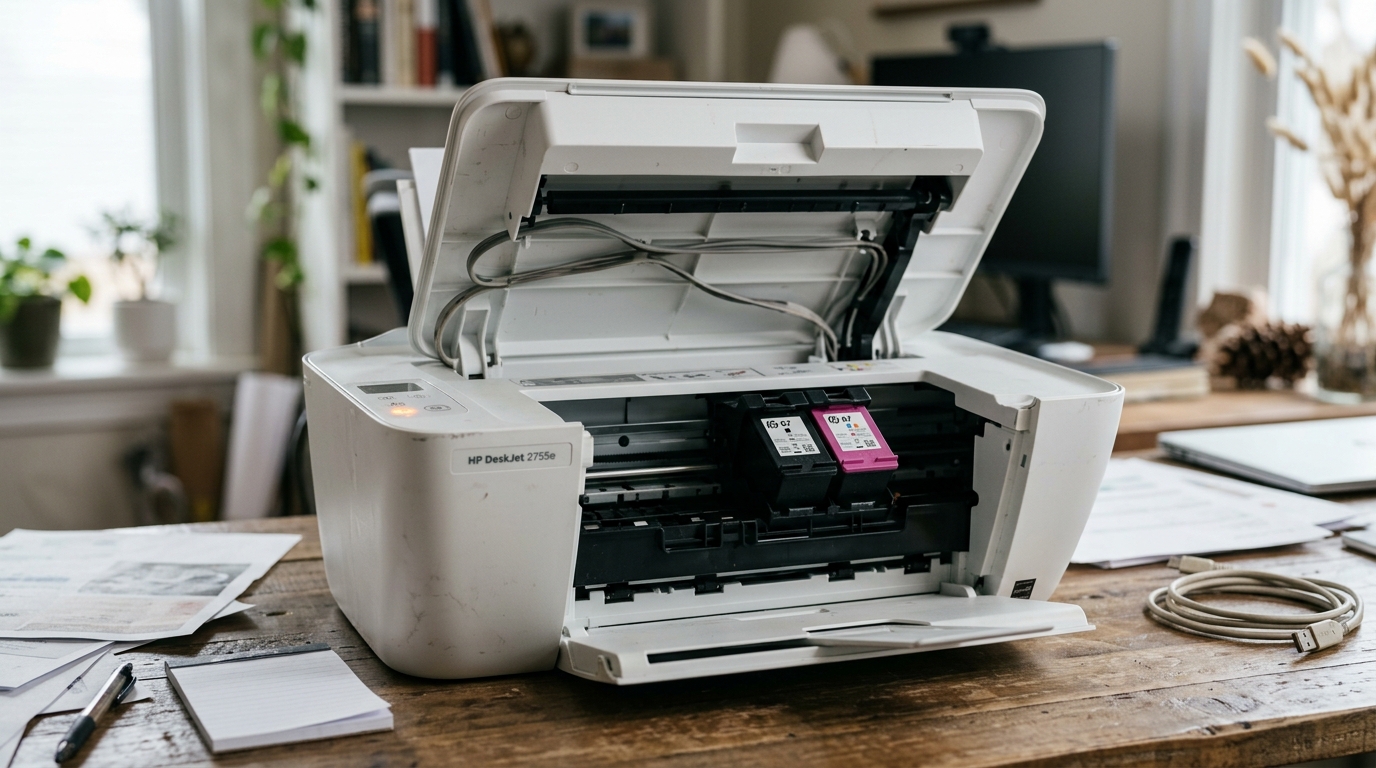
A cartridge that's brand new, or that worked perfectly last week, suddenly gets rejected — the printer insists it's not recognized, sometimes even flashing an error that treats a genuine HP cartridge like a fake. If your HP DeskJet 2755e isn't recognizing a cartridge, there's a specific, named HP technology behind a meaningful share of these cases.
Also, Understanding it changes how you troubleshoot the whole problem.
Quick-Fix Summary
Fast version:
- Remove all protective tape and plastic — check every cartridge, not just the new one.
- Clean the electrical contacts on both the cartridge and inside the printer.
- Reseat firmly until you feel and hear a click.
- Perform a genuine hard reset — unplug from the wall, not just power off.
- Understand Dynamic Security — my uncommon tip, and the reason refilled or non-HP cartridges often fail no matter what else you try.
Fix 1: Check for Tape and Packaging Plastic
Remove the cartridge and inspect it closely for any remaining orange protective tape over the contacts or nozzle. Or a small plastic clip sometimes tucked in a way that's easy to miss during a quick unboxing.
Why this works: this tape exists specifically to protect the cartridge during shipping. Also, It also happens to block the exact electrical contacts the printer needs to identify the cartridge — no communication looks identical to "not recognized," even though the ink itself is perfectly fine underneath.
Fix 2: Clean the Contacts, Both Sides
Power off the printer and remove the affected cartridge. Gently wipe the copper or gold-colored contact points on the cartridge itself with a lint-free cloth.
Lightly dampened with distilled water if there's visible residue, dry cloth for a quick pass otherwise. Then look inside the printer at the corresponding contacts in the cartridge bay and clean those too, just as gently.
Why this works: these contacts are the entire communication channel between cartridge. Also, Printer, and even light dust, dried ink residue, or a faint film from handling can be enough to interrupt that communication — cleaning both sides of the connection, not just the cartridge, addresses the complete picture rather than half of it.
Fix 3: Reseat Firmly
Reinstall the cartridge, pressing down firmly until you feel. Also, Typically hear a distinct click confirming it's fully seated, not just resting in place.
Why this works: a cartridge sitting even slightly high loses reliable contact, and "not recognized" is often simply the printer accurately reporting that it can't confirm what's installed —. This is because It genuinely can't, due to a physical connection that never fully completed.
Fix 4: The Genuine Hard Reset
Turn the printer off, then unplug it from the wall outlet completely — not just the printer's own power switch —. Also, Leave it unplugged for a full 60 seconds before reconnecting and powering back on.
Why this works: a true unplug forces the printer's internal systems, including its cartridge recognition. Logic, to restart completely fresh rather than carrying forward whatever confused state led to the rejection in the first place.
This resolves a meaningful share of recognition errors on its own, particularly. Ones that appeared suddenly with a cartridge that was working fine previously.
Fix 5: Understand Dynamic Security (My Uncommon Tip)
Here's the piece that explains the cases that survive every fix above. Also, It's a real, named HP technology that most troubleshooting guides mention only vaguely, if at all.
HP printers, including the DeskJet 2755e, use something called Dynamic Security — a system built into the printer's firmware (internal software) specifically designed to verify that installed cartridges are using an HP-original electronic chip. Also, To block cartridges that don't pass that check.not recognized" complaints, particularly when the cartridge in question is:
- A refilled cartridge, even one that started life as a genuine HP cartridge before refilling
- A remanufactured or third-party compatible cartridge
- An older genuine cartridge whose chip has been affected by a firmware (internal software) update the printer received since it last worked
Dynamic Security checks the cartridge's chip, not just whether ink is present or the physical connection is sound — which is exactly why a refilled cartridge can fail. Recognition even with a perfectly clean connection and a full ink supply.
The refilling process itself doesn't usually damage the chip directly, but it can alter enough about how the chip communicates, or the chip. May simply have been designed only to authenticate correctly the first time it's used, that Dynamic Security flags it on a second life.
What this means for you: if you're using genuine, first-use HP cartridges. Also, Still hitting recognition errors, the fixes above (tape, contacts, seating, reset) are the right path, and one of them very likely solves it.firmware (internal software) version's current Dynamic Security enforcement status, since HP's policies.
Also, The technical details of enforcement have shifted over time and have also been the subject of public scrutiny and legal challenges.
Why this matters: understanding Dynamic Security exists reframes the entire troubleshooting process.cleaning contacts on a cartridge that was never going to be accepted. Also, Recognizing early that the cartridge type itself is the actual variable to change.
When to Call a Professional
If you're using a genuine, first-use HP cartridge, have removed all tape, cleaned both sets of contacts, reseated firmly. Also, Performed a true hard reset — and it's still not recognized — try a different genuine cartridge if you have one available, to rule out a defective individual unit.
If a known-good genuine cartridge also fails, contact HP support with your printer's serial number, since this points toward a fault in the. Printer's own cartridge-reading hardware rather than anything about the cartridge itself, and it's worth checking current warranty status before pursuing any paid repair.
FAQ
Why won't my HP DeskJet 2755e recognize a brand new genuine cartridge?
Start with the physical basics — remove any protective tape. Clean both sets of contacts, and reseat firmly until it clicks.hard reset, it may point to a hardware issue with the printer's own cartridge reader.
What is Dynamic Security and why does it matter here?
It's HP's firmware (internal software)-level system that verifies a cartridge's electronic chip is genuinely HP-authenticated before allowing it to work. It's a deliberate feature, not a bug. Also, It's the actual reason refilled or third-party cartridges frequently fail recognition even when everything else about the installation is correct.
Can I do anything to make a refilled cartridge work again?
Not reliably, if Dynamic Security is actively blocking it — this is enforced at the firmware (internal software) level based on the chip, not something you can clean or reseat your way past. Your realistic options are switching to genuine first-use cartridges or researching.
Current enforcement policy for your specific printer and firmware (internal software) version.
Does a firmware (internal software) update really change whether old cartridges work?
Yes, this has genuinely happened — HP has pushed updates that changed how strictly Dynamic. Security enforces its checks, occasionally affecting cartridges, including some previously-working ones, that don't meet the current authentication standard.
An HP DeskJet 2755e cartridge not recognized usually comes down to one of two very different stories: a simple physical fix — tape, contacts. Seating, a hard reset — or Dynamic Security intentionally blocking a refilled or third-party cartridge by design.
Work through the physical checks first, and if the cartridge in question isn't a genuine, first-use HP. Cartridge, know that you may be up against a deliberate policy rather than a fixable technical fault.
