


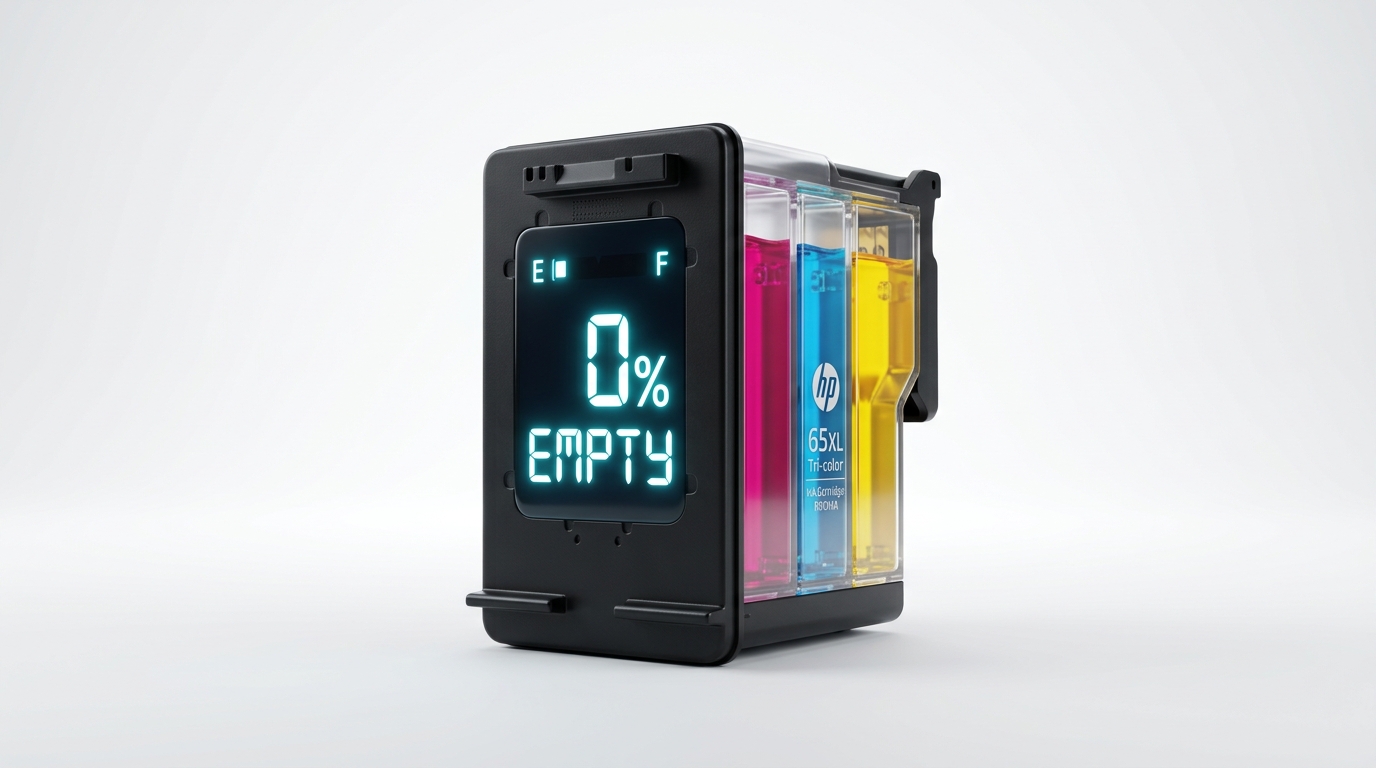
The Quick Answer
Instant Ink cartridge shows empty but it's clearly full? A repair tech explains the cloud page-counter system behind this, and how to actually fix it.
You can see the ink. It's visibly there, sloshing when you tilt the cartridge, nowhere near empty by any physical measure —.
Your printer insists otherwise, refusing to print or nagging you to order a replacement that hasn't run out. Ink cartridgeshowing empty when it's clearly full is one of the more disorienting complaints in printing,. Because your own eyes and the printer's readout are telling you two completely different stories.
Once you understand how Instant Ink actually measures "empty," the disagreement makes complete sense.
Quick-Fix Summary
Fast version:
- Understand it's not measuring ink directly — this changes everything about how you troubleshoot it.
- Check your printer's internet connection — a lost connection is the most common cause.
- Force a manual sync through the HP Smart app.
- Check your Instant Ink account status for billing or enrollment issues.
- Perform a full power cycle to force the printer to re-report its status.
Why "Empty" Doesn't Mean What You Think It Means
Here's the fact that resolves most confusion about this specific complaint: Instant Ink doesn't track the physical ink level in your cartridge the way a normal printer does. The whole subscription is built around a page-based model— you're paying for a monthly allotment of printed pages, not for ink volume — so the printer's real job is estimating.
Reporting how many pages you've printed and how many you have left in your plan, and syncing that count with HP's cloud servers. The "ink level" indicator you see is often really reflecting that page-based reporting system, not.
A direct physical measurement of liquid in the cartridge.
Why this matters: when that reporting system loses sync with HP's servers — because of a dropped internet connection, a delayed cloud update, or a billing hiccup — the printer can display an. Inaccurate "empty" status that has nothing to do with how much ink is physically present.
You're not imagining the full cartridge. You're looking at a genuine disconnect between the physical reality and a cloud-dependent counter that's supposed to track it.
Fix 1: Check the Printer's Internet Connection
Confirm your printer is currently connected to Wi-Fi. Can actually reach the internet, not just show as connected to your router. network settings page from the control panel, or check status through the HP Smart app, to confirm.
Why this works:Instant Ink's entire tracking system depends on the printer regularly checking in with HP's servers. To report usage and receive updated status. connectionhas been down — even briefly, even without you noticing — the printer may be working from stale, outdated information about your cartridge.
Plan status, displaying "empty" based on old data rather than current reality.
Fix 2: Force a Manual Sync
Open the HP Smart app, select your printer, and look for a Printer Settings or Instant Ink section with a manual sync, refresh, or update status option. If you can't find a dedicated sync button, simply closing.
Reopening the app while the printer is on and connected often triggers a fresh status check.
Why this works:rather than waiting for the printer's next automatic check-in with HP's servers — which may. Not happen for a while depending on your printer's settings — a manual sync forces an immediate conversation between the printer and HP's cloud system, which can correct a stale or inaccurate status reading right away.
Fix 3: Check Your Instant Ink Account Status
Sign into your account at hpconnected.com and review your Instant Ink plan directly. failed or expired payment method, an overdue balance, or account-level messages you might have missed in email.
Why this works: because the Instant Ink system is fundamentally cloud and account-based, a billing issue — even a genuinely minor one, like an expired card that auto-updated everywhere else in your life except this one account — can cause the service to flag your cartridges as unusable, which sometimes surfaces to you as a generic "empty" or error status rather than a clear billing message.
This is a cause people rarely check first,.
Because the printer's display gives no obvious hint that the actual problem is financial rather than physical.
Fix 4: The Full Power Cycle
Turn the printer off, unplug it from the wall completely,. Leave it unplugged for a full 60 seconds before reconnecting and powering back on.
Why this works:a true unplug forces the printer to fully restart its internal systems. Re-establish its connection and status check with HP's servers from scratch, rather than continuing to display whatever status it was holding in memory before. app refresh alone doesn't catch.
Fix 5: Give It Time After Any Fix
If you've just resolved a connectivityissue or a billing problem, don't expect the display to update instantly in every case — give the printer a few minutes,. Try printing a test page, since sometimes the successful sync happens before the visual indicator on the printer itself catches up.
Why this works: there can be a brief lag between the underlying account and cloud data correcting itself and every display surface — the printer's own screen, the HP Smart app, the desktop status — reflecting that correction consistently. A test print is often a more reliable way to confirm the actual fix than.
Staring at a status icon waiting for it to change.
When to Call a Professional
If you've confirmed a stable internet connection, forced a manual sync, verified your account and billing status show nothing wrong, and performed a full power cycle— and the cartridge still reports empty despite being visibly full — contact HP support.
Directly through your Instant Ink account, since at this point the issue likely requires action on HP's server side that isn't something you can resolve from the printer or app alone.
Have your account email and printer serial number ready; this is a well-recognized support category. For the Instant Ink program specifically, distinct from a general hardware complaint.
FAQ
Why does my Instant Ink cartridge show empty when I can clearly see ink inside it?
Instant Ink tracks a page-based allotment synced with HP's cloud servers, not a direct physical measurement of ink volume. connection, a delayed cloud sync, or a billing issue can cause the displayed status to. Be inaccurate even though the physical cartridge is fine.
Will shaking or checking the cartridge itself help?
No — since the "empty" status isn't based on a physical ink sensor in the. Way you'd expect from a standard printer, physically inspecting or manipulating the cartridge won't change what the system reports. connectivity, sync, or account status instead.
Could a billing problem really cause an "empty" message instead of a billing message?
Yes, and it's one of the most overlooked causes. genericink or cartridge status message rather than a clear billing alert,. It's worth checking your account directly even if nothing seems obviously wrong.
How long should I wait after fixing the connection before it updates?
Usually just a few minutes, though it can occasionally take longer depending on server-side processing. app first, and confirm with an actual test print rather than relying solely on the status icon.
An Instant Ink cartridgethat shows empty while visibly full is a sync problem, not a truth about your. Ink supply — the system is reporting a page-based cloud status, not measuring liquid directly.
Check your connection, force a sync, verify your account is in good standing, and give it a genuine power cycle. In nearly every case, the ink was never the problem.
