


The Quick Answer
HP LaserJet P4015 error 49.4C02 explained by a repair tech: what the code really means, 5 fixes in order. The memory DIMM trick few guides mention.
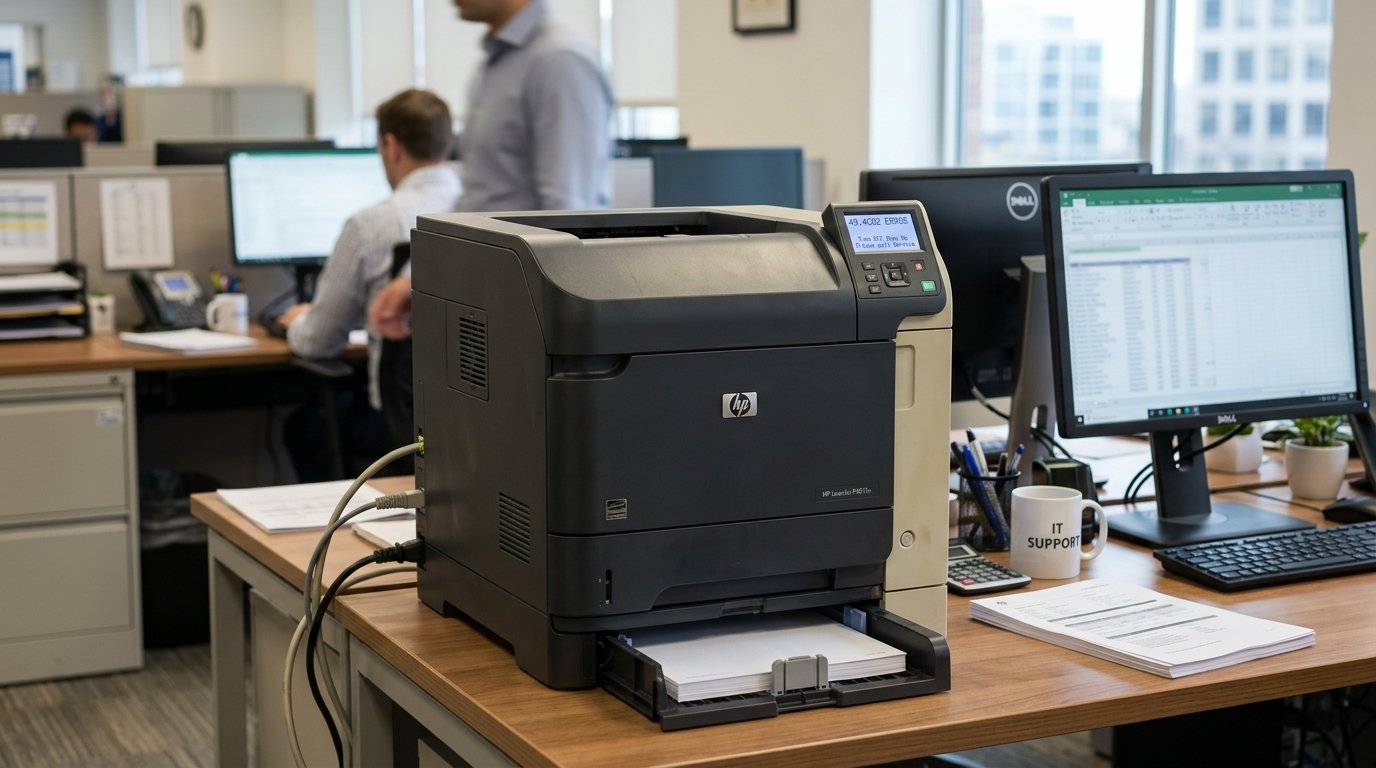
A locked control panel with no buttons responding is about as unfriendly as a printer gets. The HP LaserJet P4015 error 49.4C02 does exactly that — the screen freezes on the code, nothing you press does anything, and the only way back in is a full power cycle.
If your P4015 (or its siblings, the 4240, 4250, 4350, P4014, or P3005) has thrown this one, take a breath. This is one of the better-understood LaserJet errors out there.
In most cases it's a software crash, not a dying printer.
Here's the fix order I run at the bench, from the thirty-second check to the deeper hardware step almost nobody mentions.
Quick-Fix Summary
Fast version:
- Cold reset — unplug from the wall for 60 seconds, not just a power-button restart.
- Clear the print queue on every computer that sends jobs to this printer.
- Test over USB — isolate whether the network is the trigger.
- Update the firmware (internal software) (internal software) to the version HP shipped specifically to fix this error.
- Pull any extra memory DIMMs if your unit has them — my uncommon tip.
What 49.4C02 Actually Means
Every HP LaserJet has a small computer inside it called the formatter board — it's the brain that receives your print job, translates it into instructions the print engine understands. Manages the network connection.
The "49" prefix on any LaserJet error code means the formatter crashed. The "4C02" suffix identifies which specific type of crash occurred.
In plain terms: your printer's brain locked up mid-task and needs a hard restart to recover, the same way a frozen computer sometimes just needs the power button held down.
Why this framing matters: a crashed formatter is usually a software event, not a hardware death. Most 49.4C02 cases trace back to a corrupted print job, a firmware (internal software) (internal software) bug, or a network hiccup — all fixable without replacing anything.
Genuine formatter board failure is real but much rarer. It's the last stop on this list, not the first assumption.
Fix 1: The Cold Reset
Power the printer off. Unplug the cord from the wall outlet — not just the printer's back panel — and leave it unplugged a full 60 seconds. Plug back in and power on.
Why this works: the power button alone doesn't always clear the formatter's crashed state from memory. Pulling the plug forces a genuine hardware reset, wiping whatever bad state caused the lockup. This alone resolves a large share of 49.4C02 cases, and it costs you a minute.
Fix 2: Clear Every Print Queue
On each computer that prints to this LaserJet, open the print queue (Windows: Settings → Printers & scanners → your printer → Open queue) and cancel every pending job. Do this on all machines, not just the one you're using right now — an office LaserJet often has jobs stacked up from several computers.
Why this works: a single corrupted print job — often a complex PDF, a webpage with heavy formatting, or a document with an embedded font the formatter chokes on — can crash the board on arrival, and if that same bad job is still sitting in a queue, it re-crashes the printer the instant it reconnects. Clearing every queue removes the landmine before you step on it again.
Fix 3: Isolate Network vs. USB
If the error keeps returning specifically during network printing, connect a computer directly to the printer with a USB cable, install the driver, and try printing a simple test document.
Why this works: this single test splits the problem cleanly in two. Prints fine over USB?
Your formatter and print engine are healthy. The fault lives in the network path — the onboard LAN chip, a JetDirect card, or something upstream on your network.
Still crashes over USB? The formatter itself is struggling regardless of connection method, which points toward firmware (internal software) (internal software) or hardware rather than network gremlins.
This test alone tells you which half of this guide actually applies to you.
Fix 4: Update to the Fixed firmware (internal software) (internal software)
HP has released firmware (internal software) (internal software) specifically addressing 49.4C02 on this printer family. Download the latest version for your exact model from HP's support site (search your model number plus "firmware (internal software) (internal software)").
Install it via USB following HP's instructions — most updates on this printer generation load from a USB drive directly at the control panel.
Through HP's firmware (internal software) (internal software) update utility on a connected PC.
Why this works: firmware (internal software) (internal software) is the printer's operating system, and like any operating system it ships with bugs that get patched later. HP's own release notes for this printer family specifically list 49.4C02 as an issue resolved in later firmware (internal software) (internal software) builds.
If your printer has been running the same firmware (internal software) (internal software) since it left the factory years ago, this update alone may end the problem permanently.
Fix 5: Pull the Extra Memory (My Uncommon Tip)
Here's the fix almost no consumer troubleshooting guide mentions, because it only applies to business-class LaserJets like the P4015 that support add-in memory modules — and it's exactly the kind of detail a shop tech checks that a home user never thinks to.
If your P4015 has an optional memory DIMM installed beyond the factory-standard amount — added at some point to handle larger print jobs or additional fonts — power off, unplug. Open the formatter board access panel (typically on the side or rear of the printer; consult your model's service manual for the exact latch location).
Carefully remove any non-original, add-in memory module, leaving the printer's standard factory memory in place. Reassemble and test.
Why this works: a failing or incompatible memory module can corrupt data as it passes through the formatter. That corruption is a documented trigger for 49-series crashes.
It's an unusual cause precisely because most owners forget the module is even there — it went in once, years ago. Nobody's thought about it since.
If removing it clears the error permanently, you've found your culprit; if you need the extra memory for your workload, a replacement module (rather than reinstalling the old one) is worth the modest cost compared to a full board replacement.
When to Call a Professional
If the error persists after a cold reset, a cleared queue, isolating network from USB, a firmware (internal software) (internal software) update, and checking memory modules — especially if it now appears immediately at power-on with every cable disconnected — you're likely looking at a genuine formatter board fault, onboard LAN chip failure, or memory socket damage. At that point, get a repair quote for a formatter board replacement and compare it honestly against the price of a comparable new or refurbished LaserJet.
These are workhorse printers built to last, and repair can absolutely make sense on a well-maintained unit — but on an older P4015 nearing the end of its practical life, the math sometimes favors replacement. That's worth knowing before you commit to a repair.
FAQ
What does error 49.4C02 mean on an HP LaserJet?
It means the printer's formatter board — its internal computer — crashed. The "49" identifies a formatter crash broadly; "4C02" identifies this specific crash type. It's usually triggered by a corrupt print job, network issue, or outdated firmware (internal software) (internal software).
Does 49.4C02 mean my printer is broken permanently?
Not usually. Most cases clear with a cold reset, a cleared print queue, or a firmware (internal software) (internal software) update. Genuine hardware failure — a dead formatter board — is the least common cause, not the most common.
The error only happens over the network, never with USB. What does that mean?
That points to a network-side cause: the onboard LAN connection, a JetDirect card, or something on your network itself, rather than a fault in the printer's core formatter or print engine.
Can old add-in memory really cause this error?
Yes, on business LaserJets with expandable memory. A failing or incompatible memory DIMM can corrupt data passing through the formatter, which is a documented trigger for 49-series crashes. Removing it is a quick, free test.
HP LaserJet error 49.4C02 looks like a locked-up, dying printer and is usually just a formatter that needs a hard reset and a cleared queue. Work through cold reset, queue clearing, the USB isolation test, a firmware (internal software) (internal software) update. — if your unit has add-in memory — pulling that module before you assume the worst.
Most P4015s walk away from this error with nothing more than a firmware (internal software) (internal software) download and a fresh start.
Additional Resources
If you are still experiencing issues after trying the steps above, you may need to consult the official documentation or download the latest firmware (internal software) (internal software) for your specific printer model. We recommend checking the following official resources:
