


The Quick Answer
HP printer error 0xc19a0003 explained by a repair tech: what 'problem with printhead' really means, and the tiny vent hole almost nobody checks.
"There is a problem with the printhead" — that's the message accompanying error 0xc19a0003. It shows up most often on HP OfficeJet and Photosmart printers, usually followed by a printer that simply refuses to do anything at all.
The message sounds final, like the printhead has died. In my experience, it's rarely that dramatic.
There's one specific, tiny detail almost every troubleshooting guide skips that resolves a meaningful share of these cases.
Quick-Fix Summary
Fast version:
- Power cycle from the wall, not just the power button.
- Remove and reseat every cartridge, not just the newest one.
- Clean the electrical contacts on cartridges and inside the printer.
- Check the tiny vent hole on top of each cartridge — my uncommon tip, and a genuinely overlooked cause.
- Run the printhead cleaning and priming cycle if reseating alone doesn't resolve it.
Fix 1: Power Cycle From the Wall
Turn the printer off, unplug the power cord from the wall outlet completely, wait about 30 seconds, then reconnect. Power on.
Why this works: a genuine power cycle forces the printer to fully reinitialize its internal systems, including how it checks and communicates with the printhead and cartridges, clearing a meaningful share of firmware (internal software)-level hiccups that trigger this error without any actual hardware problem present.
Fix 2: Remove and Reseat Every Cartridge
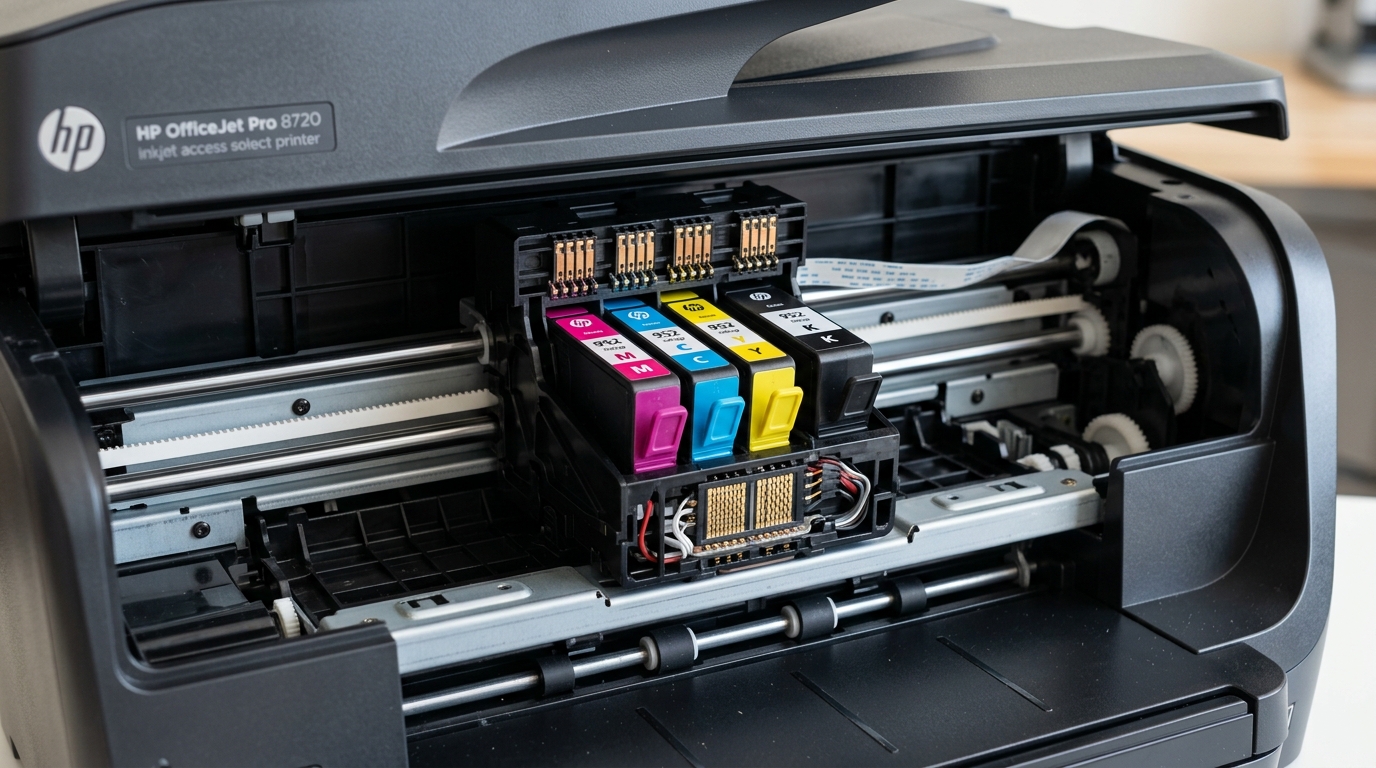
Open the cartridge access door, wait for the carriage to stop moving completely. Remove each cartridge one at a time. Reinstall each one firmly, at a slight angle as you slide it in, pressing until it clicks fully into place.
Why this works: "problem with the printhead" often really means the printer can't properly confirm cartridge presence or communication — and a cartridge that isn't fully seated, even one you didn't just touch, can trigger exactly this message. Reseating every cartridge, not just whichever one you most recently installed, rules this out completely.
Fix 3: Clean the Electrical Contacts
Remove each cartridge and gently wipe the gold or copper contact points with a lint-free cloth or swab lightly dampened with isopropyl alcohol (90% works well). Do the same for the corresponding contacts inside the printer's carriage. Let everything dry for about 5 minutes before reinstalling.
Why this works: these contacts are how the printer electronically confirms each cartridge is present and functioning, and even a light film of dried ink or dust can interrupt that communication enough to trigger a "problem with printhead" reading, even though nothing is actually damaged.
Fix 4: Check the Vent Hole (My Uncommon Tip)
Here's the detail that almost never appears in general troubleshooting guides. It's specific enough that it explains cases that survive reseating and contact cleaning entirely.
Every ink cartridge has a small vent hole on its top surface — a tiny opening that allows air to enter the cartridge as ink is drawn out, equalizing pressure so ink can flow smoothly to the printhead. If this vent hole gets blocked — commonly by a small remnant of the orange protective tape or plastic seal that wasn't fully removed during unboxing, or by dried ink residue — the cartridge can't release ink properly.
The resulting pressure or flow problem can trigger exactly this "problem with printhead" error, even though the printhead itself and the electrical contacts are both completely fine.
To check: examine the top of each cartridge closely for any remaining tape, plastic film, or residue anywhere near this small vent opening — it's easy to miss a corner or edge of tape during a quick unboxing, particularly since the vent hole itself is small and not always obviously labeled.
If you find any covering or residue, gently peel it away completely.
If the vent looks clear but you suspect blockage from dried ink, a gentle, careful poke with something like a fine pin can clear it — done cautiously, without forcing anything or damaging the surrounding cartridge material.
Why this works: this is a mechanical, physical cause entirely separate from electrical contacts or firmware (internal software), and it's exactly the kind of thing that survives every "clean the contacts, reseat the cartridge" fix because those fixes don't address ink flow physics at all.
A blocked vent means the cartridge genuinely can't supply ink properly no matter how well it's electrically connected, and the printer's error message — worded around "the printhead" — doesn't make that distinction clear to you.
Checking this tiny detail directly has resolved cases in my experience that looked, on the surface, exactly like they needed a full printhead replacement.
Fix 5: Run Printhead Cleaning and Priming
If the error persists after checking cartridges and vents, go to the printer's control panel or the HP Smart app, find Setup → Printer Maintenance. Run Clean Printhead. If a separate priming option is available, run that as well.
Why this works: this forces ink through the entire system under pressure, which can clear minor internal blockages or air pockets contributing to the flow problem the error is describing, addressing the issue directly rather than just ruling out surrounding causes.
When to Call a Professional
If you've power cycled properly, reseated every cartridge, cleaned all contacts, checked and cleared every vent hole. Run cleaning and priming — and the error still persists or changes to a related code like 0xc19a0023 — a genuine printhead hardware fault becomes the more likely explanation. Contact HP support with your printer's serial number;
on many OfficeJet and Photosmart models, the printhead is a separate, replaceable component.
Support can confirm whether a replacement part is available and whether your printer qualifies for warranty coverage.
FAQ
What does "problem with the printhead" actually mean for error 0xc19a0003?
It's a general ink system communication or flow error — it can mean the printer can't confirm cartridge contact properly, or that ink flow itself is obstructed. This isn't necessarily the same as a physically broken printhead.
What is the cartridge vent hole and why does it matter?
It's a small opening on top of the cartridge that lets air in to equalize pressure as ink is used. If it's blocked by leftover packaging tape or dried ink, the cartridge can't release ink properly. This can trigger this exact error even with a perfectly healthy printhead.
I've cleaned the contacts and reseated everything. Why does the error persist?
Check the vent holes specifically next — this is a physical ink-flow issue separate from electrical contact problems. It's commonly missed because most troubleshooting advice focuses only on contacts and reseating.
Does this error mean I need to replace the printhead?
Not necessarily, and often not at all — many cases resolve through the fixes above. If the error survives all of them, particularly if it shifts to a related code after a reboot, a genuine printhead fault becomes more likely. Worth confirming with HP support.
HP printer error 0xc19a0003 sounds like a dead printhead, but it's more often a communication or ink-flow issue with a fixable cause.
Reseat and clean your cartridges thoroughly, but don't skip checking that tiny vent hole on top of each one — leftover packaging tape blocking it is a genuinely common, easily missed cause of exactly this error.
Additional Resources
If you are still experiencing issues after trying the steps above, you may need to consult the official documentation or download the latest firmware (internal software) for your specific printer model. We recommend checking the following official resources:
