


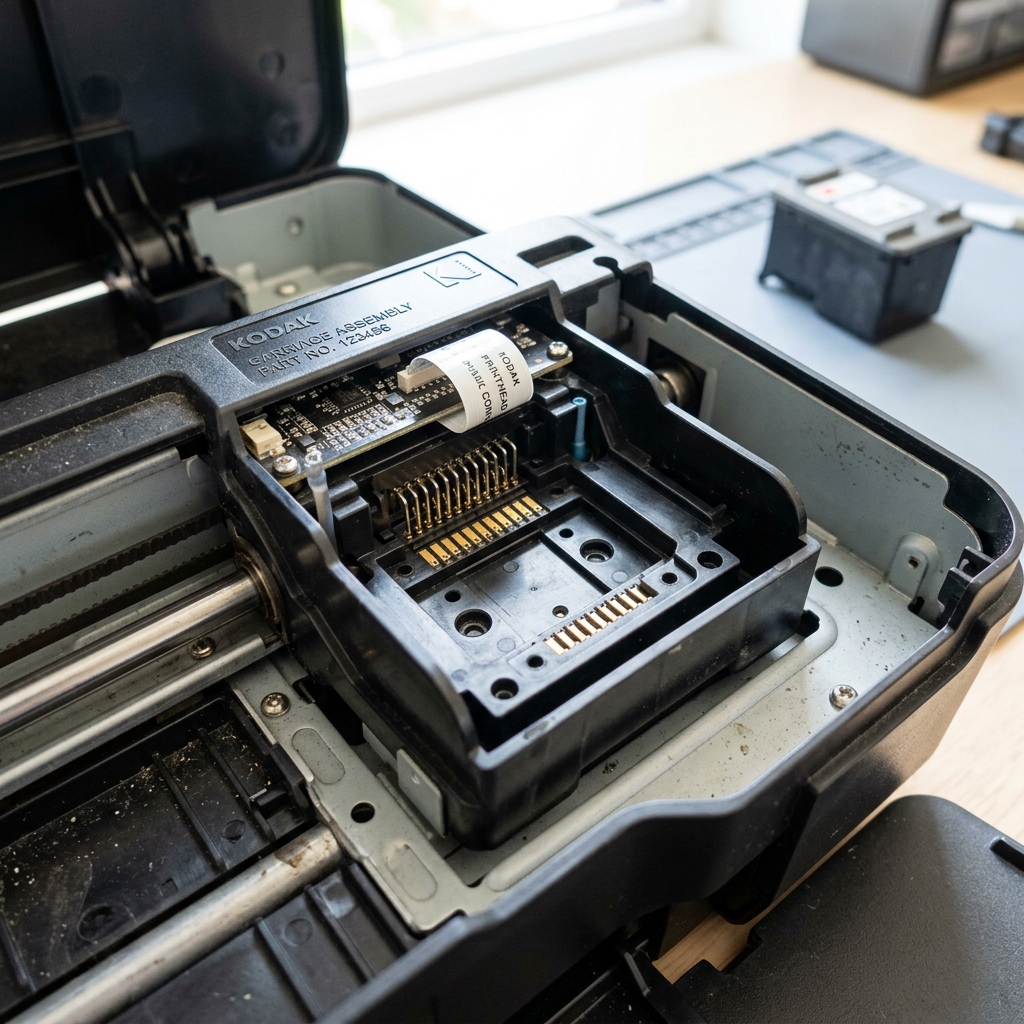
Kodak printer error code 105-3513 is one of the most common error messages on legacy ESP and Hero all-in-one models. It is a printhead registration fault, meaning the printer’s firmware cannot detect the printhead unit or detects that it has come loose from its carriage.
Fortunately, this is usually a physical seating issue rather than a component failure, and it can often be cleared in a few minutes without tools.
What Error 105-3513 Actually Means
The printhead is the carriage component that houses the ink cartridges and contains the delicate nozzles that spray ink onto the paper. It connects to the printer via a row of gold-plated copper contacts on the back.
Error 105-3513 triggers when these contacts lose connection, which can happen due to micro-vibrations over years of printing, a slight ink spill coating the contacts, or because the printhead latch wasn't fully snapped down after a cartridge swap.
Sub-Code Diagnostic Matrix
| Internal Sub-Code | Specific Meaning | Primary Suspect |
|---|---|---|
| 105-3513 | Printhead not detected / Missing | Unlatched carriage or dirty copper contacts |
| 105-3515 | Printhead registration failure | Misaligned printhead latch |
| 105-4001 | Printhead circuit short | Liquid ink on contacts or hardware failure |
Fix 1: Reseat the Printhead (The Snap Test)
The most common cause of error 105-3513 is a printhead that has slightly shifted out of alignment. The mechanical design requires a very firm latching action. To reseat it:
For Kodak ESP Series
Features a central plastic latch. Lift it up to unlock the printhead. When reinstalling, you must push the printhead block straight back until you hear it snap, then flip the latch down firmly.
For Kodak Hero Series
Features a push-button release on the top-left carriage corner. Press the button, lift the printhead block up, and when reinserting, push down on the targets until a loud metallic click occurs.
- Open the printer access door and wait for the carriage to glide to the center.
- Remove both the black and color ink cartridges and set them aside face-up.
- Unlock the printhead using the latch or push-button.
- Lift the printhead block straight out of the printer carriage.
- Reinstall the printhead: lower it back into the carriage slot, and push firmly against the target label on the printhead until you hear a loud, distinct snap. If you do not hear it snap, it is not fully seated.
- Click the ink cartridges back into place and close the printer door.
Fix 2: Clean the Electrical Contacts
If reseating does not clear the code, microscopic dust or ink mist may be blocking the electrical connection.
- Remove the printhead again following the steps in Fix 1.
- Locate the gold contact pins on the back of the printhead, and the matching contacts inside the carriage assembly.
- Using a dry, lint-free microfiber cloth, gently wipe the gold contacts to remove any residue. Do not use water, alcohol, or abrasive cleaners, as these can permanently damage the copper traces.
- Reinstall the printhead, ensuring the snap sound occurs, reinsert the inks, and close the cover.
Fix 3: Power Reset the Printer
If the error persists, clear the printer's temporary cache memory to force it to re-detect the hardware.
- With the printer turned on, pull the power cord directly out of the back of the machine.
- Unplug the power adapter /error-codes-alerts/dymo-labelwriter-550-not-printing-power-adapter" title="Fix DYMO LabelWriter 550 Not Printing (RFID & Power Adapter)">power adapter from the wall outlet.
- Wait a full 60 seconds to allow the internal capacitors to discharge completely.
- Plug the power cord back into the wall (avoid surge protectors for this test) and reconnect it to the printer. Turn the printer on.
When to Call a Professional
If you have reseated the printhead multiple times, cleaned the contacts, and performed a hard reset, but error 105-3513 refuses to clear, the printhead's internal circuitry has likely failed. Because Kodak has discontinued its inkjet printer lines, replacement parts are scarce.
Weigh the cost of a refurbished printhead from third-party sellers against upgrading to a modern printer before purchasing a replacement.
