


The Quick Answer
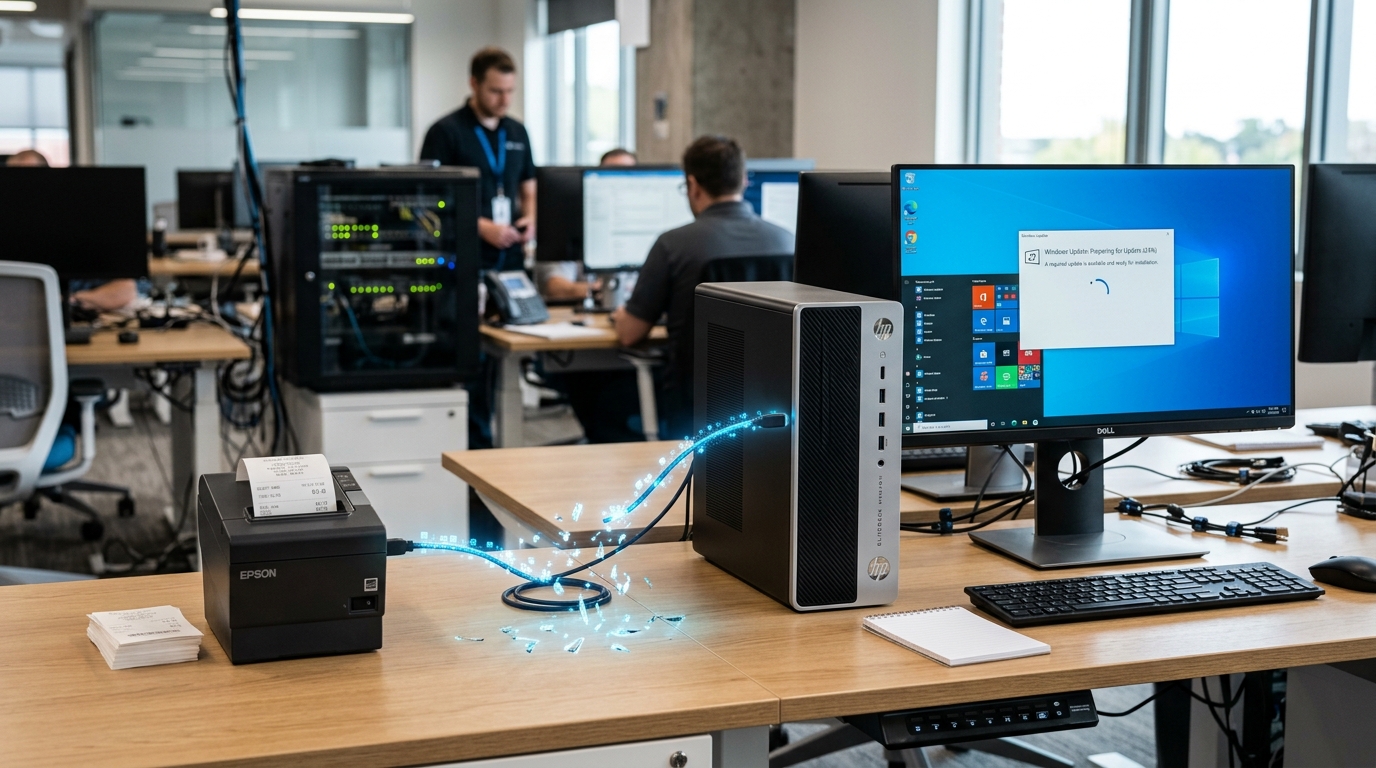
Windows updates frequently cause receipt printers to go offline by silently replacing drivers or resetting spooler services. Here is how to diagnose and fix the specific problem Windows created.
Windows updates are one of the leading causes of Bixolon printers suddenly failing without any user action. In the majority of cases, the actual printer is fine — Windows has replaced or disabled a component that was previously working, and things fall over.
The fix depends on what specifically Windows did. Here's how to figure that out and undo it.
The Big Picture
Windows updates can break printer functionality in four distinct ways:
- Replacing a working driver with a newer, incompatible one (through Windows Update's driver auto-install)
- Disabling or resetting the Print Spooler service as part of security patches
- Changing default printer selections so print jobs go to the wrong device
- Introducing bugs in Windows itself that Bixolon's driver hasn't been updated to handle yet
Different symptoms point to different causes.
First Step: Identify the Update That Broke Things
Before undoing anything, know what actually changed. Open Settings → Windows Update → Update history. Look at what was installed in the days immediately before the printer stopped working.
Note down the KB numbers (Knowledge Base identifiers like KB5005565) of any updates installed in that window. This gives you a specific target rather than blindly rolling back all recent changes.
Fix 1: Reinstall the Bixolon Driver
The most common cause is Windows silently replacing your Bixolon driver with a generic Windows driver or a "newer" version that isn't fully compatible. Even if the printer still shows up in Devices and Printers, the underlying driver may not be your original Bixolon one anymore.
Fix:
- Open Devices and Printers and right-click your Bixolon printer
- Select Printer properties → Advanced tab
- Check what driver is currently selected — if it's anything generic, Windows swapped it
- Uninstall the current driverf="/dascom/connectivity-issues/dascom-pos-printer-offline-esc-pos-driver" title="Fix Dascom POS Printer Offline (Driver & Network Setup)">driver package via Settings → Apps
- Restart Windows
- Download and install the allation/dymo-labelwriter-4xl-5xl-setup-driver-guide" title="DYMO LabelWriter 4XL & 5XL Driver Download & Setup">Download and install the current Bixolon driver for your model
- Reconnect the printer and confirm the correct driver is now assigned
Fix 2: Restart the Print Spooler Service
Some security updates reset the Print Spooler service to a paused, stopped, or misconfigured state. The printer looks fine at the physical level but no jobs actually process.
Fix:
- Press Winde>Win + R, type
services.msc, press Enter - Find Print Spooler in the o/error-codes-alerts/dymo-printer-error-printing-message-not-printing" title="Fix DYMO 'Error Printing' Message (Windows 11 / 10)">Print Spooler in the list
- Right-click it and select Restart
- Verify its startup type is set to Automatic
If the spooler won't start (returns an error when you try to restart), a corruption issue may need deeper repair — running sfc /scannow from an elevated Command Prompt can help.
Fix 3: Clear the Print Queue
An interrupted print job during a Windows update can leave a stuck job in the queue that blocks all subsequent jobs. Clearing it:
- Stop the Print Spooler /error-codes-alerts/dymo-printer-error-printing-message-not-printing" title="Fix DYMO 'Error Printing' Message (Windows 11 / 10)">Print Spooler service (Services → Print Spooler → Stop)
- Open File Explorer and navigate to
C:\Windows\System32\spool\PRINTERS - Delete every file in that folder
- Restart the Print Spooler /error-codes-alerts/dymo-printer-error-printing-message-not-printing" title="Fix DYMO 'Error Printing' Message (Windows 11 / 10)">Print Spooler service
This forces the queue back to a clean state.
Fix 4: Roll Back the Problematic Update
If a specific update coincides with the failure and reinstalling the driver doesn't help, rolling back the update is a legitimate option:
- Open Settings → Windows Update → Update history
- Click Uninstall updates
- Select the update matching your identified KB number
- Confirm uninstall
Windows will remove the update and require a restart to complete. Once removed, verify the printer works again.
Historical example worth knowing: Windows update KB5005565 caused shared printer failures across many setups, requiring the update to be uninstalled while waiting for a compatible driver fix. This kind of specific-update problem happens occasionally with Microsoft's updates and is exactly why identifying the specific update matters.
Fix 5: Pause Windows Updates While You Investigate
If you're not ready to make changes but want to stop things from getting worse, pause Windows updates temporarily:
- Settings → Windows Update → Pause updates
- Choose a pause duration (usually up to a few weeks)
This prevents additional updates from installing while you work through the printer issue, and gives Bixolon time to release driver updates if the issue is on their side.
Fix 6: Disable Automatic Driver Updates
If Windows keeps replacing your correct Bixolon driver with a generic one after every update cycle, disable automatic driver updates:
On Windows 11 Pro (via Group Policy):
- Open Group Policy Editor (
gpedit.msc) - Navigate to Computer Configuration → Administrative Templates → Windows Components → Windows Update
- Enable Do not include drivers with Windows Updates
On Windows 11 Home: the setting can be adjusted via registry, but requires careful editing. Most users find it simpler to just watch for driver changes and manually reinstall as needed.
Fix 7: Change Default Printer After an Update
Sometimes Windows updates change the default printer to a different device (often the Microsoft PDF printer or a recently-added virtual printer), leaving your Bixolon set to inactive by default. This makes it look like your printer stopped working when actually your print jobs are being redirected elsewhere.
- Open Settings → Bluetooth & devices → Printers & scanners
- Turn OFF Let Windows manage my default printer
- Manually set your Bixolon printeron/error-codes-alerts/bixolon-printer-flashing-red-light" title="Bixolon Printer Flashing Red Light: What It Means & How to Fix It">Bixolon printer as the default
Symptom-Specific Guidance
Different failure modes after an update point to different causes:
- Nothing prints, but printer appears normal. Usually a driver replacement or print queue block. Try Fixes 1 and 3.
- Printer shows as offline in Windows. Usually a spooler state issue. Try Fix 2 first.
- Prints garbled or wrong formatting. Almost certainly a driver replacement. Fix 1 addresses this.
- Print jobs disappear silently. Default printer changed. Fix 7.
- Printer icon disappeared entirely. Update removed the driver entry. Try Fix 1 to reinstall.
- Everything worked, then post-restart it stopped. Windows applied a pending update during restart. Check Update History for what was installed.
Prevention Going Forward
If Windows updates keep breaking your printer setup, a few preventive measures reduce the recurrence:
- Pause updates during critical business periods (holiday retail rushes, month-end for restaurants) so you're not troubleshooting during peak hours
- Test updates on a non-critical machine first if you have multiple identical setups
- Keep the current Bixolon driver installer downloaded and accessible so you can quickly reinstall when needed
- Document your working driver version so you know exactly what to reinstall
- Consider disabling automatic driver updates if you've been burned more than once
What Not to Do
- Don't rush to uninstall multiple updates simultaneously. Test one at a time so you know which is the culprit.
- Don't disable Windows Update entirely. Security patches matter; controlled deferral is better than blanket disable.
- Don't blame Bixolon for a Windows-caused issue. Their support can help troubleshoot but they can't fix Microsoft's updates.
- Don't reinstall Windows to fix a printer problem. Very rarely necessary and creates far bigger problems than the one you're solving.
