


The Quick Answer
Fixing Bixolon printer integration with Toast POS: solutions for garbled kitchen tickets, missing menu items, un-popped cash drawers, and static IP issues.
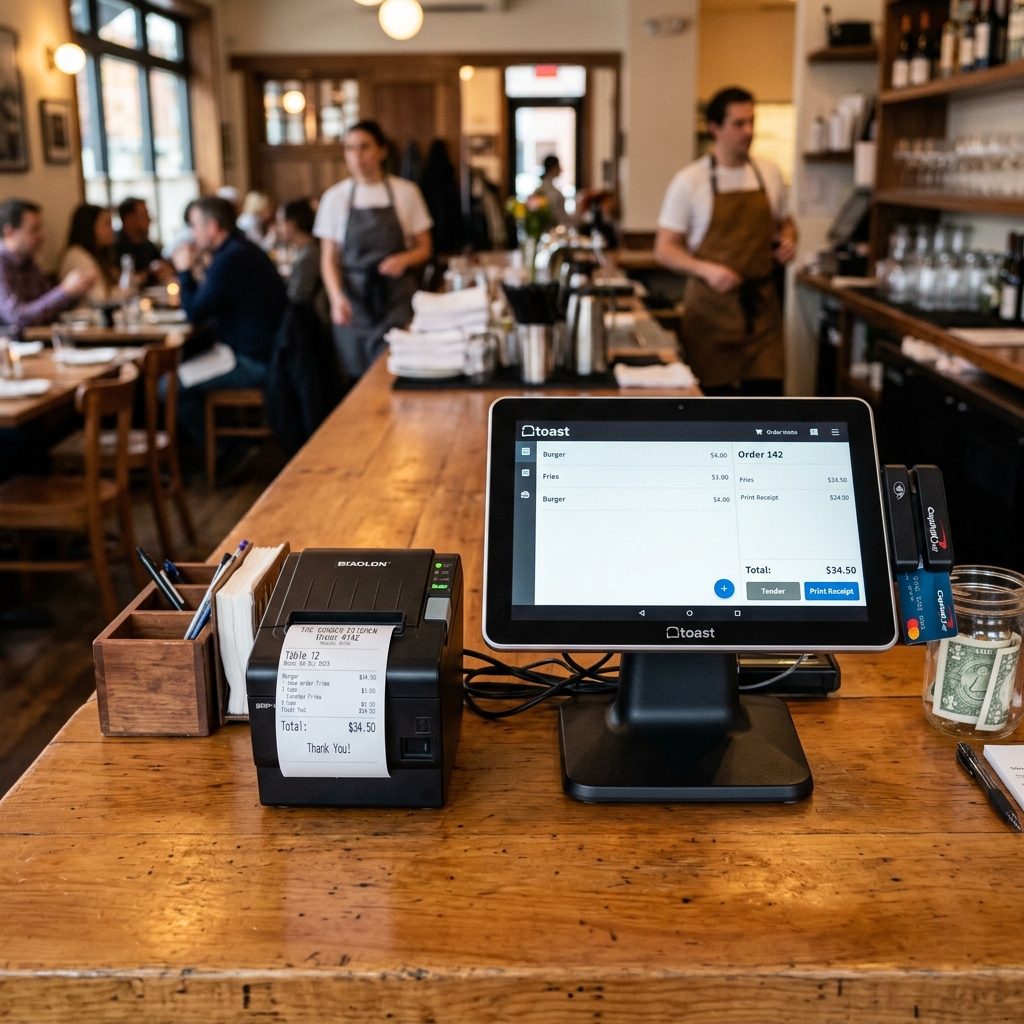
Toast is one of the leading restaurant POS platforms, and Bixolonprinters — particularly kitchen printers like the SRP-275III. Receipt printers like the SRP-350III — are common choices for restaurants running Toast.
Getting them working together is usually straightforward. A few Toast-specific setup steps and known error patterns come up more often than others.
Here's how to set them up correctly, plus fixes for the most common failure modes.
Verify Compatibility First
Toast publishes a compatible hardware list on their support portal. Before troubleshooting, confirm your specific Bixolon model is on it.
Toast is generally more restrictive than some POS platforms about supported hardware — using an unsupported model can work at a basic level via generic ESC/POS support, but you'll lose Toast-specific features (kitchen display integration, order routing intelligence, receipt customization) that make the platform valuable in the first place.
Common Bixolon models used with Toast:
- SRP-350III — receipt printer
- SRP-275III / SRP-275IIIG — impact printer for kitchen use
- SRP-Q300 — receipt printer for compact setups
- Various other SRP-series models depending on Toast's current compatibility list
If your model isn't listed, contact Toast support before proceeding — they can confirm whether generic ESC/POS support is workable for your use case.
Setup Basics
Toast printer setup typically follows this general flow:
- Connect the printer physically — usually Ethernet for a fixed printer at a restaurant station
- Configure the printer's network settings — assign a static IP address (this is essential for reliable operation, not optional)
- In Toast's back-of-house settings, add the printer to the restaurant's printer settings
- Assign printer roles — receipt, kitchen printer for a specific station (line, expo, bar), or specialty printer
- Route menu items to the correct printer — Toast's menu settings lets you assign each item to print at specific printer locations
- Test end-to-end with real order flows before going live
The Static IP Requirement
Toast printer setups depend on stable IP addresses more than almost any other POS integration. If your printer's IP changes — from a router restart, DHCP lease renewal, or network settings change — the printer will silently stop receiving jobs, often mid-shift.
Fix this before it becomes a problem:
Either assign a static IP directly on the printer through its settings utility, or reserve the IP via DHCP reservation on your router. DHCP reservation is generally cleaner because it keeps all network settings in one place.
Static IP set on the printer itself is more portable if you move printers between networks.
Do this before your first busy service — recovering from mid-rush printer failure is significantly harder than preventing it.
Common Toast-Specific Errors
Order Not Printing at Kitchen Station
Cause 1: Menu item not routed to the kitchen printer. Toast requires each menu item to be explicitly assigned to print at specific printer stations. If you added a new item and it isn't reaching the kitchen, check its routing settings.
Cause 2: Kitchen printer assigned to the wrong station. Toast's settings lets you have multiple). Verify each is assigned to the correct station and the correct items are routing there.
Cause 3: Printer offline in Toast. Check Toast's printer status view — the platform shows current status for each configured printer. If it says offline, the printer may be network-unreachable, powered off, or holding a stuck job.
Receipt Prints But Kitchen Ticket Doesn't
This usually means one of two things:
Only the receipt printer is configured, not the kitchen printer. Some Toast settingss start with just the receipt printer and require adding the kitchen printer separately. Check your printer list in Toast's back office.
Kitchen printer is powered on and connected but not properly configured. Verify the kitchen printer's IP is entered correctly in Toast's config, and that it's assigned the "kitchen printer" role rather than "receipt printer."
Garbled Output on Kitchen Printer
The SRP-275III (a common Toast kitchen printer choice) supports multiple emulation modes. If it's set to standard receipt emulation (BXL/POS) when Toast is sending kitchen printer commands (which typically expect BXL/POS-KP emulation), output can look garbled or incomplete.
Fix: confirm the SRP-275III is set to BXL/POS-KP kitchen printer emulation mode. Consult your specific model's manual for how to switch modes.
Cash Drawer Doesn't Pop
Toast can trigger a connected cash drawer through the receipt printer. If it's not working:
- Confirm the drawer is connected to the printer's DK (drawer kick) port, not somewhere else
- Confirm the drawer meets the printer's required specification (usually a specific resistance range for the solenoid)
- In Toast's settings, verify the cash drawer is enabled for the receipt printer
- The drawer only opens on transactions that specifically trigger it — cash-only transactions typically pop the drawer, card transactions may not by default
Printer Suddenly Went Offline During Service
Almost always one of:
- IP address changed after a router restart (fix: static IP)
- Cable came unplugged (fix: check physical connections)
- Printer overheating and paused itself (fix: give it 5-10 minutes to cool)
- Paper ran out and printer stopped (fix: reload paper)
- Toast's Kitchen Display Screen (KDS) cache is stale (fix: refresh Toast on the affected device)
Kitchen Display Screen (KDS) vs Kitchen Printer
Toast supports both KDS-based kitchen operations and traditional kitchen printers. Some restaurants mix and match. If you're configured for KDS but expecting kitchen printer output, or vice versa:
- Verify each menu category is set to route to the correct destination (KDS device or physical printer)
- If migrating from kitchen printers to KDS (or the other way), the routing config for every menu item needs to be updated, not just the printer/KDS list
Testing and Verification
After any printer settings change in Toast:
- Trigger a test print from Toast's admin interface to confirm the printer is receiving jobs
- Ring a test order with a variety of menu items to verify routing rules are working
- Test at every station — server terminal, host station, kitchen KDS/printer, bar
- Verify receipt customization — check that your restaurant's logo, footer text, and formatting appear correctly
Do this testing during a slow period, not during a busy service. A settings issue you catch during setup takes minutes to fix; one you discover during a rush takes hours.
Multiple Locations
For restaurants with multiple Toast locations sharing menu settings:
- Each location has its own printer settings — printers at Location A aren't automatically available at Location B
- Menu items configured to print at specific stations need station assignments per location
- firmware (internal software) updates and printer replacements need to be tracked per location
Keep a per-location printer inventory including IP addresses and role assignments. This documentation is invaluable when troubleshooting or when someone new needs to make changes.
Network Infrastructure Recommendations
For restaurants running Toast + Bixolon printers reliably:
- Wired Ethernet everywhere possible. Wi-Fi is significantly less reliable for POS printer traffic than a wired connection.
- Dedicated VLAN for POS equipment on managed networks. Isolates POS traffic from guest Wi-Fi and other unrelated network activity.
- UPS protection for all POS equipment, including printers. Restaurant service loses more revenue to power blips than most operators realize.
- Business-class router with DHCP reservation support, not a consumer router that may reboot or reset settings unexpectedly.
- Static IPs documented and consistent — if you have to replace a printer, the replacement getting the same IP means less resettings.
Escalation Path
When troubleshooting reaches a wall:
- For Toast settings issues — menu routing, station assignments, cash drawer integration — contact Toast support with specific screenshots of your settings and the error you're seeing
- For printer hardware issues — self-test failures, connectivity problems that persist across multiple network setups, physical faults — contact Bixolon support
- For issues where both parties point at each other — get both on the same call. This happens occasionally, and having both vendors coordinating directly usually identifies the root cause faster than bouncing between them
