


The Quick Answer
Does your Bixolon printer show a blinking power light but refuse to turn on? Learn how to diagnose power supply, battery, and firmware issues step-by-step.
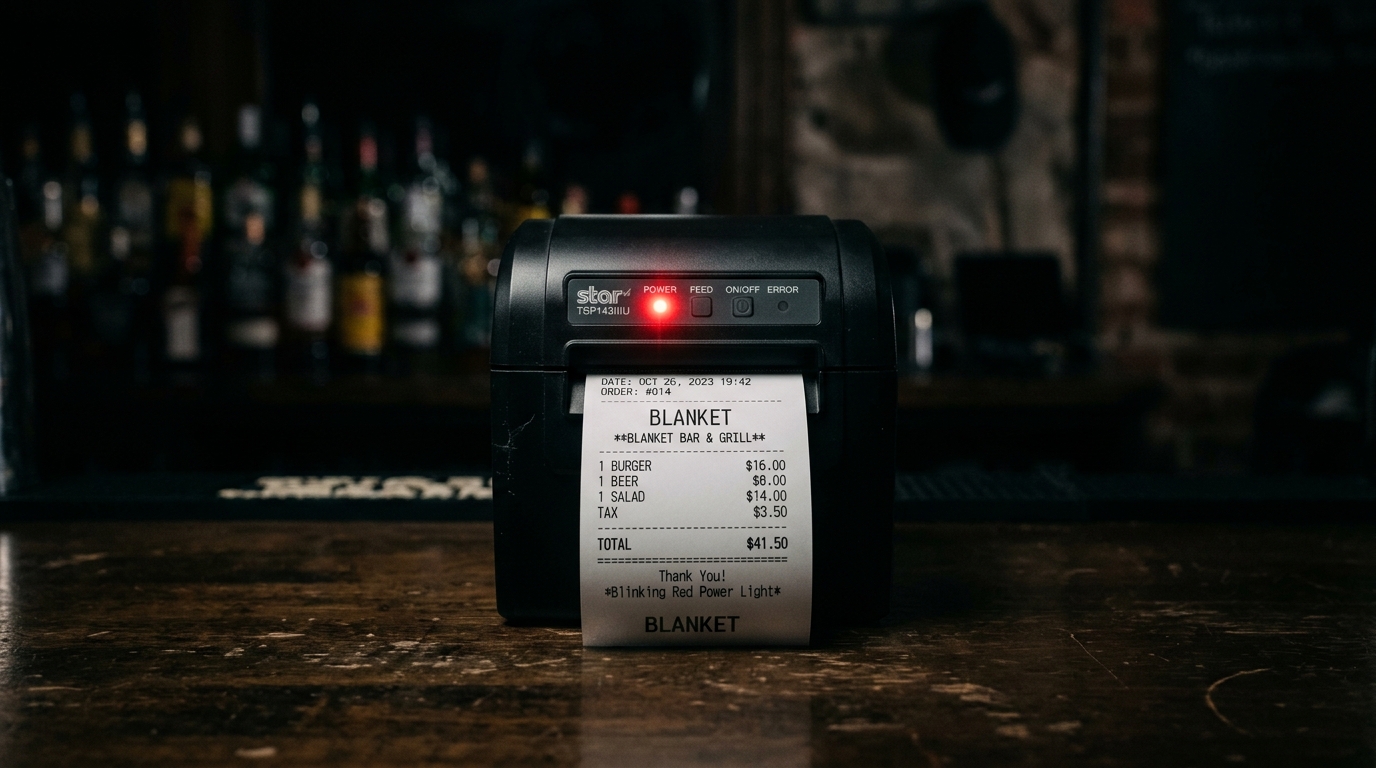
If your Bixolon printer shows a blinking power light but won't actually complete its power-on sequence — nothing prints, buttons don't respond, the printer never reaches its normal ready state — you're seeing a specific pattern that usually points to one of a handful of causes. The blinking light means the printer is getting some power, but not enough or not consistently enough to boot fully.
Here's how to diagnose which cause you have, and how to fix it.
Step 1: Check the Adapter LED First
Before anything else on the printer itself, look at the power adapter (the brick between the wall outlet and the printer). Most Bixolon adapters have their own indicator LED.
- Adapter LED off → the adapter isn't receiving power, or the adapter itself has failed. Skip to Section A below.
- Adapter LED on and stable → the adapter is providing power; the issue is downstream. Skip to Section B.
- Adapter LED blinking or unstable → the adapter is receiving power but not delivering it reliably. This is often a failing adapter. Skip to Section A.
Bixolon's manuals across models are consistent: check the adapter LED first. If it's off, connect adapter power correctly. That single check resolves a surprising share of "printer won't turn on" tickets.
Section A: Power Supply Issues
Verify the Outlet Works
Plug something else into the same outlet — a lamp, phone charger, anything — to confirm the outlet itself is delivering power. Faulty outlets, tripped circuit breakers, and switched outlets (controlled by a wall switch that got flipped) are common overlooked causes.
Check the Adapter Connection at Both Ends
- Wall side: is the adapter fully seated in the outlet, not partially unplugged?
- Printer side: is the DC plug fully inserted into the printer's power port? Loose or dislodged DC connectors are more common than most people expect, especially on printers that get bumped or moved.
Test the Adapter Itself
If the adapter LED is off despite a working outlet and firm connections, the adapter has likely failed. Contact Bixolon support for a replacement.
Important: don't substitute a third-party adapter as a temporary fix. Bixolon's manuals are explicit that only the provided power supply should be used — voltage or current mismatches from generic adapters can damage the printer, and on mobile models with batteries, can create genuine safety risks (fire, combustion).
Check the Power Cable (Not Just the Adapter)
The cable between the adapter and the printer, and the cable between the wall and the adapter, are separate potential failure points. Try swapping either or both if you have compatible spares.
Section B: Adapter Works, But Printer Still Won't Boot
If the adapter LED confirms the adapter is delivering power, but the printer's power light is blinking without actually booting up, one of these is usually the cause:
Battery Issues (Mobile Printers Only)
On SPP-series mobile printers, a critically low or failed battery can cause exactly this symptom — enough power to blink the LED, not enough to actually boot the printer.
- Confirm the battery is fully seated with a distinct snap
- Try running the printer while plugged into the charger (some models can operate on adapter power alone with the battery removed or drained)
- If the printer boots while charging but not on battery alone, the battery needs replacement
- If the printer won't boot even while charging, either the adapter is wrong or there's a deeper hardware fault
Firmware Corruption
Occasionally — mostly after an interrupted firmware update — the printer's firmware can be left in a state where it partially loads but doesn't complete boot. This produces exactly the blinking-light-but-won't-fully-power-on symptom.
Signs of firmware corruption:
- Started immediately after a firmware update attempt
- The blinking pattern seems more elaborate or different than normal boot
- The printer occasionally beeps in unusual patterns during the blink
Fix: contact Bixolon support. Firmware corruption recovery usually requires specialized utility software and/or service intervention, not a user-fixable procedure.
Internal Hardware Fault
If none of the above applies — the adapter is confirmed working, the battery (if applicable) is confirmed fine, the connections are all firm — you may be looking at an internal hardware fault. Signs include:
- Unusual smell (burnt electronics)
- Warmth or heat from the printer even when it's not fully powered on
- Any visible discoloration around vents or component openings
Any of these signals mean stop troubleshooting and contact support. Continued attempts to power on a printer with these signs can worsen the damage.
Step 2: The Longer Power Cycle
Sometimes a blinking-power state is a stuck condition that a longer-than-normal power interruption clears. This is worth trying before deeper diagnosis:
- Unplug the printer completely from the wall.
- On mobile models, remove the battery if you can.
- Wait a full 5 minutes — much longer than a normal power cycle. This gives internal capacitors time to fully discharge.
- Reconnect power and attempt to boot.
This resolves a specific class of stuck-boot conditions that shorter power cycles miss. It's worth trying before assuming hardware failure.
Step 3: Try Different Ambient Conditions
Extreme temperatures can affect boot behavior:
- Very cold environments — the printer's internal components may not initialize correctly from cold-soak. Let the printer sit indoors at room temperature for 30 minutes before attempting to boot.
- Very hot environments — thermal protection can prevent full boot if the printer thinks it will overheat immediately. Move to a cooler location and try again.
The Boot-Blink Confusion (Not Actually a Fault)
Some Bixolon models — especially the SRP-Q300H/302H variants — deliberately blink error and paper indicators during the boot sequence as normal behavior. This can look like a "won't turn on" symptom to someone unfamiliar with the model.
For the Q300H/302H specifically: press the Power button, then wait until the Error indicator and Paper indicator both stop blinking. This blinking during boot is expected, not an error. If they never stop blinking after 30+ seconds, then you have a real issue.
Consult your specific model's manual to confirm what normal boot behavior looks like — some blinking may not be a problem at all.
What to Try Before Contacting Support
Work through this order:
- Verify adapter LED is on/bixolon/error-codes-alerts/bixolon-printer-blinking-light-meaning" title="Bixolon Printer Blinking Light Meaning: Full LED Code Chart">LED is on
- Try a different outlet
- Firmly reseat both power connections
- Attempt the 5-minute full-drain power cycle
- On mobile models, try booting with the battery removed and running from adapter only
- Move to a temperate room if ambient conditions might be extreme
- Confirm no recent firmware /polaroid/drivers-software-firmware/polaroid-hi-print-firmware-update-factory-reset-guide" title="Polaroid Hi-Print Firmware Update & Factory Reset Guide">firmware update was interrupted
If all seven fail, that's when to contact Bixolon support with confidence that you've ruled out user-fixable causes.
Frequently Asked Questions
Why does my printer's power light blink but nothing else happens? The printer is receiving power but can't complete boot. Most common causes: adapter partially failing, wrong adapter being used, battery critically low (mobile models), or firmware corruption.
Can I use my phone charger or a generic USB power adapter with a Bixolon printer? No. Bixolon's documentation is explicit: only the provided adapter should be used. Wrong-voltage adapters can damage the printer or, on mobile models with batteries, create serious safety risks.
How long should the "5-minute full drain" power cycle actually take? 5 minutes with everything unplugged (and battery removed if possible) is a rough minimum. Longer doesn't hurt. This is not a normal 10-second power cycle — internal capacitors need time to fully discharge.
My printer used to work — could a Windows update or driver install have caused this? Very rarely for this specific symptom.
Windows updates typically cause "printer won't print" or "not recognized" issues, not "printer won't boot." A blinking power light that won't complete boot is almost always hardware/power related, not software.
Quick Checklist
- Adapter LED confirmed on and stable
- Outlet confirmed working with a different device
- Both ends of adapter connection firmly seated
- Different outlet tried to rule out circuit issues
- Only the original Bixolon adapter is in use
- 5-minute full-drain power cycle attempted
- Battery status checked and reseated (mobile models)
- Recent firmware update history considered
- Ambient temperature confirmed normal
- Model-specific boot behavior confirmed as actual issue (not normal boot)
A blinking power light with no boot is almost always a power supply or battery issue rather than a broken printer. The adapter itself is usually the culprit — either failing, disconnected, or the wrong one.
Work through the connection and power-supply checks methodically, and this symptom typically resolves without any service intervention at all.
