


The Quick Answer
HP LaserJetM15w fuser error explained by a repair tech: what the warning light means. 5 fixes, and the surge protector mistake nobody suspects.
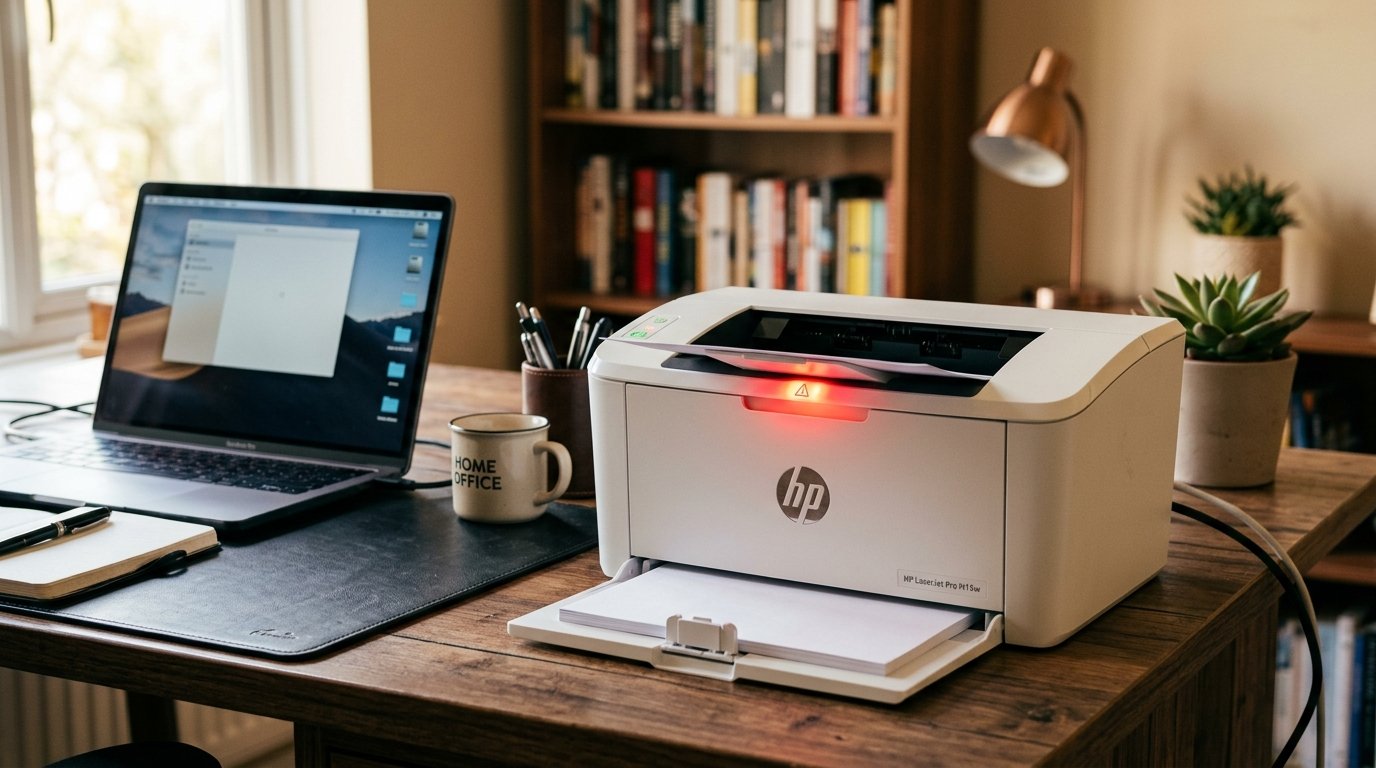
Your M15w doesn't have a screen, so it can't spell out "fuser error" the way a bigger office LaserJet would. What it gives you instead is a blinking attention light, paper that comes out warm.
Smudged or crinkled, or a printer that stalls mid-job with no explanation beyond a flashing symbol.HP LaserJetM15w fuser error, you're reading the right symptoms correctly — this compact printer just speaks. In light patterns instead of numbers.
The fuseris the part that actually fixes toner permanently onto paper using heat. Pressure, and when it's struggling, the printer notices before you do. Here's the fix order I use on this printer family. Ending with a cause that catches more people than anything mechanical inside the machine.
Quick-Fix Summary
Fast version:
- Let it cool, then power cycle — the most common fix by a wide margin.
- Check for paper stuck near the output, where the fuser rollers live.
- Plug directly into the wall — no surge protector, no power strip. My uncommon tip, and it's a bigger deal than it sounds.
- Reseat the toner cartridge fully.
- Give it a genuine rest if it's been printing heavy volume.
What's Actually Happening Inside
Every laser printer, the M15w included, pushes each page through a pair of heated rollers after the toner image is laid down. That's the fuser: heat plus pressure, melting toner powder into the paper fibers permanently instead.
Of leaving it as loose powder that would smear at a touch. When the fuser can't reach or hold the right temperature fast enough.
The printer protects itself by stopping and flashing a warning rather than producing a page with toner that never properly bonded.
Why this matters: most fuser trouble isn't really about a broken part. It's about the fuser not getting what it needs — usually clean power. Adequate warm-up time, or a clear path — to do its job. Chase those first before assuming the worst.
Fix 1: The Cool-Down Power Cycle
Turn the printer off at the power button.fuser runs hot, and a printer that's been mid-job when it errors needs time to cool before a restart means anything. Then power back on and try a small print job.
Why this works: a fuser that briefly overheated or hit a temporary sensor hiccup often just needs the chance to reset its internal temperature reading from a cool, stable baseline. This single step resolves a large share of fuser warnings on printers this size.
And it costs you nothing but patience.
Fix 2: Check for a Hidden Jam Near the Output
Open the rear access panel if your M15w has one. And look closely at the paper path right around where pages exit — this is exactly where the fuserrollers sit. A torn corner or a thin scrap can lodge here without being obvious from the front of the printer.
Why this works: debris sitting against a hot fuser roller doesn't just block paper — it can register as a temperature or motion anomaly to the printer's sensors, triggering a fuser-related warning even though the fuser itself is fine. Clearing the path removes both the physical obstruction and the false signal it was sending.
Fix 3: Plug Directly Into the Wall (My Uncommon Tip)
Here's the fix that surprises people most,. It sounds like it shouldn't matter — and it's the one I check first on anylaser printer throwing fuser-related warnings, regardless of brand.
Is your M15w plugged into a surge protector, a power strip, or an uninterruptible power supply (UPS)?directly to a wall outlet instead.
Why this works:a fuser draws a genuinely large, sudden burst of current the instant it starts heating. Up — noticeably more than almost anything else in your home office pulls in a single instant.
Surge protectors and especially UPS units are built to regulate and smooth power flow. And that smoothing can inadvertently choke the sharp current spike a fuser needs to warm up fast enough.warning, even though the fuser itself is completely healthy — it just never got the power it asked for.
I've watched printers "cured" of persistent fuser errors by nothing more than moving the plug six inches to a different outlet. And it remains the single most underrated fix in this entire troubleshooting category.
Fix 4: Reseat the Toner Cartridge
Power off, open the front cover, remove the toner cartridge. And firmly reinstall it — you should feel and often hear it click into its seated position. Gently rock it to confirm it's not sitting at a slight angle.
Why this works: a cartridge that isn't fully seated can interfere with the printer's internal sensorsin ways that mimic a fuser problem, since several of the printer's internal checks run in sequence. An earlier failed check can cascade into a warning that looks fuser-related on the surface.
It's a thirty-second elimination step before you assume anything more serious.
Fix 5: Respect the Duty Cycle
If the error shows up specifically during long print runs, give the printer real rest. Between large jobs — this compact model is built for light-to-moderate home office volume, not marathon runs of hundreds of pages back to back.
Why this works: small laser printers like the M15w have a correspondingly small fuser assembly, sized for their expected workload. Pushing sustained high volume through it means sustained high heat with less time to stabilize.
And that's exactly the condition that triggers protective warnings — the printer isn't malfunctioning, it's declining to overheat itself on your behalf.
When to Call a Professional
If you've power-cycled with a cool-down period, cleared any debris near the output. Connected directly to a wall outlet, reseated the toner cartridge, and paced your print volume — and thewarningstill returns on light, ordinary print jobs — the fuser assembly itself may be wearing out.
Have a genuine internal fault. Contact HP support with your printer's serial number; check whether it's still under warranty first.
Since the M15w is a relatively affordable unit and a straightforward warranty replacement is often faster and cheaper than a component-level repair. Out of warranty, price a replacement printer against any repair quote — on a printer this size.
Replacement is very often the more sensible call.
FAQ
How do I know if my HP LaserJet M15w has a fuser error if there's no screen?
Watch for a blinking attention light combined with paper that comes out smudged, wrinkled, or not properly bonded, or a printer that halts mid-job. Without a display, the M15w communicates through light patterns and print symptoms rather than a text error message.
Why would plugging into a surge protector cause a fuser error?
The fuser draws a large, sudden current spike when it starts heating. Some surge protectors and UPS units smooth or limit that spike, effectively starving the fuser. Of the fast power delivery it needs — and the printer reads the slow warm-up as a fault.
Is a fuser error always a sign the fuser is failing?
No — on a printer this size, it's more often a power delivery issue. A brief overheat needing a cool-down, or a hidden paper scrap near the output than an actual failing part.
How much printing is too much for the M15w before fuser warnings start?
There's no fixed number, but this is a compact home-office printer. Not built for sustained hundred-plus page runs back to back. If warnings cluster around your longest jobs, break them into smaller batches with rest in between.
An HP LaserJetPro M15w fuser error almost always traces back to power. Patience, or a hidden scrap of paper — not a dying fuser.
Let it cool and restart, check the output path. And above all, plug it straight into the wall instead of a surge protector or UPS.
That last step alone resolves more of these warnings than anything mechanical you could check inside the printer.
Additional Resources
If you are still experiencing issues after trying the steps above, you may need to consult the official documentation or download the latest firmware (internal software) for your specific printer model.
